windows 7 and xp dual boot problems

pehrsonc

New member
Local time
12:50 AM
Messages
27
Location
marietta, ga
I have windows 7 64bit pre-installed and want to have a dual boot system with xp. I have read the tutorials, followed the instructions to shrink space in the C and now i have the unallocated space, but how do i rename the space when i don't have that option in right clicking. do i create new simple volume so it appears in the list of drives above? I think this is where i am getting confused. also how do i know if my cd/dvd drive will boot first? I have gone into my system setup and made sure (I think)that my cd/dvd drive boots first. but nothing happens. how do i know i have the dvd drive to boot first? I have the usb cdrom to boot first. is that correct?
thanks for any help
 

My Computer

Computer Manufacturer/Model Number
acer aspire 5534-1096
OS
windows 7 home premium 64 bit
Memory
amd anthon x2 dual core processor l310 4gb
Hard Drives
250hdd
I have windows 7 64bit pre-installed and want to have a dual boot system with xp. I have read the tutorials, followed the instructions to shrink space in the C and now i have the unallocated space, but how do i rename the space when i don't have that option in right clicking. do i create new simple volume so it appears in the list of drives above? I think this is where i am getting confused. also how do i know if my cd/dvd drive will boot first? I have gone into my system setup and made sure (I think)that my cd/dvd drive boots first. but nothing happens. how do i know i have the dvd drive to boot first? I have the usb cdrom to boot first. is that correct?
thanks for any help
Yes,create a new simple volume.
No,it should be just CD-ROM,not USB CD ROM
Please download Partition Wizard as i know it best
Free Download Partition Wizard
Get the home edition and the boot disc,kepp the boot disc for later,comes in handy.

Open PW
Click on the Unallocated Space that you made by Shrinking the partition.
Right Click and click Create>make it Primary and NTFS
Once its done,right click again and make Active.
Now your partition is created.

Then go to your BIOS and go to the Boot Order
Put CD-ROM as 1 and Hard drive as 2

Any more questions just ask
 

My Computer

Computer Manufacturer/Model Number
Blue Shards 1.0
OS
Windows 7 Ultimate 64bit
CPU
AMD Phenom II 555 Black Edition Quad Core OC'd to 4.0GHz
Motherboard
ASUS M4A88T-M
Memory
G Skill RipJaw 1333MHz 4GB
Graphics Card(s)
ATI raideon 4250 HD/XFX ATI Radeon 1GB HD4650
Sound Card
Realteck HD Audio
Monitor(s) Displays
2x 22" Widescreen HD Monitors
Hard Drives
500GB Sata 7500RPM
80GB IDE
PSU
850W OCUK Modular
Case
Antec Dark Fleet DF-30
Cooling
Titan Fenrir Pro (CPU)
Keyboard
Logitech Wireless
Mouse
Logitech Wireless
Internet Speed
24Meg
Other Info
Getting soon-
2TB 7200RPM HDD
+8GB RAM
30GB SSD
HD6950/70
minotaur,
i tried your suggestion, and it worked up to a certain point. i downloaded partition wizard and when i went to create it was greyed out so i skipped that part and went to mark it active and primary. when i restart windows boots it never gives me the option of which drive i want to install xp on. it just starts with windows setup and then stops with an error message stop 0x0000007b. then when i powered back on it tells me there is no boot manager so i had to reinstall from my recovery disks. what is going on.
 

My Computer

Computer Manufacturer/Model Number
acer aspire 5534-1096
OS
windows 7 home premium 64 bit
Memory
amd anthon x2 dual core processor l310 4gb
Hard Drives
250hdd
The error message means that XP installer needs the more modern HD controller for your mobo, inserted at the F6 prompt in the beginning when it is loading drivers. However, it requires a floppy drive (XP=old) so if you don't have one, the driver needs to be slipstreamed in.

There is a possibility the SATA controller can be set to run in another mode in BIOS setup so that XP will have it's driver.

You needed to mark Win7 active again to start it back up. We could have helped you do that using Partition Wizard bootable CD, or Diskpart commands from Win7 DVD. I hope you had your files backed up.

Can you post back a screenshot of your full Disk Management drive map so we can see where you are?

Use Snipping Tool in Start menu, attach file using paper clip in reply box.
 
Last edited:
The error message means that XP installer needs the more modern HD controller for your mobo, inserted at the F6 prompt in the beginning when it is loading drivers. However, it requires a floppy drive (XP=old) so if you don't have one, the driver needs to be slipstreamed in.

There is a possibility the SATA controller can be set to run in another mode in BIOS setup so that XP will have it's driver.

You needed to mark Win7 active again to start it back up. We could have helped you do that using Partition Wizard bootable CD, or Diskpart commands from Win7 DVD. I hope you had your files backed up.

Can you post back a screenshot of your full Disk Management drive map so we can see where you are?

Use Snipping Tool in Start menu, attach file using paper clip in reply box.
I was actually going to throw out an old IDE floppy drive i had lying around a few months ago but decided to keep it a while longer until XP is completely abolished:)

I must read up on the diskpart commands,if the user doesnt have PW boot disc and Start up repair fails i usally have to rely on other users.

minotaur,
i tried your suggestion, and it worked up to a certain point. i downloaded partition wizard and when i went to create it was greyed out so i skipped that part and went to mark it active and primary. when i restart windows boots it never gives me the option of which drive i want to install xp on. it just starts with windows setup and then stops with an error message stop 0x0000007b. then when i powered back on it tells me there is no boot manager so i had to reinstall from my recovery disks. what is going on.
It was greyed out becasue the partition was already made (formated),i cannot think of another wa of making it unable to create a new volume.
 

My Computer

Computer Manufacturer/Model Number
Blue Shards 1.0
OS
Windows 7 Ultimate 64bit
CPU
AMD Phenom II 555 Black Edition Quad Core OC'd to 4.0GHz
Motherboard
ASUS M4A88T-M
Memory
G Skill RipJaw 1333MHz 4GB
Graphics Card(s)
ATI raideon 4250 HD/XFX ATI Radeon 1GB HD4650
Sound Card
Realteck HD Audio
Monitor(s) Displays
2x 22" Widescreen HD Monitors
Hard Drives
500GB Sata 7500RPM
80GB IDE
PSU
850W OCUK Modular
Case
Antec Dark Fleet DF-30
Cooling
Titan Fenrir Pro (CPU)
Keyboard
Logitech Wireless
Mouse
Logitech Wireless
Internet Speed
24Meg
Other Info
Getting soon-
2TB 7200RPM HDD
+8GB RAM
30GB SSD
HD6950/70
And he wants to have unallocated space when booting the XP CD to install, creating New partition and formatting from the CD as XP's partition table is slightly different.

To mark a partition active/inactive using Diskpart Commands, run from the Win7 DVD Repair console Command Line:

DISKPART
LIST DISK
SELECT DISK # (# is Win7 HD)
LIST PARTITION
SELECT PARTITION # (# is Win7)
ACTIVE
EXIT

Can also be used to mark a partition Inactive
 
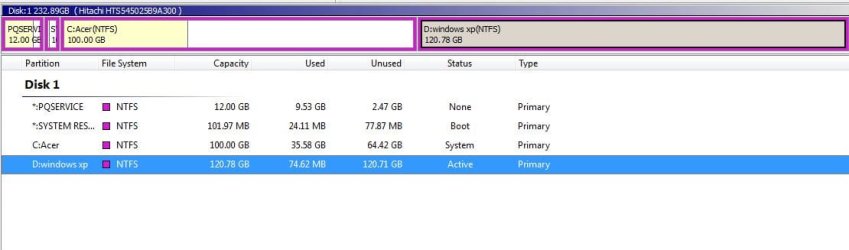
here is a capture from partition wizard. i haven't applied the settings yet just to make sure it is done correctly. thanks for all your help
 

Attachments

  • Capture.JPG
    Capture.JPG
    40.9 KB · Views: 33

My Computer

Computer Manufacturer/Model Number
acer aspire 5534-1096
OS
windows 7 home premium 64 bit
Memory
amd anthon x2 dual core processor l310 4gb
Hard Drives
250hdd
The XP partition does not need to be active. Only one partition should be active, and it may be the Win 7 partition since it is showing as system, although it is normally the System Reserved partition.

Actually the readout does not make sense. Or maybe this readout uses different status names from Windows.

--------------------------
I installed Partition Wizard so I could check the status names:
"System" in Win7 = "Active & boot" in PW
"Boot" in Win 7 = "System" in PW

If this is correct, it appears your System Reserved partition needs to indicate "Active & boot" but does not appear to be active, which it needs to be to boot.
 
Last edited:

My Computer

Computer Manufacturer/Model Number
Homebuilt
OS
Windows 7 x64
CPU
i7-2600K
Motherboard
Asus P8Z77-v Pro
Memory
8 G
Graphics Card(s)
GTX 480
Sound Card
Onboard
Monitor(s) Displays
LG W2753V
Screen Resolution
1920x1080
Hard Drives
Crucial M4 128 G SSD
Boot Partition Wizard bootable CD to rightclick XP partition>Modify>Set Inactive, OK. Now rightclick Win7 partition>Modify>Set to Active, OK, Apply.

Now boot into Win7 DVD, select Repair on second screen, click through to Recovery tools to run Startup Repair up to 3 separate times to start Win7.

If this fails, reboot into Partition Wizard, right click Win7 partition, Modify>Set Inactive, then right click System Reserved partition to Modify>Set Active, apply all steps.

Now boot back into Win7 DVD to run Startup Repair 3 times to start Win7.

Once Win7 starts, use PW to delete the formatting for XP, boot XP CD and create a new partiiton there to format before install.
 
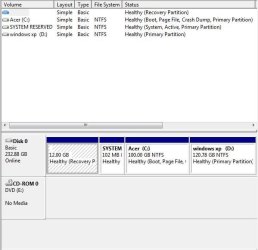
here is a new capture of my disk management. i created the partition in PW with the bootable disk. i then made sure my dvd was set to boot first and then loaded my xp disk. same thing happened as before. i don't get the option of which drive to install to. thanks again
 

Attachments

  • Capture3.JPG
    Capture3.JPG
    41.9 KB · Views: 13

My Computer

Computer Manufacturer/Model Number
acer aspire 5534-1096
OS
windows 7 home premium 64 bit
Memory
amd anthon x2 dual core processor l310 4gb
Hard Drives
250hdd
here is a new capture of my disk management. i created the partition in PW with the bootable disk. i then made sure my dvd was set to boot first and then loaded my xp disk. same thing happened as before. i don't get the option of which drive to install to. thanks again
So you deleted the XP partition in partition wizard (leaving unallocated space),then booted the xp disc and selected 4 (if i remember correctly is Volume D ) when XP asks you where to install,then click yes to format (quick) and then install?
 

My Computer

Computer Manufacturer/Model Number
Blue Shards 1.0
OS
Windows 7 Ultimate 64bit
CPU
AMD Phenom II 555 Black Edition Quad Core OC'd to 4.0GHz
Motherboard
ASUS M4A88T-M
Memory
G Skill RipJaw 1333MHz 4GB
Graphics Card(s)
ATI raideon 4250 HD/XFX ATI Radeon 1GB HD4650
Sound Card
Realteck HD Audio
Monitor(s) Displays
2x 22" Widescreen HD Monitors
Hard Drives
500GB Sata 7500RPM
80GB IDE
PSU
850W OCUK Modular
Case
Antec Dark Fleet DF-30
Cooling
Titan Fenrir Pro (CPU)
Keyboard
Logitech Wireless
Mouse
Logitech Wireless
Internet Speed
24Meg
Other Info
Getting soon-
2TB 7200RPM HDD
+8GB RAM
30GB SSD
HD6950/70
It is not clear to me what you have done.

You seem to have marked the 100mb partition active again - not what Greg suggested - but it's ok the way you have done it.

How recent is your XP install disk? Does it include SP2 , or , preferably, SP3 ?

Early versions only recognised HD's up to certain size.

Also, SATA drivers are needed by XP - which I believe was mentioned earlier.
 

My Computers

System One System Two

  • Computer type
    PC/Desktop
    OS
    7 X64
    CPU
    i5 8400
    Motherboard
    gigabyte b365m ds3h
    Memory
    2x8gb 3200mhz
    Hard Drives
    various
    PSU
    pure power 11 400w cm
    Case
    Coolermaster
    Cooling
    cryorig m9i
  • Computer type
    PC/Desktop
    OS
    7x64
    CPU
    g5400
    Motherboard
    ga b365m ds3h
    Memory
    8gb ddr4 2400
    PSU
    xfx pro 450w
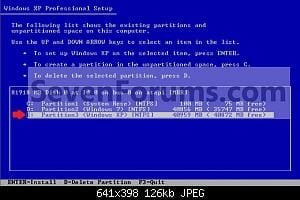
Is your HD showing at this screen?
 

Attachments

  • W7-XP-6.jpg
    W7-XP-6.jpg
    12.6 KB · Views: 124

My Computer

OS
ME/XP/Vista/Win7
If NO, load your SATA controllers drivers at this screen.
 

Attachments

  • setup1.jpg
    setup1.jpg
    5.6 KB · Views: 11

My Computer

OS
ME/XP/Vista/Win7
Last edited:
Something that might be important in this situation.

First, restoring the boot was important so I felt making the Reserve partition active was the easiest way to do that. But....

My tests, and no other corroboration, shows installing XP on the same drive with Win 7, which has the System Reserved Partition, may result in an error keeping XP from installing, normally during the first reboot. Removing the System Reserved Partition should allow for a normal install.

Hopefully it was my mistake causing the error, but if it happens, do not make repeated attempts to install.

This is not associated with the possible drive problem.
 

My Computer

Computer Manufacturer/Model Number
Homebuilt
OS
Windows 7 x64
CPU
i7-2600K
Motherboard
Asus P8Z77-v Pro
Memory
8 G
Graphics Card(s)
GTX 480
Sound Card
Onboard
Monitor(s) Displays
LG W2753V
Screen Resolution
1920x1080
Hard Drives
Crucial M4 128 G SSD
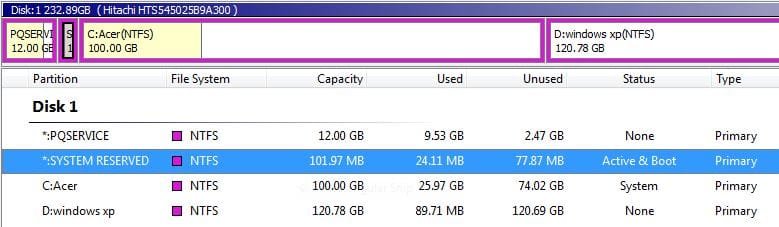
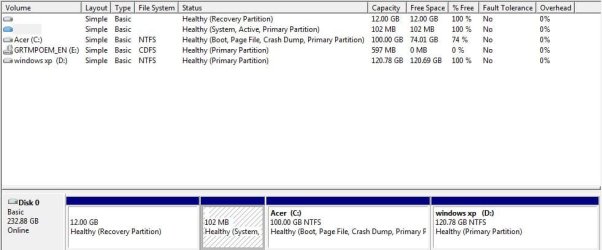
I definitely think it has something to do with the SATA driver (or lack of). I am installing xp pro sp2. As theog suggested, I hit F6 during setup and got the message "could not find floppy to load OEM drivers" I am going to try what Saltgrass is suggesting. I am going to include captures from disk management and partition wizard. I want to make sure I am going to delete the right partition according to Saltgrass. (system reserved) I also went to download nLite page as gregrocker suggested but all are for sp3. which one do I download. Thanks for the help...I am a newbie to all this.
 

Attachments

  • Capture4.JPG
    Capture4.JPG
    36.4 KB · Views: 3
  • Capture5.JPG
    Capture5.JPG
    51.5 KB · Views: 2

My Computer

Computer Manufacturer/Model Number
acer aspire 5534-1096
OS
windows 7 home premium 64 bit
Memory
amd anthon x2 dual core processor l310 4gb
Hard Drives
250hdd
I definitely think it has something to do with the SATA driver (or lack of). I am installing xp pro sp2. As theog suggested, I hit F6 during setup and got the message "could not find floppy to load OEM drivers"

Have you put your SATA drivers on floppy?
 

My Computer

OS
ME/XP/Vista/Win7
i don't have a floppy drive:(
 

My Computer

Computer Manufacturer/Model Number
acer aspire 5534-1096
OS
windows 7 home premium 64 bit
Memory
amd anthon x2 dual core processor l310 4gb
Hard Drives
250hdd
Back
Top