Windows 7 - Backup Problems

thyde9337

New member
Member
Local time
9:02 PM
Messages
12
We have two desktop computers which use Windows 7, (a) an Acer Aspire and (b) a Dell Studio XPS, their system details are given below. I have had several problems when trying to backup these computers, as follows:

(A) Using Windows backup I get the following error message - “The last backup did not complete successfully” The further information states that there was insufficient storage to create the shadow copy storage file or other shadow copy data. This is incorrect - the backup external hard disk has 819.13 Gb free whilst the C: drive has only 79 Gb of data and programs to backup. I use the default settings chosen by Windows to decide what items to backup. How can I ensure that the system backs up correctly?

System details: Acer Aspire, 3 Gb memory, 500 Gb hard disk (2 partitions), Toshiba Ext. Hard Drive 1Tb

(B) Windows can backup the C: drive for this computer but it took about 7/8 hours yesterday. The amount of data backed up was about 73 Gb and there are three other backup copies of the data in the backup folder , a total of about 401 Gb. The system image backup occupies 482 Gb. The backup is made to a Toshiba external hard disk which also holds copies of other folders and has a free space of 207 Gb. Please can someone explain why the backup process takes such a long time?

System details: Dell Studio XPS, 6 Gb memory, 1.15Tb hard disk, Toshiba 1.36 Gb external hard disk..
 
Last edited:

My Computer

Computer Manufacturer/Model Number
Dell Studio XPS 8100
OS
Windows 7 Home Premium
CPU
3.2 Ghz Intel Core i5 650
Motherboard
Dell Inc. 0T568R A00
Memory
6.0 GB
Graphics Card(s)
NVIDIA GEForce GTS 240
Monitor(s) Displays
Samsung SyncMaster HMDS906868
Hard Drives
C: 1.15 TB (int),
Toshiba 1.36 TB (ext),
Iomega 1.00GB (ext),
Iomega 500GB (ext)
Internet Speed
Download 20MB/sec
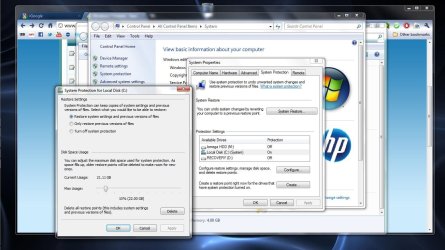
It sounds like system protection may be turned off or set too small on the disk you are backing up to take a shadow copy. Right click on Computer and select Properties then System Protection.

Capture.JPG
 

My Computer

Computer type
Laptop
Computer Manufacturer/Model Number
Hewlett-Packard/G62-107SA Notebook
OS
Microsoft Windows 7 Home Premium 64-bit Service Pack 1
CPU
Intel(R) Core(TM) i3 CPU M 330 @ 2.13GHz
Motherboard
Hewlett-Packard 1425
Memory
8 GB DDR3
Graphics Card(s)
Intel(R) HD Graphics
Sound Card
Realtek High Definition Audio
Monitor(s) Displays
Builtin
Screen Resolution
1366 x 768 x 32 bits (4294967296 colors) @ 60 Hz
Hard Drives
250 GB SATA Hard Disk Drive 7200 rpm
2TB Seagate GoFlex USB 2 Drive
1TB Iomega Prestige USB 2 Drive
1.5TB Iomega Prestige USB 2 Drive (Samsung)
2TB WD MyBook Live NAS.
Mouse
Logitech Anywhere MX
Internet Speed
152 Mbs download 10 Mbs upload
Antivirus
Norton 360
Browser
Chrome
Thank you Kado for your reply. I tried your suggestion on the Acer computer but without any success. The protection is switched on but I still get the same error message when I try to run Backup. It does not surprise me because I did not understand what I was doing and the messages on the screen did not seem to have any significance for my problem. The only item I understood was "Create a Restore Point", which I have used on XP computers, I ran this but I do not know whether the restore point referred to the C: drive or the backup disk.
Do you have any more ideas?
thyde9337
 

My Computer

Computer Manufacturer/Model Number
Dell Studio XPS 8100
OS
Windows 7 Home Premium
CPU
3.2 Ghz Intel Core i5 650
Motherboard
Dell Inc. 0T568R A00
Memory
6.0 GB
Graphics Card(s)
NVIDIA GEForce GTS 240
Monitor(s) Displays
Samsung SyncMaster HMDS906868
Hard Drives
C: 1.15 TB (int),
Toshiba 1.36 TB (ext),
Iomega 1.00GB (ext),
Iomega 500GB (ext)
Internet Speed
Download 20MB/sec
No I'm sorry. If you have System Protection turned on and have allocated it sufficient space to make at least one restore point I don't understand what the message is saying.

Although I do use Windows Backup I also use Macrium because I don't altogether trust it and it can behave strangely on occasion.
 

My Computer

Computer type
Laptop
Computer Manufacturer/Model Number
Hewlett-Packard/G62-107SA Notebook
OS
Microsoft Windows 7 Home Premium 64-bit Service Pack 1
CPU
Intel(R) Core(TM) i3 CPU M 330 @ 2.13GHz
Motherboard
Hewlett-Packard 1425
Memory
8 GB DDR3
Graphics Card(s)
Intel(R) HD Graphics
Sound Card
Realtek High Definition Audio
Monitor(s) Displays
Builtin
Screen Resolution
1366 x 768 x 32 bits (4294967296 colors) @ 60 Hz
Hard Drives
250 GB SATA Hard Disk Drive 7200 rpm
2TB Seagate GoFlex USB 2 Drive
1TB Iomega Prestige USB 2 Drive
1.5TB Iomega Prestige USB 2 Drive (Samsung)
2TB WD MyBook Live NAS.
Mouse
Logitech Anywhere MX
Internet Speed
152 Mbs download 10 Mbs upload
Antivirus
Norton 360
Browser
Chrome
Also how much space is left on the C drive. I have no idea how the built in backup program functions but if it first creates a Shadow Copy of the data on the drive you are backing up and there isn't enough space on that drive for the shadow copy to work then it would seem to me the cause of that error.

Look at any other backup/imaging program.
 

My Computer

Computer Manufacturer/Model Number
Built be Me
OS
Windows 7 Pro x64
CPU
i5 760
Motherboard
Asus P7P55D-E Pro
Memory
16GB
Graphics Card(s)
Nvidia GTS450
Sound Card
On board
Monitor(s) Displays
Dell 2007WFP Dell 1800FP
Screen Resolution
1680x1050 1280x1024
Hard Drives
Seagate 250GB & 750GB
WD 1TB
PSU
Antec 750
Case
In Win
Cooling
Cooler Master Hyper 212+
Keyboard
IBM
Mouse
MS
Also how much space is left on the C drive. I have no idea how the built in backup program functions but if it first creates a Shadow Copy of the data on the drive you are backing up and there isn't enough space on that drive for the shadow copy to work then it would seem to me the cause of that error.

Look at any other backup/imaging program.

That was the point I was trying to make. If not enough space is allocated for one shadow copy in System Protection the backup will not work as it uses the shadow copy as a snapshot to allow changes to be made to the file system during the backup.
 

My Computer

Computer type
Laptop
Computer Manufacturer/Model Number
Hewlett-Packard/G62-107SA Notebook
OS
Microsoft Windows 7 Home Premium 64-bit Service Pack 1
CPU
Intel(R) Core(TM) i3 CPU M 330 @ 2.13GHz
Motherboard
Hewlett-Packard 1425
Memory
8 GB DDR3
Graphics Card(s)
Intel(R) HD Graphics
Sound Card
Realtek High Definition Audio
Monitor(s) Displays
Builtin
Screen Resolution
1366 x 768 x 32 bits (4294967296 colors) @ 60 Hz
Hard Drives
250 GB SATA Hard Disk Drive 7200 rpm
2TB Seagate GoFlex USB 2 Drive
1TB Iomega Prestige USB 2 Drive
1.5TB Iomega Prestige USB 2 Drive (Samsung)
2TB WD MyBook Live NAS.
Mouse
Logitech Anywhere MX
Internet Speed
152 Mbs download 10 Mbs upload
Antivirus
Norton 360
Browser
Chrome
I read up a little on the first issue. A lot of people have solved this problem by expanding the system reserved partition which is normally only 100 mb. Try using partition wizard or Easeus to expand the system reserved to say 400 mb (by shrinking C: drive), then retry the backup.

Also make sure the services volume shadow copy and virtual disk are started.
 

My Computer

Computer Manufacturer/Model Number
Too many to describe...
OS
Windows 7 x64 pro/ Windows 7 x86 Pro/ XP SP3 x86
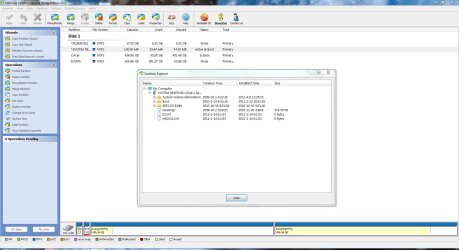
Using Windows Disk Management or Partition Wizard you can check the free space for the 100MB partition. If free space is 50MB or more then the problem probably lies elsewhere. The example here shows > 50MB free space.
If the free space is < 50MB then the partition Explore will show what's taking up the extra space. Look out for USN journal files which can be cleaned out.
PW100MB.JPG
 

My Computer

Computer type
PC/Desktop
Computer Manufacturer/Model Number
Own build
OS
Windows 7x64 Home Premium SP1
CPU
Intel i7 2600k
Motherboard
ASUS P8Z68 Deluxe
Memory
G.Skill Ripjaws (DDR3-1600) 2x4GB
Graphics Card(s)
Nvidia GeForce GTS 450; Intel HD Graphics 3000(GT2+)
Monitor(s) Displays
Dell Ultrasharp IPS panel U2311H, Samsung SyncMaster P2350
Screen Resolution
1920x1080
Hard Drives
Samsung 850 Pro SSD 256GB, Samsung SSD 840 120GB, Seagates 1TB Barracuda ST31000528AS x2
PSU
Seasonic M12II 520W
Case
Lian Li Lancool PC-K60
Cooling
Case: 1x120mm, 3x140mm CPU: Hyper 212+
Keyboard
Logitech MK520 (wireless)
Mouse
Logitech MK520
Internet Speed
6-7 Mbps
Antivirus
Norton Security Premium, Malwarebytes on 2 (MSE on 3rd PC)
Browser
FireFox
Other Info
Audio: Logitech Z523 2.1
Thank you for the various replies, I will need more time to try the various suggestions for alternative backup programs, here are some preliminary comments.

To kado897: Protection is turned on and the restore setting is 10% but I have no idea how much space is actually required although I presume that Windows 7 compresses the files before storage. If you were referring to the System Reserved partition, the computer has allocated the standard space of 100 Mb and this has 38 Mb free. This I discovered using Computer Management/Disk Management process. If I right click on the box labelled System Reserved there are a number of options but the Extend Volume option is blanked out so I am unable to increase the space. (Is there a quick way to open Computer Management? - I could not find an option in Control Panel and I discovered it accidentally using Help & Support.)

To Shootist. The amount of free space on the C: drive of the Acer computer is about 144 Gb out of a total of 224 Gb. Incidentally, the hard disk on the Acer is divided into two equal partitions, the other partition, labelled Data, is not used and all program data resides with the programs on the C: drive. I am also looking at methods of merging the partitions or, at least, transferring some spare disk space to the C: drive.

To Bill2 and mjf. Please see response to kado897.

thyde9337
 
Last edited:

My Computer

Computer Manufacturer/Model Number
Dell Studio XPS 8100
OS
Windows 7 Home Premium
CPU
3.2 Ghz Intel Core i5 650
Motherboard
Dell Inc. 0T568R A00
Memory
6.0 GB
Graphics Card(s)
NVIDIA GEForce GTS 240
Monitor(s) Displays
Samsung SyncMaster HMDS906868
Hard Drives
C: 1.15 TB (int),
Toshiba 1.36 TB (ext),
Iomega 1.00GB (ext),
Iomega 500GB (ext)
Internet Speed
Download 20MB/sec
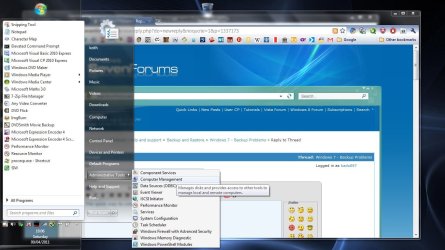
The quick way to computer management.
Capture.JPG
 

My Computer

Computer type
Laptop
Computer Manufacturer/Model Number
Hewlett-Packard/G62-107SA Notebook
OS
Microsoft Windows 7 Home Premium 64-bit Service Pack 1
CPU
Intel(R) Core(TM) i3 CPU M 330 @ 2.13GHz
Motherboard
Hewlett-Packard 1425
Memory
8 GB DDR3
Graphics Card(s)
Intel(R) HD Graphics
Sound Card
Realtek High Definition Audio
Monitor(s) Displays
Builtin
Screen Resolution
1366 x 768 x 32 bits (4294967296 colors) @ 60 Hz
Hard Drives
250 GB SATA Hard Disk Drive 7200 rpm
2TB Seagate GoFlex USB 2 Drive
1TB Iomega Prestige USB 2 Drive
1.5TB Iomega Prestige USB 2 Drive (Samsung)
2TB WD MyBook Live NAS.
Mouse
Logitech Anywhere MX
Internet Speed
152 Mbs download 10 Mbs upload
Antivirus
Norton 360
Browser
Chrome
@thyde9337, did you not read my post? Windows disk management will not let you shrink C: drive thats why I had asked that you use partition wizard or easeus or another 3rd party tool.
 

My Computer

Computer Manufacturer/Model Number
Too many to describe...
OS
Windows 7 x64 pro/ Windows 7 x86 Pro/ XP SP3 x86
Windows uses shadow storage space on the system reserved partition (in this case your 100MB) and the drive you are storing the image on. If the image storage drive hasn't got enough shadow storage allocated then you can have backup problems.

Filling up of the 100MB partition appears to be the main cause of these issues.
Your number one priority is to examine it first using Windows own Disk management. You get to Disk Management through Computer Management. It takes 2 minutes.

If the 100MB partition has more than 50MB unused space then it isn't your problem and you don't need to shrink C:.
 

My Computer

Computer type
PC/Desktop
Computer Manufacturer/Model Number
Own build
OS
Windows 7x64 Home Premium SP1
CPU
Intel i7 2600k
Motherboard
ASUS P8Z68 Deluxe
Memory
G.Skill Ripjaws (DDR3-1600) 2x4GB
Graphics Card(s)
Nvidia GeForce GTS 450; Intel HD Graphics 3000(GT2+)
Monitor(s) Displays
Dell Ultrasharp IPS panel U2311H, Samsung SyncMaster P2350
Screen Resolution
1920x1080
Hard Drives
Samsung 850 Pro SSD 256GB, Samsung SSD 840 120GB, Seagates 1TB Barracuda ST31000528AS x2
PSU
Seasonic M12II 520W
Case
Lian Li Lancool PC-K60
Cooling
Case: 1x120mm, 3x140mm CPU: Hyper 212+
Keyboard
Logitech MK520 (wireless)
Mouse
Logitech MK520
Internet Speed
6-7 Mbps
Antivirus
Norton Security Premium, Malwarebytes on 2 (MSE on 3rd PC)
Browser
FireFox
Other Info
Audio: Logitech Z523 2.1
Back
Top