Solved Windows 7 Dual Boot Can't Access Inactive Partitions C: Drive

JimF

New member
Local time
12:38 PM
Messages
8
I have a laptop that I have created 2 partitions on with a dual-boot configuration, both are Windows 7 Home Edition. Everything worked as desired until the primary partition's registry became corrupted (OK, I screwed it up). After spending a few days trying to fix it, I decided that there wasn't enough on it I wanted to save, so I just re-installed Windows 7 (as a new installation) on the (primary) partition. Everything seemed to work fine until I booted to the secondary partition and attempted to install an application on the C: drive (the application forces the location, so it wasn't by choice). It was then that I realized I have no access to create anything on that partition's C: drive. I have full rights to the primary partition's C: drive, just not the secondary, no matter which partition I boot to. Additionally, when I boot to the primary partition, I can see both, when I boot to the secondary, I don't see the primary. I have scoured the net for a solution and nothing has worked. I can't get access to take ownership, I can't change Security attributes, it is not set to Read-Only, it just comes back with the irritating "Access Denied" message whenever I try to create anything on that partition's C: drive.

Thanks in advance!

- Jim
 

My Computer My Computer

At a glance

Windows 7 Home Premium 32 BitIntel Core Duo 2.40 GHz2 GBNVidia Quadro NVS 140M
Computer Manufacturer/Model Number
Dell Latitude D830
OS
Windows 7 Home Premium 32 Bit
CPU
Intel Core Duo 2.40 GHz
Memory
2 GB
Graphics Card(s)
NVidia Quadro NVS 140M
Screen Resolution
1680X1050
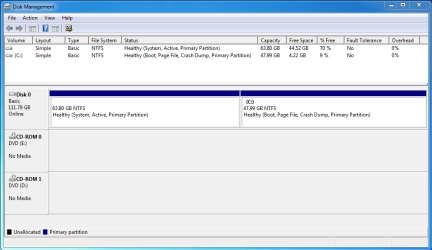
Post a snapshot of Disk Management:
To open Disk Management, press Windows key+r, type diskmgmt.msc and press Enter or click GO. Make it full screen.

Vista and Windows 7: How to Use the Snipping Tool in Vista - Vista Forums (says it's for Vista but also works with Win 7).

Once you have the image saved, click on the Paperclip Icon next to the Smiley Icon. In the Manage Attachments window, click Browse and navigate to where you saved the image and select it.
Click the Upload button.
Close the Manage Attachments window.
Click on the Paperclip Icon again and select the image you uploaded. It will be placed in your post.

Note: Do this from both booted partitions please.
 

My Computer My Computer

At a glance

Windows 10 Pro X64Intel Quad Core i7-4770 @ 3.4Ghz16.0GB PC3-12800 DDR3 SDRAM 1600 MHzIntel Integrated HD Graphics
Computer type
PC/Desktop
Computer Manufacturer/Model Number
Lenovo IdeaCenter 450
OS
Windows 10 Pro X64
CPU
Intel Quad Core i7-4770 @ 3.4Ghz
Memory
16.0GB PC3-12800 DDR3 SDRAM 1600 MHz
Graphics Card(s)
Intel Integrated HD Graphics
Sound Card
Realtek HD Audio
Monitor(s) Displays
HP 22" LCD
Screen Resolution
1680 x 1050
Hard Drives
250GB Samsung EVO SATA-3 SSD
2TB Seagate ST2000DM001 SATA-2
1.5TB Seagate ST3150041AS SATA
Keyboard
Dell USB
Mouse
Lenovo USB
Internet Speed
Cable via Road Runner 3MB Upload, 30MB Download
Antivirus
Windows Defender, MBAM Pro, MBAE
Browser
Seamonkey
Other Info
UEFI/GPT
PLDS DVD-RW DH16AERSH
Did you correctly boot the installer to install Win7? Otherwise both OS"s should show as C when booted into one. If not I would reinstall the incorrectly installed OS.

We can tell more from the Disk Mgmt screenshot Rich requested. It would be good to have it from both OS's.
 
I had thought I had correctly booted the installer, but since things don't work as they did beforehand, obviously something is wrong, why not that? :)

This is my first time posting here, hopefully I followed your instructions properly to upload the snipped pngs of each partitions disk manager display.

Thanks again.

- Jim
 

Attachments

  • W7Primary.PNG
    W7Primary.PNG
    21.3 KB · Views: 24
  • W7Secondary.PNG
    W7Secondary.PNG
    18.9 KB · Views: 15

My Computer My Computer

At a glance

Windows 7 Home Premium 32 BitIntel Core Duo 2.40 GHz2 GBNVidia Quadro NVS 140M
Computer Manufacturer/Model Number
Dell Latitude D830
OS
Windows 7 Home Premium 32 Bit
CPU
Intel Core Duo 2.40 GHz
Memory
2 GB
Graphics Card(s)
NVidia Quadro NVS 140M
Screen Resolution
1680X1050
OK, now when I am booted to the secondary partition, I can see the primary partition.

Unfortunately that still leaves me in the same situation I was in. When I am booted to the secondary partition, I can't create anything in the C: (root) folder. What next?

Thanks again for helping with this.

- Jim
 

My Computer My Computer

At a glance

Windows 7 Home Premium 32 BitIntel Core Duo 2.40 GHz2 GBNVidia Quadro NVS 140M
Computer Manufacturer/Model Number
Dell Latitude D830
OS
Windows 7 Home Premium 32 Bit
CPU
Intel Core Duo 2.40 GHz
Memory
2 GB
Graphics Card(s)
NVidia Quadro NVS 140M
Screen Resolution
1680X1050
May I ask why you have two of the same Win7 versions installed in a Dual Boot. This is almost always unnecessary and wastes focus from having one perfect install following the Best Practices layed out in Clean Reinstall - Factory OEM Windows 7 which are the same for retail. Hence you complain in one post of having the original install go corrupt, and now the secondary can't install to the root - what exactly are you trying to install there anyway?

Run SFC -SCANNOW Command to check System files, create another Admin level account to see if that solves it. But first I'd make sure I come close to using only the tools and methods which assure a permanently perfect install.
 
Yes, I do have a reason for having 2 installs on one laptop which I don't want to layout here, but I appreciate the concern, and yes, they are both retail and legal with their own legally purchased license. I know the configuration can work since it was working perfectly before the reinstall. What I am trying to install on the secondary partition is a program that forces the install folder as C:. Unfortunately I don't have the source or the ability to change the install folder for it.

A sidenote is if you know of a good application that tracks everything that changes (files, registry entries, etc) during an install, a second (not as preferred) option would be to install the program I want on the primary partition, copy it to the seconadry making all the needed associated changes.

I have run SFC - SCANNOW without error.

Is there anything else that I can try?

Thanks again.

- Jim
 

My Computer My Computer

At a glance

Windows 7 Home Premium 32 BitIntel Core Duo 2.40 GHz2 GBNVidia Quadro NVS 140M
Computer Manufacturer/Model Number
Dell Latitude D830
OS
Windows 7 Home Premium 32 Bit
CPU
Intel Core Duo 2.40 GHz
Memory
2 GB
Graphics Card(s)
NVidia Quadro NVS 140M
Screen Resolution
1680X1050
Jim, what's the problem with installing the program to C? This is the reason for correctly installing from boot, so that Win7 always sees itself as C when booted. You have done this, so just let the programs install to C as intended. They should be on the OS partition anyway since by writing registry keys they integrate themselves into it until uninstalled.
 
I wish it was as easy as you make it sound. It was this easy prior to the re-install. As I stated in the initial post, I have NO write access to the C: drive when I boot to the secondary partition, which is where I am trying to do the install. So the install bombs as soon as it tries to write to it.

- Jim
 

My Computer My Computer

At a glance

Windows 7 Home Premium 32 BitIntel Core Duo 2.40 GHz2 GBNVidia Quadro NVS 140M
Computer Manufacturer/Model Number
Dell Latitude D830
OS
Windows 7 Home Premium 32 Bit
CPU
Intel Core Duo 2.40 GHz
Memory
2 GB
Graphics Card(s)
NVidia Quadro NVS 140M
Screen Resolution
1680X1050
Is this only the case with the installer which restricts the installation to C? These types of installers still exist and are one reason why it's best to do a booted install to C. I would just let it install to the same partition as it's written to do.
 
OK, at this point I believe I may have lost you or at least we are not talking apples to apples. The problem plain and simple is I no longer have write access to the root folder of the secondary partition. Before the re-install, it worked fine. I re-installed Windows 7 on the PRIMARY partition only, and left the secondary partition alone, yet for some reason now I have no write access to the root folder of the SECONDARY partition from anywhere on my laptop, go figure.

I try to manually create a folder in the root folder from either the primary OR secondary partition - "Access Denied". I try to create a folder in another folder anywhere on my laptop (which I can still do), and then copy it to the root folder on the secondary partition - "Access Denied". I attempt to change Security on that folder from either the primary or secondary partition and the options are grayed out. The secondary partition's root folder seems to be totally write protected, and I don't know why?

Where you may have gotten confused is where I asked about installing to the primary partition's root folder (I have complete access to it) and copying to the secondary partition. This question was probably amiss anyway in that I couldn't copy the folder to the root folder of the secondary partition anyway. I would have to try to run it from the secondary partition when booted to it, and attempt to create needed registry entries - well this is a bad idea no matter how I look at it.

The whole problem is that I need access to the root folder of the secondary partition which seems to have become write-protected after I re-installed Windows 7 on the primary partition.

Thanks again.

- Jim
 

My Computer My Computer

At a glance

Windows 7 Home Premium 32 BitIntel Core Duo 2.40 GHz2 GBNVidia Quadro NVS 140M
Computer Manufacturer/Model Number
Dell Latitude D830
OS
Windows 7 Home Premium 32 Bit
CPU
Intel Core Duo 2.40 GHz
Memory
2 GB
Graphics Card(s)
NVidia Quadro NVS 140M
Screen Resolution
1680X1050
You still have OS's on both drives as shown in your screenshots, correct?

You also installed using the default Administrative-level account and are running under an Admin-level account? Check in Control Panel>User Accounts.

From the primary OS, in Computer rightclick on the secondary, select Properties. Under Security tab highlight your User account under which you are currently operating, click Edit and check all boxes, Apply, reboot.
 
Yes, still the same.

Yes, installed using user account which had/has admin rights.

No can do. As I said in previous post, all options to change rights under the Security tab are grayed out (I click the Edit button, see and select my user account [or Administrators or SYSTEM for that matter] on the next screen, all checkboxes in the "Permissions for User" group box are grayed out). Trying to edit using the Advanced button yields same results.

- Jim
 

My Computer My Computer

At a glance

Windows 7 Home Premium 32 BitIntel Core Duo 2.40 GHz2 GBNVidia Quadro NVS 140M
Computer Manufacturer/Model Number
Dell Latitude D830
OS
Windows 7 Home Premium 32 Bit
CPU
Intel Core Duo 2.40 GHz
Memory
2 GB
Graphics Card(s)
NVidia Quadro NVS 140M
Screen Resolution
1680X1050
Well, very interesting solution. I enabled the built-in Admin account and went to properties and found the checkboxes were still all grayed out. Not to be discouraged, I went into the advanced settings and found that from the built-in account I was now able to take ownership. Once I had ownership, the checkboxes became enabled and I was able to change permissions.

When I check the problem as being solved, do I need to do anything special to ensure you get credit?

Thank you sir for all of your help.

- Jim
 

My Computer My Computer

At a glance

Windows 7 Home Premium 32 BitIntel Core Duo 2.40 GHz2 GBNVidia Quadro NVS 140M
Computer Manufacturer/Model Number
Dell Latitude D830
OS
Windows 7 Home Premium 32 Bit
CPU
Intel Core Duo 2.40 GHz
Memory
2 GB
Graphics Card(s)
NVidia Quadro NVS 140M
Screen Resolution
1680X1050
Glad to help, Jim. :geek: Your responsiveness and good work are plenty reward.
 
Back
Top