Windows 7 Installation problem with Sony Vaio

Its a normal CD i got with Windows 7 recovery disk.
The BIOS is set to boot with optical disk and successfully boots from CD.
The CD is new any no issue with it.
What are ways to somehow go to command prompt?
 

My Computer My Computer

Computer Manufacturer/Model Number
Sony Vaio E Series Model no. VPCEB22EN
OS
Windows 7 Home Basic 64 bit
CPU
Intel® Core I3-350M Processor 2.26 Ghz
Motherboard
Intel® Core I3-350M Processor 2.26 Ghz
Memory
2 GB
Graphics Card(s)
Intel® HD Graphics
Sound Card
Intel® GMA HD, supporting DirectX® 10.0 and Shader Model 4.0
Monitor(s) Displays
15.5" wide (WXGA: 1366 x 768) VAIO Display
Hard Drives
320 GB
Before you get to the 'Windows logo screen" press F8 to enter the special options menu, or whatever it is called... There you could start windows in safemode with command prompt, or select 'repair the computer' if you have it listed. With that you will get to the startup repair, after it runs, it should show you a selection menu where you can run command prompt only. I've been there a week ago, but this is just an idea. :eek:
 

My Computer My Computer

Computer type
PC/Desktop
Computer Manufacturer/Model Number
Custom Built PC
OS
Windows 7 Ultimate 64 bit SP1
CPU
Intel(R) Core(TM) i5-2500K
Motherboard
Gigabyte Technology Co., Ltd. Z68X-UD3-B3
Memory
12GB Kingston Hyperx 1600MHz
Graphics Card(s)
Asus GTS 450
PSU
500W Coolink
Other Info
Genius G-Pen F610 (PenPad)
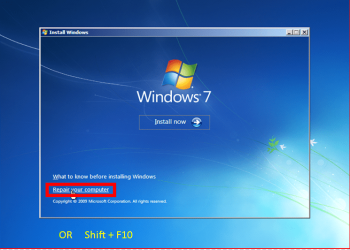
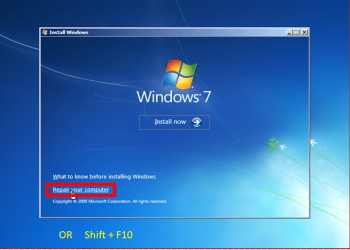
Am not getting above screen with 'Install Now' button (i got it once with which i formatted the drive for clean install)
But the sequence of screen i am getting is:
while booting from Windows 7 repair CD and selecting F8 and selecting 'Safe mode with Command prompt', it takes to 'Starting windows', and in 2-3 minutes, it takes to BLACK blank screen with mouse pointer only and no activity on it.
Currently am looking for various ways to go to command prompt and above way is not working !
Can you please suggest any other way to go to command prompt?
Hope i was clear

Thanks
 

My Computer My Computer

Computer Manufacturer/Model Number
Sony Vaio E Series Model no. VPCEB22EN
OS
Windows 7 Home Basic 64 bit
CPU
Intel® Core I3-350M Processor 2.26 Ghz
Motherboard
Intel® Core I3-350M Processor 2.26 Ghz
Memory
2 GB
Graphics Card(s)
Intel® HD Graphics
Sound Card
Intel® GMA HD, supporting DirectX® 10.0 and Shader Model 4.0
Monitor(s) Displays
15.5" wide (WXGA: 1366 x 768) VAIO Display
Hard Drives
320 GB

My Computer My Computer

OS
ME/XP/Vista/Win7
'Starting windows' screen comes with ALL available options (with or without F8 (Advanced options))
The Black blank screen comes after 'Starting windows'

Hope i was clear
Any way to go to command prompt ???
 

My Computer My Computer

Computer Manufacturer/Model Number
Sony Vaio E Series Model no. VPCEB22EN
OS
Windows 7 Home Basic 64 bit
CPU
Intel® Core I3-350M Processor 2.26 Ghz
Motherboard
Intel® Core I3-350M Processor 2.26 Ghz
Memory
2 GB
Graphics Card(s)
Intel® HD Graphics
Sound Card
Intel® GMA HD, supporting DirectX® 10.0 and Shader Model 4.0
Monitor(s) Displays
15.5" wide (WXGA: 1366 x 768) VAIO Display
Hard Drives
320 GB
You had problems with Windows Update, correct?

The solution for this is almost always to run System Restore,
if necessary from the Repair CD. But first check to see if you have System Recovery Options on the F8 Advanced Boot Options.

If not make a Repair CD as follows: System Repair Disc - Create

Boot the Repair CD: How to Boot your Computer from a Bootable CD or DVD

Let is search for and find an installation. If it offers a Repair, go ahead and accept it. If not, click through to s to run System Restore to restore before the Updates which caused the problem.

If this fails, run Startup Repair repeatedly.

You now have tutorial on how to do every single step above. If you have any questions, ask back.
 
theog:
The system is booting from CD-ROM successfully and does asks to 'Press any key...'.

gregrocker:
The primary drive is blank now.
The 'System Recovery Option' screen does not come. It comes after screen with 'Install Now' button, which doesnot come either.
Current sequence is:
-Press any key to boot from DVD
-Windows is loading files
-Starting windows
-BLACK blank screen with mouse pointer

Hope i am clear.
Please provide options on how to go to command prompt.
 

My Computer My Computer

Computer Manufacturer/Model Number
Sony Vaio E Series Model no. VPCEB22EN
OS
Windows 7 Home Basic 64 bit
CPU
Intel® Core I3-350M Processor 2.26 Ghz
Motherboard
Intel® Core I3-350M Processor 2.26 Ghz
Memory
2 GB
Graphics Card(s)
Intel® HD Graphics
Sound Card
Intel® GMA HD, supporting DirectX® 10.0 and Shader Model 4.0
Monitor(s) Displays
15.5" wide (WXGA: 1366 x 768) VAIO Display
Hard Drives
320 GB
I got it from nearby computer store, they built from sony model i am using. They gave system repair disc free!
Any concern with CD or DVD ?
 

My Computer My Computer

Computer Manufacturer/Model Number
Sony Vaio E Series Model no. VPCEB22EN
OS
Windows 7 Home Basic 64 bit
CPU
Intel® Core I3-350M Processor 2.26 Ghz
Motherboard
Intel® Core I3-350M Processor 2.26 Ghz
Memory
2 GB
Graphics Card(s)
Intel® HD Graphics
Sound Card
Intel® GMA HD, supporting DirectX® 10.0 and Shader Model 4.0
Monitor(s) Displays
15.5" wide (WXGA: 1366 x 768) VAIO Display
Hard Drives
320 GB
seems 2 causes for issues
-had switched from 64 to 32
-latest windows 7 updates.

Currently partition is blank
Any tips to go to command prompt ?
 

My Computer My Computer

Computer Manufacturer/Model Number
Sony Vaio E Series Model no. VPCEB22EN
OS
Windows 7 Home Basic 64 bit
CPU
Intel® Core I3-350M Processor 2.26 Ghz
Motherboard
Intel® Core I3-350M Processor 2.26 Ghz
Memory
2 GB
Graphics Card(s)
Intel® HD Graphics
Sound Card
Intel® GMA HD, supporting DirectX® 10.0 and Shader Model 4.0
Monitor(s) Displays
15.5" wide (WXGA: 1366 x 768) VAIO Display
Hard Drives
320 GB
To get to command prompt, Cd must boot.

1) reburn the CD & DVD.
2) Clean CD/DVD Drive.
3) Replace CD/DVD Drive.
 

My Computer My Computer

OS
ME/XP/Vista/Win7
If the Win7 partition is blank, then what are you trying to accomplish with a Repair CD exactly? There is nothing to Repair.

There is also no "Install Now" button on a Repair CD as it is only used to repair an existing Win7 installation or reimage from a saved Win7 backup image. Do you have a backup image? If not then you do not need the Repair CD.

Instead you need to run Sony Factory Recovery from boot which is the most stable Recovery method, using the tutorial Theog posted earlier here: http://www.kb.sony.com/selfservice/microsites/search.do?cmd=displayKC&externalId=C459775&fes=true

If Factory Recovery will not run this way then boot the Sony Recovery Disk set you said you have to reinstall that way.
 
theog:
There are no issues with either CD-ROM drive or CD's or the hardware.
Please suggest other options to go to command prompt.

gregrocker:
As had mentioned, since seems partitions are not recognized, thought repair disk might help in getting into the command prompt.
Tried same with Windows 7 recovery disk and no luck.
I agree repair disk won't have interfaces to display 'Install Now' screen.

Had tried with windows installation DVD which is not going 'Install Now' screen too.

Please suggest options to go to command prompt.

Hope i was clear
 

My Computer My Computer

Computer Manufacturer/Model Number
Sony Vaio E Series Model no. VPCEB22EN
OS
Windows 7 Home Basic 64 bit
CPU
Intel® Core I3-350M Processor 2.26 Ghz
Motherboard
Intel® Core I3-350M Processor 2.26 Ghz
Memory
2 GB
Graphics Card(s)
Intel® HD Graphics
Sound Card
Intel® GMA HD, supporting DirectX® 10.0 and Shader Model 4.0
Monitor(s) Displays
15.5" wide (WXGA: 1366 x 768) VAIO Display
Hard Drives
320 GB
Currently am going through KB to find something that might help running recovery procedure as per mentioned in below but nothing works as of now since seems the special partition is not recognized too.

This model does not require Recovery CDs. Recovery data is included on a special partition of the hard drive.
 

My Computer My Computer

Computer Manufacturer/Model Number
Sony Vaio E Series Model no. VPCEB22EN
OS
Windows 7 Home Basic 64 bit
CPU
Intel® Core I3-350M Processor 2.26 Ghz
Motherboard
Intel® Core I3-350M Processor 2.26 Ghz
Memory
2 GB
Graphics Card(s)
Intel® HD Graphics
Sound Card
Intel® GMA HD, supporting DirectX® 10.0 and Shader Model 4.0
Monitor(s) Displays
15.5" wide (WXGA: 1366 x 768) VAIO Display
Hard Drives
320 GB
theog:
There are no issues with either CD-ROM drive or CD's or the hardware.
Please suggest other options to go to command prompt.

Please suggest options to go to command prompt.

Hope i was clear

If you have no issues with either CD-ROM drive or CD's or the hardware.
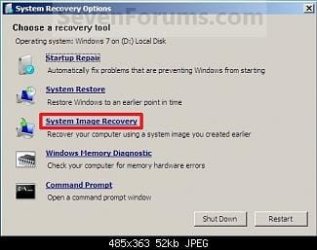
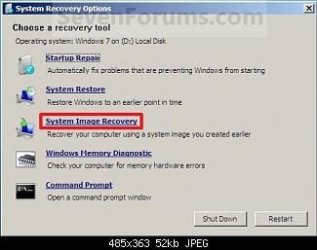
You can get to command prompt.
At

Shift F10.PNG

or

System_Recovery_Options.jpg

To get to command prompt, CD must boot.
 

My Computer My Computer

OS
ME/XP/Vista/Win7
Currently am going through KB to find something that might help running recovery procedure as per mentioned in below but nothing works as of now since seems the special partition is not recognized too.

This model does not require Recovery CDs. Recovery data is included on a special partition of the hard drive.

If your Hard drive is going down, the Recovery Partition will not work.

You will need the Sony Recovery DVD's & a new Hard drive.
 

My Computer My Computer

OS
ME/XP/Vista/Win7
Verified CD's and got CD drive verified too.
They are working fine. Also got the initial screen with 'Install now' coming up by using on other system.

Without CD, am not getting 'Starting Windows' screen.
With CD, am getting 'Starting Windows' screen and its not going ahead after that.

Sony recovery DVD tries recovering from special partition so they won't work.

While starting without booting with CD, its saying 'Operating system not found', and not 'Disk error'.

I don't want to replace the HDD myself and am looking on ways to come on command prompt.
One mentioned above doesn't work.
 

My Computer My Computer

Computer Manufacturer/Model Number
Sony Vaio E Series Model no. VPCEB22EN
OS
Windows 7 Home Basic 64 bit
CPU
Intel® Core I3-350M Processor 2.26 Ghz
Motherboard
Intel® Core I3-350M Processor 2.26 Ghz
Memory
2 GB
Graphics Card(s)
Intel® HD Graphics
Sound Card
Intel® GMA HD, supporting DirectX® 10.0 and Shader Model 4.0
Monitor(s) Displays
15.5" wide (WXGA: 1366 x 768) VAIO Display
Hard Drives
320 GB
To get to command prompt, CD or DVD must boot. If CD or DVD not booting NO command prompt.

Remove the Hard Drive, & see if CD or DVD will boot.
 

My Computer My Computer

OS
ME/XP/Vista/Win7
Back
Top