Windows 7 not booting up successfully

RMJA

New member
Local time
7:48 AM
Messages
5
Hi,

I upgraded to windows 7 over my windows vista and it was working fine until 2 days ago when I tried to start up the laptop and it showed the front screen where I can enter f9 etc.. Then it goes on to a blank screen with a flashing dot and doesn't allow me to do anything.

I've searched the forums and tried to upgrade install again aswell as repair but it still hasn't made a difference. I've also done a new install and it booted up to the last point where it was successfully setting up windows and it just restarted and went back to the flashing dot. I can see the software is installed and that it's something to do with my boot being corrupt but I can't get it go past the flashing dot.

Thanks in advance
Raz
 

My Computer

OS
Windows 7
Do a thorough A/V scan.

Download and run Malwarebytes.

Try to do this from safe mode if needed.

If you are ok.

Do not do an upgrade. With the upgrade DVD you can do a clean install.
Try that, you will be ok. Upgrades always cause problems. You will have to reinstall prgrams but that is a small price to pay.

Do a clean install not a custom.
 

My Computer

Computer type
PC/Desktop
Computer Manufacturer/Model Number
Dell XPS 420
OS
Windows 10, Home Clean Install
CPU
Intel Core2 processsor Q8200(2.33Ghz 1333FSB) Quad Core Tech
Motherboard
Dell
Memory
6 gb
Graphics Card(s)
ATI Radeon 256MB HD3650
Sound Card
Intergrated 7.1 Channel Audio
Monitor(s) Displays
Dell SP2009W 20"
Hard Drives
640 GB Serial ATA Hard drive
Cooling
Fan
Keyboard
Dell USB Keyboard
Mouse
Dell Premium Optical USB
Internet Speed
DSL 2.85
Try a http://www.sevenforums.com/tutorials/1649-clean-install-windows-7-a.html. The Win7 DVD will scan the HD during bootup and see an OS to allow use of the Upgrade version key.

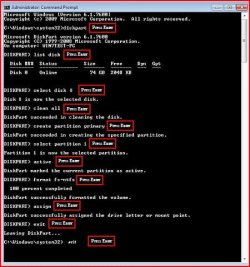
I would first zero the HD first to make sure it is as clean as possible before install. Boot the Win7 DVD, select Repair on second screen, click through to Recovery Tools, open a Comand Line and type:

DISKPART
LIST DISK
SELECT DISK # (replace # with Win7 HD)
CLEAN ALL
create partition primary
select partition 1
assign letter=c:
active
format
exit


This may take several hours depending upon the size of your HD.
 
Full format before clean install.

1) Boot DVD.
2) Press Shift+F10 (for command prompt)

Type in command line
DISKPART
LIST DISK
SELECT DISK 0 (win 7 HD)
CLEAN ALL
CREATE PARTITION PRIMARY
SELECT PARTITION 1
ACTIVE
FORMAT=NTFS
ASSIGN
EXIT
EXIT
 

Attachments

  • Capture5.JPG
    Capture5.JPG
    45.3 KB · Views: 93

My Computer

OS
ME/XP/Vista/Win7
I can't get into safe mode let alone on the main windows.

Is there a way to fix the problem without having to delete all my data and doing a fresh install which I'll like to be my last option??
 

My Computer

OS
Windows 7
sounds like it can't find the drive. Can you access bios?

Make sure you don't have any disks or external devices plugged into the computer.
 

My Computer

OS
7 Pro
I can't get into safe mode let alone on the main windows.

Is there a way to fix the problem without having to delete all my data and doing a fresh install which I'll like to be my last option??

When you said you had tried the Upgrade install again, I assumed you had already overwritten/reinstalled your old installation and were now having install problems.

Perhaps you can explain exactly what you did when you "tried to upgrade install again aswell as repair" and "I've also done a new install."

Boot the Win7 DVD, select Repair on second screen, see if it discovers an installation to repair. Accept any repair offered. If this fails, reboot into Repair, click through to Recovery Tools list and run Startup Repair up to 3 separate times with reboots to repair or rewrite the MBR.

Repair will not work if Win7 has somehow been marked inactive. To see a Disk Mgmt map of how it is now, boot free Partition Wizard CD and post back a screenshot of the full drive map. If you are unable to take a clear snap of screen, then post back exactly what it says for each drive.
 
When you said you had tried the Upgrade install again, I assumed you had already overwritten/reinstalled your old installation and were now having install problems.

Perhaps you can explain exactly what you did when you "tried to upgrade install again aswell as repair" and "I've also done a new install."

Boot the Win7 DVD, select Repair on second screen, see if it discovers an installation to repair. Accept any repair offered. If this fails, reboot into Repair, click through to Recovery Tools list and run Startup Repair up to 3 separate times with reboots to repair or rewrite the MBR.

Repair will not work if Win7 has somehow been marked inactive. To see a Disk Mgmt map of how it is now, boot free Partition Wizard CD and post back a screenshot of the full drive map. If you are unable to take a clear snap of screen, then post back exactly what it says for each drive.

I can get into bios.

I tried repair install but I have to load the cd up on my computer to do it and I can't get onto windows, which is what I meant by upgrade install.

It does however discover the installation when I click on repair but it says disconnect any hardware but I don't have anything connected as it's a laptop. I've even done start up repair but it says everything is fine.

I've even restored to an old restore point with vista and then installed windows 7 again and it made an windows.old folder with all my data so I can still get it back.
 

My Computer

OS
Windows 7
So you ran Startup Repair up to 3 separate times with reboots?

Did you boot the Partition Wizard CD to see if your Win7 partition is marked active so it will start up?

Please read the troubleshooting steps again and complete them so we try another approach if Win7 will not start up.
 
Thanks for everyone's help. I managed to crack down on the problem and found that the boot data configuration was corrupt and while searching online realised i had to go into recovery and then cmd line and type in;

Bootrec /RebuildBCD

and

Bootrec /FixBoot

followed by a restart my computer, now i'm not sure if it was 1 of them or because i did both at the same time but my computer is now working fine and i still have all my files and data available.

Thanks once again
Raz
 

My Computer

OS
Windows 7
TY for reporting the results, so that others may learn
 

My Computer

Computer type
PC/Desktop
Computer Manufacturer/Model Number
Dell XPS 420
OS
Windows 10, Home Clean Install
CPU
Intel Core2 processsor Q8200(2.33Ghz 1333FSB) Quad Core Tech
Motherboard
Dell
Memory
6 gb
Graphics Card(s)
ATI Radeon 256MB HD3650
Sound Card
Intergrated 7.1 Channel Audio
Monitor(s) Displays
Dell SP2009W 20"
Hard Drives
640 GB Serial ATA Hard drive
Cooling
Fan
Keyboard
Dell USB Keyboard
Mouse
Dell Premium Optical USB
Internet Speed
DSL 2.85
The Commands you ran are automated in Windows 7 Startup Repair along with all of the other bootrec/bootsect commands. That is why you need to run it up to 3 separate times with reboots.
 
i tried the startup repair more than 3 seperate times with reboots but it didn't make a difference, though running the command line and typing in the commands worked first time.
 

My Computer

OS
Windows 7
Thanks a lot worked perfectly... Many thanks to you saved so much time!!!


Thanks for everyone's help. I managed to crack down on the problem and found that the boot data configuration was corrupt and while searching online realised i had to go into recovery and then cmd line and type in;

Bootrec /RebuildBCD

and

Bootrec /FixBoot

followed by a restart my computer, now i'm not sure if it was 1 of them or because i did both at the same time but my computer is now working fine and i still have all my files and data available.

Thanks once again
Raz
 

My Computer

OS
Windows 8 Pro
Back
Top