
Windows 7 only booting under specific conditions

gwenzors

New member
Local time
8:41 AM
Messages
12
Hi once again and thanks for the suggestions that helped me successfully install Windows 7. Now I'm having some strange issues with booting. I apologize for the tl;dr post that follows.

To explain a bit more: after getting the first install to finally complete, I had some issues getting the system to boot again after installing the motherboard drivers and making some changes with the video card. It was booting in safe mode, but not when I selected normal startup. System restore, rolling back drivers, and disabling startup processes did not fix the problem. So, I decided to reinstall Windows 7 because it seemed like a software issue that I wasn't able to fix on my own, and I had hardly done anything that I would feel sad losing to a clean install.

Once I reinstalled, I started having the same issues I had been before--Windows 7 not allowing me to complete the installation. I decided that perhaps my BIOS needed updating, since I had tried everything else that I have seen suggested on these forums. I made a bootable Flash drive with DOS on it and transfered the new BIOS drivers onto it, as per this German site (with help from Google translate). I configured the boot order in my BIOS like so:
  • USB-FDD
  • CDROM
  • HDD
It is also relevant to mention that I left my Windows 7 Ultimate x64 install disc in the CDROM. I also changed HPET support to "disabled" (I had done this before, but had reset the CMOS since then and so had to redo it. Thought that may have been the trick for a bit).

When I attempted to boot this way, nothing was any different. So, I figured USB-FDD wasn't the right choice to boot from my flash drive and I went back to the boot order. I changed it to this:
  • USB-FDD
  • USB-HDD
  • CDROM
Totally removed the regular HDD from the listing because I wanted to force it to boot from the flash drive and update the BIOS. To my surprise, when I booted after making those changes, Windows 7 loaded! It even allowed me to complete the install! I was confused, but decided I wouldn't touch anything.

So, it was smooth sailing after that. Set everything up just the way I like it and left my computer on overnight to transfer some files over from my netbook. I had taken out the Windows install CD to install some other programs as well. At this point I had a second flash drive plugged in to copy files and my Seagate external USB drive for this same purpose. When I woke up this morning, I saw that Windows must have tried to restart overnight (perhaps Windows update forces this if you aren't around to delay) and was sitting at the "Loading Operating System..." screen that loads after the Gigabyte motherboard display.

I unplugged my other flash drive and the USB external drive in case it was trying to boot from them and getting stuck. Restarted, no such luck. I put the Windows 7 installation disc back in the disc drive. Then it started, proceeded to install Windows updates (with errors). Restarted into a disk check that fixed like 5 million things. When it restarted once more, it began powering off in the same fashion that it had previously. I unplugged the ethernet cable and now it's started successfully... but I'm concerned about turning it off. Obviously I don't want to have to make sure I have this very specific set of conditions every time I start Windows again.

Does anyone have any ideas about what could be causing this--or, better yet, why this flash drive thing is working at all? Any help would be very much appreciated. I will be tied up until about 5pm today so if I can't respond much before then, that's why. Thank you for any suggestions in advance!
 

My Computer My Computer

OS
Windows 7 Ultimate x64
CPU
Intel i5 2.66 GHz
Motherboard
Gigabyte GA-P55-USB3
Memory
4 GB DDR3
Graphics Card(s)
GALAXY GeForce 210
Sound Card
N/A
Monitor(s) Displays
HANNS-G HW-191APB 19" Widescreen
Screen Resolution
1440 x 900
Hard Drives
WD Caviar Blue 320GB SATA (internal)
Seagate ST905004EXA101-RK 500 GB USB drive (external)
PSU
Corsair CMPSU-750TX
Case
Cooler Master Storm Scout
Cooling
Corsair A50 CPU Cooler
Mouse
Compucase A133
Other Info
Sony DRU-830A DVD-RW IDE Optical Drive
What was the reason you changed out the mobo drivers in the first place? I would only change the drivers given by installer (and optional Windows Updates) if performance dictates this. Was there a performance reason you swapped in the other chipset drivers? What was performance like before and after?

Reset your CMOS, unplug all peripherals, boot the Win7 DVD Repair console to run Startup Repair several times to see if it finds anything to repair.

Test your HD using the maker's full diag/repair CD scan: Hard Drive Diagnostics Tools and Utilities (Storage) - TACKtech Corp.

Then run http://www.sevenforums.com/tutorials/433-disk-check.html from the DVD Command Line.

Test your RAM using memtest86 for 5-6 passes or overnight.

Check the Event Viewer>Custom>Admin View for repeat errors to google text/ID# to resolution. Next check Performance log on Advanced Tools page accessed by clicking WEI score at Computer>Properties. Look for cued issues on Tools page, Generate a System Health Report. The OS should reveal issues in logs, otherwise focus on hardware/BIOS settings.
 
What was the reason you changed out the mobo drivers in the first place? I would only change the drivers given by installer (and optional Windows Updates) if performance dictates this. Was there a performance reason you swapped in the other chipset drivers? What was performance like before and after?

When Windows 7 first installed and successfully booted, I loaded motherboard drivers from the manufacturer's disc included with my motherboard.

Reset your CMOS, unplug all peripherals, boot the Win7 DVD Repair console to run Startup Repair several times to see if it finds anything to repair.

I did this several times. Windows Startup Repair kept citing driver issues. I rolled back all of my drivers, went back to the first system restore point on my system, updated all of the drivers to the latest versions on the manufacturer's website. No luck. That's when I reinstalled Windows 7 to get the default drivers back for everything. When the fresh set of drivers wasn't working right either, I decided to try updating the BIOS. That's why I then made the bootable flash drive.

Test your HD using the maker's full diag/repair CD scan: Hard Drive Diagnostics Tools and Utilities (Storage) - TACKtech Corp.

Then run http://www.sevenforums.com/tutorials/433-disk-check.html from the DVD Command Line.

I can do this, but I tested this HDD like crazy when my old system failed to make sure it wasn't that particular component failing. I can always test it again, but I would be totally surprised if it was the culprit.

Test your RAM using memtest86 for 5-6 passes or overnight.

I tested the RAM briefly, but didn't let it run overnight. Again, I could try that. But, it's been working in safe mode just fine... shouldn't that indicate that the hardware isn't the problem (along with the results of the Startup Repair)? Or is it possible that normal startup is imposing additional strain that faulty hardware couldn't handle?

Check the Event Viewer>Custom>Admin View for repeat errors to google text/ID# to resolution. Next check Performance log on Advanced Tools page accessed by clicking WEI score at Computer>Properties. Look for cued issues on Tools page, Generate a System Health Report. The OS should reveal issues in logs, otherwise focus on hardware/BIOS settings.

I'll do this when I get home, sounds very promising. Thanks!
 

My Computer My Computer

OS
Windows 7 Ultimate x64
CPU
Intel i5 2.66 GHz
Motherboard
Gigabyte GA-P55-USB3
Memory
4 GB DDR3
Graphics Card(s)
GALAXY GeForce 210
Sound Card
N/A
Monitor(s) Displays
HANNS-G HW-191APB 19" Widescreen
Screen Resolution
1440 x 900
Hard Drives
WD Caviar Blue 320GB SATA (internal)
Seagate ST905004EXA101-RK 500 GB USB drive (external)
PSU
Corsair CMPSU-750TX
Case
Cooler Master Storm Scout
Cooling
Corsair A50 CPU Cooler
Mouse
Compucase A133
Other Info
Sony DRU-830A DVD-RW IDE Optical Drive
To be honest I'm completely confused on what you did, even after reading the post a few times. Sorry.

Anyways you can slways update the BIOS after the OS is installed. So.... just leave that alone for now. BUT.... if you must update the BIOS here's the manual for your board.... http://download.gigabyte.us/FileList/Manual/mb_manual_ga-p55-usb3_v2.0_e.pdf, starting with page 68 (BIOS Update Utilities) using the Q-Flash method.

As to installing the OS - Have a look at this tutorial.... http://www.sevenforums.com/tutorials/1649-clean-install-windows-7-a.html

Also if you want to use AHCI I suggest you set the SATA channel to AHCI, then install the OS along with the AHCI/RAID drivers during the F6 setup.

If I'm missing something, sorry I'm just not understanding your post.
 

My Computer My Computer

Computer type
PC/Desktop
Computer Manufacturer/Model Number
Custom built by me.
OS
Windows 10 Pro
CPU
Intel Core i7-4770K (3.5Ghz)
Motherboard
Gigabyte G1 Sniper 5 (F10 Bios)
Memory
32 gig Corsair Dominator Platinum (4x8Gig)
Graphics Card(s)
Sapphire Tri-X R9 Fury
Sound Card
Soundblaster ZXR
Monitor(s) Displays
NEC PA242W 24" LCD Monitor
Screen Resolution
1920 x 1200
Hard Drives
Primary - Samsung 850 Pro (512gig), Samsung 840 Pro (256gig), 2TB WD Caviar Black.
PSU
EVGA Supernova 1000 G2
Case
Cooler Master HAF X
Cooling
Corsair H100i with Corsair Air Series SP120 Quiet Fans
Keyboard
Logitech Wireless Wave
Mouse
Logitech Performance MX
Internet Speed
High Speed Cable
Antivirus
Norton Security
Browser
IE11
Other Info
Memory Timings - 1866MHz @ 9-9-9-27-1T @ 1.5 volts
To be honest I'm completely confused on what you did, even after reading the post a few times. Sorry.

That's OK, I understand. It's a lot to digest and the problem is difficult to pin down (for me, at least).

Anyways you can slways update the BIOS after the OS is installed. So.... just leave that alone for now. BUT.... if you must update the BIOS here's the manual for your board.... http://download.gigabyte.us/FileList/Manual/mb_manual_ga-p55-usb3_v2.0_e.pdf, starting with page 68 (BIOS Update Utilities) using the Q-Flash method.

As to installing the OS - Have a look at this tutorial.... http://www.sevenforums.com/tutorials/1649-clean-install-windows-7-a.html

Also if you want to use AHCI I suggest you set the SATA channel to AHCI, then install the OS along with the AHCI/RAID drivers during the F6 setup.

If I'm missing something, sorry I'm just not understanding your post.

I'm alright on understanding the OS install at this point and I'm not trying to use AHCI. I may still want to update the BIOS but I'll wait until I have a better idea about what's going on otherwise. Thank you for your suggestions!

Regarding the problem I'm having:

I set my computer to sleep mode this morning (I usually power off all the way, but given the issues decided not to) and when I returned it had difficulty coming out of sleep mode as well. Instead of shutting off or freezing like I was seeing during start up, it showed a black screen with nothing but the mouse, which I could move. As soon as I unplugged my ethernet cable it showed the login screen and gradually everything was back to normal.

I checked the event viewer and found a bunch of warnings/errors, most of them relating to being unable to install those Windows updates and errors found during chkdsk. It also mentioned that the read time was "unexpectedly" slow, so I'll scan my hard drive as gregrocker suggested. I'll run memtest overnight tonight and post anything remarkable that comes from that.

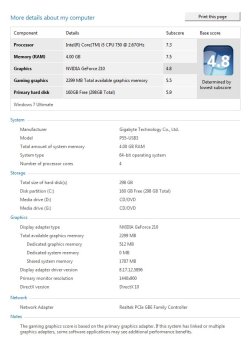
EDIT: Forgot to mention that I attached a screenshot of my WEI. Oops!

Thanks again for the help so far! Really appreciate it :)
 

Attachments

  • WEI_11-12-10.jpg
    WEI_11-12-10.jpg
    74 KB · Views: 8

My Computer My Computer

OS
Windows 7 Ultimate x64
CPU
Intel i5 2.66 GHz
Motherboard
Gigabyte GA-P55-USB3
Memory
4 GB DDR3
Graphics Card(s)
GALAXY GeForce 210
Sound Card
N/A
Monitor(s) Displays
HANNS-G HW-191APB 19" Widescreen
Screen Resolution
1440 x 900
Hard Drives
WD Caviar Blue 320GB SATA (internal)
Seagate ST905004EXA101-RK 500 GB USB drive (external)
PSU
Corsair CMPSU-750TX
Case
Cooler Master Storm Scout
Cooling
Corsair A50 CPU Cooler
Mouse
Compucase A133
Other Info
Sony DRU-830A DVD-RW IDE Optical Drive
There are quite a few things that can screw up sleep mode and especially true if the drivers don't support the mode.

Sleep and hibernation: frequently asked questions

http://www.sevenforums.com/hardware-devices/79904-sleep-mode-problems-more-help.html

The best suggestion I can offer here is to insure all your drivers are fully updated. You might also insure you have the latest Windows updates as well..... You cannot make a computer that is running Windows 7 shut down or sleep

BTW I use Sleep Mode and have no issues, though I do get those Event Viewer warnings but I just ignore them :)

Here's a post that sums up Sleep Mode on Windows 7.... http://www.sevenforums.com/performance-maintenance/18329-windows-7-sleep-mode-fix-2.html#post209562

Might want to look at this as well.... http://www.sevenforums.com/tutorials/778-power-plan-settings-change.html

Again, if the hardware/drivers don't support sleep mode there's going to be issues.
 

My Computer My Computer

Computer type
PC/Desktop
Computer Manufacturer/Model Number
Custom built by me.
OS
Windows 10 Pro
CPU
Intel Core i7-4770K (3.5Ghz)
Motherboard
Gigabyte G1 Sniper 5 (F10 Bios)
Memory
32 gig Corsair Dominator Platinum (4x8Gig)
Graphics Card(s)
Sapphire Tri-X R9 Fury
Sound Card
Soundblaster ZXR
Monitor(s) Displays
NEC PA242W 24" LCD Monitor
Screen Resolution
1920 x 1200
Hard Drives
Primary - Samsung 850 Pro (512gig), Samsung 840 Pro (256gig), 2TB WD Caviar Black.
PSU
EVGA Supernova 1000 G2
Case
Cooler Master HAF X
Cooling
Corsair H100i with Corsair Air Series SP120 Quiet Fans
Keyboard
Logitech Wireless Wave
Mouse
Logitech Performance MX
Internet Speed
High Speed Cable
Antivirus
Norton Security
Browser
IE11
Other Info
Memory Timings - 1866MHz @ 9-9-9-27-1T @ 1.5 volts
Sorry to take so long to get back about these things, I've had a lot going on lately.

I ran Memtest while I was gone all day (about 10 hours) and no errors were detected.

I also ran WD diagnostics on my WD Caviar Blue 640GB HD, which I think could be problematic. It passed those tests fine, but the HD diagnostic in PC Check wasn't detecting the HD properly. It scanned without errors again, but it was listed as something like: BIOS Unknown 640GB drive. When I try booting with that HD connected (even in safe mode!) I get a blue screen. When I disconnect that HD I am able to boot in safe mode (still having issues booting regularly). I was able to get this information about the blue screen:
Windows 7 Dialogue Box said:
Additional information about the problem:
BCCode: ed
BCP1: FFFFFA80049659D0
BCP2: FFFFFFFFC000014F
BCP3: 0000000000000000
BCP4: 0000000000000000
OS Version: 6_1_7600
Service Pack: 0_0
Product: 256_1

I also have the minidump log that I could post if need be.

I also tested the motherboard, processor, and ATA channels using PC Check. All passed just fine.

Would running GWScan on the HD give me better information?
 

My Computer My Computer

OS
Windows 7 Ultimate x64
CPU
Intel i5 2.66 GHz
Motherboard
Gigabyte GA-P55-USB3
Memory
4 GB DDR3
Graphics Card(s)
GALAXY GeForce 210
Sound Card
N/A
Monitor(s) Displays
HANNS-G HW-191APB 19" Widescreen
Screen Resolution
1440 x 900
Hard Drives
WD Caviar Blue 320GB SATA (internal)
Seagate ST905004EXA101-RK 500 GB USB drive (external)
PSU
Corsair CMPSU-750TX
Case
Cooler Master Storm Scout
Cooling
Corsair A50 CPU Cooler
Mouse
Compucase A133
Other Info
Sony DRU-830A DVD-RW IDE Optical Drive
Possibly, I use GWScan on all makes of HD's and it seems to work best.

You also want to run http://www.sevenforums.com/tutorials/433-disk-check.html to fully test your HD.

You can post your minidump in the Crashes forum here where the real geniuses reside.

Reading back over the thread, you had Startup Repair detecting driver issues after "updating all drivers" given by installer. This could the be problem.

Unlike XP, the Win7 installer is driver complete, with newer quickly updated via optiona Windows updates. I would not change out any drivers given by installer or optional WUD unless they are problematic first.

If sleep still doesn't work then start with your display driver: make sure you have the latest driver from the maker's website.
 
Back
Top