Windows 7 problem

noelian13

New member
Member
VIP
Local time
8:36 PM
Messages
164
Recently my windows 7 cant start because of failure and the only clue i know is that something is failing inside i checked through by system repair in windows 7 installation disc (start up repair) and it says its external media so i waited up in the booting process of windows around 30 mins until it boot up then finally i saw my desktop and checked that some icons were missing its target file so i checked computer and found that my other hard disk (slave) is missing and cant be detected anyone knows how to repair this ?
because its also causing my bootup process to take longer than usual :cry::cry::cry::cry:
 

My Computer

OS
windows 7 ultimate
CPU
2.2ghz Intel dual core
Memory
3GB DDR3
Graphics Card(s)
512MB Gforce GT9400
Monitor(s) Displays
BenQ
It sounds like the second hard drive is failing or already dead. Unfortunately, if this is the case, the only way to fix it is with a new hard drive. Lets test things one step at a time. Type disk management into the start menu search bar and press enter. Is the slave hard drive shown?
 

My Computer

Computer type
Laptop
Computer Manufacturer/Model Number
Toshiba P775-S7100
OS
Windows 7 Professional SP1 64-bit
CPU
Intel Core i5-2450M @2.5 GHz
Memory
6 GB DDR3 1333MHz
Graphics Card(s)
Intel HD 3000
Monitor(s) Displays
Built-in 17.3" LED; 22" Insignia NS-L22Q-10A
Screen Resolution
1600x900; 1360x768
Hard Drives
750 GB Hitachi
1TB Seagate FreeAgent External
Internet Speed
Verizon DSL Speed(Down/Up): 3360 Kbps / 800 Kbps
Antivirus
MSE and MBAM Pro
Browser
IE10
have you tried going into bios and setting the boot priority? setting primary hard disc as first device?

have you tried unplugging your "slave" secondary drive and booting without it?

have you tried unplugging everything such as external drives , key board , mouse etc then seeing if it will boot ok?

are they sata drives? (serial ata) (they have no master and slave)

If we can get to the bottom of the boot issue first we can resolve the drive not showing issue next :)
 

My Computer

Computer type
PC/Desktop
Computer Manufacturer/Model Number
Custom
OS
Win 10 Home Premium 64 Bit
CPU
I7 5930K @ 4.5
Motherboard
Asus X99 s
Memory
16GB Kingston Hyper X Fury DDR4
Graphics Card(s)
EVGA 980ti SC + ACX 2.0
Sound Card
Onboard
Monitor(s) Displays
ROG Swift PG278Q
Screen Resolution
2560x1440
Hard Drives
Kingston Hyper X 250gb SSD
Samsung 2TB mechanical
PSU
Corsair RM 850
Case
NZXT H440 Red
Cooling
Corsair H100i GTX
Keyboard
Razer Reclusa
Mouse
Logitech G5 Gamer
Internet Speed
34mb
Antivirus
Eset Smart Security
Browser
Firefox
well nope its not shown but its connected to my motherboard
 

My Computer

OS
windows 7 ultimate
CPU
2.2ghz Intel dual core
Memory
3GB DDR3
Graphics Card(s)
512MB Gforce GT9400
Monitor(s) Displays
BenQ
turn off your pc , and unplug it (your secondary drive) then boot up let us know what happens , we need to isolate the problem first :D

but first maybe try booting with all your external peripherals (keyboard etc) unplugged
 

My Computer

Computer type
PC/Desktop
Computer Manufacturer/Model Number
Custom
OS
Win 10 Home Premium 64 Bit
CPU
I7 5930K @ 4.5
Motherboard
Asus X99 s
Memory
16GB Kingston Hyper X Fury DDR4
Graphics Card(s)
EVGA 980ti SC + ACX 2.0
Sound Card
Onboard
Monitor(s) Displays
ROG Swift PG278Q
Screen Resolution
2560x1440
Hard Drives
Kingston Hyper X 250gb SSD
Samsung 2TB mechanical
PSU
Corsair RM 850
Case
NZXT H440 Red
Cooling
Corsair H100i GTX
Keyboard
Razer Reclusa
Mouse
Logitech G5 Gamer
Internet Speed
34mb
Antivirus
Eset Smart Security
Browser
Firefox
Disconnect the hard drive, as the infinitely wise archie mentioned, and try booting without it. Make sure to remove all cables from it. If it the boots okay, reconnect both cables and see if the problem occurs again. I will be awaiting your next response.
 

My Computer

Computer type
Laptop
Computer Manufacturer/Model Number
Toshiba P775-S7100
OS
Windows 7 Professional SP1 64-bit
CPU
Intel Core i5-2450M @2.5 GHz
Memory
6 GB DDR3 1333MHz
Graphics Card(s)
Intel HD 3000
Monitor(s) Displays
Built-in 17.3" LED; 22" Insignia NS-L22Q-10A
Screen Resolution
1600x900; 1360x768
Hard Drives
750 GB Hitachi
1TB Seagate FreeAgent External
Internet Speed
Verizon DSL Speed(Down/Up): 3360 Kbps / 800 Kbps
Antivirus
MSE and MBAM Pro
Browser
IE10
ok i'll try first let me finish my research paper and print it as maybe it might error again this is my luck ;) that it booted up
 

My Computer

OS
windows 7 ultimate
CPU
2.2ghz Intel dual core
Memory
3GB DDR3
Graphics Card(s)
512MB Gforce GT9400
Monitor(s) Displays
BenQ
may i ask before i remove the slave hdd what will i do to the power cord i mean the hdd have the cord for power if i unplug it will it be ok if it remains vacant i mean the cord will be unused or plugged to others
 

My Computer

OS
windows 7 ultimate
CPU
2.2ghz Intel dual core
Memory
3GB DDR3
Graphics Card(s)
512MB Gforce GT9400
Monitor(s) Displays
BenQ
i'm going to try tomorrow need to sleep already :)
thanks for all replies
 

My Computer

OS
windows 7 ultimate
CPU
2.2ghz Intel dual core
Memory
3GB DDR3
Graphics Card(s)
512MB Gforce GT9400
Monitor(s) Displays
BenQ
just unplug the cable that connects the hard drive to the motherboard , you can leave the power cord connected to the hard drive :)
 

My Computer

Computer type
PC/Desktop
Computer Manufacturer/Model Number
Custom
OS
Win 10 Home Premium 64 Bit
CPU
I7 5930K @ 4.5
Motherboard
Asus X99 s
Memory
16GB Kingston Hyper X Fury DDR4
Graphics Card(s)
EVGA 980ti SC + ACX 2.0
Sound Card
Onboard
Monitor(s) Displays
ROG Swift PG278Q
Screen Resolution
2560x1440
Hard Drives
Kingston Hyper X 250gb SSD
Samsung 2TB mechanical
PSU
Corsair RM 850
Case
NZXT H440 Red
Cooling
Corsair H100i GTX
Keyboard
Razer Reclusa
Mouse
Logitech G5 Gamer
Internet Speed
34mb
Antivirus
Eset Smart Security
Browser
Firefox
just unplug the cable that connects the hard drive to the motherboard , you can leave the power cord connected to the hard drive :)

i'd prefer to have the cord removed, just to see if that is the problem. I've actually fixed two computers IRL, and helped someone fix there computer on here that turned out to be that the power cable wasn't connected properly. The easiest way to fix such a problem is to unplug it and plug it back in.
 

My Computer

Computer type
Laptop
Computer Manufacturer/Model Number
Toshiba P775-S7100
OS
Windows 7 Professional SP1 64-bit
CPU
Intel Core i5-2450M @2.5 GHz
Memory
6 GB DDR3 1333MHz
Graphics Card(s)
Intel HD 3000
Monitor(s) Displays
Built-in 17.3" LED; 22" Insignia NS-L22Q-10A
Screen Resolution
1600x900; 1360x768
Hard Drives
750 GB Hitachi
1TB Seagate FreeAgent External
Internet Speed
Verizon DSL Speed(Down/Up): 3360 Kbps / 800 Kbps
Antivirus
MSE and MBAM Pro
Browser
IE10
If you are able to still boot into Win7, then please post back a screenshot of your full Disk Mgmt drive map and listings, using Snipping Tool in Start Menu.

Try also repairing the HD you suspect is failing by running chkdsk from Win7 DVD or Repair CD command line, type chkdsk /r while only failing HD is plugged: Check a drive for errors

Then run the full maker's diag/repair CD scan you can burn after downloading from here: Hard Drive Diagnostics Tools and Utilities (Storage) - TACKtech Corp.
 
Greg, he already said the Hard drive does not appear in disk management at all, so where are you going with this?
 

My Computer

Computer type
Laptop
Computer Manufacturer/Model Number
Toshiba P775-S7100
OS
Windows 7 Professional SP1 64-bit
CPU
Intel Core i5-2450M @2.5 GHz
Memory
6 GB DDR3 1333MHz
Graphics Card(s)
Intel HD 3000
Monitor(s) Displays
Built-in 17.3" LED; 22" Insignia NS-L22Q-10A
Screen Resolution
1600x900; 1360x768
Hard Drives
750 GB Hitachi
1TB Seagate FreeAgent External
Internet Speed
Verizon DSL Speed(Down/Up): 3360 Kbps / 800 Kbps
Antivirus
MSE and MBAM Pro
Browser
IE10
Need to see if his Win7 is marked System Active boot, as if not it needs to be marked active then Startup repair run 3 times from DVD/Repair CD to write the System MBR to Win7.

HD's can be repaired and go on to live a full life using maker's Diag/Repair disk in tandem with chkdsk. Worth a try.
 
ok i just unplugged it and it seemed to work

but before i unplugged it my dad used my pc and he said something about the bios prompted that CMOS Setup bad press F1 to run setup then i encountered it too i run it then did nothing just checked the first boot device to my primary hdd then exited it seemed to work
also while checking this i saw my slave hard disk that was not working or detected by windows but it appears in the bios setup

i unplugged it then everything went fine
just like to know any tips to fix for any future encounters like this :)
 

My Computer

OS
windows 7 ultimate
CPU
2.2ghz Intel dual core
Memory
3GB DDR3
Graphics Card(s)
512MB Gforce GT9400
Monitor(s) Displays
BenQ
Please post back the screenshot of your full Disk management drive map and listings, using Snipping Tool in Start Menu, and we can tell you if there is anything obviously incorrect.

How is overall performance?
 
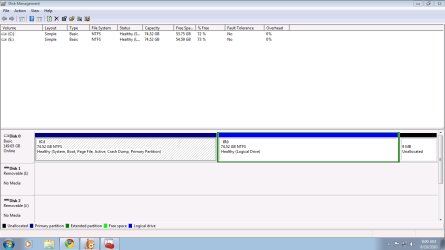
here it is when i put the power out of the hard disk the performance went ok i mean not like the previous having certain errors
 

Attachments

  • Capture.PNG
    Capture.PNG
    19.8 KB · Views: 3

My Computer

OS
windows 7 ultimate
CPU
2.2ghz Intel dual core
Memory
3GB DDR3
Graphics Card(s)
512MB Gforce GT9400
Monitor(s) Displays
BenQ
So with the second hard drive removed you have no problems? This is what I suspected would happen. Now make sure the other cable is properly coneected to the hard drive and reattach the power cable, and see if the problem occurs again. If it does, and the hard drive still can't be seen in disk manager then I'm afraid the drive may be done for. Just to be safe, we will try a couple other options to be sure.
 

My Computer

Computer type
Laptop
Computer Manufacturer/Model Number
Toshiba P775-S7100
OS
Windows 7 Professional SP1 64-bit
CPU
Intel Core i5-2450M @2.5 GHz
Memory
6 GB DDR3 1333MHz
Graphics Card(s)
Intel HD 3000
Monitor(s) Displays
Built-in 17.3" LED; 22" Insignia NS-L22Q-10A
Screen Resolution
1600x900; 1360x768
Hard Drives
750 GB Hitachi
1TB Seagate FreeAgent External
Internet Speed
Verizon DSL Speed(Down/Up): 3360 Kbps / 800 Kbps
Antivirus
MSE and MBAM Pro
Browser
IE10
ok i attached the power again to the hdd the problem returned (poor boot performance or it hangs ) the hdd is detected in bios setup i mean the devices that are plugged to the motherboard the hdd is detected except on windows
 

My Computer

OS
windows 7 ultimate
CPU
2.2ghz Intel dual core
Memory
3GB DDR3
Graphics Card(s)
512MB Gforce GT9400
Monitor(s) Displays
BenQ
Then I would try what Greg recommended here:

Try..repairing the HD you suspect is failing by running chkdsk from Win7 DVD or Repair CD command line, type chkdsk /r while only failing HD is plugged [in]: Check a drive for errors

If that fail for what ever reason, then I would consider the drive a goner, unless someone else pops in with a bright idea.
 

My Computer

Computer type
Laptop
Computer Manufacturer/Model Number
Toshiba P775-S7100
OS
Windows 7 Professional SP1 64-bit
CPU
Intel Core i5-2450M @2.5 GHz
Memory
6 GB DDR3 1333MHz
Graphics Card(s)
Intel HD 3000
Monitor(s) Displays
Built-in 17.3" LED; 22" Insignia NS-L22Q-10A
Screen Resolution
1600x900; 1360x768
Hard Drives
750 GB Hitachi
1TB Seagate FreeAgent External
Internet Speed
Verizon DSL Speed(Down/Up): 3360 Kbps / 800 Kbps
Antivirus
MSE and MBAM Pro
Browser
IE10
Back
Top