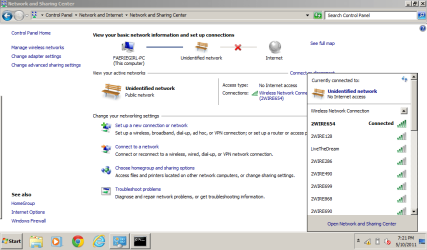
Mirage - there's no need to be coy about revealing the
broadcast SSID names of your router or those of your neighbours - they are "public", like your MAC addresses for any of your ethernet interfaces, your IP address given by your ISP, or indeed even the private IP addresses within your local network are handled by your router. They are not spammable like your email address is for instance!
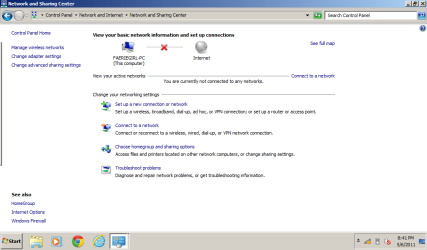
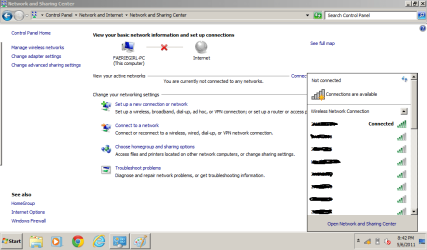
From that Network and Sharing Center screen select the
Change adapter settings item on the left hand side.
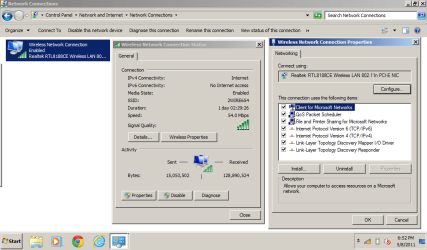
Next right click the Wireless Network Connection that
is working, right-click and select
status, move the little status window to the left and then select
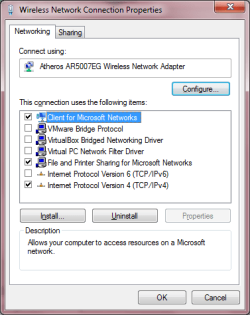
properties, and move that little properties window to the right so that we can see all screens as shown below on my netbook.
Press PrtSc and
paste the screen to Paint,
save to attach to your next post.
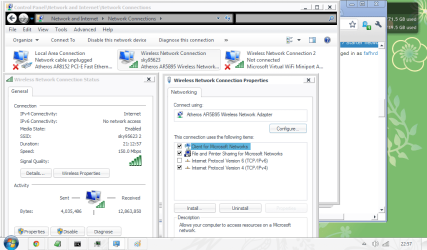
Some of these details mentioned above will appear in the information I am asking you to give next -
%computername% identifies the computer the batchfile is running on
net start lists the running services on the laptop, and
ipconfig /all shows the ip configuration details for the laptop,
arp-a displays the
address
resolution
protocol (local IP addresses),
nbtstat shows NetBIOS over TCP/IP information,
netsh wlan shows detailed wireless information (but not passwords, keys etc., of course) then the final command opens Windows Explorer in the C:\Users folder:
Copy the following to notepad and save as
C:\Windows\System32\netinfo.bat so that it is in the path for your system.
Code:
net start >"c:\Users\~nstart-%computername%.txt"
ipconfig /all >"c:\Users\~ipconfig-%computername%.txt"
arp -a >"c:\Users\~arp-%computername%.txt"
nbtstat -n >"c:\Users\~nbtname-%computername%.txt"
nbtstat -r >"c:\Users\~nbtresol-%computername%.txt"
netsh wlan show all >"c:\Users\~netshwlan-%computername%.txt"
explorer c:\Users
I would use an elevated command prompt (run as administrator) to be sure that all information is available.
Run the batchfile by typing
netinfo at the command prompt.
The following step is needed because it seems impossible to run zipfldr.dll natively in Windows to create zipfiles from the command prompt!
Next, when explorer has opened, select the files above that have just been created, all starting with ~ -so they are not likely to overwrite similarly named files already there - then right click and
send to a Compressed (zipped) folder and attach the ~nstart-FAERIEGIRL-PC.zip file to your next post. Here's mine:
View attachment ~nstart-NETBOOK.zip
You can do this for your netbook and your main Windows 7 Ultimate machine for comparison, so that we can see which services are and are not working.