Windows 7 thinks there are two installations

Tysonp

New member
Local time
10:32 PM
Messages
20
I recently had a friend try to boot a DVD off my system and now am having problems with my MBR. The system keeps coming up asking me which installation of Windows 7 I want to run. If I choose the first one I get an error that says the installation doesn't exist (which it doesn't).

I have tried running the repair from the installation DVD but I still encounter the same problem. After following some advice from the actual microsoft website I have gone into the command prompt and done a bootrec /scanos but it comes back saying there are 0 installations of windows on my system.

Any thoughts or suggestions would be greatly appreciated and I would hate to think that I need to re-install windows.
 

My Computer

Computer Manufacturer/Model Number
HP - G60 (laptop)
OS
7 - Home Premium
CPU
AMD Athlon x2
Memory
3gb
Please post back a screenshot of your full Disk Management drive map with listings. Use Snipping Tool in Start Menu, attach file using Paper Clip in Reply Box.
 
So you can boot into the second choice yes?

If so just download EasyBCD and remove the secondary Windows Boot Option. Then your computer should automatically boot into Windows 7.

Once you've done that, try to boot using your Windows DVD. If you can get into it, then use the Repair my Computer link to run the command FIXMBR or the command bootrec.exe /fixmbr. That should repair your master boot record.

If you still can't boot into the DVD, use something like Parition Table Doctor ($$) to fix your mbr from within Windows.
 

My Computer

Computer Manufacturer/Model Number
Apple Macbook Pro (April 2009)
OS
W7 Ult. x64 | OS X
CPU
Intel Mobile Core 2 Duo 2.93Ghz [T9800 Penryn]
Motherboard
NVIDIA nForce 730i Rev. B1 [Mac-F2268EC8 (U2E1)]
Memory
4096MB Samsung DDR3 Dual Channel [PC3-8500F 1066Mhz]
Graphics Card(s)
NVIDIA GeForce 9600M GT 512MB [G96M Rev. C1]
Sound Card
SB X-Fi Surround 5.1 USB | Onboard Realtek (Disabled)
Monitor(s) Displays
Acer x223wbd 22" | Apple Anti-Glare 17" (Disabled)
Screen Resolution
{Current} 1440x900 {Acer} 1680x1050 {Apple} 1920x1200
Hard Drives
{Internal}
Seagate Momentus 320GB 2.5" 7200RPM [ST9320421AS]

{Externals}
LaCie 320GB USB 2.0 HDD [301284UR]
LaCie 750GB USB 2.0 FW400 eSATA HDD [301314U]
LaCie 1TB USB 2.0 HDD [301304UR]
PSU
Magsafe
Case
Aluminum/Unibody (MBP52)
Cooling
2 x 6000 RPM Fans
Keyboard
Logitech G-15v2 [PN 920-000379]
Mouse
Logitech G-9 [PN 910-000338]
Internet Speed
12Mbps/2.5Mbps w/ 24Mbps Speed Boost [Comcast]
Other Info
Logitech X-540 Speakers [PN 970223-0122]
Sennheiser PC-151 Headset
To perhaps clarify a few things. If I choose the second option Windows 7 boots absolutely fine with no glitches at all. If I choose the First windows 7 on the list I get the following error.

Bunch of blah blah blah... "The selected entry could not be loaded because the application is missing or corrupt"

I just need to let Boot Manager know that there is only one installation of Windows on my system and stop asking me.

I have tried doing the bootrec /fixbmr and it still comes up asking which 7 installation I want to boot.
 

My Computer

Computer Manufacturer/Model Number
HP - G60 (laptop)
OS
7 - Home Premium
CPU
AMD Athlon x2
Memory
3gb
I downloaded and tried EasyBCD but it only shows one windows 7 entry, thought for some reason it puts (recovered) at the end of it.
 

My Computer

Computer Manufacturer/Model Number
HP - G60 (laptop)
OS
7 - Home Premium
CPU
AMD Athlon x2
Memory
3gb
Try removing the stray boot entry by typing msconfig in start search box, choosing Boot tab, then highlighting the extra listing and removing it.
 
Thanks for the suggestions. Finally got the problem resolved by doing a bootred /fixboot (don't know how I overlooked that option before).
 

My Computer

Computer Manufacturer/Model Number
HP - G60 (laptop)
OS
7 - Home Premium
CPU
AMD Athlon x2
Memory
3gb
Ok it seems the problem did not correct itself. I have tried going into MSconfig but it only shows one entry, I have also run bcdedit and it only shows one entry. From everything I'm looking at I can't figure why its even bothering to load the boot manager.
 

My Computer

Computer Manufacturer/Model Number
HP - G60 (laptop)
OS
7 - Home Premium
CPU
AMD Athlon x2
Memory
3gb
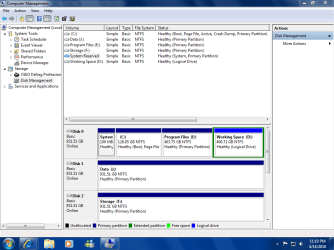
Please post a screenshot of your full Disk Management drive map with listings, as requested in post #2.
 
Requested Image

Here is the image that was requested.
 

Attachments

  • Capture.PNG
    Capture.PNG
    40.1 KB · Views: 59

My Computer

Computer Manufacturer/Model Number
HP - G60 (laptop)
OS
7 - Home Premium
CPU
AMD Athlon x2
Memory
3gb
The only clue which looks different from the norm is that your 100mb System Reserved partition is not marked Active.

You could try marking it Active in Win7 Disk management, then boot the Win7 DVD repair console or Repair CD, click through to Recovery Tools list to run Startup Repair up to 3 separate times with reboots so it writes the MBR to 100mb SysReserved.

What could have happened is your bootrec commands partly recovered the MBR into Win7 partition while 100mb somehow remains System partition, causing bootmanager to think there are two Win7's.
 
Thanks to all for the advice but seeing as the OS install was only 4days old we made the decision to remove all partitions, reformat the drive and do a fresh install. Seeing as we would lose no data or anything it seemed pointless to continue trying to rectify the problem.

I have definetely learned an amazing amount from this brief experience though.
 

My Computer

Computer Manufacturer/Model Number
HP - G60 (laptop)
OS
7 - Home Premium
CPU
AMD Athlon x2
Memory
3gb
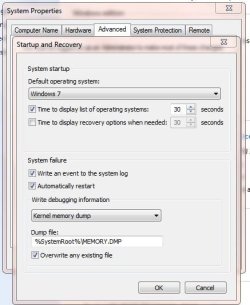
I encountered the same problem while working on a friend's computer. I searched forums for hours and found one useful workaround. That is, if your system does eventually boot into the correct installation on it's own, you can shorten the time it takes to make this decison to 1 second, hardly noticeable. I can't say but you may be able to set the correct installation as well at this point. Both of my "installations" worked no matter which one I chose (There was only one visible installation on the c: drive). At some later date, if you do choose to do a dual boot installation, you'll have to remember to set this to a longer time span. Go to "System Properties," "Advanced," "Startup and Recovery," and choose the default operating system, a good W7 installation (mine both worked), and check the "Time to display list of Operatings Systems.. 1 second." The problem originated from canceling the first installation attempt very early in the installation process. Good luck, hope this saves at least one person from doing the whole process from scratch.
 

Attachments

  • StartupSettings.JPG
    StartupSettings.JPG
    41.2 KB · Views: 4

My Computer

OS
W7 Ultimate
Back
Top