Windows 7 Ultimate backup failed (0x80780119)

anhkhoa

New member
Local time
7:31 AM
Messages
10
Hello every one

first I try to install windows 7 ultimate RTM 64 bit on Hitachi 80G sata hard drive, after fresh install I create s system Image on DVD it backup ok no problem at all.

I received seagate 320G HD replace, I restore the Image from DVD to 320G hard drive, after I install photoshop and some thing I need. now I try to make a system image to external hard drive or dvd I got an error.
" Threre is not enough disk space to create the volum shadow copy on storage location. Make sure that for all volume to be backup up, the minimum disk space required for shadow copy creation is available. this applies to both the backup storage destination and volume included in the backup. Minimum requirement for Volumes less than 500 megabytes, the minimum is 50 megabyte of free space. for voulimes more than 500 megabytes, the minimum is 320 megabytes of free space. Recommended at least 1 gigabytes free of disk space on each volumes if volumes size is more than 1 gigabytes (0x80780119)"

My external hard drive has 400G space.

some one help please.
 

My Computer My Computer

OS
Windows 7 Ultimate RTM 64 bit
CPU
Intel E8500
Motherboard
Asus P5b Deluxe
Memory
Buffalo FireStix 4G
Graphics Card(s)
EVGA 8800GT
Sound Card
PCI Express X-Fi Titanium
Monitor(s) Displays
NEC
Hard Drives
Seagate 320G sata
PSU
Antec Earthwat 550W
Case
Antec 180P
Cooling
Zalman
I experienced a very similar problem on my machine at home and it took me some time to figure out where the issue was.

In my case, it was the 100MB system partition that Windows setup during the installation that was under capacity. As it says, if you have a volume under 500MB, the minimum is 50MB of free space. In my case, my 100MB volume only had about 40MB free when i was trying to do the system image...and thus it wouldn't work.

For whatever reason, within about an hour or so, the space on that system partition freed up on it's own and when it was over 50MB free, I tried the backup again and it ran perfectly
.
Give that a shot, I'd bet that is where the issue is. You will probably have to go into disk management and assign a drive letter to it, in order to see it. As to why that partition fluctuates in size...I'm not sure.
 

My Computer My Computer

Computer Manufacturer/Model Number
Self-Built in July 2009
OS
Windows 7 Ultimate x64
CPU
Intel Q9550 2.83Ghz OC'd to 3.40Ghz
Motherboard
Gigabyte GA-EP45-UD3R rev. 1.1, F12 BIOS
Memory
8GB G.Skill PI DDR2-800, 4-4-4-12 timings
Graphics Card(s)
EVGA 1280MB Nvidia GeForce GTX570
Sound Card
Realtek ALC899A 8 channel onboard audio
Monitor(s) Displays
23" Acer x233H
Screen Resolution
1920x1080
Hard Drives
Intel X25-M 80GB Gen 2 SSD
Western Digital 1TB Caviar Black, 32MB cache. WD1001FALS
PSU
Corsair 620HX modular
Case
Antec P182
Cooling
stock
Keyboard
ABS M1 Mechanical
Mouse
Logitech G9 Laser Mouse
Internet Speed
15/2 cable modem
Other Info
Windows and Linux enthusiast. Logitech G35 Headset.
back up problem too

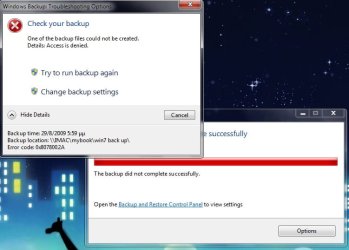
Hello, I didnt know if I had to open a new thread(I hope I didnt), but I have a back up problem too... Although I love my new win7 rtm, tryin today to back up, after some seconds back up stopped reporting that "One of the back up files could not be created. Access is denied." Unfortunately I didnt keep the error code. I restarted pc and tried again to back up... After several hours and just a little bit after back up had reached 50%+ there we go again...

For the record I was backing up to an external drive with 350 gb free which was connected to a Mac to my home network. (my pc has admin rights to that external!) The back up file that was created even if back up stopped, is 75gb.
 

Attachments

  • backup.jpg
    backup.jpg
    42.1 KB · Views: 227

My Computer My Computer

Computer Manufacturer/Model Number
Sigamhsoupw's manufacturing :P
OS
DB: 7 x64, 8 pro
CPU
Athlon II 235e
Motherboard
M3N78-VM
Memory
2*2gb ddr2@800
Graphics Card(s)
ge 8200, g210
Monitor(s) Displays
40V4000
Screen Resolution
1920*1080
Hard Drives
SanDisk 128gb ssd, wd green@500gb
Cooling
TR2 R1
Keyboard
MS wireless comfort 5000
Mouse
MS wireless 5000
100MB system reserved can not extend Volume any more.
right now 100mb system reseved has only 37MB left. I Thing this is the problem can not make a system Image, I think they required minimum free 50MB space. right click on 100mb system reserved I can not add any more Extend Volume.
I just Extend C drive from 80G to 279GB.
Some one know how to Extend System Reserced drive please hel me.
I I still had the same error after extend volume on C.

thank you
 

My Computer My Computer

OS
Windows 7 Ultimate RTM 64 bit
CPU
Intel E8500
Motherboard
Asus P5b Deluxe
Memory
Buffalo FireStix 4G
Graphics Card(s)
EVGA 8800GT
Sound Card
PCI Express X-Fi Titanium
Monitor(s) Displays
NEC
Hard Drives
Seagate 320G sata
PSU
Antec Earthwat 550W
Case
Antec 180P
Cooling
Zalman
1. You may prefer to use a different imaging app. instead. I use Macrium Relect - much better than the windows one imo.

Macrium Reflect FREE Edition - Information and download

2. Or you could get rid of the 100mb system partition - that means making 7 partition into system . It is a bit fiddly, but can be done . Easier if you have a bootable partition manager and the 7 dvd.

3. It is possible to increase the size of the system partition - but you need a 3rd party partition manager to do that - it may take a while and the bcd entry may need to be corrected .

I suggest you try option 1.
 

My Computers My Computers

System One System Two

  • Computer type
    PC/Desktop
    OS
    7 X64
    CPU
    i5 8400
    Motherboard
    gigabyte b365m ds3h
    Memory
    2x8gb 3200mhz
    Hard Drives
    various
    PSU
    pure power 11 400w cm
    Case
    Coolermaster
    Cooling
    cryorig m9i
  • Computer type
    PC/Desktop
    OS
    7x64
    CPU
    g5400
    Motherboard
    ga b365m ds3h
    Memory
    8gb ddr4 2400
    PSU
    xfx pro 450w
  1. <LI class=MsoNormal style="MARGIN: 0in 0in 10pt; mso-list: l0 level1 lfo2">Type backup and restore in start search and hit enter.
    <LI class=MsoNormal style="MARGIN: 0in 0in 10pt; mso-list: l0 level1 lfo2">Click on Setup backup and after you select the hard drive click Next.
    <LI class=MsoNormal style="MARGIN: 0in 0in 10pt; mso-list: l0 level1 lfo2">Select on Let me choose radio buttonand click Next.
    <LI class=MsoNormal style="MARGIN: 0in 0in 10pt; mso-list: l0 level1 lfo2">Next check on C:drive and uncheck recovery partition drive.
    <LI class=MsoNormal style="MARGIN: 0in 0in 10pt; mso-list: l0 level1 lfo2">Uncheck Include a system image of drives and click on Next.
  2. Next click on Save settings and run backup.
 

My Computer My Computer

OS
Windows 7
Back
Top