Windows 7

acdcfan

New member
Member
Local time
5:02 PM
Messages
28
Hi all
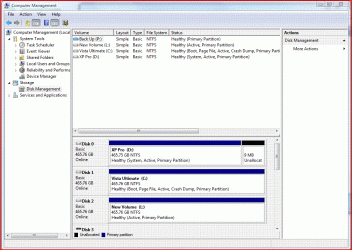
I intend to delete Ubuntu all together and put 7 on whole 500gb drive... see picture below
Xp was installed first, Vista was 2nd and 7 will be 3rd.....

First how do I go about deleting Ubuntu and boot loader than I will delete partitioned space to make one partition. I think install of windows 7 will not be a problem after that.

I hope this will not destroy windows boot loader..... When I go to msconfig Ubuntu does not show up which tells me that boot loader is on ubuntu partition... Someone please confirm this is correct...
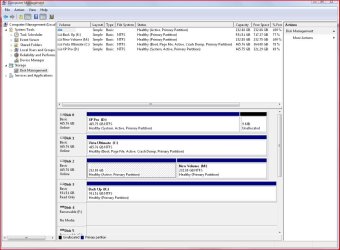
capturern6.jpg
 

My Computer

OS
Windows 7 64 ultimate ( to be installed)
CPU
Q6600
Motherboard
MSI P36NEO
Memory
4 GB 5-5-5-12
Graphics Card(s)
GeForce 8800GTS 512MB overclocled
Sound Card
5.1 surround sound Realtek
Monitor(s) Displays
BenQ 24"
Hard Drives
500GB SATA II XP
500GB SATA II Vista ultimate 64
500GB SATA II Windows 7 Ultimate 64
1 TB external drive Western Digital
PSU
CoolerMaster 1KW
Case
CoolerMaster Cosmos 1000
Cooling
3 exaust, 1 inlet fan 120mm and 120mm ThermalTake Bigtyphoon
Keyboard
Microsoft wireless 3000
Mouse
wireless optical 2.0A
It looks like you're good to go with Win7 on DISK2, but I would zero if first to make sure you get GRUB completely wiped - a simple format probably isn't enough. Use Diskpart commands from the booted Win7 DVD as follows:

Boot the Win7 DVD, select Repair My Computer on second screen, click through to Recovery Tools List, open a command line and type:

DISKPART
LIST DISK
SELECT DISK 2 (confirm this is Windows 7 disk first by size)
clean all (zeroes HD for deepest clean)
create partition primary
select partition 1
active
format
exit

Now reboot into DVD and Custom install to DISK2. Win7 should configure the dual boot correctly as last installed OS. If not, post back with another screenshot.
 
It looks like you're good to go with Win7 on DISK2, but I would zero if first to make sure you get GRUB completely wiped - a simple format probably isn't enough. Use Diskpart commands from the booted Win7 DVD as follows:

Boot the Win7 DVD, select Repair My Computer on second screen, click through to Recovery Tools List, open a command line and type:

DISKPART
LIST DISK
SELECT DISK 2 (confirm this is Windows 7 disk first by size)
clean all (zeroes HD for deepest clean)
create partition primary
select partition 1
active
format
exit

Now reboot into DVD and Custom install to DISK2. Win7 should configure the dual boot correctly as last installed OS. If not, post back with another screenshot.

That is good to know.... Can I clean disk2 from vista using very same command prompt but going Start/run/cmd....

Is that the same ?
 

My Computer

OS
Windows 7 64 ultimate ( to be installed)
CPU
Q6600
Motherboard
MSI P36NEO
Memory
4 GB 5-5-5-12
Graphics Card(s)
GeForce 8800GTS 512MB overclocled
Sound Card
5.1 surround sound Realtek
Monitor(s) Displays
BenQ 24"
Hard Drives
500GB SATA II XP
500GB SATA II Vista ultimate 64
500GB SATA II Windows 7 Ultimate 64
1 TB external drive Western Digital
PSU
CoolerMaster 1KW
Case
CoolerMaster Cosmos 1000
Cooling
3 exaust, 1 inlet fan 120mm and 120mm ThermalTake Bigtyphoon
Keyboard
Microsoft wireless 3000
Mouse
wireless optical 2.0A

My Computer

OS
Windows 7 64 ultimate ( to be installed)
CPU
Q6600
Motherboard
MSI P36NEO
Memory
4 GB 5-5-5-12
Graphics Card(s)
GeForce 8800GTS 512MB overclocled
Sound Card
5.1 surround sound Realtek
Monitor(s) Displays
BenQ 24"
Hard Drives
500GB SATA II XP
500GB SATA II Vista ultimate 64
500GB SATA II Windows 7 Ultimate 64
1 TB external drive Western Digital
PSU
CoolerMaster 1KW
Case
CoolerMaster Cosmos 1000
Cooling
3 exaust, 1 inlet fan 120mm and 120mm ThermalTake Bigtyphoon
Keyboard
Microsoft wireless 3000
Mouse
wireless optical 2.0A
Best done from command Prompt using the Win 7 DVD.

All Linux code must be deleted.

How to Remove Linux and Install Windows XP

How long does it take to clean the disk using command couple of post above and can it be interrupted

THe bigger the HD longer it will take.

Do Not interruped.

That is fine and finished... Disk formatted, made active see screen shot below

capture.gif

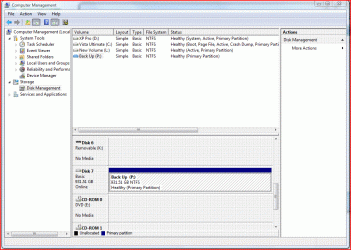
Problem is that disk 2 is on PCI Sata controller and windows 7 dose not see it....
It sees XP as diks0, sees Vista as disk1 and here is a flips side ....It sees my external drive as disk2 which in disk management is disk7 see screen shot

capture1z.gif

How do I get W7 it install on disk2 that is on this PCI SATA contoller?

Please help
 

My Computer

OS
Windows 7 64 ultimate ( to be installed)
CPU
Q6600
Motherboard
MSI P36NEO
Memory
4 GB 5-5-5-12
Graphics Card(s)
GeForce 8800GTS 512MB overclocled
Sound Card
5.1 surround sound Realtek
Monitor(s) Displays
BenQ 24"
Hard Drives
500GB SATA II XP
500GB SATA II Vista ultimate 64
500GB SATA II Windows 7 Ultimate 64
1 TB external drive Western Digital
PSU
CoolerMaster 1KW
Case
CoolerMaster Cosmos 1000
Cooling
3 exaust, 1 inlet fan 120mm and 120mm ThermalTake Bigtyphoon
Keyboard
Microsoft wireless 3000
Mouse
wireless optical 2.0A
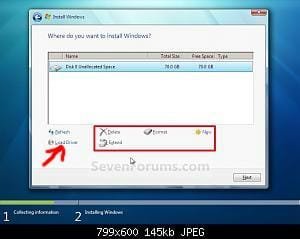
Try Load drivers here:
 

Attachments

  • Step8.jpg
    Step8.jpg
    10.1 KB · Views: 79

My Computer

OS
ME/XP/Vista/Win7
Are you booting the Win7 installer? If so, try running it from Vista to see if it picks up the driver.

What did you use to format Win7 partition? Try deleting the formatting in Vista Disk Mgmt, then boot the Win7 DVD to create/format partition using Custom>Drive Tools.

If neither of these work, then insert the PCI card SATA controller driver into installer at link in theog's screenshot above. Unzip it to flash stick or CD first, browse until installer picks it up.
 
Are you booting the Win7 installer? If so, try running it from Vista to see if it picks up the driver.

I boot of dvd.... and get up where I want to install it. When I try to boot form within Vista I got as far as " set up is loading files" but I stopn becaise I was not sure what it will do to my Vista installation,

What did you use to format Win7 partition? Try deleting the formatting in Vista Disk Mgmt, then boot the Win7 DVD to create/format partition using Custom>Drive Tools.

I did not try that option...I will now

Edit 3 did not try this one but connected the drive to my SATA 2 port

If neither of these work, then insert the PCI card SATA controller driver into installer at link in theog's screenshot above. Unzip it to flash stick or CD first, browse until installer picks it up.

Problem is that I don't know where driver disk is... And if memory servers me right it only had drivers for XP no vista.

It is serial ATA 150 skymaster controller. Reason for me buying controller was my video card hs covered 2 sata port on my MB...
I have 90 degree angled SATA cable and will see if it will fit underneath it...

Edit

I managed to fit the cable underneath the video card, and now hard drive is seen in BIOS and primary salve 2....
I boot of 3rd hard drive which was one first installed with XP, now crunch time ...

Edit 2
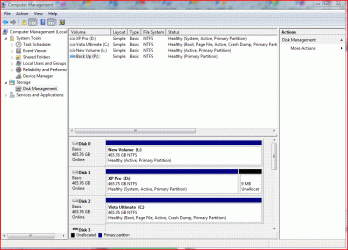
Hard drive I just connected is now drive0.... See screen shot

Capture.GIF

What will that do to my boot loader.... Will W7 see where boot loaders? or will it destroy them... I am not experienced in these things.
 
Last edited:

My Computer

OS
Windows 7 64 ultimate ( to be installed)
CPU
Q6600
Motherboard
MSI P36NEO
Memory
4 GB 5-5-5-12
Graphics Card(s)
GeForce 8800GTS 512MB overclocled
Sound Card
5.1 surround sound Realtek
Monitor(s) Displays
BenQ 24"
Hard Drives
500GB SATA II XP
500GB SATA II Vista ultimate 64
500GB SATA II Windows 7 Ultimate 64
1 TB external drive Western Digital
PSU
CoolerMaster 1KW
Case
CoolerMaster Cosmos 1000
Cooling
3 exaust, 1 inlet fan 120mm and 120mm ThermalTake Bigtyphoon
Keyboard
Microsoft wireless 3000
Mouse
wireless optical 2.0A
You can run 7 setup from within Vista without any damage to your Vista installation.
 

My Computers

System One System Two

  • Computer type
    PC/Desktop
    OS
    7 X64
    CPU
    i5 8400
    Motherboard
    gigabyte b365m ds3h
    Memory
    2x8gb 3200mhz
    Hard Drives
    various
    PSU
    pure power 11 400w cm
    Case
    Coolermaster
    Cooling
    cryorig m9i
  • Computer type
    PC/Desktop
    OS
    7x64
    CPU
    g5400
    Motherboard
    ga b365m ds3h
    Memory
    8gb ddr4 2400
    PSU
    xfx pro 450w
You can run 7 setup from within Vista without any damage to your Vista installation.

I will try to boot from it ....
My boot manager should stay intact, shouldn't it?
 

My Computer

OS
Windows 7 64 ultimate ( to be installed)
CPU
Q6600
Motherboard
MSI P36NEO
Memory
4 GB 5-5-5-12
Graphics Card(s)
GeForce 8800GTS 512MB overclocled
Sound Card
5.1 surround sound Realtek
Monitor(s) Displays
BenQ 24"
Hard Drives
500GB SATA II XP
500GB SATA II Vista ultimate 64
500GB SATA II Windows 7 Ultimate 64
1 TB external drive Western Digital
PSU
CoolerMaster 1KW
Case
CoolerMaster Cosmos 1000
Cooling
3 exaust, 1 inlet fan 120mm and 120mm ThermalTake Bigtyphoon
Keyboard
Microsoft wireless 3000
Mouse
wireless optical 2.0A
I'd remove the formatting from the Win7 target HD in DISK0 partition.

This is because the installer looks for the first active partition to place or update the MBR when configuring the boot.

Since you want a multi-boot with XP/Vista, you need to have Win7 update the MBR on the System Active XP drive.

To avoid confusing the installer by installing to an active drive which is before the System Active (XP) drive, remove the active flag from Win7 by removing the formatting now and using the booted Win7 installer to create and format the partition.

If for some reason Win7 DVD cannot be booted to use Custom Drive Tools to format DISK0, then run the installer from Vista as it will auto-format during Copying Files phase.

You could also move XP HD into DISK0 position to avoid a possible problem.
 
I'd feel a little better assuring you that Win7 will correctly configure your multi-boot if XP remains in the DISK0 position. This is because the installer looks for the first active partition to place the MBR, or in the case of a dual- or multi-boot, to update the MBR accordingly.

It is difficult to swap it all around

However, if it is inconvenient to swap XP into DISK0 position, I think you can solve this easily enough by deleting the formatting from the Win7 target HD to remove the active flag, then use the booted Win7 installer to create and format the partition to install there.

OK
I will delete partition and format it from installation disk

If you can't boot the Win7 installer and must run it from Vista, you won't get the Custom Drive tools to delete/create/format partitions. But the Win7 installer will auto-format the unallocated space during the Copying Files phase, so you can go ahead and delete the Win7 hD formatting now in Vista Disk Mgmt and begin the install from Vista if neccessary.

right now all I want is to install it
 

My Computer

OS
Windows 7 64 ultimate ( to be installed)
CPU
Q6600
Motherboard
MSI P36NEO
Memory
4 GB 5-5-5-12
Graphics Card(s)
GeForce 8800GTS 512MB overclocled
Sound Card
5.1 surround sound Realtek
Monitor(s) Displays
BenQ 24"
Hard Drives
500GB SATA II XP
500GB SATA II Vista ultimate 64
500GB SATA II Windows 7 Ultimate 64
1 TB external drive Western Digital
PSU
CoolerMaster 1KW
Case
CoolerMaster Cosmos 1000
Cooling
3 exaust, 1 inlet fan 120mm and 120mm ThermalTake Bigtyphoon
Keyboard
Microsoft wireless 3000
Mouse
wireless optical 2.0A
I thank Theog, Gregrocker and SIW2 for their help....
Guys I have tipped your scales ....

Now If you can show me how to bring all my bookmarks, bookmarks tool bar and my passwords from Vista to W7 would be great
 

My Computer

OS
Windows 7 64 ultimate ( to be installed)
CPU
Q6600
Motherboard
MSI P36NEO
Memory
4 GB 5-5-5-12
Graphics Card(s)
GeForce 8800GTS 512MB overclocled
Sound Card
5.1 surround sound Realtek
Monitor(s) Displays
BenQ 24"
Hard Drives
500GB SATA II XP
500GB SATA II Vista ultimate 64
500GB SATA II Windows 7 Ultimate 64
1 TB external drive Western Digital
PSU
CoolerMaster 1KW
Case
CoolerMaster Cosmos 1000
Cooling
3 exaust, 1 inlet fan 120mm and 120mm ThermalTake Bigtyphoon
Keyboard
Microsoft wireless 3000
Mouse
wireless optical 2.0A
Hopefully you have your bookmarks backed up to the default Documents bookmark folder location, or somewhere. They require exporting to be reimported.

In IE8, click Favorites>Add to Favorites down-arrow>Import>Import from File>Favorites>Location of bookmark file.
 
Hopefully you have your bookmarks backed up to the default Documents bookmark folder location, or somewhere. They require exporting to be reimported.

In IE8, click Favorites>Add to Favorites down-arrow>Import>Import from File>Favorites>Location of bookmark file.

I will boot into Vista and export it all.....
 

My Computer

OS
Windows 7 64 ultimate ( to be installed)
CPU
Q6600
Motherboard
MSI P36NEO
Memory
4 GB 5-5-5-12
Graphics Card(s)
GeForce 8800GTS 512MB overclocled
Sound Card
5.1 surround sound Realtek
Monitor(s) Displays
BenQ 24"
Hard Drives
500GB SATA II XP
500GB SATA II Vista ultimate 64
500GB SATA II Windows 7 Ultimate 64
1 TB external drive Western Digital
PSU
CoolerMaster 1KW
Case
CoolerMaster Cosmos 1000
Cooling
3 exaust, 1 inlet fan 120mm and 120mm ThermalTake Bigtyphoon
Keyboard
Microsoft wireless 3000
Mouse
wireless optical 2.0A
Hopefully you have your bookmarks backed up to the default Documents bookmark folder location, or somewhere. They require exporting to be reimported.

In IE8, click Favorites>Add to Favorites down-arrow>Import>Import from File>Favorites>Location of bookmark file.

For some reason, probably because it was no good previously, I still tend to use Firefox
 

My Computer

OS
Windows 7 64 ultimate ( to be installed)
CPU
Q6600
Motherboard
MSI P36NEO
Memory
4 GB 5-5-5-12
Graphics Card(s)
GeForce 8800GTS 512MB overclocled
Sound Card
5.1 surround sound Realtek
Monitor(s) Displays
BenQ 24"
Hard Drives
500GB SATA II XP
500GB SATA II Vista ultimate 64
500GB SATA II Windows 7 Ultimate 64
1 TB external drive Western Digital
PSU
CoolerMaster 1KW
Case
CoolerMaster Cosmos 1000
Cooling
3 exaust, 1 inlet fan 120mm and 120mm ThermalTake Bigtyphoon
Keyboard
Microsoft wireless 3000
Mouse
wireless optical 2.0A
Yeah they finally got IE perfected in Win7. Never misses a beat. I wouldn't use anything else here.
 
Back
Top