Windows boot manager will not boot 7

BETA BOY

New member
Local time
2:39 AM
Messages
15
:( I have 2 hard drives. One HD is XP and it boots fine from boot manager. The other drive has Windows 7 and gives me error code oxc000000e in boot manager when I try to boot it. I have XP as the default on IDE and Windows 7 is on SATA. I loaded 7 on the SATA though while disconnecting XP IDE drive to avoid any possible conflicts.

None of my keyboard keys give me the luxury to bring up a direct boot list like other forum posters I have read. My only other option is going in bios and changing boot priority. Windows 7 boots fine when I do that.

Windows Boot Manager would allow fastest boot to avoid going into bios every time choosing what OS I want. How can I safely edit the BCD? It seems complicated but I know I could do it with a good instructor.

I just want to be able to turn my computer on and have the Boot manager pop up and let me choose what OS I want to boot.

Any help would be appreciated. Thank You.
 

My Computer

OS
XP Pro SP3 and Windows 7 RC7100 each on seperate HD
CPU
P4 W/HT Technology (Intel)
Motherboard
FOXCONN
Memory
2 gig
Graphics Card(s)
On Board Video
Sound Card
On Board Sound
Monitor(s) Displays
Cornea CT1700 17 inch (displays ?)
Screen Resolution
Unknown Off The Bat
Hard Drives
Seagate 200 gig Internal - IDE (Windows XP Pro Sp3)
Western Digital 500 gig Internal - SATA (Windows 7 RC-7100)
PSU
450 Watt
Case
Just For PC
Cooling
3 8mm fans
Keyboard
USB KeyBoard
Mouse
Logitech Cordless
Internet Speed
Broadband
Hello Beta Boy, and welcome to Seven Forums.

Since you disconnected the XP drive during installation, the boot entry for Windows 7 was never added to the default boot file on the XP drive. You should be able to run a Startup Repair with your Windows 7 installation disc to fix this.

Hope this helps,
Shawn
 

My Computer

Computer type
PC/Desktop
Computer Manufacturer/Model Number
Self built custom
OS
64-bit Windows 11 Pro for Workstations
CPU
Intel i7-8700K OC'd to 5 GHz
Motherboard
ASUS ROG Maximus XI Formula Z390
Memory
64 GB (4x16GB) G.SKILL TridentZ RGB DDR4 3600 MHz
Graphics Card(s)
ASUS ROG-STRIX-GTX1080TI-O11G-GAMING
Sound Card
Integrated
Monitor(s) Displays
2 x Samsung Odyssey G7 27"
Screen Resolution
2560x1440
Hard Drives
1TB Samsung 990 PRO M.2,
4TB Samsung 990 PRO PRO M.2,
TerraMaster F8 SSD Plus NAS
PSU
Seasonic Prime Titanium 850W
Case
Thermaltake Core P3
Cooling
Corsair Hydro H115i
Keyboard
Logitech wireless K800
Mouse
Logitech MX Master 4
Internet Speed
2 Gb/s Download and 100 Mb/s Upload
Antivirus
Malwarebyte Anti-Malware Premium
Browser
Google Chrome
Other Info
Logitech Z625 speaker system,
Logitech BRIO 4K Pro webcam,
HP Color LaserJet Pro MFP M477fdn,
APC SMART-UPS RT 1000 XL - SURT1000XLI,
Galaxy S23 Plus phone
Glad you could join us at the sevenforums! You came to the right place for the answer on that one! :D

Without having the XP drive plugged in the 7 boot files, BCD store, and mbr entries were placed on the sata drive by default. To see 7 startup without going into the bios look for the boot device menu if available often the F1, F8, or F12 key is pressed right after the first post screen appears and the lights on the keyboard flash for the first time. You then select the sata drive from the hard drive listing there.

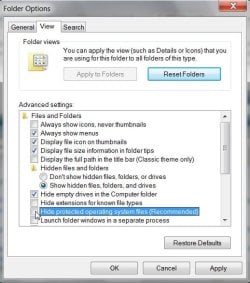
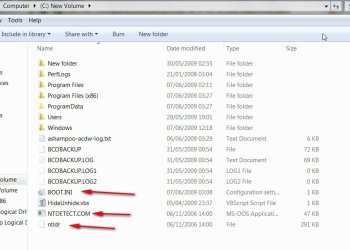
For seeing XP added into the 7 BCD you will first need to go into the menu bar>folder options>view tab in any Windows Explorer window to uncheck the hide protected operating system files and files with known extensions items there. Once visible while browsing you will need to copy the XP boot files NT Detect.com, ntldr, and a copy of the boot.ini file over to the root of the 7 drive.

The next step once the files are present on the 7 root directory would start off with a review on the tutorial on how to go about setting up a dual in the second part. http://www.sevenforums.com/tutorials/8057-dual-boot-installation-windows-7-xp.html?ltr=D

The tool for seeing the XP entry called EasyBCD is available at Download EasyBCD 1.7.2 - NeoSmart Technologies with the general documentation seen at EasyBCD Documentation Home - NeoSmart Technologies Wiki

Once you have the XP entry successfully added into the 7 boot loader you will need to go into the bios then in order to change the default boot device to the sata drive in the boot order section found there. You still keep XP as the default OS however in the system>advanced system settings>startup and recovery section in 7 or made easier by the setting section in the EasyBCD tool itself.
 

My Computers

System One System Two

  • Computer type
    PC/Desktop
    Computer Manufacturer/Model Number
    Custom builds = 2
    OS
    W7 Ultimate x64/W10 Pro x64/W11 Pro Triple Boot - Main PC W7 Remote PC Micro ATX W7 Pro x64/W11 Pro
    CPU
    AMD Phenom II X4 975 Deneb 3.6ghz - 965 2nd remote pc
    Motherboard
    Gigabyte GA-790XTA-UD4-Gigabyte GA-880GM-D2H remote pc
    Memory
    Kingston Hyper X DDR3 1600 1.5v 16gb - Hyper X Fury 8gb 2nd
    Graphics Card(s)
    MSI HD Radeon 5750 1gb - MSI HD Radeon 6450 on mini tower
    Sound Card
    Creative Labs X-Fi Xtreme Audio P - Realtek onooard 2nd case
    Monitor(s) Displays
    ASUS VW199T-P 19" HP 2082a Main-HP 2082a 20" remote pc
    Screen Resolution
    Asus 1440x900 - HP 1600x900
    Hard Drives
    WD Black 1TB HD per OS W7, W10, and pending W11 presently on 500gb OS Drive - Pending Triple 1TB HDs for Spanned Storage/backup volume
    Single 2TB external USB enclosure, single 1TB System 7 Host/Boot drive, Pending 8TB external HD for system image b
    PSU
    Corsair 750TX - primary / Corsair CX600 - second
    Case
    Antec 900-2 - SSD compatible / NZXT Vulcan mini tower
    Cooling
    Zalman CNPS9900A
    Keyboard
    AZIO L70 Backlit Letters Gaming - ONN Cordless/USB
    Mouse
    MSI DS200 Programmable, Logitech Cordless
    Internet Speed
    30mbps upgrade - primary hard wired - mini tower usb WiFi
    Antivirus
    GFI VIPRE Internet Security 2014 on W7 2016 beta on W10,
    Browser
    Cyberfox, WaterFox 64bit FF variants, FireFox x64, Pale Moon
    Other Info
    Accomdata fan cooled usb 2.0 PIDE/Sata II, III external enclosure.
    Sambient usb/eSata PATA/Sata II, III external enclosure.
  • Computer type
    PC/Desktop
    System Manufacturer/Model Number
    CUSTOM ASSEMBLY
    OS
    W7 Pro x64/W11 Pro
    CPU
    AMD Deneb 3.6ghz - 965
    Motherboard
    Gigabyte GA-880GM-D2H remote pc
    Memory
    Kingston Hyper X Fury 8gb
    Graphics Card(s)
    MSI HD Radeon 6450 DVI Output
    Sound Card
    Realtek onooard Creative or Other separate PENDING
    Monitor(s) Displays
    VIZIO 32" LCD TV Separate LCD Pending
    Screen Resolution
    1600x1080
    Hard Drives
    WD 500GB OS Host/Boot WD Green 1TB Storage/Backup
    PSU
    Corsair 600W - THERMALTAKE 600W spare case
    Case
    NZXT Vulcan mini tower
    Cooling
    Twin 120mm Top Fans - 240mm Side Cover
    Keyboard
    ONN Cordless/USB Logitech Cordless
    Mouse
    ONN USB/Cordless - Logitech Cordless
    Internet Speed
    DSL 5G
    Browser
    MS Edge, FireFox, WaterFox x64, FireFox Nightly
    Other Info
    OS Testing-Remote Access to Main TeamViewer
Thanks for trying to help me Windows 7 forum members Brink & Nighthawk. Unfortunately I'm still dumbfounded by this. I downloaded EasyBCD tool. I opened tool and clicked view settings tab and this is what I have.

There are 2 OS listed listed in the Vista Boot Loader

Default OS: Windows XP PRO SP3
(I changed the OS name before it was Earlier Version Of Windows) So You All Know

Entry #1

Name: Windows XP PRO SP3
BCD ID: {ntldr}
Drive: C:\
Bootloader Path: \ntldr


Entry #2

Name: Windows 7
BCD ID: {1655598f-4764-ndeb9od-d69a417168ao}
Drive: C:\
Bootloader Path: \Windows\system32\winload.exe
Windows Directory: \Windows

I tried putting my 7 DVD I created and ran start up repair per Brink's suggestion and that did not work. The explanations by Nighthawk are confusing to me and I'm sorry for that. I tried writing another MBR with the EasyBCD tool and that did not work either.

XP will boot selecting from the Windows Boot Manager but Windows 7 still comes up with that error oxc000000e and a message I forgot to mention earlier underneath saying the device is not accessable (meaning obviously Windows 7 hard drive can't boot)

I can still go into bios and make the Windows 7 hard drive my first boot priority and it boots fine. I do not get the Windows Boot Manager when I do boot from the Windows 7 hard drive 1st priority I will mention. I only get the Boot Manager When I make XP my 1st Boot Priority. I know I could use EasyBCD Tool and write MBR on the Windows 7 hard drive and form the Windows Boot Manager for that drive. I'm afraid that would just add to my problem and I wouldn't be able to boot XP in the Windows Boot Manager and I would only be able to boot Windows 7.

My bios is a Pheonix Award Bios and I'm running a custom built P4 machine/2 gigs DDR mem (I built) so I have an older system just so you know not that it nessessarily matters in this situation. I just thought I mention.

I think my bios is simply to much a dinasaur. My machine still does every thing I need it to and have not upgraded my motherboard to support a duo, dual or quad processor just yet. Although I itch every day just no money now (out of work) I do not have any keyboard F-key option to get a hard drive boot list with this bios. I have tried 1 thru 12 and nothing happens.

I have to go all the way in bios to change boot priority and it simply a pain with this board and I guess for now I just will have to suck it up if I can't figure how to modify Boot Manager correctly for ability to conveniently boot OS I want.

I apreciate anyone who can help as I gave more detailed information that may able someone to help me simpler I hope. I understand what my problem is within the BCD but I'm having a hard time grasping how to take instructions and steps given by Nighthawk to actually fix it.
 

My Computer

OS
XP Pro SP3 and Windows 7 RC7100 each on seperate HD
CPU
P4 W/HT Technology (Intel)
Motherboard
FOXCONN
Memory
2 gig
Graphics Card(s)
On Board Video
Sound Card
On Board Sound
Monitor(s) Displays
Cornea CT1700 17 inch (displays ?)
Screen Resolution
Unknown Off The Bat
Hard Drives
Seagate 200 gig Internal - IDE (Windows XP Pro Sp3)
Western Digital 500 gig Internal - SATA (Windows 7 RC-7100)
PSU
450 Watt
Case
Just For PC
Cooling
3 8mm fans
Keyboard
USB KeyBoard
Mouse
Logitech Cordless
Internet Speed
Broadband
Hi,

Do you have the files ntldr, ntdetect.com and Boot.ini on the 7 HD.?

To see them , you need to got to Folder Options and put a dot in "Show Hidden files, folders and drives".

Also , untick "Hide Protected Operating system files".

Click Apply, OK.

SHOW HIDDEN2009-06-08_200526.jpg

XPBOOTFILES2009-06-07_153911.jpg
 

My Computers

System One System Two

  • Computer type
    PC/Desktop
    OS
    7 X64
    CPU
    i5 8400
    Motherboard
    gigabyte b365m ds3h
    Memory
    2x8gb 3200mhz
    Hard Drives
    various
    PSU
    pure power 11 400w cm
    Case
    Coolermaster
    Cooling
    cryorig m9i
  • Computer type
    PC/Desktop
    OS
    7x64
    CPU
    g5400
    Motherboard
    ga b365m ds3h
    Memory
    8gb ddr4 2400
    PSU
    xfx pro 450w
Hello SIW2,

Where do I find Folder options in Windows 7? I have no clue where to click to get there.
 

My Computer

OS
XP Pro SP3 and Windows 7 RC7100 each on seperate HD
CPU
P4 W/HT Technology (Intel)
Motherboard
FOXCONN
Memory
2 gig
Graphics Card(s)
On Board Video
Sound Card
On Board Sound
Monitor(s) Displays
Cornea CT1700 17 inch (displays ?)
Screen Resolution
Unknown Off The Bat
Hard Drives
Seagate 200 gig Internal - IDE (Windows XP Pro Sp3)
Western Digital 500 gig Internal - SATA (Windows 7 RC-7100)
PSU
450 Watt
Case
Just For PC
Cooling
3 8mm fans
Keyboard
USB KeyBoard
Mouse
Logitech Cordless
Internet Speed
Broadband

My Computer

Computer Manufacturer/Model Number
HP Pavillion dv-7 1005 Tx
OS
Win 8 Release candidate 8400
CPU
[email protected]
Memory
4 gigs
Graphics Card(s)
Nvidia 9600M
Sound Card
HD built-in
Monitor(s) Displays
17" Wxga
Screen Resolution
1440x900
Cooling
none
Internet Speed
45Mb down 5Mb up
Thanks Ken..

I appreciate that. I will check back shortly to report what I find..

Jason (Beta Boy)
 

My Computer

OS
XP Pro SP3 and Windows 7 RC7100 each on seperate HD
CPU
P4 W/HT Technology (Intel)
Motherboard
FOXCONN
Memory
2 gig
Graphics Card(s)
On Board Video
Sound Card
On Board Sound
Monitor(s) Displays
Cornea CT1700 17 inch (displays ?)
Screen Resolution
Unknown Off The Bat
Hard Drives
Seagate 200 gig Internal - IDE (Windows XP Pro Sp3)
Western Digital 500 gig Internal - SATA (Windows 7 RC-7100)
PSU
450 Watt
Case
Just For PC
Cooling
3 8mm fans
Keyboard
USB KeyBoard
Mouse
Logitech Cordless
Internet Speed
Broadband
I took a clipboard image of my Windows 7 Hard Drive This is what I have. I don't even know where to begin to add files ntldr, ntdetect.com and Boot.ini on the 7 HD.

Why can't I add the Windows 7 boot files to the XP hard drive and do the same thing? Is that possible?
 

My Computer

OS
XP Pro SP3 and Windows 7 RC7100 each on seperate HD
CPU
P4 W/HT Technology (Intel)
Motherboard
FOXCONN
Memory
2 gig
Graphics Card(s)
On Board Video
Sound Card
On Board Sound
Monitor(s) Displays
Cornea CT1700 17 inch (displays ?)
Screen Resolution
Unknown Off The Bat
Hard Drives
Seagate 200 gig Internal - IDE (Windows XP Pro Sp3)
Western Digital 500 gig Internal - SATA (Windows 7 RC-7100)
PSU
450 Watt
Case
Just For PC
Cooling
3 8mm fans
Keyboard
USB KeyBoard
Mouse
Logitech Cordless
Internet Speed
Broadband
I took a clipboard image of my Windows 7 Hard Drive This is what I have. I don't even know where to begin to add files ntldr, ntdetect.com and Boot.ini on the 7 HD.

Why can't I add the Windows 7 boot files to the XP hard drive and do the same thing? Is that possible?
BB
did you attach the clip? the prefered way is described in the tutorial section, but make sure its <100K and 100x100 pixels.

K
 

My Computer

Computer Manufacturer/Model Number
HP Pavillion dv-7 1005 Tx
OS
Win 8 Release candidate 8400
CPU
[email protected]
Memory
4 gigs
Graphics Card(s)
Nvidia 9600M
Sound Card
HD built-in
Monitor(s) Displays
17" Wxga
Screen Resolution
1440x900
Cooling
none
Internet Speed
45Mb down 5Mb up
The Clipboard Image Did Not Show. I saves it. When I upload keeps saying invalid file. Any way when I click on the drive that contains Windows 7 I have the folloeing folders and files:

PerfLogs

Users

autoexec

Program Files

Windows

Config


That is it and no boot files that I see
 

My Computer

OS
XP Pro SP3 and Windows 7 RC7100 each on seperate HD
CPU
P4 W/HT Technology (Intel)
Motherboard
FOXCONN
Memory
2 gig
Graphics Card(s)
On Board Video
Sound Card
On Board Sound
Monitor(s) Displays
Cornea CT1700 17 inch (displays ?)
Screen Resolution
Unknown Off The Bat
Hard Drives
Seagate 200 gig Internal - IDE (Windows XP Pro Sp3)
Western Digital 500 gig Internal - SATA (Windows 7 RC-7100)
PSU
450 Watt
Case
Just For PC
Cooling
3 8mm fans
Keyboard
USB KeyBoard
Mouse
Logitech Cordless
Internet Speed
Broadband
The Clipboard Image Did Not Show. I saves it. When I upload keeps saying invalid file. Any way when I click on the drive that contains Windows 7 I have the folloeing folders and files:

PerfLogs

Users

autoexec

Program Files

Windows

Config


That is it and no boot files that I see
BB
If you type folder options in search then click folder options it should look like this
 
Last edited:

My Computer

Computer Manufacturer/Model Number
HP Pavillion dv-7 1005 Tx
OS
Win 8 Release candidate 8400
CPU
[email protected]
Memory
4 gigs
Graphics Card(s)
Nvidia 9600M
Sound Card
HD built-in
Monitor(s) Displays
17" Wxga
Screen Resolution
1440x900
Cooling
none
Internet Speed
45Mb down 5Mb up
Here is what shows on my Windows 7 hard drive when I click on the drive letter D: when I'm logged in my other hard drive in XP that is C: There is no boot files that I can see.
 

Attachments

My Computer

OS
XP Pro SP3 and Windows 7 RC7100 each on seperate HD
CPU
P4 W/HT Technology (Intel)
Motherboard
FOXCONN
Memory
2 gig
Graphics Card(s)
On Board Video
Sound Card
On Board Sound
Monitor(s) Displays
Cornea CT1700 17 inch (displays ?)
Screen Resolution
Unknown Off The Bat
Hard Drives
Seagate 200 gig Internal - IDE (Windows XP Pro Sp3)
Western Digital 500 gig Internal - SATA (Windows 7 RC-7100)
PSU
450 Watt
Case
Just For PC
Cooling
3 8mm fans
Keyboard
USB KeyBoard
Mouse
Logitech Cordless
Internet Speed
Broadband
Here is what shows on my Windows 7 hard drive when I click on the drive letter D: when I'm logged in my other hard drive in XP that is C: There is no boot files that I can see.
BB

Hey. That bmp file was pretty pixilated (and large) the way they do it here is to keep them under 100k and under 100x100 pixels. I think you said when Im in the other OS (XP) and I click on D: there are no boot files. Is that what you saying?

Ken
 

My Computer

Computer Manufacturer/Model Number
HP Pavillion dv-7 1005 Tx
OS
Win 8 Release candidate 8400
CPU
[email protected]
Memory
4 gigs
Graphics Card(s)
Nvidia 9600M
Sound Card
HD built-in
Monitor(s) Displays
17" Wxga
Screen Resolution
1440x900
Cooling
none
Internet Speed
45Mb down 5Mb up
Do you have the files ntldr, ntdetect.com and Boot.ini on the 7 HD.?

I Went To Folder Options and put a dot in "Show Hidden files, folders and drives".

I Also , untick "Hide Protected Operating system files".

The I Click Apply, OK.

Nothing Has Changed.

I Then Went On To Do This:


I installed Easy BCD Tool

There are 2 OS listed listed in the Vista Boot Loader

Default OS: Windows XP PRO SP3
(I changed the OS name before it was Earlier Version Of Windows) So You All Know

Entry #1

Name: Windows XP PRO SP3
BCD ID: {ntldr}
Drive: C:\
Bootloader Path: \ntldr


Entry #2

Name: Windows 7
BCD ID: {1655598f-4764-ndeb9od-d69a417168ao}
Drive: C:\
Bootloader Path: \Windows\system32\winload.exe
Windows Directory: \Windows

I tried putting my 7 DVD I created and ran start up repair per Brink's suggestion and that did not work. The explanations by Nighthawk are confusing to me and I'm sorry for that. I tried writing another MBR with the EasyBCD tool and that did not work either.

XP will boot selecting from the Windows Boot Manager but Windows 7 still comes up with that error oxc000000e and a message I forgot to mention earlier underneath saying the device is not accessable (meaning obviously Windows 7 hard drive can't boot)

I can still go into bios and make the Windows 7 hard drive my first boot priority and it boots fine. I do not get the Windows Boot Manager when I do boot from the Windows 7 hard drive 1st priority I will mention. I only get the Boot Manager When I make XP my 1st Boot Priority. I know I could use EasyBCD Tool and write MBR on the Windows 7 hard drive and form the Windows Boot Manager for that drive. I'm afraid that would just add to my problem and I wouldn't be able to boot XP in the Windows Boot Manager and I would only be able to boot Windows 7.

My bios is a Pheonix Award Bios and I'm running a custom built P4 machine/2 gigs DDR mem (I built) so I have an older system just so you know not that it nessessarily matters in this situation. I just thought I mention.

I think my bios is simply to much a dinasaur. My machine still does every thing I need it to and have not upgraded my motherboard to support a duo, dual or quad processor just yet. Although I itch every day just no money now (out of work) I do not have any keyboard F-key option to get a hard drive boot list with this bios. I have tried 1 thru 12 and nothing happens.

I have to go all the way in bios to change boot priority and it simply a pain with this board and I guess for now I just will have to suck it up if I can't figure how to modify Boot Manager correctly for ability to conveniently boot OS I want.

I apreciate anyone who can help as I gave more detailed information that may able someone to help me simpler I hope. I understand what my problem is within the BCD but I'm having a hard time grasping how to take instructions and steps given by Nighthawk to actually fix it.
 

My Computer

OS
XP Pro SP3 and Windows 7 RC7100 each on seperate HD
CPU
P4 W/HT Technology (Intel)
Motherboard
FOXCONN
Memory
2 gig
Graphics Card(s)
On Board Video
Sound Card
On Board Sound
Monitor(s) Displays
Cornea CT1700 17 inch (displays ?)
Screen Resolution
Unknown Off The Bat
Hard Drives
Seagate 200 gig Internal - IDE (Windows XP Pro Sp3)
Western Digital 500 gig Internal - SATA (Windows 7 RC-7100)
PSU
450 Watt
Case
Just For PC
Cooling
3 8mm fans
Keyboard
USB KeyBoard
Mouse
Logitech Cordless
Internet Speed
Broadband
Ken,

Yes to answer your question. After I booted the XP hard drive I click on D:(Windows 7) and it only lists what you saw in my screenshot:

PerfLogs

Users

autoexec

Program Files

Windows

Config


I click my computer in XP right click the drive and open. No Boot Files show on the drive.
 

My Computer

OS
XP Pro SP3 and Windows 7 RC7100 each on seperate HD
CPU
P4 W/HT Technology (Intel)
Motherboard
FOXCONN
Memory
2 gig
Graphics Card(s)
On Board Video
Sound Card
On Board Sound
Monitor(s) Displays
Cornea CT1700 17 inch (displays ?)
Screen Resolution
Unknown Off The Bat
Hard Drives
Seagate 200 gig Internal - IDE (Windows XP Pro Sp3)
Western Digital 500 gig Internal - SATA (Windows 7 RC-7100)
PSU
450 Watt
Case
Just For PC
Cooling
3 8mm fans
Keyboard
USB KeyBoard
Mouse
Logitech Cordless
Internet Speed
Broadband
I'm getting away from this for awhile this problem has totally frustrated me. I must step away to do something else. I need some time to clear my head so I can beat this. I will check back around 10:30 P.M EST. Thanks To All Trying To Help.
 

My Computer

OS
XP Pro SP3 and Windows 7 RC7100 each on seperate HD
CPU
P4 W/HT Technology (Intel)
Motherboard
FOXCONN
Memory
2 gig
Graphics Card(s)
On Board Video
Sound Card
On Board Sound
Monitor(s) Displays
Cornea CT1700 17 inch (displays ?)
Screen Resolution
Unknown Off The Bat
Hard Drives
Seagate 200 gig Internal - IDE (Windows XP Pro Sp3)
Western Digital 500 gig Internal - SATA (Windows 7 RC-7100)
PSU
450 Watt
Case
Just For PC
Cooling
3 8mm fans
Keyboard
USB KeyBoard
Mouse
Logitech Cordless
Internet Speed
Broadband
:( I have 2 hard drives. One HD is XP and it boots fine from boot manager. The other drive has Windows 7 and gives me error code oxc000000e in boot manager when I try to boot it. I have XP as the default on IDE and Windows 7 is on SATA. I loaded 7 on the SATA though while disconnecting XP IDE drive to avoid any possible conflicts.

None of my keyboard keys give me the luxury to bring up a direct boot list like other forum posters I have read. My only other option is going in bios and changing boot priority. Windows 7 boots fine when I do that.

Windows Boot Manager would allow fastest boot to avoid going into bios every time choosing what OS I want. How can I safely edit the BCD? It seems complicated but I know I could do it with a good instructor.

I just want to be able to turn my computer on and have the Boot manager pop up and let me choose what OS I want to boot.

Any help would be appreciated. Thank You.


We might be stepping back here, as I do see that your making progress doing the manual editing necessary to dual-boot. but here's the simple solution: Take off win7 before you get too deep with installing programs that you will have to re-do. re-install win7 (now that your sure it wont cause any conflicts) make sure both hard drives are plugged in and active in the Bios. Win7 has it's own reliable utility that will setup multiple boot sectors, and will automatically support multiple OS's showing up at system startup.

This is your best bet, please keep us updated.

-D
 

My Computer

Computer Manufacturer/Model Number
Myself
OS
Windows 7 64bit Ultimate Build 7268.0.090701-1900
CPU
Quad CPU Q6600 @ 2.4GHz
Memory
4GB 6400 Dual Channel
Graphics Card(s)
1GB DDR3 x16 + 512mb ddr2 x1
Sound Card
I dunno, but it puts out a good 7.1 sur through the fiber :D
Monitor(s) Displays
Quad-Monitor display (check out the photo)
Screen Resolution
1200x1600
Hard Drives
(2 x 1TB) + (1 x 500Gb)

tip: Always run your OS on a small Disk with away from your large storage files, and make sure theirs plenty of Cache (32mb recommnded).
PSU
1000w
Case
a block of wood
Cooling
Intel Standard. tip: Dont overclock with beta win7...
Internet Speed
15meg
First off when having both drives plugged in with XP being on an ide drive and going to reinstall 7 the bootmgr file and others along with the new boot folder will be placed on the XP drive even while 7 goes on the second drive. Ide overrides sata when the Windows sees any ide drive as the first.

The fix mbr option seen in the EasyBCD tool is only used when the mbr on the 7 drive is changed not to see 7 mbr entries placed on the XP drive when none where seen there to start with. That's why you are rushing into a bit of confusion presently.

Once the XP boot files were copied over to the C root of the second 7 drive and that was set as the default boot device the EasyBCD tool is used simply to add the new XP entry into the 7 BCD store. That then will appear as a boot option on the 7 boot menu screen.

The view settings option shows you made it that far. The next step if XP fails to load when selected at boot up is to go back into the EasyBCD tool's change settings to make sure that XP is associated to the correct drive letter. First find out which letter that is like is it D, E, F, G, H? Obviously that will offset the D normally taken by the optical drive itself.

Once you have D or another drive letter decided on you can go into the Disk Management if needed to see that letter assigned for XP. When in the change settings you simply drop the drive letter list down and select D if D or F, G, H if the optical drive is now seen as E.
 

My Computers

System One System Two

  • Computer type
    PC/Desktop
    Computer Manufacturer/Model Number
    Custom builds = 2
    OS
    W7 Ultimate x64/W10 Pro x64/W11 Pro Triple Boot - Main PC W7 Remote PC Micro ATX W7 Pro x64/W11 Pro
    CPU
    AMD Phenom II X4 975 Deneb 3.6ghz - 965 2nd remote pc
    Motherboard
    Gigabyte GA-790XTA-UD4-Gigabyte GA-880GM-D2H remote pc
    Memory
    Kingston Hyper X DDR3 1600 1.5v 16gb - Hyper X Fury 8gb 2nd
    Graphics Card(s)
    MSI HD Radeon 5750 1gb - MSI HD Radeon 6450 on mini tower
    Sound Card
    Creative Labs X-Fi Xtreme Audio P - Realtek onooard 2nd case
    Monitor(s) Displays
    ASUS VW199T-P 19" HP 2082a Main-HP 2082a 20" remote pc
    Screen Resolution
    Asus 1440x900 - HP 1600x900
    Hard Drives
    WD Black 1TB HD per OS W7, W10, and pending W11 presently on 500gb OS Drive - Pending Triple 1TB HDs for Spanned Storage/backup volume
    Single 2TB external USB enclosure, single 1TB System 7 Host/Boot drive, Pending 8TB external HD for system image b
    PSU
    Corsair 750TX - primary / Corsair CX600 - second
    Case
    Antec 900-2 - SSD compatible / NZXT Vulcan mini tower
    Cooling
    Zalman CNPS9900A
    Keyboard
    AZIO L70 Backlit Letters Gaming - ONN Cordless/USB
    Mouse
    MSI DS200 Programmable, Logitech Cordless
    Internet Speed
    30mbps upgrade - primary hard wired - mini tower usb WiFi
    Antivirus
    GFI VIPRE Internet Security 2014 on W7 2016 beta on W10,
    Browser
    Cyberfox, WaterFox 64bit FF variants, FireFox x64, Pale Moon
    Other Info
    Accomdata fan cooled usb 2.0 PIDE/Sata II, III external enclosure.
    Sambient usb/eSata PATA/Sata II, III external enclosure.
  • Computer type
    PC/Desktop
    System Manufacturer/Model Number
    CUSTOM ASSEMBLY
    OS
    W7 Pro x64/W11 Pro
    CPU
    AMD Deneb 3.6ghz - 965
    Motherboard
    Gigabyte GA-880GM-D2H remote pc
    Memory
    Kingston Hyper X Fury 8gb
    Graphics Card(s)
    MSI HD Radeon 6450 DVI Output
    Sound Card
    Realtek onooard Creative or Other separate PENDING
    Monitor(s) Displays
    VIZIO 32" LCD TV Separate LCD Pending
    Screen Resolution
    1600x1080
    Hard Drives
    WD 500GB OS Host/Boot WD Green 1TB Storage/Backup
    PSU
    Corsair 600W - THERMALTAKE 600W spare case
    Case
    NZXT Vulcan mini tower
    Cooling
    Twin 120mm Top Fans - 240mm Side Cover
    Keyboard
    ONN Cordless/USB Logitech Cordless
    Mouse
    ONN USB/Cordless - Logitech Cordless
    Internet Speed
    DSL 5G
    Browser
    MS Edge, FireFox, WaterFox x64, FireFox Nightly
    Other Info
    OS Testing-Remote Access to Main TeamViewer
Thanks to All I think I got it licked. I reinstalled Windows 7 per antalgebra's suggestion.

I had both hard drives hooked up this time. The Windows Boot Manager now allows me to load XP Or Windows 7. NightHawk thanks again for your help at the end. All you guys are just awesome for taking the time to help. It really is appreciated.

Does anyone happen to know how to get rid of a virtual optical CD drive I accidentally created in my XP system. If I only new what program I used that created it. I know then it would not be a problem to get rid of it but that is my problem.

I have tried everything to delete it but it is deeply rooted in the registry for sure but I have no clue what to look for to even attempt to rid it.

If anyone has a trick to the trade for this problem I would appreciate some mentoring.

If you can't help me here which i understand I'm off subject for which these forums are for Windows 7. If you know where else i could go to get help that would be great.

Thanks again to all.


Jason or Beta Boy
 

My Computer

OS
XP Pro SP3 and Windows 7 RC7100 each on seperate HD
CPU
P4 W/HT Technology (Intel)
Motherboard
FOXCONN
Memory
2 gig
Graphics Card(s)
On Board Video
Sound Card
On Board Sound
Monitor(s) Displays
Cornea CT1700 17 inch (displays ?)
Screen Resolution
Unknown Off The Bat
Hard Drives
Seagate 200 gig Internal - IDE (Windows XP Pro Sp3)
Western Digital 500 gig Internal - SATA (Windows 7 RC-7100)
PSU
450 Watt
Case
Just For PC
Cooling
3 8mm fans
Keyboard
USB KeyBoard
Mouse
Logitech Cordless
Internet Speed
Broadband
Back
Top