Solved Windows could not retrieve information about the disks on this compute

Sillytowser

New member
Local time
8:44 AM
Messages
15
I am trying to Install Win 7 on a Dell 32 bit machine that currently has XP Pro, SP3. I have followed the whole recommended pre-install procedure (Upgrading from Windows XP to Windows 7 - Help & How-to - Microsoft Windows) and there is no reason why there should be a problem – plenty of disc space, no incompatible software drivers etc. I have read loads of articles on this but none have actually suggested a solution that works.
I have also tried the following solution, but the virtual disc service still does not materialise. Another forum member suggests that this may be due to an old type of motherboard – is there any truth in this?

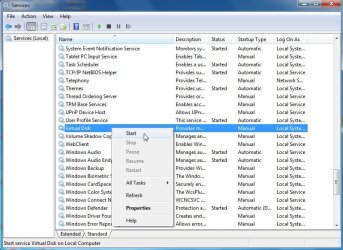
"Based on my experience, this error usually can occur because the VDS service is set to disabled. To resolve it, we need to enable the Virtual Disk service. Please refer to the following steps"

1) Click Start / Run and type SERVICES.MSC
2) Look for the Virtual Disk Service
3) Right click it and choose "Properties"
4) Change the Startup Type to Manual, then click the Start button.
5) Reboot and try the upgrade again.

If there isn’t Virtual Disk Service listed, you can take the following steps to populate the disk information:

1) Click Start / Run and type devmgmt.msc
2) Expand the Disk drives and double click the disk.
3) Click Volumes on the disk Properties.
4) If the volumes information are blank, click Populate.
5) Insert the Windows 7 installation disc and launch Setup.exe

:cry:
 

My Computer My Computer

At a glance

Windows 7
Computer type
PC/Desktop
OS
Windows 7
Is it showing in services?

svcs.jpg

I don't have xp - so can't post the xp vds reg file.

Here is the win7 one - I think it is similar apart from the alignment.

View attachment vds.zip
 

My Computers My Computers

  • At a glance

    7 X64i5 84002x8gb 3200mhz
    Computer type
    PC/Desktop
    OS
    7 X64
    CPU
    i5 8400
    Motherboard
    gigabyte b365m ds3h
    Memory
    2x8gb 3200mhz
    Hard Drives
    various
    PSU
    pure power 11 400w cm
    Case
    Coolermaster
    Cooling
    cryorig m9i
  • At a glance

    7x64g54008gb ddr4 2400
    Computer type
    PC/Desktop
    OS
    7x64
    CPU
    g5400
    Motherboard
    ga b365m ds3h
    Memory
    8gb ddr4 2400
    PSU
    xfx pro 450w
If you boot the Windows 7 DVD, can the installer see the HDD?
 

My Computer My Computer

At a glance

ME/XP/Vista/Win7
OS
ME/XP/Vista/Win7
Is it showing in services?

View attachment 268603

I don't have xp - so can't post the xp vds reg file.

Here is the win7 one - I think it is similar apart from the alignment.

View attachment 268605

Thanks for your reply - no it does not show in Services even after I populate with data as in the previous post. Is the age/type of the motherboard relevant as someone else suggested?
 

My Computer My Computer

At a glance

Windows 7
Computer type
PC/Desktop
OS
Windows 7
If you boot the Windows 7 DVD, can the installer see the HDD?

I have not tried this. I was following the Microsoft methodology step by step. Is this likely to make any any difference? My CD/DVD drive is a bit erratic but I could copy the Win 7 DVD to an external drive and make it boot from there if that was a possibility
 

My Computer My Computer

At a glance

Windows 7
Computer type
PC/Desktop
OS
Windows 7
What methodology? The correct way to Clean Install Windows 7 is always to boot the installer, which you need for bootable repairs anyway. How to Boot A Computer from CD or DVD - YouTube

If you need to use a flash stick installer the ISO and tool to write it are in the tutorial below.

Other tips here for getting and keeping a perfect install same as for Clean Reinstall - Factory OEM Windows 7

I'll certainly look at the link you sent, bt this is the methodology I was following

Upgrading from Windows XP to Windows 7 - Help & How-to - Microsoft Windows
 

My Computer My Computer

At a glance

Windows 7
Computer type
PC/Desktop
OS
Windows 7
Always use a booted installer for installations, with all other HD's and peripherals unplugged, deleting all partitions on the HD during install as shown in Clean Install Windows 7

I would not use Easy Transfer as we see cases where it loses the files, while importing AppData settings is a corruption path into a fresh new install. The best way to back up is to sort all of your data into the User folders - Desktop, Documents, Pics, Music, Vids, Downloads - and drag them to external or another HD. Everything that needs to be remembered is in the Clean Reinstall tutorial.
 
Always use a booted installer for installations, with all other HD's and peripherals unplugged, deleting all partitions on the HD during install as shown in Clean Install Windows 7

I would not use Easy Transfer as we see cases where it loses the files, while importing AppData settings is a corruption path into a fresh new install. The best way to back up is to sort all of your data into the User folders - Desktop, Documents, Pics, Music, Vids, Downloads - and drag them to external or another HD. Everything that needs to be remembered is in the Clean Reinstall tutorial.

Thanks for all of your advice. You have convinced me that this is the way to go, but I have a lot of important business data on this PC so I will leave it for a weekend rather than trying to do it in my normal work day. I agree with you about moving the application data. Yours seems like a more foolproof method.

Read something in one of your earlier link about the amount of RAM. I think that the PC originally came with 2 x 0.5 mb modules. I have since added 2 x 1 mb ones. Should I remove these before the upgrade and then refit??
 

My Computer My Computer

At a glance

Windows 7
Computer type
PC/Desktop
OS
Windows 7
If you boot the Windows 7 DVD, can the installer see the HDD?

Hi Theog
I have tried to boot from both the original DVD, a copy which I made and from a USB external hard drive and the installer still does not seem to be able to read the C: drive. The Virtual disc is not showing in services. Is ther a way of installing it? I feel I have tried every proposed solution without success. If I was sure that formatting the C: drive would allow me to do a clean install, I would go for it but this is still my last resort.

Is there anything else I can try first?:cry:
 

My Computer My Computer

At a glance

Windows 7
Computer type
PC/Desktop
OS
Windows 7
Save an XP backup image using an app like Macrium - Image your system so you have a path back.

Unplug all other HD's and peripherals,

Boot into BIOS setup, reset to defaults, save changes. (If an EFI BIOS you'll need to decide if you want UEFI BIOS vs. Legacy BIOS: if UEFI (Unified Extensible Firmware Interface) - Install Windows 7 with, or enable Legacy BIOS or Compatibility Support Module to proceed with normal install.) Set DVD drive first to boot, HD second, set SATA controller to AHCI, Save changes and Exit.

Then boot into Windows 7 installer DVD or flash stick burned or written using tool and latest ISO for your licensed OS version here.

At first installer screen Press Shift + F10, or enter System Recovery Options to open a Command Box, type:

DISKPART
LIST DISK
SELECT DISK 0 (after confirming Windows 7 target HD #)
CLEAN
CREATE PARTITION PRIMARY SIZE=102400 (for 100gb partition, adjust as desired)
FORMAT FS=NTFS LABEL="WINDOWS 7"
ACTIVE
EXIT
EXIT

Next click Install Now, then Custom install to Clean Install Windows 7 to the partition you created. If it fails then report back at which step and the verbatim error message.

In addition read over these steps to understand the tools and methods which work best to get and maintain a perfect Clean Reinstall - Factory OEM Windows 7. The steps are the same for retail.

After install you can adjust partition size or Create new partitions for data, etc. in Disk Mgmt.You are creating the partition here for the purpose of marking it Active which overcomes certain install failures.
 
Thanks for the very thorough reply. It might just be beyond my understanding and ability so I may pass it on to an IT guy - thanks!
 

My Computer My Computer

At a glance

Windows 7
Computer type
PC/Desktop
OS
Windows 7
You're welcome.

Those steps are written for the Consumer and have performed successfully by thousands to resolve installation hangs.

If you have a question on how to perform one, just ask back.
 
Thanks everyone

Now sorted complete wit SP1 and millions of updates. Pity I hadn't listened to the advice about relying on the MS data transfer utility but all in all I'm happy now except for a sound driver issue that remains unsolved. That will be my next thread.Cheers :cool:
 

My Computer My Computer

At a glance

Windows 7
Computer type
PC/Desktop
OS
Windows 7
Back
Top