Windows Explorer [+] [-] boxes always visible

Rob 0

New member
Local time
11:00 AM
Messages
17
Windows Explorer [+] [-] boxes always visible

In Ultimate 7 Windows Explorer among the many crimes I have solved without resorting to the very fine helper Classic Shell is the mystery of the [+] [-] boxes in the left explorer windows pane remaining visible after cursor departure. I do NOT want Triangles in their place next to my folder names, thank you very much Classic Shell. I DO want the stock [+] [-] boxes that disappear every time I stop hovering to STAY VISIBLE all the time. I prefer registry fixes over hunting the Microsoft committee, for sport, that dictated this painfully useless edict upon us lowly users to force us into an endless chase of upgrading away from horrible options we thought surely they would have fixed in the next version. They did not.

ALWAYS VISIBLE [+] [-] BOXES IN WINDOWS EXPLORER... how?
 

My Computer My Computer

At a glance

7 UltimateIntel Core i7-4790 Haswell 3.6GHz LGA 1150 84...Crucial Ballistix Tactical 4GB DDR3 SDRAM Mem...GeForce GTX 560 SE
Computer type
PC/Desktop
OS
7 Ultimate
CPU
Intel Core i7-4790 Haswell 3.6GHz LGA 1150 84W Desktop Proce
Motherboard
MSI Z97-G41 Desktop Motherboard - Intel Z97 Express Chipset
Memory
Crucial Ballistix Tactical 4GB DDR3 SDRAM Memory Module
Graphics Card(s)
GeForce GTX 560 SE
Hard Drives
Western Digital WD Blue WD10EZEX 1TB 7200 RPM 64MB Cache SATA 6.0Gbs 3.5" Internal Hard Drive
This is possible using Classic Shell. Open Classic Explorer settings and set the Navigation Pane style to Windows XP Classic. If it doesn't work then follow these troubleshooting steps mentioned in the FAQ: Classic Shell: FAQ
 

My Computer My Computer

At a glance

Windows 7 Ultimate
Computer type
PC/Desktop
OS
Windows 7 Ultimate
Navigation Pane

Have a go at these options and see if one of them works for you:

http://www.sevenforums.com/tutorials/853-navigation-pane-show-all-folders.html

I don't see the behavior that you describe on my machine. Here's what I see:

Without mouse hover

Nav Pane 1.jpg

With mouse hover

Nav Pane 2.jpg

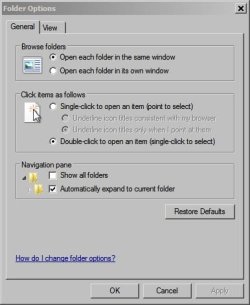
Folder Options.jpg

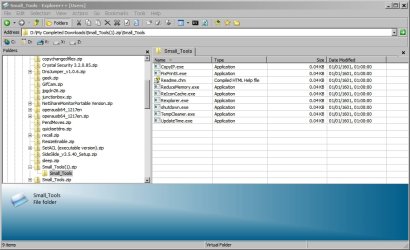
Personally I prefer to use Explorer++ rather than Classic Shell. Explorer++ is pinned to my taskbar for easy access.

Explorer++.jpg

https://explorerplusplus.com/

It does take a little effort to get the view settings set to just how you'd like them to be - via View or else via Tools> Options.

It runs without installation so you could try it if you want to test it.
 
Last edited:

My Computer My Computer

At a glance

Microsoft Windows 7 Home Premium 64-bit 7601 ...AMD C-60 APU with Radeon(tm) HD Graphics4.00 GBAMD Radeon HD 6290 Graphics
Computer type
Laptop
Computer Manufacturer/Model Number
ASUS
OS
Microsoft Windows 7 Home Premium 64-bit 7601 Multiprocessor Free Service Pack 1
CPU
AMD C-60 APU with Radeon(tm) HD Graphics
Motherboard
ASUSTeK COMPUTER INC. X501U
Memory
4.00 GB
Graphics Card(s)
AMD Radeon HD 6290 Graphics
Sound Card
(1) AMD High Definition Audio Device (2) Realtek High Defi
Screen Resolution
1366 x 768 x 32 bits (4294967296 colors) @ 60 Hz
Hard Drives
Hitachi HTS545050A7E380 SATA Disk Device
Antivirus
Comodo CIS & FW, SecureAplus App Whitelisting, Threatfire
Browser
Cyberfox 64bit, Opera 64bit, Airfox
Other Info
Spy-The-Spy, HitmanPro.Alert, Norton Connect Safe, MJRegWatcher, BitDefender TrafficLight, Voodoo Shield, Zemana AntiMalware
Without mouse hover
With mouse hover

That is it exactly!

Click on a file folder in the left pane, then range freely about your desktop and see the effect I want all the time, when the [+] [-] boxes stay visible. But as soon as your mouse's attention goes elsewhere, those boxes disappear as though triggered by the foreground background rule, except obviously also internally when switching from left and right pane of windows explorer. And it's more than simple aesthetics, those boxes flashing on and off with each change in task focus creates a nuisance distraction through their flashing to the business at hand.

And I have radio/check switches 1, 6-8 checked in the dialog you displayed. And I'm not using Classic Shell or an after market explorer because I prefer stock modified whatever that may bring. This one feels easy, simply defy its active/inactive rule.

ALWAYS VISIBLE [+] [-] BOXES IN WINDOWS EXPLORER... how?
 

My Computer My Computer

At a glance

7 UltimateIntel Core i7-4790 Haswell 3.6GHz LGA 1150 84...Crucial Ballistix Tactical 4GB DDR3 SDRAM Mem...GeForce GTX 560 SE
Computer type
PC/Desktop
OS
7 Ultimate
CPU
Intel Core i7-4790 Haswell 3.6GHz LGA 1150 84W Desktop Proce
Motherboard
MSI Z97-G41 Desktop Motherboard - Intel Z97 Express Chipset
Memory
Crucial Ballistix Tactical 4GB DDR3 SDRAM Memory Module
Graphics Card(s)
GeForce GTX 560 SE
Hard Drives
Western Digital WD Blue WD10EZEX 1TB 7200 RPM 64MB Cache SATA 6.0Gbs 3.5" Internal Hard Drive
Classic Shell (Windows XP Classic or Windows XP Simple Navigation Pane style) is the only way you can make the +/- signs always remain visible even if you mouse over to the right pane.
 

My Computer My Computer

At a glance

Windows 7 Ultimate
Computer type
PC/Desktop
OS
Windows 7 Ultimate
Classic Shell (Windows XP Classic or Windows XP Simple Navigation Pane style) is the only way you can make the +/- signs always remain visible even if you mouse over to the right pane.

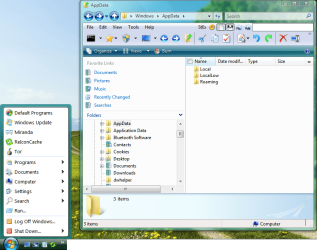
Classic Shell is fine for those unwilling to try harder. But the solutions it provides are only in its own imagination. My two greatest disappointments in Classic Shell are that it does not restore the [+] [-] boxes, but rather replaces them with some more modern solid arrow icon that is only slightly less annoying. And of course the simple classic single pane start menu does not come without the flashy Windows 7 ultimate banner and other obvious functionality in that region.

The [+] [-] Box disappearance, though, dating back to Vista would seem a simple fix if one only knew where to go about looking for the solution. Somewhere in registry is the capacity for the buttons to both exist and not exist based on your attentions to that pane. Override this single switch and they would exist permanently.

Please try harder, obviously XP'ness is what windows lacks so supremely. Windows-future is a nightmare from which mankind can not survive. Microsoft will not save us. The win-pocalypse begins by not resolving this question. The fate of our species depends on a solution!!!

Save the boxes, save the planet.

ALWAYS VISIBLE [+] [-] BOXES IN WINDOWS EXPLORER... how?
 

My Computer My Computer

At a glance

7 UltimateIntel Core i7-4790 Haswell 3.6GHz LGA 1150 84...Crucial Ballistix Tactical 4GB DDR3 SDRAM Mem...GeForce GTX 560 SE
Computer type
PC/Desktop
OS
7 Ultimate
CPU
Intel Core i7-4790 Haswell 3.6GHz LGA 1150 84W Desktop Proce
Motherboard
MSI Z97-G41 Desktop Motherboard - Intel Z97 Express Chipset
Memory
Crucial Ballistix Tactical 4GB DDR3 SDRAM Memory Module
Graphics Card(s)
GeForce GTX 560 SE
Hard Drives
Western Digital WD Blue WD10EZEX 1TB 7200 RPM 64MB Cache SATA 6.0Gbs 3.5" Internal Hard Drive
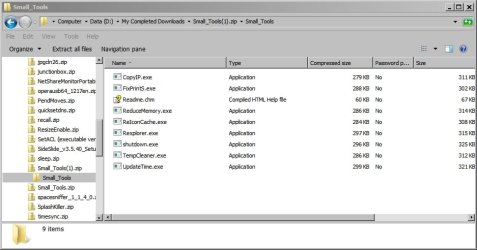
Please try the app first before concluding it doesn't do what you want. After installing Classic Shell and setting the Navigation Pane style to Windows XP Simple or Windows XP Classic, and reopening the Explorer window, you CAN get back the [+] [-] boxes. There is also the option "Don't fade buttons" to make them always stay. Open Classic EXPLORER settings and that is where you will find those options (on the Navigation Pane tab).

Classic Shell is the software which worked harder for everyone to enjoy the XP-ishness of Windows again.

You are wrong about the Start Menu as well because you can turn off the Windows 7 Ultimate or whatever banner for the single column menu from the Skin tab of Start menu options. Uncheck the option called "Caption" on the SKIN tab.

You just have to look harder. You gave up on it and started complaining about its limitations even before exploring it fully.

As Classic Shell tester, let me tell you a secret. I am the biggest Windows XP fanboy and with Classic Shell, we tried to make Windows Vista/7/8, as much XP-ish as possible, by focusing on giving back users the best usability possible.

As evidence I show you screenshots:
 

Attachments

  • Screenshot.png
    Screenshot.png
    90 KB · Views: 1
Last edited:

My Computer My Computer

At a glance

Windows 7 Ultimate
Computer type
PC/Desktop
OS
Windows 7 Ultimate
Back
Top