Solved Windows Live Mail dictionary problem

brooke42

New member
Local time
7:35 AM
Messages
9
I have made a mistake spell-checking an e-mail message. I typed "iin" meaning to type "in" -- and then, in spell-check, I accidentally told the dictionary to "Add" the word "iin" (rather than "change" the word to "in"). I guess I have a "heavy finger" because I mistakenly type "iin" a lot, and my spell-check no longer recognizes that as an error.
How can I get into the dictionary to remove that false entry (and a couple more I have mistakenly "added" as well)?
Thanks for any help!
 

My Computer

Computer Manufacturer/Model Number
Sony Vaio
OS
Windows 7 Home Premium 64bit
CPU
Intel Core 2 Duo CPU T6600 @2.2 GHz
Memory
RAM 4 GB - Hard Drive 500 GB
I have made a mistake spell-checking an e-mail message. I typed "iin" meaning to type "in" -- and then, in spell-check, I accidentally told the dictionary to "Add" the word "iin" (rather than "change" the word to "in"). I guess I have a "heavy finger" because I mistakenly type "iin" a lot, and my spell-check no longer recognizes that as an error.
How can I get into the dictionary to remove that false entry (and a couple more I have mistakenly "added" as well)?
Thanks for any help!

For WLM 2011 .....
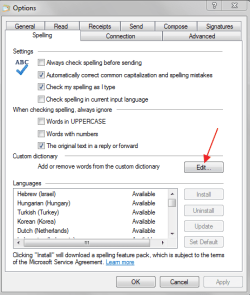
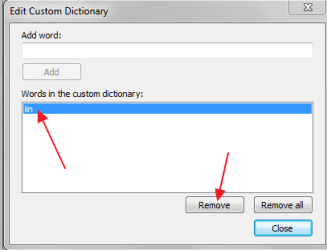
Open WLM > top left corner, click the blue button > Options > Mail > Spelling > under Custom Dictionary, click Edit > does the word " iin " shows up inside the " Words in custom dictionary " box ? > if yes, click it and click Remove > Close when done.

For WLM 2009 .....
Open WLM > Tools > Options > Spelling > the rest will be same as above.
 

My Computer

Computer Manufacturer/Model Number
Acer Aspire 7741Z
OS
Windows 7 Home Premium 64-bit, SP1
CPU
Intel Pentium P6200, Cores 2, 2.13 GHz
Memory
4 GB
Graphics Card(s)
Intel HD
Sound Card
unknown
Monitor(s) Displays
17.3 inches
Screen Resolution
1600 x 900
Hard Drives
640 GB, 5400 PRM
Almost works!

I have WLM 2011. And I followed your suggested path up to the place in Custom Dictionary where I'm to click on "Edit" -- clicking the Edit button makes it flash, but several clicks fail to open anything, so I can't get at "Words In Custom Dictionary" to find "iin" or (of course) anything else.
Is there some setting that might be preventing the "Edit" button from actually opening anything?
Thanks for your effort so far... I hope you'll have another idea.
 

My Computer

Computer Manufacturer/Model Number
Sony Vaio
OS
Windows 7 Home Premium 64bit
CPU
Intel Core 2 Duo CPU T6600 @2.2 GHz
Memory
RAM 4 GB - Hard Drive 500 GB
I have WLM 2011. And I followed your suggested path up to the place in Custom Dictionary where I'm to click on "Edit" -- clicking the Edit button makes it flash, but several clicks fail to open anything, so I can't get at "Words In Custom Dictionary" to find "iin" or (of course) anything else.
Is there some setting that might be preventing the "Edit" button from actually opening anything?
Thanks for your effort so far... I hope you'll have another idea.

Something is not right in your WLM 2011. See my screenshots ....

Spelling > Edit window :
WLM - dictionary - Edit.png

Edit Custome Dictionary - Add or Remove
WLM - Dictionary - Remove.png
 

My Computer

Computer Manufacturer/Model Number
Acer Aspire 7741Z
OS
Windows 7 Home Premium 64-bit, SP1
CPU
Intel Pentium P6200, Cores 2, 2.13 GHz
Memory
4 GB
Graphics Card(s)
Intel HD
Sound Card
unknown
Monitor(s) Displays
17.3 inches
Screen Resolution
1600 x 900
Hard Drives
640 GB, 5400 PRM
You have to be right... there must be something wrong with my WLM 2011... your first screenshot is exactly my view. (Of course, I can't get to the window that's in your second screenshot.) Do you think my WLM 2011 is corrupted? Do I need to try to remove it from my computer and re-install it? If I do that, what will happen to my messages and message files? Is there a better path?
 

My Computer

Computer Manufacturer/Model Number
Sony Vaio
OS
Windows 7 Home Premium 64bit
CPU
Intel Core 2 Duo CPU T6600 @2.2 GHz
Memory
RAM 4 GB - Hard Drive 500 GB
You have to be right... there must be something wrong with my WLM 2011... your first screenshot is exactly my view. (Of course, I can't get to the window that's in your second screenshot.) Do you think my WLM 2011 is corrupted? Do I need to try to remove it from my computer and re-install it? If I do that, what will happen to my messages and message files? Is there a better path?

Last question first :
If you come to the point you have to uninstall/reinstall, don't worry about your past e-amils etc. After re-install of WLM, the old mesages, contacts etc will be right where they were before.

What's wrong with your WLM ?
Why not start with a system file check. It is used to look for corrupt files. It will try to repair them if any are found.
http://www.sevenforums.com/tutorials/1538-sfc-scannow-command-system-file-checker.html
Check your WLM dictionary again after system file check is completed.
 

My Computer

Computer Manufacturer/Model Number
Acer Aspire 7741Z
OS
Windows 7 Home Premium 64-bit, SP1
CPU
Intel Pentium P6200, Cores 2, 2.13 GHz
Memory
4 GB
Graphics Card(s)
Intel HD
Sound Card
unknown
Monitor(s) Displays
17.3 inches
Screen Resolution
1600 x 900
Hard Drives
640 GB, 5400 PRM
Adding to the last reply ......

RE : reinstalling WLM

Some will insist on telling you to " backup " your messages and contacts first before uninstalling..... for precaution measures.
If you want to adopt this thinking, go right ahead. You can't go wrong doing it.
To me. I did the WLM uninstall/reinstall at least 4 times. I never did the backup routine. That is just me.
 

My Computer

Computer Manufacturer/Model Number
Acer Aspire 7741Z
OS
Windows 7 Home Premium 64-bit, SP1
CPU
Intel Pentium P6200, Cores 2, 2.13 GHz
Memory
4 GB
Graphics Card(s)
Intel HD
Sound Card
unknown
Monitor(s) Displays
17.3 inches
Screen Resolution
1600 x 900
Hard Drives
640 GB, 5400 PRM
Back at it this morning. Did the System File Check, came up with no problems. Went to Control Panel to "Repair" Windows Live Essentials (including Mail), and that repair may have done something, but made no change in accessibility to Custom Dictionary. I'm going toward uninstalling/reinstalling Windows Live Mail (probably will have to do all of Essentials?), but want to ask one more question. How can my e-mail folders (Inbox, and several folders I've created) keep all their old messages if I uninstall the program? Isn't the program the "container" for all those folders, and won't they be uninstalled (deleted) too?
I saw your brief message about your not backing up email files, but couldn't understand part of it... it contained a sentence saying just "To me" and I didn't know for sure what that meant.
I'm walking in fog here because I also can't find a "backup" feature in WLM, so don't know yet how I'd do it.
Thank you for the help you're offering!
 

My Computer

Computer Manufacturer/Model Number
Sony Vaio
OS
Windows 7 Home Premium 64bit
CPU
Intel Core 2 Duo CPU T6600 @2.2 GHz
Memory
RAM 4 GB - Hard Drive 500 GB
Back at it this morning. Did the System File Check, came up with no problems. Went to Control Panel to "Repair" Windows Live Essentials (including Mail), and that repair may have done something, but made no change in accessibility to Custom Dictionary. I'm going toward uninstalling/reinstalling Windows Live Mail (probably will have to do all of Essentials?), but want to ask one more question. How can my e-mail folders (Inbox, and several folders I've created) keep all their old messages if I uninstall the program? Isn't the program the "container" for all those folders, and won't they be uninstalled (deleted) too?
I saw your brief message about your not backing up email files, but couldn't understand part of it... it contained a sentence saying just "To me" and I didn't know for sure what that meant.
I'm walking in fog here because I also can't find a "backup" feature in WLM, so don't know yet how I'd do it.
Thank you for the help you're offering!

" To me " = personally. I was saying " personally, I don't do e-mails backup .... "

>> How can my e-mail folders (Inbox, and several folders I've created) keep all their old messages if I uninstall the program? Isn't the program the "container" for all those folders, and won't they be uninstalled (deleted) too?

It is one of those .... " you'll have to take my words for it ".

To ease your mind, and I don't blame you at all if you doubt what I said, here is a detail tutorial of how to back up Windows Live Mail 2011 :
How to Backup Windows Live Mail 2011
 

My Computer

Computer Manufacturer/Model Number
Acer Aspire 7741Z
OS
Windows 7 Home Premium 64-bit, SP1
CPU
Intel Pentium P6200, Cores 2, 2.13 GHz
Memory
4 GB
Graphics Card(s)
Intel HD
Sound Card
unknown
Monitor(s) Displays
17.3 inches
Screen Resolution
1600 x 900
Hard Drives
640 GB, 5400 PRM
no good news yet

I have uninstalled Windows Live Mail 2011, and re-installed it. And the "Custom Dictionary" still won't open. And the word "iin" is still okay with spell-check... and that's still the problem that started all this for me.
You've worked hard for me. I've worked hard. Anything else you can suggest? Can there be some deeper setting on this computer that is frustrating our efforts to cure my ailing dictionary?
 

My Computer

Computer Manufacturer/Model Number
Sony Vaio
OS
Windows 7 Home Premium 64bit
CPU
Intel Core 2 Duo CPU T6600 @2.2 GHz
Memory
RAM 4 GB - Hard Drive 500 GB
I have uninstalled Windows Live Mail 2011, and re-installed it. And the "Custom Dictionary" still won't open. And the word "iin" is still okay with spell-check... and that's still the problem that started all this for me.
You've worked hard for me. I've worked hard. Anything else you can suggest? Can there be some deeper setting on this computer that is frustrating our efforts to cure my ailing dictionary?

Sorry.

I don't have any possible solutions.
 

My Computer

Computer Manufacturer/Model Number
Acer Aspire 7741Z
OS
Windows 7 Home Premium 64-bit, SP1
CPU
Intel Pentium P6200, Cores 2, 2.13 GHz
Memory
4 GB
Graphics Card(s)
Intel HD
Sound Card
unknown
Monitor(s) Displays
17.3 inches
Screen Resolution
1600 x 900
Hard Drives
640 GB, 5400 PRM
I have uninstalled Windows Live Mail 2011, and re-installed it. And the "Custom Dictionary" still won't open. And the word "iin" is still okay with spell-check... and that's still the problem that started all this for me.
You've worked hard for me. I've worked hard. Anything else you can suggest? Can there be some deeper setting on this computer that is frustrating our efforts to cure my ailing dictionary?

OK. After messing around with my Win 7, and remembering a similar issue with Windows Mail, I finally found the way .....

Start button > right side, click Run > in the open box, copy/paste this line ......
%localappdata%\Microsoft\Windows Live Mail\Proof > OK
You should see something like.... lang.lex ( mine is lang1009.lex )
right click at it > click Open With > select Notepad
**If you have problem follow to this point, post back.**
Once you have the notepad opened, you'll see the mispelled word " iin " > highlight that word > click Edit > click Cut > You will be asked to confirm the change, click SAVE > the mis-spelled word is now removed from your dictionary.

For your information :
You can find the lang.lex this way.....

C:\user\t-4-2\AppData\Local\Microsoft\Windows Live Mail\Proof
 

My Computer

Computer Manufacturer/Model Number
Acer Aspire 7741Z
OS
Windows 7 Home Premium 64-bit, SP1
CPU
Intel Pentium P6200, Cores 2, 2.13 GHz
Memory
4 GB
Graphics Card(s)
Intel HD
Sound Card
unknown
Monitor(s) Displays
17.3 inches
Screen Resolution
1600 x 900
Hard Drives
640 GB, 5400 PRM
Thanks for trying.
 

My Computer

Computer Manufacturer/Model Number
Sony Vaio
OS
Windows 7 Home Premium 64bit
CPU
Intel Core 2 Duo CPU T6600 @2.2 GHz
Memory
RAM 4 GB - Hard Drive 500 GB
Thanks for trying.

Did you see my last reply about going to your Proof folder ?

Start button > right side, click Run > in the open box, copy/paste this line ......
%localappdata%\Microsoft\Windows Live Mail\Proof > OK
You should see something like.... lang.lex ( mine is lang1009.lex )
right click at it > click Open With > select Notepad
**If you have problem follow to this point, post back.**
Once you have the notepad opened, you'll see the mispelled word " iin " > highlight that word > click Edit > click Cut > You will be asked to confirm the change, click SAVE > the mis-spelled word is now removed from your dictionary.
 

My Computer

Computer Manufacturer/Model Number
Acer Aspire 7741Z
OS
Windows 7 Home Premium 64-bit, SP1
CPU
Intel Pentium P6200, Cores 2, 2.13 GHz
Memory
4 GB
Graphics Card(s)
Intel HD
Sound Card
unknown
Monitor(s) Displays
17.3 inches
Screen Resolution
1600 x 900
Hard Drives
640 GB, 5400 PRM
No! I missed your post on Proof folder!
And I'm having trouble following it. "Right side, click Run" isn't making sense to me. I can't find the place where it says "Run" -- the Start button is the Windows-logo round button at bottom left, correct? What do I enter in the blank space that opens below "All Programs"?
I've tried entering the bold-face copy you sent into that blank space, and pushing the Enter key only opens the Libraries feature.
Please, some more elementary instruction. I'm hopeful again.
 

My Computer

Computer Manufacturer/Model Number
Sony Vaio
OS
Windows 7 Home Premium 64bit
CPU
Intel Core 2 Duo CPU T6600 @2.2 GHz
Memory
RAM 4 GB - Hard Drive 500 GB
No! I missed your post on Proof folder!
And I'm having trouble following it. "Right side, click Run" isn't making sense to me. I can't find the place where it says "Run" -- the Start button is the Windows-logo round button at bottom left, correct? What do I enter in the blank space that opens below "All Programs"?
I've tried entering the bold-face copy you sent into that blank space, and pushing the Enter key only opens the Libraries feature.
Please, some more elementary instruction. I'm hopeful again.

OK. You don't have Run in start menu. I'll show you how to get it. It's real easy.

But now, first thing first.......
Start button > in the search box, copy and paste this ....( don't try to type it. Copy and paste it )
%localappdata%\Microsoft\Windows Live Mail\Proof >
do you see Proof at top left ? > click it >
You should see something like.... lang.lex ( mine is lang1009.lex )
right click at it > click Open With > select Notepad
**If you have problem follow to this point, post back.**
Once you have the notepad opened, you'll see the mispelled word " iin " > highlight that word > click Edit > click Cut > You will be asked to confirm the change, click SAVE > the mis-spelled word is now removed from your dictionary.
 
Last edited:

My Computer

Computer Manufacturer/Model Number
Acer Aspire 7741Z
OS
Windows 7 Home Premium 64-bit, SP1
CPU
Intel Pentium P6200, Cores 2, 2.13 GHz
Memory
4 GB
Graphics Card(s)
Intel HD
Sound Card
unknown
Monitor(s) Displays
17.3 inches
Screen Resolution
1600 x 900
Hard Drives
640 GB, 5400 PRM
You did it! I figured out how to get the Run feature into the Start menu. The rest was a cakewalk! I've cut twenty misspelled words from the dictionary!
Who pays you for good work? I'll wait for your answer on that, then mark this thread as solved.
THANK YOU!
 

My Computer

Computer Manufacturer/Model Number
Sony Vaio
OS
Windows 7 Home Premium 64bit
CPU
Intel Core 2 Duo CPU T6600 @2.2 GHz
Memory
RAM 4 GB - Hard Drive 500 GB
You did it! I figured out how to get the Run feature into the Start menu. The rest was a cakewalk! I've cut twenty misspelled words from the dictionary!
Who pays you for good work? I'll wait for your answer on that, then mark this thread as solved.
THANK YOU!

You are welcome.

We are all volunteers. We come to help on our own accords.

If you want to reward me for solving your problem, click the icon at top right of my reply,( the one in the middle ). That will let you give me the " reputation " points.
 

My Computer

Computer Manufacturer/Model Number
Acer Aspire 7741Z
OS
Windows 7 Home Premium 64-bit, SP1
CPU
Intel Pentium P6200, Cores 2, 2.13 GHz
Memory
4 GB
Graphics Card(s)
Intel HD
Sound Card
unknown
Monitor(s) Displays
17.3 inches
Screen Resolution
1600 x 900
Hard Drives
640 GB, 5400 PRM
Hurrah! Reputation UP! Thanks even more to a volunteer who really helps!
 

My Computer

Computer Manufacturer/Model Number
Sony Vaio
OS
Windows 7 Home Premium 64bit
CPU
Intel Core 2 Duo CPU T6600 @2.2 GHz
Memory
RAM 4 GB - Hard Drive 500 GB

My Computer

Computer Manufacturer/Model Number
Acer Aspire 7741Z
OS
Windows 7 Home Premium 64-bit, SP1
CPU
Intel Pentium P6200, Cores 2, 2.13 GHz
Memory
4 GB
Graphics Card(s)
Intel HD
Sound Card
unknown
Monitor(s) Displays
17.3 inches
Screen Resolution
1600 x 900
Hard Drives
640 GB, 5400 PRM
Back
Top