
How to Open Windows PowerShell in Windows 7
Information
Windows PowerShell is a command-line shell and scripting environment program included in Windows 7 that brings the power of the .NET Framework to command-line users and script writers to help IT professionals and power users control and automate the administration of the Windows operating system and applications that run on Windows. It introduces a number of powerful new concepts that enables you to extend the knowledge you have gained and the scripts you have created within the Windows Command Prompt and Windows Script Host environments.
Built-in Windows PowerShell commands, called cmdlets, let you manage the computers in your enterprise from the command line. You can use each cmdlet separately, but their power is realized when you use these simple tools in combination to perform complex tasks. Windows PowerShell includes more than one hundred basic core cmdlets, and you can write your own cmdlets and share them with other users.
This tutorial will show you how to open the PowerShell command-line shell. For more detailed information on PowerShell, see: Windows PowerShell
Built-in Windows PowerShell commands, called cmdlets, let you manage the computers in your enterprise from the command line. You can use each cmdlet separately, but their power is realized when you use these simple tools in combination to perform complex tasks. Windows PowerShell includes more than one hundred basic core cmdlets, and you can write your own cmdlets and share them with other users.
This tutorial will show you how to open the PowerShell command-line shell. For more detailed information on PowerShell, see: Windows PowerShell
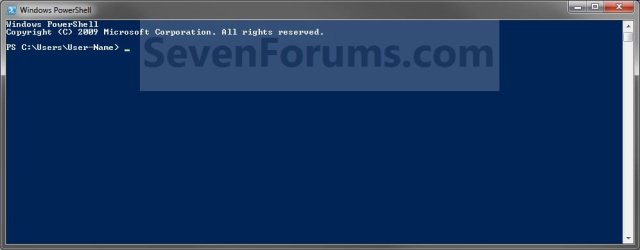
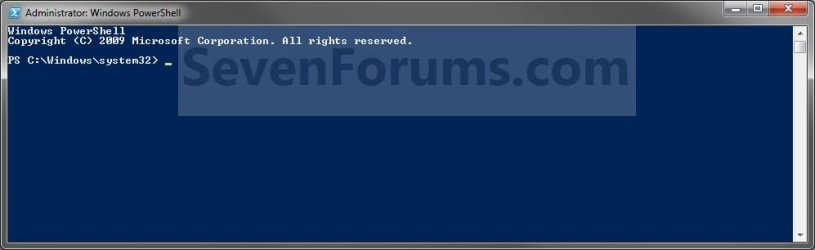
EXAMPLE: Windows PowerShell Command-Line Shell
NOTE: If you have 64-bit Windows 7, then you will have both a 32-bit (x86) (top left screenshot below) and 64-bit (top right screenshot below) version of Windows PowerShell. You can also use Run as administrator on both of these versions to open a elevated Windows PowerShell (bottom screenshot below).

Here's How:
1. Open the Start Menu, click on All Programs, expand Accessories, and expand the Windows PowerShell folder. (see screenshot below)
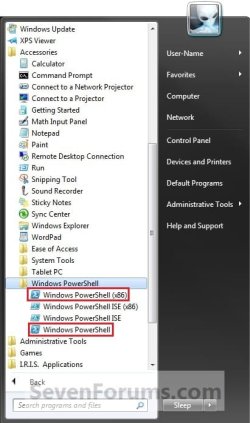
2. If you have a 64-bit Windows 7
A) Click on the Windows PowerShell (x86) shortcut to open a 32-bit Windows Powershell.
NOTE: This file is located at: C:\Windows\sysWOW64\Windowspowershell\v1.0\powershell.exe
B) Click on the Windows PowerShell shortcut to open a 64-bit Windows Powershell.
NOTE: This file is located at: C:\Windows\system32\WindowsPowerShell\v1.0\powershell.exe
3. If you have a 32-bit Windows 7
A) Click on the Windows PowerShell shortcut to open Windows Powershell.
NOTE: This file is located at: C:\Windows\system32\WindowsPowerShell\v1.0\powershell.exe
4. To Run Windows PowerShell Elevated (Run as Administrator)
A) In step 2 or 3 above, right click on the shortcut (Start Menu) or file, and click on Run as administrator.
That's it,
Shawn
Last edited:

