
How to Turn Search On or Off in Windows 7
Information
This will show you how to turn Windows Search on or off to add or remove the search box in the Start Menu and Windows Explorer in Windows 7.
Windows Search is turned on by default in Windows 7. You should only turn off Windows Search if you don’t use it.
Windows Search is turned on by default in Windows 7. You should only turn off Windows Search if you don’t use it.
Note
Turning off Windows Search removes it from Windows 7, but doesn't reduce the amount of hard disk space used by Windows 7. Windows Search will remain stored on your hard disk, so you can turn it back on if you want to.
Warning
If you turn off Windows Search:
See also: What happens if I turn off Windows Search?

See also: What happens if I turn off Windows Search?
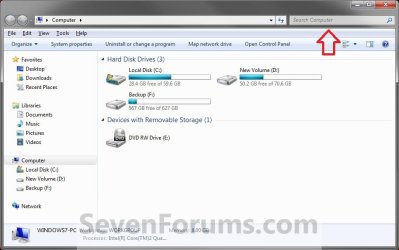
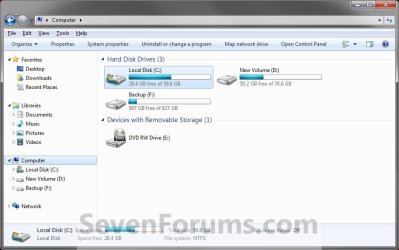
- All the search boxes in Windows 7 will disappear, including the search boxes in Windows Explorer, Start menu, Control Panel, and Libraries.
- Programs that rely on Windows Search might not function properly.
- Internet Explorer will no longer have enhanced search capabilities.
- Tablet PC handwriting recognition won't work.
- Windows Media Center won't have enhanced search capability.
- You'll no longer be able to arrange your library views by metadata, and your column headers will only sort items, not stack or group them.
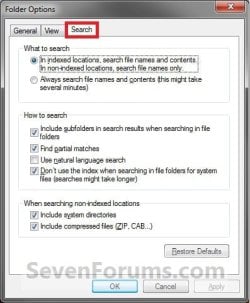
- All Windows Search features will be removed, including Indexing Options in the Control Panel, and the Search tab in Folder Options.
- Windows will no longer recognize these search-based file types: search-ms, searchconnector-ms, and osdx.
- Pressing Windows Key+F to open a search window will give you this error.
EXAMPLE: Folder Options with Search Turned On or Off
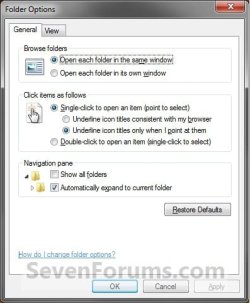
EXAMPLE: Windows Explorer with Search Turned On or Off
EXAMPLE: Start Menu with Search Turned On or Off
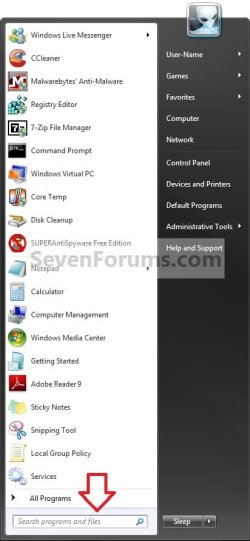
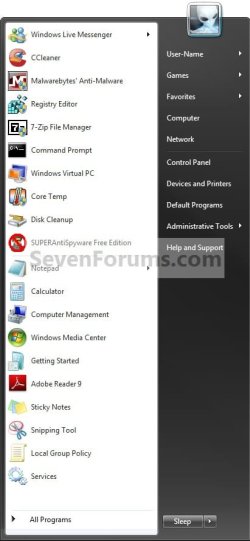
Here's How: 1. Open Windows Features.
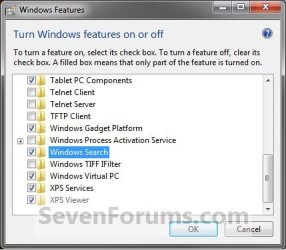
2. To Turn On Windows Search A) Check the Windows Search box, and click on OK. (See screenshot above)
B) Go to step 4.
3. To Turn Off Windows Search A) Uncheck the Windows Search box. (See screenshot below step 1)
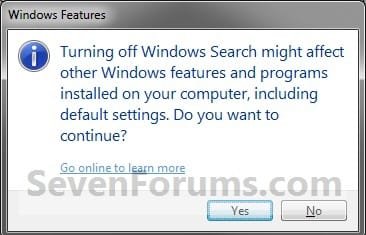
B) Click on Yes. (See screenshot below)
C) Click on OK. (See screenshot below step 1)
4. Click on Restart Now. (See screenshot below)
WARNING: This will restart the computer immediately. Be sure to save and close anything you have open or running first.

That's it,
Shawn
Related Tutorials
- How to Enable or Disable the Search Index in Vista and Windows 7
- Windows 7 Search Federation Providers
- How to Pin Search Connectors to Search and See More Results in Start Menu
- How to Add or Remove "See more results" Link in Start Menu Search Box
- How to Add Search Internet Link to the Windows 7 Start Menu Search Box
- How to Pin Libraries to Search and See More Results in Start Menu
- How to Enable or Disable Search from Internet Explorer 8 Address Bar
- How to Turn Windows 7 Features On or Off
- How to Search in Windows 7
- How to Change or Restore the Default Windows 7 Search Options
- How to Create a Search Shortcut in Windows 7
- How to Save a Search in Windows 7
- How to Enable or Disable Windows 7 Explorer Recent Search Box Suggestions
- How to Change the Size of the Windows 7 Explorer Address and Search Bar
- How to Edit or Reset Windows 7 Explorer Recent Search Box Suggestions
- How to Configure and Fully Utilize Windows 7 Search
- How to Add or Remove the Search Button in the Windows 7 Start Menu
- How to Add "Search" to "My Computer" Context Menu in Vista and Windows 7
- How to Use Windows Search Filters and Operators to get better Search Results in Windows 7
Last edited:


