Windows uses a lot more pagefile that assigned.

But the problem here is, according to the OP, the system is using a larger page file then he has allotted.
I suggest he go a week without a page file, see what happens.

It is clear from the Task Manager screenshot that the pagefile usage is no where near as high as the MSI Afterburner screenshot would seem to indicate. The pagefile size would have to be at least the size of pagefile usage which would produce a commit limit of over 32 GB. The commit limit is equal to RAM size + pagefile size - a few MB. Task Manager shows a commit limit of only 16 GB but due to rounding it is likely closer to 17 GB. The most reasonable explanation is that MSI Afterburner is showing commit charge but misleadingly labeled as pagefile usage. This misleading labeling is actually quite common. XP Task Manager did just that.

From the information provided there is nothing to indicate that there is any pagefile usage at all.

But there is a problem in that the commit charge is very close to the commit limit. The commit limit cannot be exceeded. If the pagefile were disabled the limit would be lower than what is currently shown. Before that point were reached there would be out of memory errors. The fact that there is plenty of RAM is available is not at all relevant.

The situation regarding the high commit charge must be resolved before even considering disabling the pagefile.

So what exactly is the difference between commit and page file. I thought Commit = Ram used + page file used. My ram usage is 6.3GB, since Commit is 17GB, that would mean my page file would be the difference, almost 11GB. Yet my limit is 1GB.

This is where I am confused and I am questioning if the page file is actually correctly assigned.
 

My Computer My Computer

At a glance

windows 7
OS
windows 7
Commit charge has nothing to do with RAM usage or pagefile usage or any combination of the two. It is rather difficult to explain and I do not have time right now.
 

My Computer My Computer

At a glance

Windows 7 Pro 64 bitXeon W35208 GBNvidia Geforce 210
Computer type
PC/Desktop
Computer Manufacturer/Model Number
HP
OS
Windows 7 Pro 64 bit
CPU
Xeon W3520
Memory
8 GB
Graphics Card(s)
Nvidia Geforce 210
Believe me LMiller7 can explain this subject better than I can.

Microsoft has spent a lot of time and money on Windows 7's management of memory.
Knowing all the the in's and out's of how Windows 7 manages memory is above my pay grade.
Because I don't know all the in's and out's is another reason I use system management for pagefile.
I also leave pagefile and Temp's on Partition "C". I know of no reason Windows 7 should have to keep looking for them in other places.
If you running out of free space on your drive/partition you have two options.
1. Remove things from the drive/partition.
2. Get a bigger drive.

I personally would never use a program such as MSI Afterburner to make judgements about pagefile.
 

My Computer My Computer

At a glance

Windows 10 Pro. 64/ version 1709 Windows 7 Pr...Intel i7-6800K @ 4.3Corsair Platinum 16 gig @2400EVGA GTX 1070 OC
Computer type
PC/Desktop
Computer Manufacturer/Model Number
Home made Desktop
OS
Windows 10 Pro. 64/ version 1709 Windows 7 Pro/64
CPU
Intel i7-6800K @ 4.3
Motherboard
ASUS X-99 Deluxe II
Memory
Corsair Platinum 16 gig @2400
Graphics Card(s)
EVGA GTX 1070 OC
Monitor(s) Displays
Asus 27" LED LCD/VE278Q
Screen Resolution
1920-1080 or 1280-720 HDMI
Hard Drives
INTEL SSD 730-240 Gb Sata 3.0/
PSU
EVGA Platium 1200W
Case
Phanteks Luxe Tempered Glass 8 fans/ one radiator
Cooling
XSPC/ Water Cooled CPU
Keyboard
Das 4 Professional
Mouse
Logitech M705/MX Anywhere 2-S
Internet Speed
100 mbits
Antivirus
Microsoft Security Essentials/ Malwarebytes Premium 3.0/ SAS
Browser
I.E. 11 default/Firefox/ ISP Time Warner Cable/Spectrum
Other Info
LG BluRay Burner/
Sound system-KLipsch-THX/
Icy Dock ssd Hot Swap bays.
Ed Bott Article

From an Ed Bott article about Windows 7 Memory:
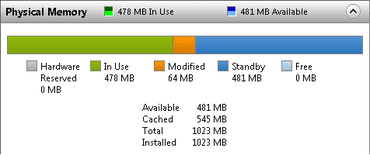
Watching the color-coded Physical Memory bar graph on the Memory tab of Resource Monitor is by far the best way to see exactly what Windows 7 is up to at any given time. Here, from left to right, is what you'll see:
W7 Memory (Ed Bott).png
Hardware Reserved (gray) This is physical memory that is set aside by the BIOS and other hardware drivers (especially graphics adapters). This memory cannot be used for processes or system functions.

In Use (green) The memory shown here is in active use by the Windows kernel, by running processes, or by device drivers. This is the number that matters above all others. If you consistently find this green bar filling the entire length of the graph, you're trying to push your physical RAM beyond its capacity.

Modified (orange) This represents pages of memory that can be used by other programs but would have to be written to the page file before they can be reused.

Standby (blue) Windows 7 tries as hard as it can to keep this cache of memory as full as possible. In XP and earlier, the Standby list was basically a dumb first-in, first-out cache. Beginning with Windows Vista and continuing with Windows 7, the memory manager is much smarter about the Standby list, prioritizing every page on a scale of 0 to 7 and reusing low-priority pages ahead of high-priority ones. (Another Russinovich article, Inside the Windows Vista Kernel: Part 2, explains this well. Look for the "Memory Priorities" section.) If you start a new process that needs memory, the lowest-priority pages on this list are discarded and made available to the new process.

Free (light blue) As you'll see if you step through the entire gallery, Windows tries its very best to avoid leaving any memory at all free. If you find yourself with a big enough chunk of memory here, you can bet that Windows will do its best to fill itby copying data from the disk and adding the new pages to the Standby list, based primarily on its SuperFetch measurements. As Russinovich notes, this is done at a rate of a few pages per second with Very Low priority I/Os, so it shouldn't interfere with performance.

In short, Windows 7 (unlike XP and earlier Windows versions) goes by the philosophy that empty RAM is wasted RAM and tries to keep it as full as possible, without impacting performance.
Questions? Comments? Leave them in the Talkback section and I'll answer them in a follow-up post or two.
Article
Windows 7 memory usage: What's the best way to measure? | ZDNet
Gallery
How to measure Windows 7 memory usage | ZDNet
 
Last edited:

My Computer My Computer

At a glance

W7 Ultimate SP1, LM19.2 MATE, W10 Home 1703, ...AMD Phenom II x6 1100T, 3.3 GHz12GB DDR3 1333 G-Skill (4GB x 2), G-Skill (2G...NVIDIA GeForce GTX 660
Computer type
PC/Desktop
Computer Manufacturer/Model Number
n/a
OS
W7 Ultimate SP1, LM19.2 MATE, W10 Home 1703, W10 Pro 1703 VM, #All 64 bit
CPU
AMD Phenom II x6 1100T, 3.3 GHz
Motherboard
ASUS M4A88T-M/USB3 (AM3)
Memory
12GB DDR3 1333 G-Skill (4GB x 2), G-Skill (2GB x 2)
Graphics Card(s)
NVIDIA GeForce GTX 660
Sound Card
Realtek?
Monitor(s) Displays
Samsung S23B350
Screen Resolution
1920x1080
Hard Drives
WD Green 2TB (SATA), WD Green 3TB (SATA), WD Blue 4TB (SATA), WD Blue 6TB (SATA)
PSU
Cooler Master
Case
Antec GX300 Tower
Cooling
3x Antec TRICOOL 120mm Fans
Mouse
Wired Optical
Internet Speed
DSL
Antivirus
Avast
Browser
Pale Moon (64 bit)
Other Info
2018-12-27 Upgraded HDDs
2015-12-10 Upgraded case, graphics card, storage
2015-08-15 Upgraded motherboard & RAM
2015-07-15 Upgraded LM17.1 to LM17.2
In short, Windows 7 (unlike XP and earlier Windows versions) goes by the philosophy that empty RAM is wasted RAM and tries to keep it as full as possible, without impacting performance.
Actually this philosophy disn't start with Windows 7, or Vista, or even XP, but has been a part of the NT platform from the very beginning. Vista introduced some innovative methods to use memory that would otherwise be free but this was an enhancement, not a change in philosophy.

For the first time in Vista Windows Task manager and resource Monitor showed that available memory consisted of standby and free memory. Standby memory will typically form the largest part and serves a dual role. Like free memory it is available for use by any process that needs it. But in the meantime it acts as a kind of cache and makes a very significant contribution to good performance.

XP and earlier systems showed only available memory and people tended to think of this memory as all free. A reasonable assumption, but wrong. Standby memory was not introduced in Vista. The Microsoft publication Inside Windows 2000 discusses it in detail. I read an article written before the introduction of NT 3.1 (the first version of NT) in 1993 where it was mentioned. Standby memory has been a part of NT from the very beginning but it was not until Vista that it was shown as distinct from Free memory. As far as I aware the only utility that would show Standby memory in older versions was a kernel debugger, an advanced program used primarily by programmers.

Vista did introduce Superfetch which made better us of otherwise free memory but under the right conditions Standby memory can form the largest part of available memory without it.
 

My Computer My Computer

At a glance

Windows 7 Pro 64 bitXeon W35208 GBNvidia Geforce 210
Computer type
PC/Desktop
Computer Manufacturer/Model Number
HP
OS
Windows 7 Pro 64 bit
CPU
Xeon W3520
Memory
8 GB
Graphics Card(s)
Nvidia Geforce 210
Regarding the commit charge and limit:

Explaining complex technology in a way that is technically accurate and easy to understand is very difficult. Most descriptions of the commit charge are either quite technical or wrong. I will attempt to do that as simply as possible.

While an application is running it must often allocate or request space from the system memory manager to store temporary data. Storage of data in files is outside the scope of this post. Note that this allocation doesn't actually reserve storage for the data. The system memory manager is just promising that the storage will be available when the application requires it and this may occur long after the allocation is made. Initially the data would be stored in RAM but the memory manager may at it's discretion offload the data to the pagefile. The storage limit is the size of RAM + pagefile size - a few MB. When approving allocations the memory manager must ensure it doesn't exceed the storage that is physically available. It does this by maintaining a running total of allocations (the commit charge) and making sure it does not exceed physical storage (the commit limit). Exceeding the limit, if this were allowed to happen, could have dire consequences such as a system crash.

This can be compared to an airline accepting reservations for a flight. When the reservation is made there is no actual assignment of a seat on the plane, just ensuring that one will be available. The current number of reservations is like the commit charge and the number of seats on the plane is the commit limit.

When an application attempts to make an allocation of storage that would exceed the commit limit the memory manager will issue an out of memory warning, or error if it is unable to expand the pagefile to increase storage space. This can happen even if there is plenty of RAM currently available. That fortunate situation may not prevail later when the application tries to use the storage it was promised. If the memory manager approved the allocation it would be putting itself in a dangerous position. It would essentially be lying to the application. It would be like the airline giving out more reservations than there were seats on the plane. Maybe it will get lucky and someone will not show up for the flight. But if everyone does there might be 101 passengers with only 100 sets for them. The airline has a problem. Most airlines do over reserve but that is another matter.

This might seem complicated but it is actually a VERY simplified version of what actually happens.
 

My Computer My Computer

At a glance

Windows 7 Pro 64 bitXeon W35208 GBNvidia Geforce 210
Computer type
PC/Desktop
Computer Manufacturer/Model Number
HP
OS
Windows 7 Pro 64 bit
CPU
Xeon W3520
Memory
8 GB
Graphics Card(s)
Nvidia Geforce 210
Very good LMiller7.

If I'm understanding correctly what you posted; I have look at Standby Memory as (just in case I need memory).
A program starts and request memory to use and Standby memory just in case it needs it. The program might not need or ever use the Standby but it is reserved for the program. (Just in case).

Free Memory is just memory that is not being used or reserved to be use for anything.

My system has 16 gb of memory and I have yet to use half of it at any one time.
Then why do I have 16 gb of ram.
It's my personal (just in case I ever need it.)

If by chance I'm using more programs that need more memory, Windows 7 will just grab some Free Memory and switch it to a combination of In Use and/or Standby memory for the use of the added programs. My systems are set to Windows 7 manage memory.

***LMiller7 are you and I on the same page? Or am I off in wa wa land with my thinking.

Jack
 

My Computer My Computer

At a glance

Windows 10 Pro. 64/ version 1709 Windows 7 Pr...Intel i7-6800K @ 4.3Corsair Platinum 16 gig @2400EVGA GTX 1070 OC
Computer type
PC/Desktop
Computer Manufacturer/Model Number
Home made Desktop
OS
Windows 10 Pro. 64/ version 1709 Windows 7 Pro/64
CPU
Intel i7-6800K @ 4.3
Motherboard
ASUS X-99 Deluxe II
Memory
Corsair Platinum 16 gig @2400
Graphics Card(s)
EVGA GTX 1070 OC
Monitor(s) Displays
Asus 27" LED LCD/VE278Q
Screen Resolution
1920-1080 or 1280-720 HDMI
Hard Drives
INTEL SSD 730-240 Gb Sata 3.0/
PSU
EVGA Platium 1200W
Case
Phanteks Luxe Tempered Glass 8 fans/ one radiator
Cooling
XSPC/ Water Cooled CPU
Keyboard
Das 4 Professional
Mouse
Logitech M705/MX Anywhere 2-S
Internet Speed
100 mbits
Antivirus
Microsoft Security Essentials/ Malwarebytes Premium 3.0/ SAS
Browser
I.E. 11 default/Firefox/ ISP Time Warner Cable/Spectrum
Other Info
LG BluRay Burner/
Sound system-KLipsch-THX/
Icy Dock ssd Hot Swap bays.
Everything you do on your computer will go into the Standby memory category.

Eventually your Standby Column will be full, and your free memory will "look" empty, which is totally normal for Windows 7

But your actual "in use" should always be roughly the same depending on what you use your PC for.

Call it PC Pre thinking for you. If it didn`t do this your CPU would work harder to get the data off your drive, which in turn makes your drive work harder.
 

Attachments

  • Untitled.jpg
    Untitled.jpg
    185.2 KB · Views: 2

My Computer My Computer

At a glance

Windows 10 Pro x64Intel Core i7 6700KGSkill TridentZ RGB 16GB 3600 16-16-16-36EVGA GTX 980 Ti SC x2
Computer type
PC/Desktop
Computer Manufacturer/Model Number
Skylake Special #666
OS
Windows 10 Pro x64
CPU
Intel Core i7 6700K
Motherboard
Asus Sabertooth Z170 Mark 1
Memory
GSkill TridentZ RGB 16GB 3600 16-16-16-36
Graphics Card(s)
EVGA GTX 980 Ti SC x2
Sound Card
Realtek High Definition
Monitor(s) Displays
AOC G2460PG
Screen Resolution
1920 x 1080 144Hz
Hard Drives
Samsung 860 Pro 256GB, Seagate Barracuda 4TB x2
PSU
EVGA 1000 P2, EVGA White Custom Braided Cables
Case
Corsair Vengeance C70 Gunmetal Black
Cooling
Corsair H100i v2, Corsair ML120 x2, Thermal Grizzly Kryonaut
Keyboard
Logitech G910 Orion Spectrum
Mouse
Logitech G700s
Internet Speed
Verizon Fios Quantum Gateway 75/75
Antivirus
Windows Defender, Malwarebytes Free 3.8.3
Browser
Chrome
Other Info
Corsair SP120 x4, LG Blu-ray Drive, Durabrand HT-395 100 Watt Dolby Digital Amp, Corsair H2100 Wireless 7.1 Headset
Back
Top