Windows Virtual PC - Connect Virtual Machine to Network

How to Connect Windows Virtual PC to the Network


   Information
This will show you how to connect Windows Virtual PC to your network so that your created virtual machine or XP Mode will be able to access the internet.

For more information, see: Networking in Windows Virtual PC - Windows Virtual PC - Site Home - TechNet Blogs
   Warning

You will need to be logged in as an administrator to be able to do this tutorial.


Here's How:

1. Open the created or XP Mode virtual machine in Windows Virtual PC that you want to connect to the network.

2. On the virtual machine's menu bar, click on Tools.
A) If you see Disable Integration Features, then go to step 5. (see screenshot below)
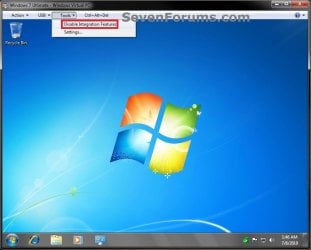
Disable.jpg
B) If you see Install Integration Features, then go to step 3. (see screenshot below)
Step1.jpg
C) If you see Enable Integration Features, then go to step 4. (see screenshot below)
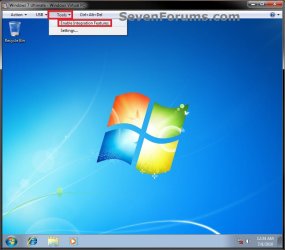
Step2.jpg
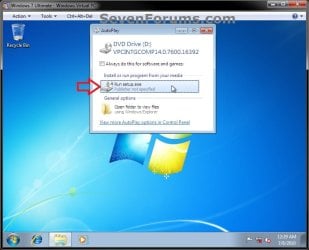
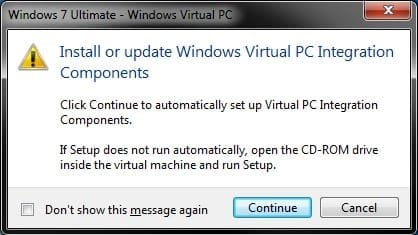
3. To Install Integration Features in Windows Virtual PC
A) Click on Install Integration Components. (see screenshot below step 2B)

B) Follow steps 15 to 20 here (click on link) to finish installing.
Step1B.jpg

Step1C.jpg
C) When finished, continue on to step 4.
4. To Enable Integration Features in Windows Virtual PC
A) Click on Enable Integration Components. (see screenshot below step 2C)

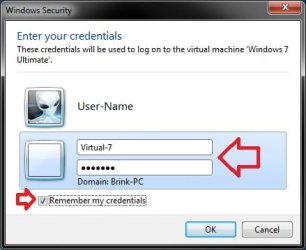
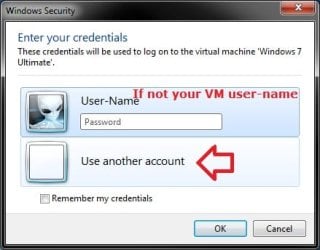
B) Log on using the user name and password for the virtual machine. (see screenshots below)
NOTE: If you do not see the user name for you virtual machine, then click on Use another account to enter the user name and password and click on OK.
Step2-B.jpg

Step2-C.jpg
C) When finished, continue on to step 5.
5. To Enable "Virtual PC Network Filter Driver" in Windows 7
NOTE: This step is to be done in your host Windows 7 computer and not in the virtual machine in Windows Virtual PC.
A) Open the Control Panel (icons view), then click on the Network and Sharing Center icon.

B) In the Network and Sharing Center, click on the Change adapter settings link on the left side. (see screenshot below)
Network_Sharing_Center.jpg
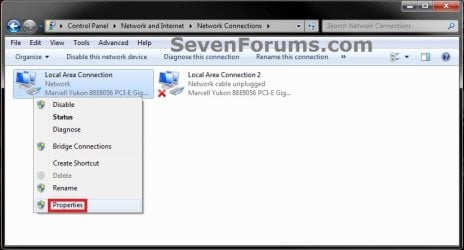
C) Right click on your internet network connection, and click on Properties. (see screenshot below)
NOTE: Make note of the network adapter name (ex: Marvel Yukon....). You will need to know this in step 7B below.
Network_Connections_UAC.jpg
D) If prompted by UAC, then click on Yes.

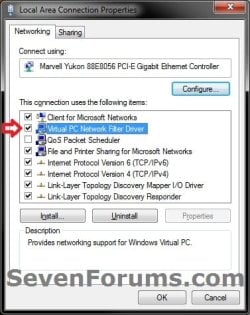
E) If not already, check the Virtual PC Network Filter Driver box, and click on OK. (see screenshot below)
Connection_Properties.jpg
F) Close the Network Connections window. (see screenshot below step 5C)
6. If you Use a Router with "MAC Address Filtering" Enabled
   Note
If you do not, then skip this step and go to step 7 instead.

If you do, then this step will show you how to get the MAC address of the virtual machine in Windows Virtual PC so you can add it to the MAC Filtering Rules of your router to allow the virtual machine access through the router.

A) In the virtual machine, open a command prompt and type ipconfig /all (space after g) and press enter.

B) In the command prompt, look for the MAC address (ex: 00:03:ff:1e:03:57) to the right of Physical Address. Write this MAC address number down. (see screenshot below)
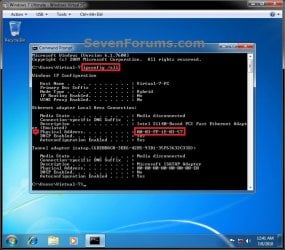
Step3.jpg
C) In your Windows 7 computer (not virtual machine), open your web browser (ex: Internet Explorer) and log in to your router.
NOTE: You would usually do this by typing in your router's IP address in the web browser's address bar and pressing enter. Consult your router's manual to see what it's default IP address is.

D) Go to your router's Network Filter settings, and add the virtual machine's MAC address (step 6B) to the MAC Filtering Rules and save it. (see screenshot below)
NOTE: This is for a D-Link router, but this will vary depending on what brand and model of router you have. Consult your router's manual on how to enter the MAC address.
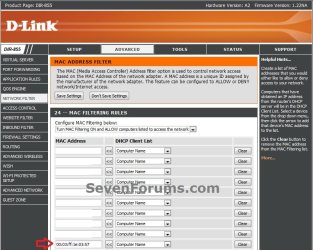
Step4.jpg
E) You can now close the web browser in your Windows 7 computer (not virtual machine).

F) Close the command prompt in the virtual machine. (see screenshot below step 6B)

G) Continue on to step 7.
7. To Set the Virtual Machine Network Settings
A) On the virtual machine's menu bar, click on Tools and Settings.
Settings-1.jpg
B) In the left pane, select Networking, then select your network adapter name (step 5C above) from the drop down box and click on OK. (see screenshot below)
NOTE: If you have more than one network adapter available and you do not know which one to select, then test using each one until you have a connection.
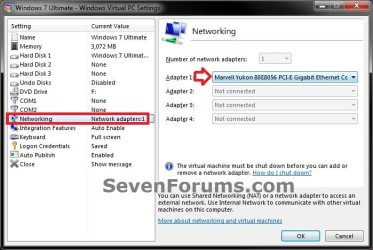
Settings-2.jpg
C) Continue on to step 8.
8. Select the Network location type you want for the virtual machine to have the settings for that location automatically applied. (see screenshot below)
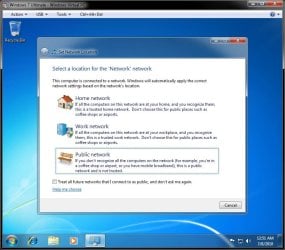
Step5.jpg
9. The virtual machine in Windows Virtual PC should now be able to connect to your network and access the internet from it.


That's it,
Shawn


Last edited:
Very good tutorial. Thanks for taking the time to make it.

Kari
 

My Computer

Computer type
Laptop
Computer Manufacturer/Model Number
HP ENVY 17-1150eg
OS
Windows 10 Pro x64 EN-GB
CPU
1.6 GHz Intel Core i7-720QM Processor
Memory
6 GB
Graphics Card(s)
ATI Mobility Radeon HD 5850 Graphics
Sound Card
Beats sound system with integrated subwoofer
Monitor(s) Displays
17" laptop display, 22" LED and 32" Full HD TV through HDMI
Screen Resolution
1600*900 (1), 1920*1080 (2&3)
Hard Drives
Internal: 2 x 500 GB SATA Hard Disk Drive 7200 rpm
External: 2TB for backups, 3TB USB3 network drive for media
Cooling
As Envy runs a bit warm, I have it on a Cooler Master pad
Keyboard
Logitech diNovo Media Desktop Laser (bluetooth)
Mouse
Logitech Performance Mouse MX
Internet Speed
50/10 Mbps VDSL
Antivirus
Windows Defender 4.3.9431.0
Browser
Maxthon 3.5.2., IE11
Thank you Kari. :)
 

My Computer

Computer type
PC/Desktop
Computer Manufacturer/Model Number
Self built custom
OS
64-bit Windows 11 Pro for Workstations
CPU
Intel i7-8700K OC'd to 5 GHz
Motherboard
ASUS ROG Maximus XI Formula Z390
Memory
64 GB (4x16GB) G.SKILL TridentZ RGB DDR4 3600 MHz
Graphics Card(s)
ASUS ROG-STRIX-GTX1080TI-O11G-GAMING
Sound Card
Integrated
Monitor(s) Displays
2 x Samsung Odyssey G7 27"
Screen Resolution
2560x1440
Hard Drives
1TB Samsung 990 PRO M.2,
4TB Samsung 990 PRO PRO M.2,
TerraMaster F8 SSD Plus NAS
PSU
Seasonic Prime Titanium 850W
Case
Thermaltake Core P3
Cooling
Corsair Hydro H115i
Keyboard
Logitech wireless K800
Mouse
Logitech MX Master 4
Internet Speed
2 Gb/s Download and 100 Mb/s Upload
Antivirus
Malwarebyte Anti-Malware Premium
Browser
Google Chrome
Other Info
Logitech Z625 speaker system,
Logitech BRIO 4K Pro webcam,
HP Color LaserJet Pro MFP M477fdn,
APC SMART-UPS RT 1000 XL - SURT1000XLI,
Galaxy S23 Plus phone
still coming in useful to this day! Thank you.
 

My Computer

OS
Windows 7 Premium Home 64bit
You're most welcome mawds. I'm glad to hear it was helpful to you. :)
 

My Computer

Computer type
PC/Desktop
Computer Manufacturer/Model Number
Self built custom
OS
64-bit Windows 11 Pro for Workstations
CPU
Intel i7-8700K OC'd to 5 GHz
Motherboard
ASUS ROG Maximus XI Formula Z390
Memory
64 GB (4x16GB) G.SKILL TridentZ RGB DDR4 3600 MHz
Graphics Card(s)
ASUS ROG-STRIX-GTX1080TI-O11G-GAMING
Sound Card
Integrated
Monitor(s) Displays
2 x Samsung Odyssey G7 27"
Screen Resolution
2560x1440
Hard Drives
1TB Samsung 990 PRO M.2,
4TB Samsung 990 PRO PRO M.2,
TerraMaster F8 SSD Plus NAS
PSU
Seasonic Prime Titanium 850W
Case
Thermaltake Core P3
Cooling
Corsair Hydro H115i
Keyboard
Logitech wireless K800
Mouse
Logitech MX Master 4
Internet Speed
2 Gb/s Download and 100 Mb/s Upload
Antivirus
Malwarebyte Anti-Malware Premium
Browser
Google Chrome
Other Info
Logitech Z625 speaker system,
Logitech BRIO 4K Pro webcam,
HP Color LaserJet Pro MFP M477fdn,
APC SMART-UPS RT 1000 XL - SURT1000XLI,
Galaxy S23 Plus phone
Brink, awesome tutorial as always... more so at this moment that I am going through such a nightmare with my vhd.


ani-chuck_norris-thumbs_up.gif
 

My Computer

Computer type
PC/Desktop
Computer Manufacturer/Model Number
Custom Built... Intel/Nvidia/ASRock
OS
Windows 7 x64 (Ultimate)
CPU
Intel i5-4670K
Motherboard
ASRock Z87 Extreme 6
Memory
8GBs Ripjaws 2133Mhz
Graphics Card(s)
Asus GTX660 (2GBs)
Sound Card
Onboard Realtek HD
Monitor(s) Displays
Acer AL2216W
Screen Resolution
1680 x 1050
Hard Drives
Samsung 840 SSD 120GBs
Samsung 750GB 32MB cache
1.5 TB
PSU
PC Cooling 750w Silencer
Case
Thermaltake Spedo Advance
Cooling
Std Cooler
Keyboard
Logitech G15
Mouse
Logitech G9
Internet Speed
Comcast 20Mbit
Antivirus
Avast
Browser
Firefox
Glad it could help Daniel. :)
 

My Computer

Computer type
PC/Desktop
Computer Manufacturer/Model Number
Self built custom
OS
64-bit Windows 11 Pro for Workstations
CPU
Intel i7-8700K OC'd to 5 GHz
Motherboard
ASUS ROG Maximus XI Formula Z390
Memory
64 GB (4x16GB) G.SKILL TridentZ RGB DDR4 3600 MHz
Graphics Card(s)
ASUS ROG-STRIX-GTX1080TI-O11G-GAMING
Sound Card
Integrated
Monitor(s) Displays
2 x Samsung Odyssey G7 27"
Screen Resolution
2560x1440
Hard Drives
1TB Samsung 990 PRO M.2,
4TB Samsung 990 PRO PRO M.2,
TerraMaster F8 SSD Plus NAS
PSU
Seasonic Prime Titanium 850W
Case
Thermaltake Core P3
Cooling
Corsair Hydro H115i
Keyboard
Logitech wireless K800
Mouse
Logitech MX Master 4
Internet Speed
2 Gb/s Download and 100 Mb/s Upload
Antivirus
Malwarebyte Anti-Malware Premium
Browser
Google Chrome
Other Info
Logitech Z625 speaker system,
Logitech BRIO 4K Pro webcam,
HP Color LaserJet Pro MFP M477fdn,
APC SMART-UPS RT 1000 XL - SURT1000XLI,
Galaxy S23 Plus phone
Brink - Today, for the first time, the Shared Networking (NAT) setting did NOT permit my XP Mode to connect to the internet.
So I increased the number of network adapters to 2 and added the Intel 82579LM NIC in my hardware that contains the Win 7 Pro host. XP Mode now also connects to the internet.
But ... what happened?
What happened to block the original Shared Networking (NAT)?
My gateway router does NOT do MAC address filtering for wired PCs (including this 7 + XP Mode machine) - only for WiFi.
Now, with only the Shared Networking (NAT) on (with the #2 NIC temporarily turned off), ipconfig /all in XP Mode shows that the Gateway is 192.168.131.254. However, when I point the XP Mode browser at that IP, I get nothing.
By the way, my external Gatweay is 192.168.1.1, and its DHCP range does not include 192.168.131 anything, so I am concluding that 192.168.131.254 is generated inside my Win 7 host.
Anyway, Shared Networking (NAT) is no longer working, but it used to.
Thoughts? Thanks.
 

My Computer

Computer type
PC/Desktop
Computer Manufacturer/Model Number
Dell Optiplex 7010 MT
OS
Dual boot - Win 10 Pro 64-bit (good) and Win 7 Pro 64-bit (won't boot on the NVMe)
CPU
Intel Core i5 3470 @ 3.2GHz
Motherboard
Dell 0GY6Y8 - what would the Intel number be? - Q77 chipset
Memory
16GB RAM DDR3 (Four x 4GB)
Graphics Card(s)
Intel HD Graphics (on the CPU)
Sound Card
Realtek High Definition Audio - and Intel Display Audio
Monitor(s) Displays
Dell E176FP - nothing fancy
Screen Resolution
1280 x 1024 @ 60 Hz
Hard Drives
Now a Samsung 970 EVO Plus SSD NVMe, which works for the Win 10 only

Used to be two 500GB WDC WD5000AAKX (SATA @ 6GB/sec)

- External WD My Book 1110 USB device
PSU
What means PSU? I'm at sea level
Cooling
Ice cubes
Keyboard
Noisy
Mouse
Micky
Internet Speed
Verizon FIOS 500 Mbps (was 1Gbps but I can't type that fast)
Antivirus
Win 10 Windows Defender - Win 7 Avast Free
Browser
Firefox only with lots of security drives my wife crazy
Other Info
Also I still have an old but important XP SP3 machine that can run - Optiplex 755 Desktop w 4GB RAM and Momentus XT hybrid HD-SSD 500 GB hard drive. Used the registry hack to get more updates through "XP Embedded" or "POS" so now the machine rings like a cash register and the CD drawer opens to give change.
Hello glnz, :)

Did you make any changes to anything before this happened?

You might see if adjusting the DHCP range of the router to include the IP address of the VM may let it connect with the NIC #1 again.
 

My Computer

Computer type
PC/Desktop
Computer Manufacturer/Model Number
Self built custom
OS
64-bit Windows 11 Pro for Workstations
CPU
Intel i7-8700K OC'd to 5 GHz
Motherboard
ASUS ROG Maximus XI Formula Z390
Memory
64 GB (4x16GB) G.SKILL TridentZ RGB DDR4 3600 MHz
Graphics Card(s)
ASUS ROG-STRIX-GTX1080TI-O11G-GAMING
Sound Card
Integrated
Monitor(s) Displays
2 x Samsung Odyssey G7 27"
Screen Resolution
2560x1440
Hard Drives
1TB Samsung 990 PRO M.2,
4TB Samsung 990 PRO PRO M.2,
TerraMaster F8 SSD Plus NAS
PSU
Seasonic Prime Titanium 850W
Case
Thermaltake Core P3
Cooling
Corsair Hydro H115i
Keyboard
Logitech wireless K800
Mouse
Logitech MX Master 4
Internet Speed
2 Gb/s Download and 100 Mb/s Upload
Antivirus
Malwarebyte Anti-Malware Premium
Browser
Google Chrome
Other Info
Logitech Z625 speaker system,
Logitech BRIO 4K Pro webcam,
HP Color LaserJet Pro MFP M477fdn,
APC SMART-UPS RT 1000 XL - SURT1000XLI,
Galaxy S23 Plus phone
Brink - thanks for fast response

No changes that I can think of today. As soon as I turned on XP Mode, the NAT connection didn't work and I couldn't do much.
When I increased the number of network cards to 2 and added the Intel NIC, then the XP Mode connected to the outside world and I ran a bunch of updates in XP Mode - XP itself and Avast AV.

I don't particularly want to add 192.168.131.xx to my actual outside router as a new DHCP range. (Not sure that I can.) Anyway, that should not be relevant to connecting in Shared Networking (NAT), right?

Might something in my Win 7 Pro host no longer accept connections from the XP Mode's Shared Networking (NAT)? I think - not sure - that the Win 7 is supposed to "be" that 192.168.131.254 "Gateway", right? Any particular reason why it might stop? Is there any way for me to check on the Win 7 side?
 

My Computer

Computer type
PC/Desktop
Computer Manufacturer/Model Number
Dell Optiplex 7010 MT
OS
Dual boot - Win 10 Pro 64-bit (good) and Win 7 Pro 64-bit (won't boot on the NVMe)
CPU
Intel Core i5 3470 @ 3.2GHz
Motherboard
Dell 0GY6Y8 - what would the Intel number be? - Q77 chipset
Memory
16GB RAM DDR3 (Four x 4GB)
Graphics Card(s)
Intel HD Graphics (on the CPU)
Sound Card
Realtek High Definition Audio - and Intel Display Audio
Monitor(s) Displays
Dell E176FP - nothing fancy
Screen Resolution
1280 x 1024 @ 60 Hz
Hard Drives
Now a Samsung 970 EVO Plus SSD NVMe, which works for the Win 10 only

Used to be two 500GB WDC WD5000AAKX (SATA @ 6GB/sec)

- External WD My Book 1110 USB device
PSU
What means PSU? I'm at sea level
Cooling
Ice cubes
Keyboard
Noisy
Mouse
Micky
Internet Speed
Verizon FIOS 500 Mbps (was 1Gbps but I can't type that fast)
Antivirus
Win 10 Windows Defender - Win 7 Avast Free
Browser
Firefox only with lots of security drives my wife crazy
Other Info
Also I still have an old but important XP SP3 machine that can run - Optiplex 755 Desktop w 4GB RAM and Momentus XT hybrid HD-SSD 500 GB hard drive. Used the registry hack to get more updates through "XP Embedded" or "POS" so now the machine rings like a cash register and the CD drawer opens to give change.
I must admit that I'm not sure why it stopped all of a sudden for you either. :confused:
 

My Computer

Computer type
PC/Desktop
Computer Manufacturer/Model Number
Self built custom
OS
64-bit Windows 11 Pro for Workstations
CPU
Intel i7-8700K OC'd to 5 GHz
Motherboard
ASUS ROG Maximus XI Formula Z390
Memory
64 GB (4x16GB) G.SKILL TridentZ RGB DDR4 3600 MHz
Graphics Card(s)
ASUS ROG-STRIX-GTX1080TI-O11G-GAMING
Sound Card
Integrated
Monitor(s) Displays
2 x Samsung Odyssey G7 27"
Screen Resolution
2560x1440
Hard Drives
1TB Samsung 990 PRO M.2,
4TB Samsung 990 PRO PRO M.2,
TerraMaster F8 SSD Plus NAS
PSU
Seasonic Prime Titanium 850W
Case
Thermaltake Core P3
Cooling
Corsair Hydro H115i
Keyboard
Logitech wireless K800
Mouse
Logitech MX Master 4
Internet Speed
2 Gb/s Download and 100 Mb/s Upload
Antivirus
Malwarebyte Anti-Malware Premium
Browser
Google Chrome
Other Info
Logitech Z625 speaker system,
Logitech BRIO 4K Pro webcam,
HP Color LaserJet Pro MFP M477fdn,
APC SMART-UPS RT 1000 XL - SURT1000XLI,
Galaxy S23 Plus phone
Back
Top