Wireless Connection Issues with Laptop (BSOD occasionally)

SteveH66

New member
Local time
8:41 AM
Messages
26
Here are my system specs :
Acer Aspire 5733Z-4851
Windows 7 Home Prem. 64 bit (latest service pack and fully updated)
Broadcom Wired Controller
Broadcom Wireless 802.11N

Belkin 750 DB Wireless N+ router

I started having problems with wireless connections months ago, just started using a cat5 cable at home and didn't do anything about it. Don't know if it started happening after I installed new software or after I installed new driver updates from Acer. I think I might have installed the wrong wireless driver update, had to uninstall it, and then reinstall the Broadcom drivers. Anyway, after I did that, I started getting BSOD crashes after a couple of hours or so of being on wireless on the laptop. Wired works just fine, and that's why I started just using the cat5 line.

So, last week, I decided to try to fix the problem again. Uninstalled and reinstalled the Broadcom wireless drivers a few times, and it is better now, but still not right. Before it crashed and gave a BSOD after a couple of hours. After I un & re-installed the drivers, now I get a day or maybe even 2 on wireless, then it drops the wireless connection and no matter how many times I run the network troubleshooter, windows can't correct the problem.

Now here's the odd thing to me. The computer is finding the wireless network, apparently even Win 7 is finding it, because it says networks available, and you can click on that and it shows the home network and has a connect button - it just won't connect.

Anyone have any idea's what's going on here? I looked around the forums didn't see a post that seemed to address the problem. Thanks
 

My Computer

Computer Manufacturer/Model Number
Acer Aspire 5733Z-4851
OS
Windows 7 Home Premium 64 bit
Hi.

I would try the Atheros wireless driver from this page Acer | Download if not i would go with the Intel one. These are off the acer website.

EDIT: Enter in this in the model area Aspire 5733Z
 

My Computer

Computer type
PC/Desktop
Computer Manufacturer/Model Number
Dell / Lenovo g550
OS
Windows 7 Ultimate 64-bit
CPU
Intel Core 2 Duo E6550 @2.33GHz
Motherboard
foxconn g33m02
Memory
4GB DDR"
Graphics Card(s)
NVIDIA GeForce 8600 GS
Hard Drives
HDD 1 = 150GB
HDD 2 = 1.5TB
PSU
450W
Cooling
Stock fan
Internet Speed
12Mb
Antivirus
AVG Internet Security
Thanks for the helpful reply Benjy206, when you put in the full model name on the Acer tech support site, it tells you that this model uses one of 3 possible wireless cards : Broadcom, Atheros and Realtek.

As an aside, since this issue is really irksome and always has been in the past, why can't these computer makers decide with one set of hardware and stick with it for a computer model unless the company goes out of business and they HAVE to switch to another one? Is another 20 cents per unit savings really THAT important to put customers through all this? Sorry, rant off, back on topic.

When I used the hardware scanner app downloaded from Acer tech support site, it showed Broadcom as my wireless card. Also, when I uninstalled the wireless card and drivers and let Windows Device Manager scan hardware that's what it found and downloaded from the net. Would it use a Broadcom driver and then one of those other ones on top of it?

I don't want to experiment here, since experimenting instead of downloading their hardware scanner app in the first place (must not have seen the link for it when i was updating drivers the first time) is what got me in this mess in the first place. Their scanner app and Windows Device Manager are both telling me Broadcom as the Wireless Card in the unit, I'm going to go with that as the Wireless driver to use unless someone tells me I need to use one of the other ones with it or instead of it.

I was at another location last night, got wireless connection just fine and when I came home I still couldn't connect MY laptop to the router - it is finding it but just refuses to connect for some reason. Unplugged/replugged router and was able to get connection at home. All other devices had been able to connect to the router during the time I was unable to on my laptop, and there was never an issue with their computers/devices, mine was the only one that wouldn't connect.

So after the reset of the router, it appears that my laptop is having a problem with the router that none of the other devices have with the router. A router reset will fix the problem on my laptop it appears, but who wants to interrupt wireless use in the household for everyone else whenever YOU are having a problem with wireless no one else seems to be having? Not me, so I would appreciate any help anyone can give me, thanks

PS : when my laptop is having this issue, reboots are not an issue, I can reboot until the power adapter overheats (and that is a joke, my power adapter is NOT, I repeat NOT overheating so that isn't the problem), until I unplug the router MY comp just refuses to connect - it finds the network just won't connect. Meanwhile, everyone else is just merrily playing around on wireless, no issues for them.
 

My Computer

Computer Manufacturer/Model Number
Acer Aspire 5733Z-4851
OS
Windows 7 Home Premium 64 bit
Ok so when you enter in the sharekey for that network it won't even allow you to connect? Or it will connect an just wont give you access to the internet? Basically since you said it will allow you onto other networks but not your own, make sure MAC filtering isn't on within your router. Now since you said you did a reset on the router (I don't know if you just turned it off or did a factory reset?) Like i said i would go with another driver like the Atheros just to get the driver issue out of the way. So that would be my first step is uninstall the broadcom driver and install the Atheros one. Then see what happens. But make sure your MAC filtering is off on the router. If you did a factory reset on the router that should of removed it.
 

My Computer

Computer type
PC/Desktop
Computer Manufacturer/Model Number
Dell / Lenovo g550
OS
Windows 7 Ultimate 64-bit
CPU
Intel Core 2 Duo E6550 @2.33GHz
Motherboard
foxconn g33m02
Memory
4GB DDR"
Graphics Card(s)
NVIDIA GeForce 8600 GS
Hard Drives
HDD 1 = 150GB
HDD 2 = 1.5TB
PSU
450W
Cooling
Stock fan
Internet Speed
12Mb
Antivirus
AVG Internet Security
Try resetting the Router by using the reset button on the back of router. There should be a tiny hole, inside the hole is the reset button. Use a straightened out paper clip, push in paper clip into hole, press and hold reset button until router turns off, release reset button. This will reset the router back to factory settings and reset the stack protocol.
 

My Computer

Computer Manufacturer/Model Number
Custom built
OS
Windows 7 Ultimate 64 bit
CPU
AMD Phenom II X4 965 Black Edition
Motherboard
Gigabyte GA-MA790X-DS4
Memory
GSkill 4 X 2 GB PC 8500
Graphics Card(s)
XFX Radeon HD 6790 D
Sound Card
On board RealTek HD
Monitor(s) Displays
Dual monitors:Samsung SyncMaster S20B300
Screen Resolution
1600 X 900
Hard Drives
Seagate Barracuda 1TB (primary)
Seagate Barracuda 2 X 320 GB
PSU
Ultra X4 750 watt fully modular
Case
Thermaltake Overseer RX 1 full tower
Cooling
Core-Contact 92 mm CPU Cooler
Keyboard
Logitech G510
Mouse
Razor DeathAdder
Internet Speed
50/5 Mbps UL/DL
Other Info
Optical: Super Muliti DVD burner w/lightscribe, Hauppauge WinTV HVR-1800
drivers

Hi Steve,
Oh those wonder people who sell laptops.

the information you require can be found
Controlpanel>PerformanceInfoTools>Advancedtools>advanced sytem info (no7)
Expand components>network>adapters note it will probobly not be the first 1 listed scroll down

you will also see problem devices further down have a look.

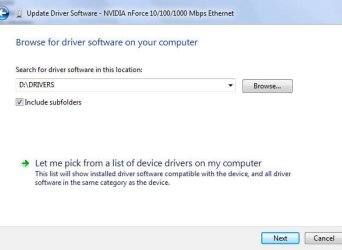
finally the drivers you need will be on your recovery partion (D)
Controlpanel>devicemanager>networkadapters>expand>selectdriver>
update driver FROM computer browse to D:/DRIVERS

roy
 

Attachments

  • recovery.JPG
    recovery.JPG
    16.5 KB · Views: 3
  • drivne.JPG
    drivne.JPG
    35.7 KB · Views: 3

My Computer

Computer type
PC/Desktop
Computer Manufacturer/Model Number
medionl/Aspire 6930G/acer x55a
OS
W7 home premium 32bit/W7HP 64bit/w10 tp insider ring
CPU
E5300 dual core
Motherboard
medion MS7366
Memory
3gb
Graphics Card(s)
Nvidia Geforce 7100 Nforce 630i
Monitor(s) Displays
avixc
Internet Speed
n (isp resticted to 72)
Antivirus
mse/pands
Browser
palemoon
Other Info
Belkin Fd7050 n USB using Railink RT2870 drivers, more upto date
Hi Steve,
Oh those wonder people who sell laptops.

the information you require can be found
Controlpanel>PerformanceInfoTools>Advancedtools>advanced sytem info (no7)
Expand components>network>adapters note it will probobly not be the first 1 listed scroll down

you will also see problem devices further down have a look.

finally the drivers you need will be on your recovery partion (D)
Controlpanel>devicemanager>networkadapters>expand>selectdriver>
update driver FROM computer browse to D:/DRIVERS

roy

He knows what driver's he has :)
 

My Computer

Computer type
PC/Desktop
Computer Manufacturer/Model Number
Dell / Lenovo g550
OS
Windows 7 Ultimate 64-bit
CPU
Intel Core 2 Duo E6550 @2.33GHz
Motherboard
foxconn g33m02
Memory
4GB DDR"
Graphics Card(s)
NVIDIA GeForce 8600 GS
Hard Drives
HDD 1 = 150GB
HDD 2 = 1.5TB
PSU
450W
Cooling
Stock fan
Internet Speed
12Mb
Antivirus
AVG Internet Security
Thanks for the replies folks. Benjy206, all the security info for the connection is saved and it is set up to connect automatically. It doesn't even ask me for a security key or anything else, because there is a connection saved already I believe. After I rebooted the router (unplugged, waited 30 seconds, plugged back in) I was again able to connect to wireless. To investigate the problem I did a test. While I was in the other wireless location, as I said in my 2nd post, I was able to connect with no problems. So when I got home, I tried to connect again.

The computer says networks available, it shows the home network, when i click on it i get the connect button. When I click connect, it just won't connect to the router at all, although it seems to be finding it. No network access at all, it just immediately pops up a message stating that there is a problem with the connection, lets me troubleshoot, tells me to make sure the router/wireless access point is within range, and when i click "check to see if that fixed the networking problem" it gives me a message that "windows couldn't resolve the networking problem" or something like that.

Then I rebooted the router, and I was able to connect wirelessly. Right now I am on wireless typing this. Before the reboot of the router, my phone and 2 other phones were connected on wireless, a tablet is connected on wireless and my brother's laptop was also working on wireless - all of these devices working fine. Mine just wouldn't connect even though it was showing networks available and showed the home network. So I really think it is an issue with my system, not the rest of the network.

So Benjy206, you are saying I need to install the Atheros driver along with the Broadcom driver?

Torchwood, when i run the advanced system info it is showing the adapter is a broadcom, here is the data from that scan :

Name [00000007] Broadcom 802.11n Network Adapter
Adapter Type Ethernet 802.3
Product Type Broadcom 802.11n Network Adapter
Installed Yes
PNP Device ID PCI\VEN_14E4&DEV_4727&SUBSYS_051014E4&REV_01\4&FD87115&0&00E1
Last Reset 4/4/2013 9:47 AM
Index 7
Service Name BCM43XX
IP Address 192.168.2.9, fe80::b8ac:9342:8f45:8c88
IP Subnet 255.255.255.0, 64
Default IP Gateway 192.168.2.1
DHCP Enabled Yes
DHCP Server 192.168.2.1
DHCP Lease Expires 1/18/2038 9:14 PM
DHCP Lease Obtained 4/4/2013 2:28 PM
MAC Address C0:F8: DA:34:B4:18 (no space between : and D, it was putting a grin smily in)
Memory Address 0xD24z00000-0xD2403FFF
IRQ Channel IRQ 17

(Also, the Acer Support app I downloaded to show my hardware configuration says it is a Broadcom WAN adapter)

I can post the entire network adapter result if anyone thinks it would be helpful for troubleshooting, didn't want to post the whole thing because it is quite long. One thing it is showing is a WAN Miniport entry(s). I believe this has something to do with Windows networking.

Bassfisher6522, I will do a factory reset of the router if I have to, but it has done some updates and I don't want to have to do that again until I have tried all else on my system, since it is the only one in the household that seems to be having problems with the wireless.

Thanks again for all this help folks, greatly appreciated
 

My Computer

Computer Manufacturer/Model Number
Acer Aspire 5733Z-4851
OS
Windows 7 Home Premium 64 bit
No you will need to unistall the broadcom first then install the atheros. You best thing is to download the atheros now and only save as, dont run. Then uninstall the broadcom and install the new one
 

My Computer

Computer type
PC/Desktop
Computer Manufacturer/Model Number
Dell / Lenovo g550
OS
Windows 7 Ultimate 64-bit
CPU
Intel Core 2 Duo E6550 @2.33GHz
Motherboard
foxconn g33m02
Memory
4GB DDR"
Graphics Card(s)
NVIDIA GeForce 8600 GS
Hard Drives
HDD 1 = 150GB
HDD 2 = 1.5TB
PSU
450W
Cooling
Stock fan
Internet Speed
12Mb
Antivirus
AVG Internet Security
OK, wireless was up for 2 or 3 days fine, then the problem happened again. I popped the hatch and looked at the wireless card, it is a Broadcom card. So should I uninstall the broadcom and install the Atheros drivers anyway? Would it be possible that Acer wrote their latest update to fix a problem that other models had with wireless, and created a problem with wireless connectivity on my model? If the new update is broken for my system, might a rollback of the driver to a previous version fix it? Thanks
 

My Computer

Computer Manufacturer/Model Number
Acer Aspire 5733Z-4851
OS
Windows 7 Home Premium 64 bit
Back
Top