
How to Backup and Restore Wireless Network Profiles in XP, Vista, and Windows 7
Information
This will show you how to backup a wireless network with all of it's settings in Windows 7 to then be able to restore (import) and use on any one or more XP, Vista, and Windows 7 computer as well.
This makes it easy to have a wireless network and it's settings automatically added and setup from one computer to another.
You must be logged in as an administrator to be able to do this tutorial.
This makes it easy to have a wireless network and it's settings automatically added and setup from one computer to another.
You must be logged in as an administrator to be able to do this tutorial.
Warning
You will be required to use a USB flash drive to be able to backup a wireless network profille.
OPTION ONE
To Backup a Wireless Network Profile in Windows 7
1. Open the Control Panel (icons view), and click on the Network and Sharing Center icon.
2. In the left blue pane, click on the Manage wireless networks link. (see screenshot below)

3. Double click on the wireless network that you want to backup. (see screenshot below)
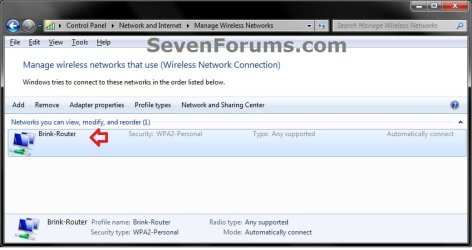
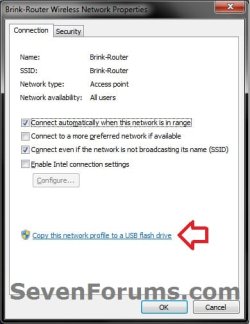
4. Click on the Copy this network profile to a USB flash drive link. (see screenshot below)
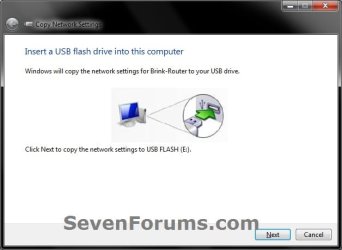
5. Connect a USB flash drive to your computer, and click on Next. (see screenshot below)
Warning
This will replace any other wireless network profile backup that you have previously backed up on the USB flash drive using this method. If you wish to keep more than one wireless network profile backup, then you would need to:
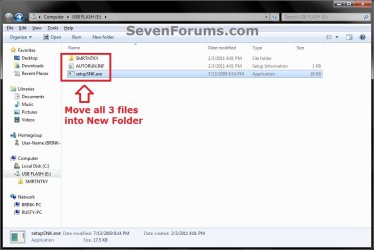
- Create a New Folder on the USB flash drive or some other location, and move (cut and paste) all 3 of the backup files below (see screenshot below) from the root of the USB flash drive into the new folder before doing step 5.
6. When it's finished, click on Close. (see screenshot below)
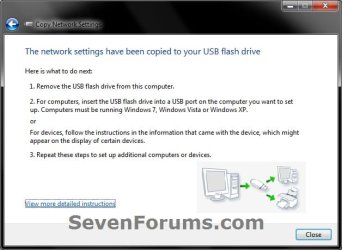
7. When you are finished, click on OK. (see screenshot below step 4)
8. Close the Manage Wireless Networks window. (see screenshot below step 3)
OPTION TWO
To Restore or Import the Wireless Network Profile
Warning
If you used a New Folder as in the warning under step 5 in OPTION ONE above to keep mutliple wireless network profiles backed up, then you will need to do this first before doing step 1 below.
- In the USB flash drive, do the warning in step 5 in OPTION ONE above if the wireless network profile backup files in the root of the USB flash drive is not the backup that you wanted to restore (import).
- Afterwards, copy the all of the backup files from within a new folder that contains the wireless network profile that you do want to restore (import) to the root of the USB flash drive.
NOTE: This must be done from a USB flash drive, or it will not work.
2. In AutoPlay, click on the Connect to a wireless network option. (see screenshot below)
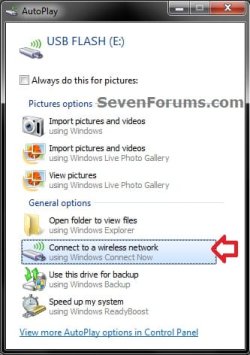
A) Go to step 4.
OR
3. Open the USB flash drive and run the setupSNK.exe in the root of the USB flash drive.
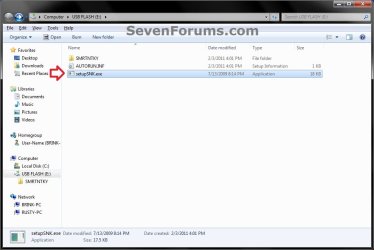
4. Verify that this is the name (ex: Brink-Router) of the wireless network that you want to restore or import, and click on Yes if so. (see screenshot below)
NOTE: If it isn't, then do what is in the Warning box right under OPTION TWO to have the correct wirless network profile backup files in the root of the USB flash drive.
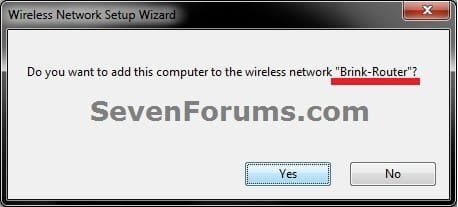
5. Click on OK. (see screenshot below)
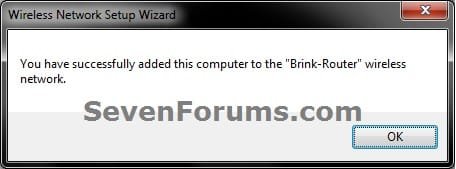
6. The wireless network has now been restored (imported). You can repeat steps 1 and 2 in OPTION ONE above to verify.
That's it,
Shawn
Related Tutorials
- How to Workaround the Wireless Connection Issue in Standby
- Wireless Security: How To Protect Your Network
- How to Remove a Wireless Network in Windows 7
- How to Create a "Set up a Network" Wizard Shortcut in Windows 7
- How to Change the Priority of Wireless Networks in Vista and Windows 7
- How to Add or Remove Wireless Networks from Allowed or Blocked Filter List in Windows
Last edited:


