
Why Secure Your Network?
Securing your network is an important step in keeping most hackers out of your wireless network. Adequate wireless security can keep interlopers, such as neighbors or attackers, from hogging network bandwidth (a form of denial-of-service), compromising sensitive information (such as identities, important passwords etc.), using the network for illegal downloads or introducing viruses...
**********************************************
Table of Contents
Features of a Secured Wireless Network
Securing Your Network (General)
Securing Your Network (Linksys)
Securing Your Network (D-Link)
Securing Your Network (Belkin)
Common Types of Wireless Threats
Glossary of Terms
Further Reading
**********************************************
Features of a Secured Wireless Network
Securing a wireless network usually comprises the following features:
1. A solid form of encryption such as WPA2 or WPA
2. Non-Broadcasted SSID
3. NAT Firewall
Optional (not available in all routers), but these do add to security:
1. Turning off DHCP - Use Static IP Addressing
2. Using MAC Address filtering
3. Using Access Control Lists
4. Using Inbound Filters
5. Disable WAN Pinging
**********************************************
Securing Your Network (General)
1. Login to your router by typing its ip address in your web browser.
Common router ip addresses: 192.168.0.1 (D-Link, Netgear) 192.168.1.1 (Linksys) 192.168.2.1 (Belkin, SMC)
Default router logins: user:admin password:admin (Linksys), no password (D-Link)
2. Rename SSID
I recommend doing this before turning off the SSID
3. Select channel
Most commonly used, so do not use these: 1 6 11 (United States).
4. Select 802.11 mode
802.11N only or mixed 802.11N & 802.11G
5. Turn-off SSID (or change it to invisible)
6. Enable WPA or WPA2 Personal.
Recommend using WPA2 Personal since it uses the AES cipher, which is harder to crack. WPA uses the TKIP cipher, which is more compatible with legacy or older devices. I do not recommend using WEP since it is easy to hack.
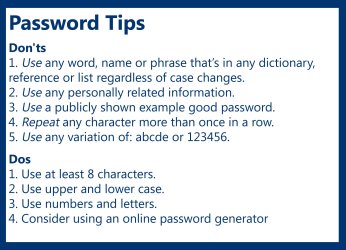
7. Create an alphanumeric pass-phrase (password) for WPA2/WPA
**********************************************
Securing Your Network (Linksys)
1. Log in to the router by typing 192.168.1.1 into a web browser
Username: admin
Password: admin
2. Click on the “Wireless” tab to access wireless security settings
3. Click on the “Basic Wireless Settings” sub tab
Wireless Network Name (SSID) <= Rename this from it’s default name
Wireless Channel <= Choose any channel other than 1 or 11
Wireless SSID Broadcast <= set this to disable
4. Click on the “Wireless Security” subtab
Security Mode <= choose either WPA or WPA2 Personal (Recommended)
WPA Algorithms <= choose AES for WPA2 or TKIP for WPA
WPA Shared Key <= see step 7 under “Securing Your Network (General)”
5. Click on the “Administrator” tab
6. Click on the “Management” sub tab
Password <= this is where you change your login password
1. Log in to the router by typing 192.168.1.1 into a web browser
Username: admin
Password: (leave blank)
2. Click on the “Wireless” tab – to access wireless security settings
3. Click on the “Basic Wireless Settings” sub tab
Configuration View <= click on manual
Network Mode <= select "Wireless-N Only" only if you do NOT have any devices using 802.11G, otherwise select "Mixed"
Network Name (SSID) <= Rename this from it’s default name
Channel Width <= select "Auto"
Channel <= select "Auto"
SSID Broadcast <= select "Disabled"
4. Click on the “Wireless Security” sub tab
Security Mode <= choose either WPA/WPA2 Mixed Mode (default) or WPA2 Personal
Passphrase <= see step 7 under “Securing Your Network (General)”
**********************************************
Securing Your Network (D-Link)
coming soon...
**********************************************
Securing Your Network (Belkin)
coming soon...
**********************************************
Common Types of Wireless Threats
Accidental Association
Network security can be compromised through accidental behavior. Users with a notebook connected to a wired or wireless network can unknowingly connect to an overlapping wireless network. Such a connection is called "accidental association." It is a security risk because a malicious attacker can use the link created through the unknowing users' notebook to access information in a protected wired network. To neutralize this threat, switch off wireless cards when not in use, maintain all access points or use powerful data encryption.
Malicious Association
This threat is similar to accidental association with an important difference: The line of attack is not created through the accidental association of a user within a contained network but through the attacker's deliberate malicious acts. The attacker hacks a notebook's wireless card to appear as a legitimate access point.
This creates a "soft access point" that the hacker can use to gain access to the network, compromise or steal sensitive data or plant various back doors to further compromise the network. It is crucial for companies to monitor their networks and airwaves to ensure that their computers and access points are only connecting to the company's devices.
MAC Spoofing
MAC spoofing is another threat. One of the most common ways to secure a wireless network is to use authentication based on a list of authorized MAC addresses. This kind of protection is only effective against low-level threats from an unsophisticated attacker. Security of a network cannot rely solely on MAC address filtering.
Using stronger overlapping protection by other methods, system administrators can defend against MAC spoofing. They can do this by detecting when two computers use the same MAC address at the same time or by analyzing a wireless card's vendor data.
Denial of Service (DoS)
A denial of service attack is when a malicious user sends out large amounts of bogus requests that flood the airwaves, making access points unable to cope with the volume. These attacks can be made by household items that use the same frequency as the wireless network, such as a microwave oven, or through more advanced means.
They work by targeting access points and flooding them with premature successful connection messages, log off commands, failure messages or other kinds of fake requests.
Man in the Middle
The most advanced type of attack on a wireless or wired network is the "man in the middle" attack. The attacker attempts to insert himself as middleman between the user and an access point. The attacker then proceeds to forward information between the user and access point, during which he collects log on information. The attacker then forces the parties to reauthenticate; during that process, he inserts himself into the network as the victim user. The user is then disconnected and the attacker can proceed with his attack. This kind of attack is very hard to detect, but the threat is lowered by using forms of endpoint authentication---such as a mutually trusted third party certification authority.
~ Source: The Types of Wireless Security Threats | eHow.com
**********************************************
Glossary of Terms
802.11
802.11 is a group of wireless specifications developed by the IEEE for wireless local area network (WLAN) communications. It details a wireless interface between devices to manage packet traffic to avoid collisions. Some common specifications include the following: 802.11a, 802.11b, 802.11g, 802.11n
Access Control List
Access Control Lists (ACL) are rules applied to a router that will determine traffic patterns for data.
DHCP
Dynamic Host Configuration Protocol (DHCP) is a protocol which dynamically assigns IP addresses and more to hosts, which includes computers.
MAC Address
A Media Access Control Address (MAC Address) is a physical address used to define a device uniquely.
Network Address TranslationNetwork Address Translation is the process of translating your multiple, internal IP addresses to a single registered IP address on the outside of your network.
SSID
The SSID is the name (or identification) of a wireless network.
Static IP Addressing
A static IP address is a manually configured permanent IP address given to a specific host.
Wide Area Network
A wide-area network (WAN) is made up of interconnected LANs. It spans wide geographic areas by using WAN links such as telephone lines or satellite technology to connect computers in different cities, countries, or even different continents.
Wireless Gateway
Wireless Gateway is a device that can share an Internet connection, serve DHCP, and bridge between wired and wireless networks. Wireless Gateway may also be called as wireless router, base station, or access point.
WPA: Wi-Fi Protected Access
Wi-Fi Protected Access (WPA) is a data encryption specification for 802.11 wireless networks that replaces the weaker WEP. Created by the WiFi Alliance before a 802.11i security standard was ratified by the IEEE, it improves on WEP by using dynamic keys, Extensible Authentication Protocol to secure network access, and an encryption method called Temporal Key Integrity Protocol (TKIP) to secure data transmissions. WPA provides roughly comparable security to VPN tunneling with WEP, with the benefit of easier administration and use.
WPA2: Wi-Fi Protected Access 2
Wi-Fi Protected Access 2 (WPA2) is an enhanced version of WPA. It is the official 802.11i standard that was ratified by the IEEE in June, 2004. It uses the Advanced Encryption Standard instead of TKIP. AES supports 128-bit, 192-bit and 256-bit keys.
**********************************************
Further Reading:
Securing your network is an important step in keeping most hackers out of your wireless network. Adequate wireless security can keep interlopers, such as neighbors or attackers, from hogging network bandwidth (a form of denial-of-service), compromising sensitive information (such as identities, important passwords etc.), using the network for illegal downloads or introducing viruses...
**********************************************
Table of Contents
Features of a Secured Wireless Network
Securing Your Network (General)
Securing Your Network (Linksys)
Securing Your Network (D-Link)
Securing Your Network (Belkin)
Common Types of Wireless Threats
Glossary of Terms
Further Reading
**********************************************
Features of a Secured Wireless Network
Securing a wireless network usually comprises the following features:
1. A solid form of encryption such as WPA2 or WPA
2. Non-Broadcasted SSID
3. NAT Firewall
Optional (not available in all routers), but these do add to security:
1. Turning off DHCP - Use Static IP Addressing
2. Using MAC Address filtering
3. Using Access Control Lists
4. Using Inbound Filters
5. Disable WAN Pinging
Note
The use of filters and ACLs might slow the router or access-point throughput or performance.
**********************************************
Information
This tutorial assumes the router/ap is already setup.
Securing Your Network (General)
Tip
Only configure the security settings of your wireless device through a direct Ethernet connection. Be sure to save the settings before navigating away from the page.
1. Login to your router by typing its ip address in your web browser.
Common router ip addresses: 192.168.0.1 (D-Link, Netgear) 192.168.1.1 (Linksys) 192.168.2.1 (Belkin, SMC)
Default router logins: user:admin password:admin (Linksys), no password (D-Link)
2. Rename SSID
I recommend doing this before turning off the SSID
3. Select channel
Most commonly used, so do not use these: 1 6 11 (United States).
4. Select 802.11 mode
802.11N only or mixed 802.11N & 802.11G
5. Turn-off SSID (or change it to invisible)
6. Enable WPA or WPA2 Personal.
Recommend using WPA2 Personal since it uses the AES cipher, which is harder to crack. WPA uses the TKIP cipher, which is more compatible with legacy or older devices. I do not recommend using WEP since it is easy to hack.
7. Create an alphanumeric pass-phrase (password) for WPA2/WPA
Tip
Change the administrator settings & Save the router settings to a computer (handy if you need to reset the router)
**********************************************
Securing Your Network (Linksys)
Information
These steps should work for all Linksys routers with the 802.11G or 802.11N standard. Confirmed to work for the WRT series of routers.
1. Log in to the router by typing 192.168.1.1 into a web browser
Username: admin
Password: admin
2. Click on the “Wireless” tab to access wireless security settings
3. Click on the “Basic Wireless Settings” sub tab
Wireless Network Name (SSID) <= Rename this from it’s default name
Wireless Channel <= Choose any channel other than 1 or 11
Wireless SSID Broadcast <= set this to disable
4. Click on the “Wireless Security” subtab
Security Mode <= choose either WPA or WPA2 Personal (Recommended)
WPA Algorithms <= choose AES for WPA2 or TKIP for WPA
WPA Shared Key <= see step 7 under “Securing Your Network (General)”
5. Click on the “Administrator” tab
6. Click on the “Management” sub tab
Password <= this is where you change your login password
Information
The following steps work with all E series routers equiped with Cisco Connect.
1. Log in to the router by typing 192.168.1.1 into a web browser
Username: admin
Password: (leave blank)
2. Click on the “Wireless” tab – to access wireless security settings
3. Click on the “Basic Wireless Settings” sub tab
Configuration View <= click on manual
Network Mode <= select "Wireless-N Only" only if you do NOT have any devices using 802.11G, otherwise select "Mixed"
Network Name (SSID) <= Rename this from it’s default name
Channel Width <= select "Auto"
Channel <= select "Auto"
SSID Broadcast <= select "Disabled"
4. Click on the “Wireless Security” sub tab
Security Mode <= choose either WPA/WPA2 Mixed Mode (default) or WPA2 Personal
Passphrase <= see step 7 under “Securing Your Network (General)”
Tip
Be sure to click "Save Settings" to apply your changes at each screen!
**********************************************
Securing Your Network (D-Link)
coming soon...
**********************************************
Securing Your Network (Belkin)
coming soon...
**********************************************
Common Types of Wireless Threats
Accidental Association
Network security can be compromised through accidental behavior. Users with a notebook connected to a wired or wireless network can unknowingly connect to an overlapping wireless network. Such a connection is called "accidental association." It is a security risk because a malicious attacker can use the link created through the unknowing users' notebook to access information in a protected wired network. To neutralize this threat, switch off wireless cards when not in use, maintain all access points or use powerful data encryption.
Malicious Association
This threat is similar to accidental association with an important difference: The line of attack is not created through the accidental association of a user within a contained network but through the attacker's deliberate malicious acts. The attacker hacks a notebook's wireless card to appear as a legitimate access point.
This creates a "soft access point" that the hacker can use to gain access to the network, compromise or steal sensitive data or plant various back doors to further compromise the network. It is crucial for companies to monitor their networks and airwaves to ensure that their computers and access points are only connecting to the company's devices.
MAC Spoofing
MAC spoofing is another threat. One of the most common ways to secure a wireless network is to use authentication based on a list of authorized MAC addresses. This kind of protection is only effective against low-level threats from an unsophisticated attacker. Security of a network cannot rely solely on MAC address filtering.
Using stronger overlapping protection by other methods, system administrators can defend against MAC spoofing. They can do this by detecting when two computers use the same MAC address at the same time or by analyzing a wireless card's vendor data.
Denial of Service (DoS)
A denial of service attack is when a malicious user sends out large amounts of bogus requests that flood the airwaves, making access points unable to cope with the volume. These attacks can be made by household items that use the same frequency as the wireless network, such as a microwave oven, or through more advanced means.
They work by targeting access points and flooding them with premature successful connection messages, log off commands, failure messages or other kinds of fake requests.
Man in the Middle
The most advanced type of attack on a wireless or wired network is the "man in the middle" attack. The attacker attempts to insert himself as middleman between the user and an access point. The attacker then proceeds to forward information between the user and access point, during which he collects log on information. The attacker then forces the parties to reauthenticate; during that process, he inserts himself into the network as the victim user. The user is then disconnected and the attacker can proceed with his attack. This kind of attack is very hard to detect, but the threat is lowered by using forms of endpoint authentication---such as a mutually trusted third party certification authority.
~ Source: The Types of Wireless Security Threats | eHow.com
**********************************************
Glossary of Terms
802.11
802.11 is a group of wireless specifications developed by the IEEE for wireless local area network (WLAN) communications. It details a wireless interface between devices to manage packet traffic to avoid collisions. Some common specifications include the following: 802.11a, 802.11b, 802.11g, 802.11n
Access Control List
Access Control Lists (ACL) are rules applied to a router that will determine traffic patterns for data.
DHCP
Dynamic Host Configuration Protocol (DHCP) is a protocol which dynamically assigns IP addresses and more to hosts, which includes computers.
MAC Address
A Media Access Control Address (MAC Address) is a physical address used to define a device uniquely.
Network Address TranslationNetwork Address Translation is the process of translating your multiple, internal IP addresses to a single registered IP address on the outside of your network.
SSID
The SSID is the name (or identification) of a wireless network.
Static IP Addressing
A static IP address is a manually configured permanent IP address given to a specific host.
Wide Area Network
A wide-area network (WAN) is made up of interconnected LANs. It spans wide geographic areas by using WAN links such as telephone lines or satellite technology to connect computers in different cities, countries, or even different continents.
Wireless Gateway
Wireless Gateway is a device that can share an Internet connection, serve DHCP, and bridge between wired and wireless networks. Wireless Gateway may also be called as wireless router, base station, or access point.
WPA: Wi-Fi Protected Access
Wi-Fi Protected Access (WPA) is a data encryption specification for 802.11 wireless networks that replaces the weaker WEP. Created by the WiFi Alliance before a 802.11i security standard was ratified by the IEEE, it improves on WEP by using dynamic keys, Extensible Authentication Protocol to secure network access, and an encryption method called Temporal Key Integrity Protocol (TKIP) to secure data transmissions. WPA provides roughly comparable security to VPN tunneling with WEP, with the benefit of easier administration and use.
WPA2: Wi-Fi Protected Access 2
Wi-Fi Protected Access 2 (WPA2) is an enhanced version of WPA. It is the official 802.11i standard that was ratified by the IEEE in June, 2004. It uses the Advanced Encryption Standard instead of TKIP. AES supports 128-bit, 192-bit and 256-bit keys.
**********************************************
Further Reading:
- Password Tips | Microsoft Small Business Center
- Wireless Security - WiFi Wireless Home Network Security Tips
- Securing your Wireless Network
- Cisco Home Networking - Linksys - Valet - Wireless Routers
- D-Link - World Wide Offices
Last edited by a moderator:


