[FONT="]
Hi, Welcome to SF,
In Windows 7, the windows media player 12 is not playing subtitles like srt, sub etc. even if we install Direct VobSub. In order to enable the subtitle feature in media player we need to rename a system file called mfpmp.exe. The file is Present in C:\Windows\System32. But we need to take ownership of the file in order to rename it. Otherwise it shows the error message below.
[/FONT]
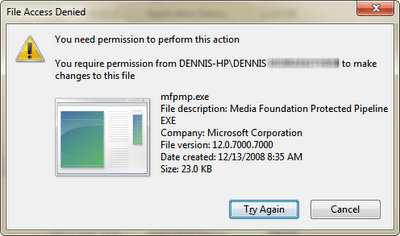
[FONT="]Just follow these simple steps and you will get subtitles in your media player.
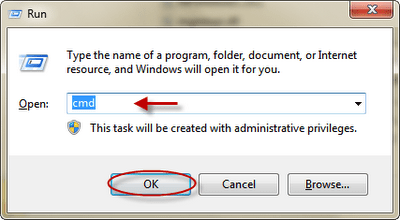
Step 1: Open command prompt (Press Start+R, Type cmd and Enter). [/FONT]
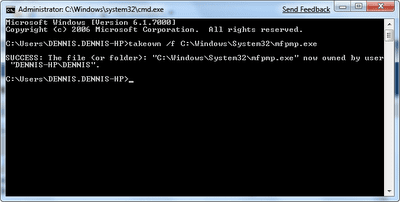
[FONT="]Step 2: In command prompt, type: takeown /f C:\Windows\System32\mfpmp.exe and press Enter [/FONT]
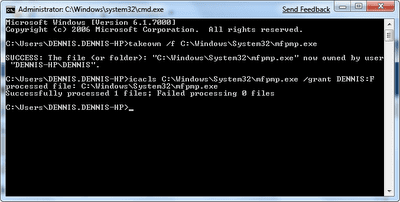
[FONT="]Step 3: Again in command prompt, type:
icacls C:\Windows\System32\mfpmp.exe /grant (user name):F
and press Enter. For example, icacls C:\Windows\System32\mfpmp.exe /grant DENNIS:F [/FONT]
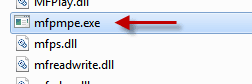
[FONT="]Step 4: You should be able to delete or modify the file now. If you still can't, you may need to reboot and try again. Try Renaming the file to anything else then mfpmp.exe as shown below. [/FONT]
[FONT="]1. You should have Direct
VobSub to get subtitles. You should install Codecs like K-Lite Codec which includes VobSub.
2. You Can delete the mfpmp.exe file. But i renamed it if in case you need it in future.
3. This technique for taking ownership can be used for any file. [/FONT]
Source: Enable Subtitles in Windows 7 Media Player 12
Hope this helps,
Captain

