Solved Word 2010 - issues opening older version documents

agunslinger

New member
Member
Local time
11:51 AM
Messages
47
Just installed Office 2010 and trying to stick with it, but Word keeps freezing after opening documents from Word 2003. Yet to be able to get a Word 2003 document to open without hanging / not responding. Any knows tweaks to fix this yet? Is it just me?
 

My Computer

OS
Windows 7
Just installed Office 2010 and trying to stick with it, but Word keeps freezing after opening documents from Word 2003. Yet to be able to get a Word 2003 document to open without hanging / not responding. Any knows tweaks to fix this yet? Is it just me?
Welcome to Windows 7 Support forums,
How are you opening your word docs?
Are you running Microsoft Word first, then opening your docs from within the program?
 

My Computer

Computer Manufacturer/Model Number
Custom Build
OS
Windows 7 7600 1 X64
CPU
AMD PHENOM II X 550 PROCESSOR 3.1 ghz
Motherboard
ASUS M4A78-TE
Memory
Corsair 4 gig ddr 3
Graphics Card(s)
ati radeon 3300
Sound Card
ati hd
Monitor(s) Displays
syncmaster 2033sw
Screen Resolution
1600X900 60 hz refresh
Hard Drives
twin_seagates SATA's 1 TB & 500 Gig, hitachi_slimline 160 gig
PSU
antec_550 watt
Case
cooler master GLite
Cooling
stock_heat sink
Internet Speed
20mbs up/ 1.5mbs down
Other Info
favorite child "stewie"
favorite dog "brian"
Just double clicking them to open...
Your latest version of Word may have compatability issues with older versions of your documents, check for compatability modes and open winword.exe first then open your selected docs from within winword.

Adrian
 

My Computer

Computer Manufacturer/Model Number
Custom Build
OS
Windows 7 7600 1 X64
CPU
AMD PHENOM II X 550 PROCESSOR 3.1 ghz
Motherboard
ASUS M4A78-TE
Memory
Corsair 4 gig ddr 3
Graphics Card(s)
ati radeon 3300
Sound Card
ati hd
Monitor(s) Displays
syncmaster 2033sw
Screen Resolution
1600X900 60 hz refresh
Hard Drives
twin_seagates SATA's 1 TB & 500 Gig, hitachi_slimline 160 gig
PSU
antec_550 watt
Case
cooler master GLite
Cooling
stock_heat sink
Internet Speed
20mbs up/ 1.5mbs down
Other Info
favorite child "stewie"
favorite dog "brian"
I have the same problem. Word 2010 crashes when trying to open older files from within Word. Open Office opens them with no problems. Word doesn't.

I go through the entire recovery process and then am told the doc has been recovered...only it still won't open. I get this gibberish:

This error may appear if you attempt to open a file marked as damaged or disabled by a Microsoft Office program. Each time the file is opened, even if the file was recovered or repaired, this error appears and other open files or programs will be suspended.
The file is in the Disabled Items list because, in previous attempts to open the file, it has caused a program error or shut down more than once.
If the file was properly recovered, replaced, or deleted, you can remove the file from the list of disabled files (re-enable the file) by clicking the File tab, clicking Options, and then clicking Add-Ins. In the Manage list, click the arrow and select Disabled Items, click Go, and then select the disabled item that you want to re-enable.

Clicking "Yes" after that message re-starts the recovery process, which again goes into a loop to nowhere.

But OpenOffice still can open the docs. So, there's nothing wrong with the docs. Word 2010 apparently has issues that need repair.

Or, I got a defective pre-installation on my Win7-64 machine. BTW, Excel 2010 works fine.
 

My Computer

Computer Manufacturer/Model Number
HP Pavilion Elite HPE-500z
OS
windows Home Premium 64 bit
CPU
3.00 ghz AMD Athlon x4 64-0 quad-core
Motherboard
FoxConn 2A92 1.01
Memory
6 gb ddr3-1333mhz
Graphics Card(s)
nVidia GeForce GTS 450
Monitor(s) Displays
(2) Dell 2405FPW 24.2"
Hard Drives
Hitachi HDS721010CLA332 SCSI 1.0 TB Primary
Seagate ST31000528AS SCSI 1.0 TB Secondary
Keyboard
IBM 8923
Mouse
Logitech optical
Solution?

Hey there,

we had the exact same problem. I also tried all the solutions that are mentioned everywhere. But I really have a solution now. The docs that crashed word 2010 were made using a template (? .dot) from word 2003. We think that that .dot file was based on for example word97. What we did now was open the .dot in Word 2003 and copied everything with ctrl+a and ctrl+c. Then we closed word2003. We opened it, pasted the just copied contents and saved the file under the old name, in the same location it was in. Now everything that gave us the crash, is opening just fine!

regards,

Peter Baars
 

My Computer

OS
win7 pro 32bit
Hey there,

we had the exact same problem. I also tried all the solutions that are mentioned everywhere. But I really have a solution now. The docs that crashed word 2010 were made using a template (? .dot) from word 2003. We think that that .dot file was based on for example word97. What we did now was open the .dot in Word 2003 and copied everything with ctrl+a and ctrl+c. Then we closed word2003. We opened it, pasted the just copied contents and saved the file under the old name, in the same location it was in. Now everything that gave us the crash, is opening just fine!

regards,

Peter Baars

Thank you, Peter. You may have hit the nail on the head. Here's why...

During the weeks following my post about Word 2010 above, I installed Word 2003. All docs created before my Word 2010 installation now continue to open just fine in Word 2003. So my workaround is to use 2003 for all docs and only use 2010 when someone sends me an Xdoc file.

I did have one doc that wouldn't display properly in both 2003 and 2010, so I opened it in OO-3, saved it as a Word 97 doc, then reopened it in 2003 and it was suddenly okay.

Geez...I never had these problems before the "new improved" stuff came along.
 

My Computer

Computer Manufacturer/Model Number
HP Pavilion Elite HPE-500z
OS
windows Home Premium 64 bit
CPU
3.00 ghz AMD Athlon x4 64-0 quad-core
Motherboard
FoxConn 2A92 1.01
Memory
6 gb ddr3-1333mhz
Graphics Card(s)
nVidia GeForce GTS 450
Monitor(s) Displays
(2) Dell 2405FPW 24.2"
Hard Drives
Hitachi HDS721010CLA332 SCSI 1.0 TB Primary
Seagate ST31000528AS SCSI 1.0 TB Secondary
Keyboard
IBM 8923
Mouse
Logitech optical

My Computer

Computer Manufacturer/Model Number
HP Pavillion dv5t (generation 1)
OS
Vista 64 bit and 32 bit (SP2)
CPU
Intel(R) Core(TM)2 Duo Processor T9400 (2.53 GHz
Memory
4GB DDR2 System Memory (2 Dimm)
Graphics Card(s)
512 MB NVIDIA GeForce 9600M GT
Monitor(s) Displays
15.4" diagonal WSXGA+ High-Definition HP BrightView Widescre
Screen Resolution
1680 x 1050
Hard Drives
320GB 5400RPM SATA Hard Drive with HP ProtectSmart Hard Drive Protection
Keyboard
Built-in HP
Mouse
Built in - Synaptics TouchPad V6.5 on PS/2 Port
Internet Speed
Max
Other Info
~ Intel Next-Gen Wireless-N Mini-card w/Bluetooth ~ Blu-Ray ROM DVD+/-R/RW ~ Integ. HDTV Hybrid Tuner ~ 12 Cell Battery ~ MS Office (Home Premium) 2007 ~

Thank you...interesting.

But. another point not mentioned, Word 2010 doesn't do well on older converted docs that have several fonts and font attributes.

So, for now at least, since Word 2010 and Word 2003 both work on my Win7-64 machine, I'll just continue using Word 2003 for everything except docX.

But I'll keep in mind the conversion you suggest to make docX become doc when necessary.

Thanks again.
 

My Computer

Computer Manufacturer/Model Number
HP Pavilion Elite HPE-500z
OS
windows Home Premium 64 bit
CPU
3.00 ghz AMD Athlon x4 64-0 quad-core
Motherboard
FoxConn 2A92 1.01
Memory
6 gb ddr3-1333mhz
Graphics Card(s)
nVidia GeForce GTS 450
Monitor(s) Displays
(2) Dell 2405FPW 24.2"
Hard Drives
Hitachi HDS721010CLA332 SCSI 1.0 TB Primary
Seagate ST31000528AS SCSI 1.0 TB Secondary
Keyboard
IBM 8923
Mouse
Logitech optical
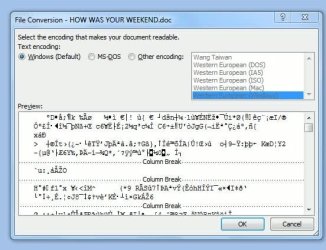
Ms office 2007 wont open old ms office 2003 documents

i have read all postings in this forum and else where on the internet but i cant find solutions. this is a snaphot of my desktop when i open my old word document.
any help will be hugely appreciated.thanks

0012011-11-16-21h00m36s240.jpg
 

My Computer

OS
Windows 7 Ultimate x32
I am having the same problem - even after I changed the configurations! I hate this software!!!!!!:mad: any help would be really appreciated
 

My Computer

OS
Windows 7 Ultimate x64
I am having the same problem - even after I changed the configurations! I hate this software!!!!!!:mad: any help would be really appreciated

Hi,

I suggest you make a new thread describing your problem in detail, instead of tacking onto the back of this thread, which is marked as solved. That way you will get more people actually looking at it and posting back with suggestions.

Regards,
Golden
 

My Computer

Computer type
PC/Desktop
Computer Manufacturer/Model Number
Golden Mk. I.4
OS
Windows 10 Pro x64 ; Xubuntu x64
CPU
Intel i7 860 @ 2.80 GHz O/C'ed to 4.0GHz
Motherboard
Gigabyte P55A-UD3R Rev.1. Award BIOS F13
Memory
16GB Corsair Vengance DDR3 @ 661 MHz Dual Channel (9-9-9-24)
Graphics Card(s)
EVGA NVidia GTX 560 1024MB
Sound Card
Realtek Integrated
Monitor(s) Displays
Dual Samsung SyncMaster 2494HS
Screen Resolution
1920*1080 and 1920*1080
Hard Drives
1*Samsung 840 EVO 120GB SSD;
1*OCZ Vertex 2 60GB SSD;
2*Samsung F3 SpinPoint 1TB in RAID0;
1*Samsung F1 SpinPoint 1TB;
2*Western Digital 1TB External USB 3.0
1*Western Digital 500GB External USB 3.0
1*Seagate 500GB External USB 2.0
PSU
Thermaltake ToughPower QFan 750W
Case
Thermaltake Element S VK60001W2Z
Cooling
Corsair H60 Water Cooling, 2*230mm and 2*80mm case fans
Keyboard
Logitech G110
Mouse
Logitech MX518
Imperfect solution

I've been having the same problem as everyone else. One thing I noticed is that I can open older Word documents using the starter version, which I luckily did not remove from my computer when I installed the full version of Office.

ReneGnam's post mentioning "Word 2010 doesn't do well on older converted docs that have several fonts and font attributes" gave me an idea. I opened the older document in starter version of Word and did a select all. Even though I used one font style (Times New Roman) it was not selected in the menu bar. I selected Times New Roman and saved the document. It now opens fine in Word 2010.

Not a perfect solution. It is a pain to do this for every older document and it does require the starter version of Word (although Open Office might work too).
 

My Computer

OS
Windows 7 Professional 64
Back
Top