Write-Caching - Enable or Disable

How to Enable or Disable Write-Caching for a Storage Device in Windows 7 and Windows 8


   Information
Write caching in a connected storage device refers to the use of high-speed volatile memory to collect write commands sent to data storage devices and cache them until the slower storage media (either physical hard disks or low cost flash memory) can accommodate them. Most devices that use write caching require that power be supplied continuously.

This will show you how to enable write caching to have better performace for a storage device, or disable write caching for quick removal of a storage device without having to use Safely Remove Hardware.


   Tip
If high data transfer performance is your main concern, you should enable both of these settings in OPTION TWO below:
  • In the Removal Policy section, select the Better Performance option.
  • In the Write-caching policy section, select Enable write caching on the device (if the system hardware and storage device support these features).
   Warning
You must be logged into a administrator account to be able to do the steps in this tutorial.


OPTION ONE

Disable Write Caching for Quick Removal


   Note
This option is usually the best choice for storage devices that you are likely to remove from the system frequently, such as USB flash drives, SD, MMC, Compact Flash, or similar memory cards, and other similar externally attached storage devices.

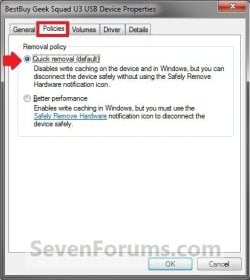
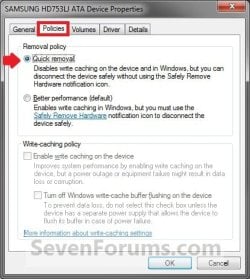
When you select the Quick Removal option, Windows 7 manages commands sent to the device using a method called write-through caching. In write-through caching, the device operates on write commands as if there were no cache. The cache may still provide a small performance benefit, but the emphasis is on treating the data as safely as possible by getting the commands to the storage device. The main benefit is that you can remove the storage device from the system quickly without risking data loss. For example, if a flash drive were to be accidentally pulled out of its port, the data being written to it is much less likely to be lost.

1. Open the Control Panel (icons view) in Windows 7 or Windows 8, and click on the Device Manager icon.

2. In Device Manger, double click on Disk drives to expand it, then double click on the listed storage device that you want to disable write caching for. (See screenshot below)
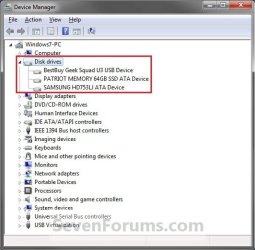
Drive1.jpg
3. Click on the Polices tab. Under the upper Removal policy section, select (dot) Quick removal, or check the Turn off Windows write-cache buffer flushing on the device box, and click on OK. (See screenshot below)
Drive4A.jpgDrive2.jpg
Drive3.jpg
4. Click on Yes to restart the computer to apply. (See screenshot below)
WARNING: This will restart the computer immediately. You should save and close anything else that you are working on first.
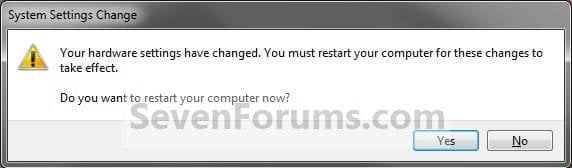
Drive4.jpg


OPTION TWO

Enable Write Caching for Better Performance


   Note
This option is usually the best choice for storage devices that must provide the highest possible performance and that you intend to not remove from the system frequently, such as internal hard disk drives. If you choose this option and the device is disconnected from the system before all of the data is written to it (such as if you remove a USB flash drive), you could lose data. When using this option for a storage device (ex: USB flash drive), you must use Safely Remove Hardware to disconnect the device safely to prevent possible data loss.

When you select the Better Performance option, Windows 7 uses a method known as write-back caching. In this method, the storage device itself is allowed to determine whether using the high-speed cache will save time completing the write commands. If it will, the device signals to the computer that the data has been stored successfully even though the data may not actually be present in the storage device yet (such as the hard disk or flash memory). This method markedly increases the throughput of storage operations, which are often a major bottleneck for system performance overall. However, if the power supplied to the device (ex: external hard drive) fails for any reason, any data still in the cache (that the computer system believes is safely stored) could be lost.

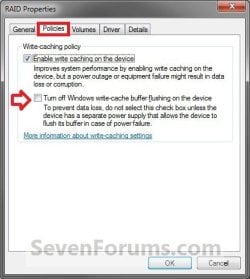
By default, Windows uses cache flushing. This means that the system will periodically instruct the storage device to write all data waiting in the cache to the storage device. When you select Turn off Windows write-cache buffer flushing on the device, you turn can turn off these periodic commands to transfer the data. Not all devices support all of these features.

1. Open the Control Panel (icons view) in Windows 7 or Windows 8, and click on the Device Manager icon.

2. In Device Manger, double click on Disk drives to expand it, then double click on the listed storage device that you want to enable write caching for. (See screenshot below)
Drive1.jpg
3. Click on the Polices tab. Under the upper Removal policy section, select (dot) Better performance. (See screenshots below)
NOTE: By default, Enable write caching on the device is also checked. If not, then check it as well.
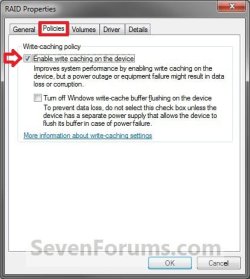
Drive3A.jpgDrive1A.jpg
4. To Turn Off Windows Write-cache Buffer Flushing on the Device
WARNING: To Prevent data loss. Do not check this option unless the storage device has a separate power supply that allows the device to flush it's buffer in case of a power failure.
A) Select (check) the Turn off Windows write-cache buffer flushing on the device box. (See screenshots above)
5. Click on OK. (See screenshot below step 3)

6. Click on Yes to restart the computer to apply. (See screenshot below)
WARNING: This will restart the computer immediately. You should save and close anything else that you are working on first.
Drive4.jpg
That's it,
Shawn


Last edited:
Hello Samnmy,

You should have a performance gain with the write cache enabled for the HDD. It really depends on the usage for if you will notice anything though. I would recommend to run HD Tune on the HDD with write cache enable and disabled to get some hard numbers to get a better idea.

Hope this helps,
Shawn
 

My Computer

Computer type
PC/Desktop
Computer Manufacturer/Model Number
Self built custom
OS
64-bit Windows 11 Pro for Workstations
CPU
Intel i7-8700K OC'd to 5 GHz
Motherboard
ASUS ROG Maximus XI Formula Z390
Memory
64 GB (4x16GB) G.SKILL TridentZ RGB DDR4 3600 MHz
Graphics Card(s)
ASUS ROG-STRIX-GTX1080TI-O11G-GAMING
Sound Card
Integrated
Monitor(s) Displays
2 x Samsung Odyssey G7 27"
Screen Resolution
2560x1440
Hard Drives
1TB Samsung 990 PRO M.2,
4TB Samsung 990 PRO PRO M.2,
TerraMaster F8 SSD Plus NAS
PSU
Seasonic Prime Titanium 850W
Case
Thermaltake Core P3
Cooling
Corsair Hydro H115i
Keyboard
Logitech wireless K800
Mouse
Logitech MX Master 4
Internet Speed
2 Gb/s Download and 100 Mb/s Upload
Antivirus
Malwarebyte Anti-Malware Premium
Browser
Google Chrome
Other Info
Logitech Z625 speaker system,
Logitech BRIO 4K Pro webcam,
HP Color LaserJet Pro MFP M477fdn,
APC SMART-UPS RT 1000 XL - SURT1000XLI,
Galaxy S23 Plus phone
SSD

Should I do this step on a solid state drive?

Casey
 

My Computer

Computer type
PC/Desktop
Computer Manufacturer/Model Number
Custom Build
OS
Windows 7 Home Premium
CPU
AMD Phenom II 955 Black Edition Quad Core
Motherboard
MSI 870-G45
Memory
Corsair XMS3 8GB
Graphics Card(s)
ATI Eyefinity HD 5770 5 mini display ports
Sound Card
Realtek High Definition 6.1
Monitor(s) Displays
2 DELL E207WFP 21.5" - 1 Acer 21.5"
Screen Resolution
2 Dells 1680x1050 - Acer 1920x1080
Hard Drives
Intel 40GB SSD
WD 500GB internal
WD 500Gb external
PSU
Cooler Master 500w
Case
Cooler Master 430 Black Elite
Keyboard
HP
Mouse
MIBRU
Internet Speed
10 mbs
Antivirus
Trend Micro
Browser
Chrome
Hello Casey,

I would just leave it set to how it is by default. You can give it a try though with the write cache enabled and disabled to see how it runs for you, but it was faster with my SSD with it still enabled.
 

My Computer

Computer type
PC/Desktop
Computer Manufacturer/Model Number
Self built custom
OS
64-bit Windows 11 Pro for Workstations
CPU
Intel i7-8700K OC'd to 5 GHz
Motherboard
ASUS ROG Maximus XI Formula Z390
Memory
64 GB (4x16GB) G.SKILL TridentZ RGB DDR4 3600 MHz
Graphics Card(s)
ASUS ROG-STRIX-GTX1080TI-O11G-GAMING
Sound Card
Integrated
Monitor(s) Displays
2 x Samsung Odyssey G7 27"
Screen Resolution
2560x1440
Hard Drives
1TB Samsung 990 PRO M.2,
4TB Samsung 990 PRO PRO M.2,
TerraMaster F8 SSD Plus NAS
PSU
Seasonic Prime Titanium 850W
Case
Thermaltake Core P3
Cooling
Corsair Hydro H115i
Keyboard
Logitech wireless K800
Mouse
Logitech MX Master 4
Internet Speed
2 Gb/s Download and 100 Mb/s Upload
Antivirus
Malwarebyte Anti-Malware Premium
Browser
Google Chrome
Other Info
Logitech Z625 speaker system,
Logitech BRIO 4K Pro webcam,
HP Color LaserJet Pro MFP M477fdn,
APC SMART-UPS RT 1000 XL - SURT1000XLI,
Galaxy S23 Plus phone
does anyone know a command line to turn on or off the 2 Write-cache options?
 

My Computer

OS
windows 7
What I noticed with the having the cache enabled vs disabled using HD Tune as a reference is that the speeds are just slightly better with it enabled looking at the stats. However, where the difference truly lies is the sustained seek and write times. With the cache disabled, the minimum drops to < .5 MB/sec but with the write caching enabled it stays around the 122 MB/sec witha maximum of 138 MB/sec on a SATA 6 3.5nch drive.

My major concern is data loss...when, not if, there is a power loss or a BSOD occurs. Me thinks if data loss is is such a big thing, why is write caching enabled by default?
 
Last edited:

My Computer

Computer type
PC/Desktop
Computer Manufacturer/Model Number
Asus P6X58D-E, Lenovo
OS
Windows 7, Windows 10 Pro
CPU
Intel Core i7 930
Motherboard
Asus X58 P6X58D-E
Memory
G.SKILL F3-12800CL9T-6GBNQ 6GB DDR3 3X2GB DDR3-1600 CL 9-9-9
Graphics Card(s)
ATI Radeon HD 5700
Hard Drives
Seagate Barracuda 1TB x2 SATA3 6GB/S 7200RPM 64MB
WD 1TB SATA3
PSU
Coolermaster Silent Pro 700W Modular Power Supply
Hello Sammy,

Write Caching is suppose to help a HDD perform better by caching data in faster memory before needed than just loading it from the slower HDD platters on demand. The NOTE box in OPTION TWO can help give more in-depth details on this though.

Now for a SSD, it should be faster to have write caching turned off.
 
Last edited:

My Computer

Computer type
PC/Desktop
Computer Manufacturer/Model Number
Self built custom
OS
64-bit Windows 11 Pro for Workstations
CPU
Intel i7-8700K OC'd to 5 GHz
Motherboard
ASUS ROG Maximus XI Formula Z390
Memory
64 GB (4x16GB) G.SKILL TridentZ RGB DDR4 3600 MHz
Graphics Card(s)
ASUS ROG-STRIX-GTX1080TI-O11G-GAMING
Sound Card
Integrated
Monitor(s) Displays
2 x Samsung Odyssey G7 27"
Screen Resolution
2560x1440
Hard Drives
1TB Samsung 990 PRO M.2,
4TB Samsung 990 PRO PRO M.2,
TerraMaster F8 SSD Plus NAS
PSU
Seasonic Prime Titanium 850W
Case
Thermaltake Core P3
Cooling
Corsair Hydro H115i
Keyboard
Logitech wireless K800
Mouse
Logitech MX Master 4
Internet Speed
2 Gb/s Download and 100 Mb/s Upload
Antivirus
Malwarebyte Anti-Malware Premium
Browser
Google Chrome
Other Info
Logitech Z625 speaker system,
Logitech BRIO 4K Pro webcam,
HP Color LaserJet Pro MFP M477fdn,
APC SMART-UPS RT 1000 XL - SURT1000XLI,
Galaxy S23 Plus phone
Thanks. The information is sending me mixed messages. I have everything at the default level like in the pic. I still don't know which is the best option for a HDD non SSD drive or untick in the event of sudden system shutdown?

52314d1265390661t-write-caching-enable-disable-drive3a.jpg
 

My Computer

Computer type
PC/Desktop
Computer Manufacturer/Model Number
Asus P6X58D-E, Lenovo
OS
Windows 7, Windows 10 Pro
CPU
Intel Core i7 930
Motherboard
Asus X58 P6X58D-E
Memory
G.SKILL F3-12800CL9T-6GBNQ 6GB DDR3 3X2GB DDR3-1600 CL 9-9-9
Graphics Card(s)
ATI Radeon HD 5700
Hard Drives
Seagate Barracuda 1TB x2 SATA3 6GB/S 7200RPM 64MB
WD 1TB SATA3
PSU
Coolermaster Silent Pro 700W Modular Power Supply
Brink,

I enabled write cache command for my external 320 GB hard disk.But I did not notice any improvement.why?
 

My Computer

Computer Manufacturer/Model Number
aspire 5920
OS
Windows 8 Professional x64
CPU
core 2 duo T5550
Memory
4 GB
Graphics Card(s)
GMA X3100
Hard Drives
160 GB + 320 GB
Internet Speed
2 mbps
Thanks. The information is sending me mixed messages. I have everything at the default level like in the pic. I still don't know which is the best option for a HDD non SSD drive or untick in the event of sudden system shutdown?

52314d1265390661t-write-caching-enable-disable-drive3a.jpg

If your system is at high risk for power losses or sudden shut downs, then it would probably be best to disable write caching for the HDD to avoid the potential of data loss.

If not, then you could gain some performance by leaving it enabled.
 

My Computer

Computer type
PC/Desktop
Computer Manufacturer/Model Number
Self built custom
OS
64-bit Windows 11 Pro for Workstations
CPU
Intel i7-8700K OC'd to 5 GHz
Motherboard
ASUS ROG Maximus XI Formula Z390
Memory
64 GB (4x16GB) G.SKILL TridentZ RGB DDR4 3600 MHz
Graphics Card(s)
ASUS ROG-STRIX-GTX1080TI-O11G-GAMING
Sound Card
Integrated
Monitor(s) Displays
2 x Samsung Odyssey G7 27"
Screen Resolution
2560x1440
Hard Drives
1TB Samsung 990 PRO M.2,
4TB Samsung 990 PRO PRO M.2,
TerraMaster F8 SSD Plus NAS
PSU
Seasonic Prime Titanium 850W
Case
Thermaltake Core P3
Cooling
Corsair Hydro H115i
Keyboard
Logitech wireless K800
Mouse
Logitech MX Master 4
Internet Speed
2 Gb/s Download and 100 Mb/s Upload
Antivirus
Malwarebyte Anti-Malware Premium
Browser
Google Chrome
Other Info
Logitech Z625 speaker system,
Logitech BRIO 4K Pro webcam,
HP Color LaserJet Pro MFP M477fdn,
APC SMART-UPS RT 1000 XL - SURT1000XLI,
Galaxy S23 Plus phone
Brink,

I enabled write cache command for my external 320 GB hard disk.But I did not notice any improvement.why?

You probably wouldn't notice much if any difference with the naked eye.

This is one that you would have to run a HDD benchmark for to possibly see a difference. It would also help if AHCI is enabled for the HDD and not have it in IDE when Windows 7 was installed on it. You would not want to change this setting in BIOS for the HDD unless you were doing a clean install though.
 

My Computer

Computer type
PC/Desktop
Computer Manufacturer/Model Number
Self built custom
OS
64-bit Windows 11 Pro for Workstations
CPU
Intel i7-8700K OC'd to 5 GHz
Motherboard
ASUS ROG Maximus XI Formula Z390
Memory
64 GB (4x16GB) G.SKILL TridentZ RGB DDR4 3600 MHz
Graphics Card(s)
ASUS ROG-STRIX-GTX1080TI-O11G-GAMING
Sound Card
Integrated
Monitor(s) Displays
2 x Samsung Odyssey G7 27"
Screen Resolution
2560x1440
Hard Drives
1TB Samsung 990 PRO M.2,
4TB Samsung 990 PRO PRO M.2,
TerraMaster F8 SSD Plus NAS
PSU
Seasonic Prime Titanium 850W
Case
Thermaltake Core P3
Cooling
Corsair Hydro H115i
Keyboard
Logitech wireless K800
Mouse
Logitech MX Master 4
Internet Speed
2 Gb/s Download and 100 Mb/s Upload
Antivirus
Malwarebyte Anti-Malware Premium
Browser
Google Chrome
Other Info
Logitech Z625 speaker system,
Logitech BRIO 4K Pro webcam,
HP Color LaserJet Pro MFP M477fdn,
APC SMART-UPS RT 1000 XL - SURT1000XLI,
Galaxy S23 Plus phone
If your system is at high risk for power losses or sudden shut downs, then it would probably be best to disable write caching for the HDD to avoid the potential of data loss.

If not, then you could gain some performance by leaving it enabled.

Thanks. I definitely notice a performance boost but righ now I am checking and testing out my RAM so I think I will have it disabled.

Brink,

I enabled write cache command for my external 320 GB hard disk.But I did not notice any improvement.why?

You probably wouldn't notice much if any difference with the naked eye.

This is one that you would have to run a HDD benchmark for to possibly see a difference. It would also help if AHCI is enabled for the HDD and not have it in IDE when Windows 7 was installed on it. You would not want to change this setting in BIOS for the HDD unless you were doing a clean install though.
Oh, why did you have to bring this up? lolz.
My Windows 7 OS was professionally installed during the build. It wasnt initially set with AHCI enabled and I had them reinstall the OS with it enabled when I discovered AHCI was not enabled initially. However, even though AHCI is enabled now, my Marvell Controller selection is set to IDE mode for my current HDD (not SSD). Should the Marvell controller be set to AHCI and would the OS have to be reinstalled again even though AHCI is enabled elsewhere in the bios. BTW, sorry for gettting off topic. :o
 

My Computer

Computer type
PC/Desktop
Computer Manufacturer/Model Number
Asus P6X58D-E, Lenovo
OS
Windows 7, Windows 10 Pro
CPU
Intel Core i7 930
Motherboard
Asus X58 P6X58D-E
Memory
G.SKILL F3-12800CL9T-6GBNQ 6GB DDR3 3X2GB DDR3-1600 CL 9-9-9
Graphics Card(s)
ATI Radeon HD 5700
Hard Drives
Seagate Barracuda 1TB x2 SATA3 6GB/S 7200RPM 64MB
WD 1TB SATA3
PSU
Coolermaster Silent Pro 700W Modular Power Supply
Sammy,

Luckily you practically have the same motherboard as me. It has two sets of SATA ports, Intel (4 blue) and Marvel (2 whitish). It depends on which one your Windows 7 HDD is connected to. Most likely it is one of the Intel SATA ports since you said it was already set as AHCI in BIOS.
k0h0BOj8BBUKBwZ9_500.jpg
If you do not have anything connected to the Marvell SATA ports, then it would be best to set it as AHCI in BIOS as well. This way it will be ready to go with AHCI if you wanted to connect a HDD to it later.
 

My Computer

Computer type
PC/Desktop
Computer Manufacturer/Model Number
Self built custom
OS
64-bit Windows 11 Pro for Workstations
CPU
Intel i7-8700K OC'd to 5 GHz
Motherboard
ASUS ROG Maximus XI Formula Z390
Memory
64 GB (4x16GB) G.SKILL TridentZ RGB DDR4 3600 MHz
Graphics Card(s)
ASUS ROG-STRIX-GTX1080TI-O11G-GAMING
Sound Card
Integrated
Monitor(s) Displays
2 x Samsung Odyssey G7 27"
Screen Resolution
2560x1440
Hard Drives
1TB Samsung 990 PRO M.2,
4TB Samsung 990 PRO PRO M.2,
TerraMaster F8 SSD Plus NAS
PSU
Seasonic Prime Titanium 850W
Case
Thermaltake Core P3
Cooling
Corsair Hydro H115i
Keyboard
Logitech wireless K800
Mouse
Logitech MX Master 4
Internet Speed
2 Gb/s Download and 100 Mb/s Upload
Antivirus
Malwarebyte Anti-Malware Premium
Browser
Google Chrome
Other Info
Logitech Z625 speaker system,
Logitech BRIO 4K Pro webcam,
HP Color LaserJet Pro MFP M477fdn,
APC SMART-UPS RT 1000 XL - SURT1000XLI,
Galaxy S23 Plus phone
Brink, I checked and I had them connect it to the Marvell (white) port because I wanted 6GB/sec speed that my HDD is. My DVD is connected to the Blue Intel Port along with another SATA 2 HDD.
 

My Computer

Computer type
PC/Desktop
Computer Manufacturer/Model Number
Asus P6X58D-E, Lenovo
OS
Windows 7, Windows 10 Pro
CPU
Intel Core i7 930
Motherboard
Asus X58 P6X58D-E
Memory
G.SKILL F3-12800CL9T-6GBNQ 6GB DDR3 3X2GB DDR3-1600 CL 9-9-9
Graphics Card(s)
ATI Radeon HD 5700
Hard Drives
Seagate Barracuda 1TB x2 SATA3 6GB/S 7200RPM 64MB
WD 1TB SATA3
PSU
Coolermaster Silent Pro 700W Modular Power Supply
Ah, then you would have to reinstall Windows 7 if you wanted to convert the Marvell port to AHCI in BIOS to have the Windows 7 drive as AHCI as well. To me it's not worth doing this right now, and just wait to do it the next time you wanted or happen to reinstall Windows 7. :(

The 6GB/sec speed of the Marvell SATA ports is only the maximum bandwith that it can handle vs the 3GB/sec with the Intel SATA ports. It depends on what the maximum transfer rates are of the HDD if it will even be able to use all of the available SATA port's bandwith. Most HDD's cannot even use up the 3GB/sec unless in large RAID 0 array.
 

My Computer

Computer type
PC/Desktop
Computer Manufacturer/Model Number
Self built custom
OS
64-bit Windows 11 Pro for Workstations
CPU
Intel i7-8700K OC'd to 5 GHz
Motherboard
ASUS ROG Maximus XI Formula Z390
Memory
64 GB (4x16GB) G.SKILL TridentZ RGB DDR4 3600 MHz
Graphics Card(s)
ASUS ROG-STRIX-GTX1080TI-O11G-GAMING
Sound Card
Integrated
Monitor(s) Displays
2 x Samsung Odyssey G7 27"
Screen Resolution
2560x1440
Hard Drives
1TB Samsung 990 PRO M.2,
4TB Samsung 990 PRO PRO M.2,
TerraMaster F8 SSD Plus NAS
PSU
Seasonic Prime Titanium 850W
Case
Thermaltake Core P3
Cooling
Corsair Hydro H115i
Keyboard
Logitech wireless K800
Mouse
Logitech MX Master 4
Internet Speed
2 Gb/s Download and 100 Mb/s Upload
Antivirus
Malwarebyte Anti-Malware Premium
Browser
Google Chrome
Other Info
Logitech Z625 speaker system,
Logitech BRIO 4K Pro webcam,
HP Color LaserJet Pro MFP M477fdn,
APC SMART-UPS RT 1000 XL - SURT1000XLI,
Galaxy S23 Plus phone
Brink,

I enabled write cache command for my external 320 GB hard disk.But I did not notice any improvement.why?

You probably wouldn't notice much if any difference with the naked eye.

This is one that you would have to run a HDD benchmark for to possibly see a difference. It would also help if AHCI is enabled for the HDD and not have it in IDE when Windows 7 was installed on it. You would not want to change this setting in BIOS for the HDD unless you were doing a clean install though.

AHCI is enabled in BIOS for windows 7..
 

My Computer

Computer Manufacturer/Model Number
aspire 5920
OS
Windows 8 Professional x64
CPU
core 2 duo T5550
Memory
4 GB
Graphics Card(s)
GMA X3100
Hard Drives
160 GB + 320 GB
Internet Speed
2 mbps
Brink,

I enabled write cache command for my external 320 GB hard disk.But I did not notice any improvement.why?

You probably wouldn't notice much if any difference with the naked eye.

This is one that you would have to run a HDD benchmark for to possibly see a difference. It would also help if AHCI is enabled for the HDD and not have it in IDE when Windows 7 was installed on it. You would not want to change this setting in BIOS for the HDD unless you were doing a clean install though.

AHCI is enabled in BIOS for windows 7..

Ok good.

I would just test it using a HDD benchmarking program with write caching off and on to see what gives you a better score. Please let us know what your results were.
 

My Computer

Computer type
PC/Desktop
Computer Manufacturer/Model Number
Self built custom
OS
64-bit Windows 11 Pro for Workstations
CPU
Intel i7-8700K OC'd to 5 GHz
Motherboard
ASUS ROG Maximus XI Formula Z390
Memory
64 GB (4x16GB) G.SKILL TridentZ RGB DDR4 3600 MHz
Graphics Card(s)
ASUS ROG-STRIX-GTX1080TI-O11G-GAMING
Sound Card
Integrated
Monitor(s) Displays
2 x Samsung Odyssey G7 27"
Screen Resolution
2560x1440
Hard Drives
1TB Samsung 990 PRO M.2,
4TB Samsung 990 PRO PRO M.2,
TerraMaster F8 SSD Plus NAS
PSU
Seasonic Prime Titanium 850W
Case
Thermaltake Core P3
Cooling
Corsair Hydro H115i
Keyboard
Logitech wireless K800
Mouse
Logitech MX Master 4
Internet Speed
2 Gb/s Download and 100 Mb/s Upload
Antivirus
Malwarebyte Anti-Malware Premium
Browser
Google Chrome
Other Info
Logitech Z625 speaker system,
Logitech BRIO 4K Pro webcam,
HP Color LaserJet Pro MFP M477fdn,
APC SMART-UPS RT 1000 XL - SURT1000XLI,
Galaxy S23 Plus phone
Ah, then you would have to reinstall Windows 7 if you wanted to convert the Marvell port to AHCI in BIOS to have the Windows 7 drive as AHCI as well. To me it's not worth doing this right now, and just wait to do it the next time you wanted or happen to reinstall Windows 7. :(

The 6GB/sec speed of the Marvell SATA ports is only the maximum bandwith that it can handle vs the 3GB/sec with the Intel SATA ports. It depends on what the maximum transfer rates are of the HDD if it will even be able to use all of the available SATA port's bandwith. Most HDD's cannot even use up the 3GB/sec unless in large RAID 0 array.

Now I am confused. I told the PC builder tech to reinstall windows and they did with AHCI enabled. AHCI options are shown in two different places in the bios. One of which is where the Marvel Controller setttings are.

So, AHCI is in fact enabled. However, the options for my Marvel Controller are IDE or AHCI. I had to flash the bios at one point (after the store reinstalled windows 7) which reset all the bios settings and I think I was told in an forum I should set the Marvell COntroller NOT to AHCI but IDE.

Would there be any harm in setting the Marvel controller to AHCI from IDE? And how would I know for sure if AHCI drivers are in fact loaded/installed?
 

My Computer

Computer type
PC/Desktop
Computer Manufacturer/Model Number
Asus P6X58D-E, Lenovo
OS
Windows 7, Windows 10 Pro
CPU
Intel Core i7 930
Motherboard
Asus X58 P6X58D-E
Memory
G.SKILL F3-12800CL9T-6GBNQ 6GB DDR3 3X2GB DDR3-1600 CL 9-9-9
Graphics Card(s)
ATI Radeon HD 5700
Hard Drives
Seagate Barracuda 1TB x2 SATA3 6GB/S 7200RPM 64MB
WD 1TB SATA3
PSU
Coolermaster Silent Pro 700W Modular Power Supply
You can give it a try to set Marvel to AHCI in BIOS to see how it goes. If your Windows 7 drive will no longer boot or be recognized, then just restart the computer and change the Marvel BIOS setting back to IDE.
 

My Computer

Computer type
PC/Desktop
Computer Manufacturer/Model Number
Self built custom
OS
64-bit Windows 11 Pro for Workstations
CPU
Intel i7-8700K OC'd to 5 GHz
Motherboard
ASUS ROG Maximus XI Formula Z390
Memory
64 GB (4x16GB) G.SKILL TridentZ RGB DDR4 3600 MHz
Graphics Card(s)
ASUS ROG-STRIX-GTX1080TI-O11G-GAMING
Sound Card
Integrated
Monitor(s) Displays
2 x Samsung Odyssey G7 27"
Screen Resolution
2560x1440
Hard Drives
1TB Samsung 990 PRO M.2,
4TB Samsung 990 PRO PRO M.2,
TerraMaster F8 SSD Plus NAS
PSU
Seasonic Prime Titanium 850W
Case
Thermaltake Core P3
Cooling
Corsair Hydro H115i
Keyboard
Logitech wireless K800
Mouse
Logitech MX Master 4
Internet Speed
2 Gb/s Download and 100 Mb/s Upload
Antivirus
Malwarebyte Anti-Malware Premium
Browser
Google Chrome
Other Info
Logitech Z625 speaker system,
Logitech BRIO 4K Pro webcam,
HP Color LaserJet Pro MFP M477fdn,
APC SMART-UPS RT 1000 XL - SURT1000XLI,
Galaxy S23 Plus phone
You probably wouldn't notice much if any difference with the naked eye.

This is one that you would have to run a HDD benchmark for to possibly see a difference. It would also help if AHCI is enabled for the HDD and not have it in IDE when Windows 7 was installed on it. You would not want to change this setting in BIOS for the HDD unless you were doing a clean install though.

AHCI is enabled in BIOS for windows 7..

Ok good.

I would just test it using a HDD benchmarking program with write caching off and on to see what gives you a better score. Please let us know what your results were.

I did the benchmark with HD tune PRO

Without write caching it gave 25.4 MB/s

With write caching it gave 27.2 MB/s

Is this speed too low??
 

My Computer

Computer Manufacturer/Model Number
aspire 5920
OS
Windows 8 Professional x64
CPU
core 2 duo T5550
Memory
4 GB
Graphics Card(s)
GMA X3100
Hard Drives
160 GB + 320 GB
Internet Speed
2 mbps
It really depends on what the HDD manufacturer says that the maximum read and write speeds are suppose to be for it.
 

My Computer

Computer type
PC/Desktop
Computer Manufacturer/Model Number
Self built custom
OS
64-bit Windows 11 Pro for Workstations
CPU
Intel i7-8700K OC'd to 5 GHz
Motherboard
ASUS ROG Maximus XI Formula Z390
Memory
64 GB (4x16GB) G.SKILL TridentZ RGB DDR4 3600 MHz
Graphics Card(s)
ASUS ROG-STRIX-GTX1080TI-O11G-GAMING
Sound Card
Integrated
Monitor(s) Displays
2 x Samsung Odyssey G7 27"
Screen Resolution
2560x1440
Hard Drives
1TB Samsung 990 PRO M.2,
4TB Samsung 990 PRO PRO M.2,
TerraMaster F8 SSD Plus NAS
PSU
Seasonic Prime Titanium 850W
Case
Thermaltake Core P3
Cooling
Corsair Hydro H115i
Keyboard
Logitech wireless K800
Mouse
Logitech MX Master 4
Internet Speed
2 Gb/s Download and 100 Mb/s Upload
Antivirus
Malwarebyte Anti-Malware Premium
Browser
Google Chrome
Other Info
Logitech Z625 speaker system,
Logitech BRIO 4K Pro webcam,
HP Color LaserJet Pro MFP M477fdn,
APC SMART-UPS RT 1000 XL - SURT1000XLI,
Galaxy S23 Plus phone
Back
Top