Write-Caching - Enable or Disable

How to Enable or Disable Write-Caching for a Storage Device in Windows 7 and Windows 8


   Information
Write caching in a connected storage device refers to the use of high-speed volatile memory to collect write commands sent to data storage devices and cache them until the slower storage media (either physical hard disks or low cost flash memory) can accommodate them. Most devices that use write caching require that power be supplied continuously.

This will show you how to enable write caching to have better performace for a storage device, or disable write caching for quick removal of a storage device without having to use Safely Remove Hardware.


   Tip
If high data transfer performance is your main concern, you should enable both of these settings in OPTION TWO below:
  • In the Removal Policy section, select the Better Performance option.
  • In the Write-caching policy section, select Enable write caching on the device (if the system hardware and storage device support these features).
   Warning
You must be logged into a administrator account to be able to do the steps in this tutorial.


OPTION ONE

Disable Write Caching for Quick Removal


   Note
This option is usually the best choice for storage devices that you are likely to remove from the system frequently, such as USB flash drives, SD, MMC, Compact Flash, or similar memory cards, and other similar externally attached storage devices.

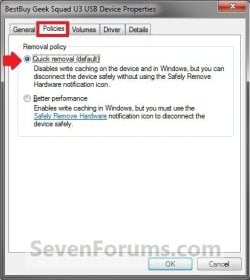
When you select the Quick Removal option, Windows 7 manages commands sent to the device using a method called write-through caching. In write-through caching, the device operates on write commands as if there were no cache. The cache may still provide a small performance benefit, but the emphasis is on treating the data as safely as possible by getting the commands to the storage device. The main benefit is that you can remove the storage device from the system quickly without risking data loss. For example, if a flash drive were to be accidentally pulled out of its port, the data being written to it is much less likely to be lost.

1. Open the Control Panel (icons view) in Windows 7 or Windows 8, and click on the Device Manager icon.

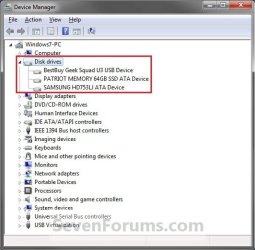
2. In Device Manger, double click on Disk drives to expand it, then double click on the listed storage device that you want to disable write caching for. (See screenshot below)
Drive1.jpg
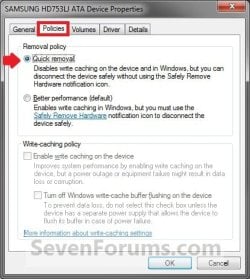
3. Click on the Polices tab. Under the upper Removal policy section, select (dot) Quick removal, or check the Turn off Windows write-cache buffer flushing on the device box, and click on OK. (See screenshot below)
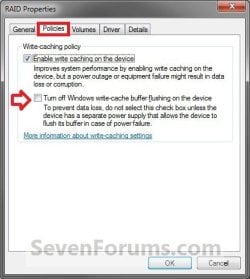
Drive4A.jpgDrive2.jpg
Drive3.jpg
4. Click on Yes to restart the computer to apply. (See screenshot below)
WARNING: This will restart the computer immediately. You should save and close anything else that you are working on first.
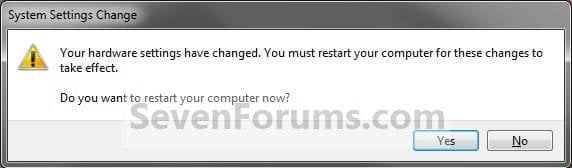
Drive4.jpg


OPTION TWO

Enable Write Caching for Better Performance


   Note
This option is usually the best choice for storage devices that must provide the highest possible performance and that you intend to not remove from the system frequently, such as internal hard disk drives. If you choose this option and the device is disconnected from the system before all of the data is written to it (such as if you remove a USB flash drive), you could lose data. When using this option for a storage device (ex: USB flash drive), you must use Safely Remove Hardware to disconnect the device safely to prevent possible data loss.

When you select the Better Performance option, Windows 7 uses a method known as write-back caching. In this method, the storage device itself is allowed to determine whether using the high-speed cache will save time completing the write commands. If it will, the device signals to the computer that the data has been stored successfully even though the data may not actually be present in the storage device yet (such as the hard disk or flash memory). This method markedly increases the throughput of storage operations, which are often a major bottleneck for system performance overall. However, if the power supplied to the device (ex: external hard drive) fails for any reason, any data still in the cache (that the computer system believes is safely stored) could be lost.

By default, Windows uses cache flushing. This means that the system will periodically instruct the storage device to write all data waiting in the cache to the storage device. When you select Turn off Windows write-cache buffer flushing on the device, you turn can turn off these periodic commands to transfer the data. Not all devices support all of these features.

1. Open the Control Panel (icons view) in Windows 7 or Windows 8, and click on the Device Manager icon.

2. In Device Manger, double click on Disk drives to expand it, then double click on the listed storage device that you want to enable write caching for. (See screenshot below)
Drive1.jpg
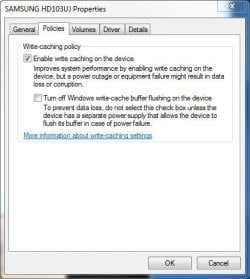
3. Click on the Polices tab. Under the upper Removal policy section, select (dot) Better performance. (See screenshots below)
NOTE: By default, Enable write caching on the device is also checked. If not, then check it as well.
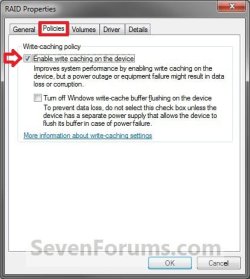
Drive3A.jpgDrive1A.jpg
4. To Turn Off Windows Write-cache Buffer Flushing on the Device
WARNING: To Prevent data loss. Do not check this option unless the storage device has a separate power supply that allows the device to flush it's buffer in case of a power failure.
A) Select (check) the Turn off Windows write-cache buffer flushing on the device box. (See screenshots above)
5. Click on OK. (See screenshot below step 3)

6. Click on Yes to restart the computer to apply. (See screenshot below)
WARNING: This will restart the computer immediately. You should save and close anything else that you are working on first.
Drive4.jpg
That's it,
Shawn


Last edited:
What happens if the "policies' tab does not show up?

I am running a sans-digital TR5M external box. All hard drives show up in device manager, but none have the policies tab.
 

My Computer

OS
Windows 7
Hello Swears,

It looks like it may not support being changed with that type of connection. :(
 

My Computer

Computer type
PC/Desktop
Computer Manufacturer/Model Number
Self built custom
OS
64-bit Windows 11 Pro for Workstations
CPU
Intel i7-8700K OC'd to 5 GHz
Motherboard
ASUS ROG Maximus XI Formula Z390
Memory
64 GB (4x16GB) G.SKILL TridentZ RGB DDR4 3600 MHz
Graphics Card(s)
ASUS ROG-STRIX-GTX1080TI-O11G-GAMING
Sound Card
Integrated
Monitor(s) Displays
2 x Samsung Odyssey G7 27"
Screen Resolution
2560x1440
Hard Drives
1TB Samsung 990 PRO M.2,
4TB Samsung 990 PRO PRO M.2,
TerraMaster F8 SSD Plus NAS
PSU
Seasonic Prime Titanium 850W
Case
Thermaltake Core P3
Cooling
Corsair Hydro H115i
Keyboard
Logitech wireless K800
Mouse
Logitech MX Master 4
Internet Speed
2 Gb/s Download and 100 Mb/s Upload
Antivirus
Malwarebyte Anti-Malware Premium
Browser
Google Chrome
Other Info
Logitech Z625 speaker system,
Logitech BRIO 4K Pro webcam,
HP Color LaserJet Pro MFP M477fdn,
APC SMART-UPS RT 1000 XL - SURT1000XLI,
Galaxy S23 Plus phone
I have heard some people taking about disabling this for SSDs since they don't have a cache. Does anybody know if this would be a good idea - or would it even make a difference?
 

My Computer

Computer Manufacturer/Model Number
Keeps changing - (Custom)
OS
Windows 7 Professional x64
CPU
Intel Core i7 860
Motherboard
Gigabyte GA-P55-UD4P
Memory
4GB DDR3 Mushkin 1600Mhz @ 7-8-7-20
Graphics Card(s)
MSI GTS250 1GB DDR3 Twin Frozr
Sound Card
Onboard realtek
Monitor(s) Displays
Samsung SyncMaster 24" P2450 + Samsung 20" 2033
Screen Resolution
1920 X 1080 and 1600 X 900 (#2 system 1440 X 900)
Hard Drives
Patriot Inferno 120GB SSD + 3 WD Blue 640GB drives
PSU
Corsair 750 HX Modular
Case
Lancool PC-K62
Cooling
Cooler Master TX3 CPU cooler and 4-140mm and 1-120mm case
Keyboard
Gigabyte USB keyboard
Mouse
Microsoft wireless laser mouse 5000
Internet Speed
7 Mb down 1.5 up
Other Info
System #2: AMD Phenom II X6 1055T (Freezer 7 Pro cooler) - Gigabyte 880GMA-UD2H - WD 500GB Black - 9500GT (1GB) 500W OCZ modular PSU - Antec 200 case. System #3 (LapTop) Core 2 Duo T6670 - 320GB 7200RPM HD - 4GB DDR3 RAM.
Hi Nate,

You can give it a try with the write cache enabled and disabled to see how it runs for you, but it was faster with my SSD with it still enabled.
 

My Computer

Computer type
PC/Desktop
Computer Manufacturer/Model Number
Self built custom
OS
64-bit Windows 11 Pro for Workstations
CPU
Intel i7-8700K OC'd to 5 GHz
Motherboard
ASUS ROG Maximus XI Formula Z390
Memory
64 GB (4x16GB) G.SKILL TridentZ RGB DDR4 3600 MHz
Graphics Card(s)
ASUS ROG-STRIX-GTX1080TI-O11G-GAMING
Sound Card
Integrated
Monitor(s) Displays
2 x Samsung Odyssey G7 27"
Screen Resolution
2560x1440
Hard Drives
1TB Samsung 990 PRO M.2,
4TB Samsung 990 PRO PRO M.2,
TerraMaster F8 SSD Plus NAS
PSU
Seasonic Prime Titanium 850W
Case
Thermaltake Core P3
Cooling
Corsair Hydro H115i
Keyboard
Logitech wireless K800
Mouse
Logitech MX Master 4
Internet Speed
2 Gb/s Download and 100 Mb/s Upload
Antivirus
Malwarebyte Anti-Malware Premium
Browser
Google Chrome
Other Info
Logitech Z625 speaker system,
Logitech BRIO 4K Pro webcam,
HP Color LaserJet Pro MFP M477fdn,
APC SMART-UPS RT 1000 XL - SURT1000XLI,
Galaxy S23 Plus phone
Okay, thanks Brink. I think I'll just leave it. The more I read about these things the more I want to keep needless writing off of them. I just want to make it last a long time at these speeds. It's very, very nice to have an SSD with 8GB of 1066 RAM. (looks like you have the same) Thanks again for answering.
 

My Computer

Computer Manufacturer/Model Number
Keeps changing - (Custom)
OS
Windows 7 Professional x64
CPU
Intel Core i7 860
Motherboard
Gigabyte GA-P55-UD4P
Memory
4GB DDR3 Mushkin 1600Mhz @ 7-8-7-20
Graphics Card(s)
MSI GTS250 1GB DDR3 Twin Frozr
Sound Card
Onboard realtek
Monitor(s) Displays
Samsung SyncMaster 24" P2450 + Samsung 20" 2033
Screen Resolution
1920 X 1080 and 1600 X 900 (#2 system 1440 X 900)
Hard Drives
Patriot Inferno 120GB SSD + 3 WD Blue 640GB drives
PSU
Corsair 750 HX Modular
Case
Lancool PC-K62
Cooling
Cooler Master TX3 CPU cooler and 4-140mm and 1-120mm case
Keyboard
Gigabyte USB keyboard
Mouse
Microsoft wireless laser mouse 5000
Internet Speed
7 Mb down 1.5 up
Other Info
System #2: AMD Phenom II X6 1055T (Freezer 7 Pro cooler) - Gigabyte 880GMA-UD2H - WD 500GB Black - 9500GT (1GB) 500W OCZ modular PSU - Antec 200 case. System #3 (LapTop) Core 2 Duo T6670 - 320GB 7200RPM HD - 4GB DDR3 RAM.
You're welcome Nate. I think I'll get working on a optimizing SSD tutorial next. ;)
 

My Computer

Computer type
PC/Desktop
Computer Manufacturer/Model Number
Self built custom
OS
64-bit Windows 11 Pro for Workstations
CPU
Intel i7-8700K OC'd to 5 GHz
Motherboard
ASUS ROG Maximus XI Formula Z390
Memory
64 GB (4x16GB) G.SKILL TridentZ RGB DDR4 3600 MHz
Graphics Card(s)
ASUS ROG-STRIX-GTX1080TI-O11G-GAMING
Sound Card
Integrated
Monitor(s) Displays
2 x Samsung Odyssey G7 27"
Screen Resolution
2560x1440
Hard Drives
1TB Samsung 990 PRO M.2,
4TB Samsung 990 PRO PRO M.2,
TerraMaster F8 SSD Plus NAS
PSU
Seasonic Prime Titanium 850W
Case
Thermaltake Core P3
Cooling
Corsair Hydro H115i
Keyboard
Logitech wireless K800
Mouse
Logitech MX Master 4
Internet Speed
2 Gb/s Download and 100 Mb/s Upload
Antivirus
Malwarebyte Anti-Malware Premium
Browser
Google Chrome
Other Info
Logitech Z625 speaker system,
Logitech BRIO 4K Pro webcam,
HP Color LaserJet Pro MFP M477fdn,
APC SMART-UPS RT 1000 XL - SURT1000XLI,
Galaxy S23 Plus phone
Oh, that would be my dream. I sure wish there was something out there. They say Windows 7 treats SSDs different but I have seem no evidence of this. I hope the final release does.
 

My Computer

Computer Manufacturer/Model Number
Keeps changing - (Custom)
OS
Windows 7 Professional x64
CPU
Intel Core i7 860
Motherboard
Gigabyte GA-P55-UD4P
Memory
4GB DDR3 Mushkin 1600Mhz @ 7-8-7-20
Graphics Card(s)
MSI GTS250 1GB DDR3 Twin Frozr
Sound Card
Onboard realtek
Monitor(s) Displays
Samsung SyncMaster 24" P2450 + Samsung 20" 2033
Screen Resolution
1920 X 1080 and 1600 X 900 (#2 system 1440 X 900)
Hard Drives
Patriot Inferno 120GB SSD + 3 WD Blue 640GB drives
PSU
Corsair 750 HX Modular
Case
Lancool PC-K62
Cooling
Cooler Master TX3 CPU cooler and 4-140mm and 1-120mm case
Keyboard
Gigabyte USB keyboard
Mouse
Microsoft wireless laser mouse 5000
Internet Speed
7 Mb down 1.5 up
Other Info
System #2: AMD Phenom II X6 1055T (Freezer 7 Pro cooler) - Gigabyte 880GMA-UD2H - WD 500GB Black - 9500GT (1GB) 500W OCZ modular PSU - Antec 200 case. System #3 (LapTop) Core 2 Duo T6670 - 320GB 7200RPM HD - 4GB DDR3 RAM.
Mine looks like this:

writecache.JPG

Looks like half the page is missing.
 

My Computer

Computer Manufacturer/Model Number
self built
OS
Windows 7 Professional 64-bit
CPU
Intel E8400 3GHz
Motherboard
Intel DX48BT2
Memory
Kingston PC3-10700H 4Gb
Graphics Card(s)
XFX Radeon HD 5850 BlackEd.
Sound Card
Asus Xonar DG
Monitor(s) Displays
2x Samsung SM-T220HD 22"
Screen Resolution
1680x1050 on two monitors
Hard Drives
OCZ Vertex 2 120gb 3.5" (OS)
Seagate Momentus XT 500gb
Samsung F3 1Tb (games)
2x Samsung F1 1Tb
PSU
Thermaltake ToughPower 850w
Case
Thermaltake Armor
Cooling
Scythe Mugen II
Keyboard
Microsoft Comfort Curve USB
Mouse
Razer Diamondback 3G
Internet Speed
8128/443
Mine too Swarfega. I guess I will leave it. I am just concerned about needless write activity on my SSD that I really don't need. I read on some forums that this is needless (on SSDs) since they have no cache. Some have a buffer though. I am confused. I hope I the 2.5 million hour estimated life span is right on mine.
 

My Computer

Computer Manufacturer/Model Number
Keeps changing - (Custom)
OS
Windows 7 Professional x64
CPU
Intel Core i7 860
Motherboard
Gigabyte GA-P55-UD4P
Memory
4GB DDR3 Mushkin 1600Mhz @ 7-8-7-20
Graphics Card(s)
MSI GTS250 1GB DDR3 Twin Frozr
Sound Card
Onboard realtek
Monitor(s) Displays
Samsung SyncMaster 24" P2450 + Samsung 20" 2033
Screen Resolution
1920 X 1080 and 1600 X 900 (#2 system 1440 X 900)
Hard Drives
Patriot Inferno 120GB SSD + 3 WD Blue 640GB drives
PSU
Corsair 750 HX Modular
Case
Lancool PC-K62
Cooling
Cooler Master TX3 CPU cooler and 4-140mm and 1-120mm case
Keyboard
Gigabyte USB keyboard
Mouse
Microsoft wireless laser mouse 5000
Internet Speed
7 Mb down 1.5 up
Other Info
System #2: AMD Phenom II X6 1055T (Freezer 7 Pro cooler) - Gigabyte 880GMA-UD2H - WD 500GB Black - 9500GT (1GB) 500W OCZ modular PSU - Antec 200 case. System #3 (LapTop) Core 2 Duo T6670 - 320GB 7200RPM HD - 4GB DDR3 RAM.
Have you tried turning write cache off competely? Surely SSDs dont need it.
 

My Computer

Computer Manufacturer/Model Number
self built
OS
Windows 7 Professional 64-bit
CPU
Intel E8400 3GHz
Motherboard
Intel DX48BT2
Memory
Kingston PC3-10700H 4Gb
Graphics Card(s)
XFX Radeon HD 5850 BlackEd.
Sound Card
Asus Xonar DG
Monitor(s) Displays
2x Samsung SM-T220HD 22"
Screen Resolution
1680x1050 on two monitors
Hard Drives
OCZ Vertex 2 120gb 3.5" (OS)
Seagate Momentus XT 500gb
Samsung F3 1Tb (games)
2x Samsung F1 1Tb
PSU
Thermaltake ToughPower 850w
Case
Thermaltake Armor
Cooling
Scythe Mugen II
Keyboard
Microsoft Comfort Curve USB
Mouse
Razer Diamondback 3G
Internet Speed
8128/443
Not yet. I have read conflicting information on it. I will try it for a week or two at some point. I am (amazingly) still working on my build so have it on the test bench still. When I set up as my main machine I will try it and see what happens. I don't think I will see a difference with my SSD.
 

My Computer

Computer Manufacturer/Model Number
Keeps changing - (Custom)
OS
Windows 7 Professional x64
CPU
Intel Core i7 860
Motherboard
Gigabyte GA-P55-UD4P
Memory
4GB DDR3 Mushkin 1600Mhz @ 7-8-7-20
Graphics Card(s)
MSI GTS250 1GB DDR3 Twin Frozr
Sound Card
Onboard realtek
Monitor(s) Displays
Samsung SyncMaster 24" P2450 + Samsung 20" 2033
Screen Resolution
1920 X 1080 and 1600 X 900 (#2 system 1440 X 900)
Hard Drives
Patriot Inferno 120GB SSD + 3 WD Blue 640GB drives
PSU
Corsair 750 HX Modular
Case
Lancool PC-K62
Cooling
Cooler Master TX3 CPU cooler and 4-140mm and 1-120mm case
Keyboard
Gigabyte USB keyboard
Mouse
Microsoft wireless laser mouse 5000
Internet Speed
7 Mb down 1.5 up
Other Info
System #2: AMD Phenom II X6 1055T (Freezer 7 Pro cooler) - Gigabyte 880GMA-UD2H - WD 500GB Black - 9500GT (1GB) 500W OCZ modular PSU - Antec 200 case. System #3 (LapTop) Core 2 Duo T6670 - 320GB 7200RPM HD - 4GB DDR3 RAM.

My Computer

Computer Manufacturer/Model Number
Userbuilt
OS
Windows 7 Home Premium
CPU
Intel Core i7-2600K Sandy Bridge 3.4GHz
Motherboard
ASUS P8P67M-Pro REV3
Memory
G.SKILL Ripjaws X Series 16GB (4 x 4GB) DDR3 SDRAM
Graphics Card(s)
HIS IceQ X Turbo Radeon HD 6950 2GB 256-bit GDDR
Sound Card
Onboard Realtek HD Audio
Monitor(s) Displays
NEC MultiSync EA231WMi-B
Screen Resolution
1920 x 1080
Hard Drives
SAMSUNG 840 Pro Series 256GB SATA III MLC SSD
PSU
Thermaltake Black Widow 850W ATX
Case
LIAN LI PC-V354B Black MicroATX Mini Tower
Cooling
CORSAIR Hydro Series H80
Keyboard
Microsoft Natural Wireless Ergonomic Keyboard 7000
Mouse
Microsoft Natural Wireless Laser Mouse 7000
Internet Speed
http://www.speedtest.net/result/470816226.png
Hello Jaxel, and welcome to Seven Forums.

Sorry, but you cannot. It is dependant on what your hard drive supports on the available options. You can still turn write-caching on or off with those options though.
 

My Computer

Computer type
PC/Desktop
Computer Manufacturer/Model Number
Self built custom
OS
64-bit Windows 11 Pro for Workstations
CPU
Intel i7-8700K OC'd to 5 GHz
Motherboard
ASUS ROG Maximus XI Formula Z390
Memory
64 GB (4x16GB) G.SKILL TridentZ RGB DDR4 3600 MHz
Graphics Card(s)
ASUS ROG-STRIX-GTX1080TI-O11G-GAMING
Sound Card
Integrated
Monitor(s) Displays
2 x Samsung Odyssey G7 27"
Screen Resolution
2560x1440
Hard Drives
1TB Samsung 990 PRO M.2,
4TB Samsung 990 PRO PRO M.2,
TerraMaster F8 SSD Plus NAS
PSU
Seasonic Prime Titanium 850W
Case
Thermaltake Core P3
Cooling
Corsair Hydro H115i
Keyboard
Logitech wireless K800
Mouse
Logitech MX Master 4
Internet Speed
2 Gb/s Download and 100 Mb/s Upload
Antivirus
Malwarebyte Anti-Malware Premium
Browser
Google Chrome
Other Info
Logitech Z625 speaker system,
Logitech BRIO 4K Pro webcam,
HP Color LaserJet Pro MFP M477fdn,
APC SMART-UPS RT 1000 XL - SURT1000XLI,
Galaxy S23 Plus phone
does this option affect SDcard's performance? i have one thats installed permanently.. everytime i restart the computer it goes back to the "quick removal" settings again. anyway to make caching permanent?
 

My Computer

OS
Windows 7
Hello Koren, and welcome to Seven Forums.

Not that I am aware of for a removable storage device. :(

Sorry,
Shawn
 

My Computer

Computer type
PC/Desktop
Computer Manufacturer/Model Number
Self built custom
OS
64-bit Windows 11 Pro for Workstations
CPU
Intel i7-8700K OC'd to 5 GHz
Motherboard
ASUS ROG Maximus XI Formula Z390
Memory
64 GB (4x16GB) G.SKILL TridentZ RGB DDR4 3600 MHz
Graphics Card(s)
ASUS ROG-STRIX-GTX1080TI-O11G-GAMING
Sound Card
Integrated
Monitor(s) Displays
2 x Samsung Odyssey G7 27"
Screen Resolution
2560x1440
Hard Drives
1TB Samsung 990 PRO M.2,
4TB Samsung 990 PRO PRO M.2,
TerraMaster F8 SSD Plus NAS
PSU
Seasonic Prime Titanium 850W
Case
Thermaltake Core P3
Cooling
Corsair Hydro H115i
Keyboard
Logitech wireless K800
Mouse
Logitech MX Master 4
Internet Speed
2 Gb/s Download and 100 Mb/s Upload
Antivirus
Malwarebyte Anti-Malware Premium
Browser
Google Chrome
Other Info
Logitech Z625 speaker system,
Logitech BRIO 4K Pro webcam,
HP Color LaserJet Pro MFP M477fdn,
APC SMART-UPS RT 1000 XL - SURT1000XLI,
Galaxy S23 Plus phone
Great! My HDD was already set up to enable Write-Caching.

Thank you for this easy-to-follow tutorial, Brink. :p
 

My Computer

Computer Manufacturer/Model Number
HP Pavilion dv6815nr Notebook
OS
7 Home Premium x86
CPU
AMD Turion 64 X2 Mobille Technology TL-60 2.0GHz
Memory
3GB
Graphics Card(s)
NVIDIA GeForce 7150M / nForce630M
Sound Card
Conexant High Definition SmartAudio 221
Screen Resolution
1280 x 800
Hard Drives
Samsung 147GB
Mouse
Synaptics TouchPad
Other Info
Norton Security Suite (360)
You're welcome Lucretius. :)
 

My Computer

Computer type
PC/Desktop
Computer Manufacturer/Model Number
Self built custom
OS
64-bit Windows 11 Pro for Workstations
CPU
Intel i7-8700K OC'd to 5 GHz
Motherboard
ASUS ROG Maximus XI Formula Z390
Memory
64 GB (4x16GB) G.SKILL TridentZ RGB DDR4 3600 MHz
Graphics Card(s)
ASUS ROG-STRIX-GTX1080TI-O11G-GAMING
Sound Card
Integrated
Monitor(s) Displays
2 x Samsung Odyssey G7 27"
Screen Resolution
2560x1440
Hard Drives
1TB Samsung 990 PRO M.2,
4TB Samsung 990 PRO PRO M.2,
TerraMaster F8 SSD Plus NAS
PSU
Seasonic Prime Titanium 850W
Case
Thermaltake Core P3
Cooling
Corsair Hydro H115i
Keyboard
Logitech wireless K800
Mouse
Logitech MX Master 4
Internet Speed
2 Gb/s Download and 100 Mb/s Upload
Antivirus
Malwarebyte Anti-Malware Premium
Browser
Google Chrome
Other Info
Logitech Z625 speaker system,
Logitech BRIO 4K Pro webcam,
HP Color LaserJet Pro MFP M477fdn,
APC SMART-UPS RT 1000 XL - SURT1000XLI,
Galaxy S23 Plus phone
Found this little snippet of information regarding SSD.

"SATA drives can have NCQ (native command queueing) to increase performance by reordering I/O requests. If your SATA SSD supports it, then I expect there will be less benefit for smart caching by the OS, since the SSD is already trying to be clever."

This could be a good starting point whether to recommend write caching or not on SSD.
 

My Computer

Computer Manufacturer/Model Number
Asus CG5290
OS
Windows 7 x64 RTM Retail
CPU
Intel i7-920 Quad @ 4.0Ghz. Stepping D0.
Motherboard
Asus Rampage II GENE
Memory
9GB DDR3 @ 1600 Mhz. 9-8-8-24-CR1
Graphics Card(s)
XFX ATI HD5870 @ 900/1300
Sound Card
SupremeFX X/Fi HD Audio onboard
Monitor(s) Displays
Samsung 24" WS
Screen Resolution
1920x1200
Hard Drives
OCZ AGILITY-EX (64 GB, SATA-II, SSD SLC NAND Flash)
Hitachi HDT721010SLA360 (1 TB, 7200 RPM, SATA-II)
Cavalry (500 GB, 7200 RPM, eSATA-II)
PSU
Antec TruePower 650 Watts
Case
Ugly but functional.
Cooling
Oversized heat sink, lots and lots of fans.
Keyboard
MS
Mouse
MS wireless explorer
Internet Speed
101/15 - Optimum Online Ultra
Back
Top