Write-Caching - Enable or Disable

How to Enable or Disable Write-Caching for a Storage Device in Windows 7 and Windows 8


   Information
Write caching in a connected storage device refers to the use of high-speed volatile memory to collect write commands sent to data storage devices and cache them until the slower storage media (either physical hard disks or low cost flash memory) can accommodate them. Most devices that use write caching require that power be supplied continuously.

This will show you how to enable write caching to have better performace for a storage device, or disable write caching for quick removal of a storage device without having to use Safely Remove Hardware.


   Tip
If high data transfer performance is your main concern, you should enable both of these settings in OPTION TWO below:
  • In the Removal Policy section, select the Better Performance option.
  • In the Write-caching policy section, select Enable write caching on the device (if the system hardware and storage device support these features).
   Warning
You must be logged into a administrator account to be able to do the steps in this tutorial.


OPTION ONE

Disable Write Caching for Quick Removal


   Note
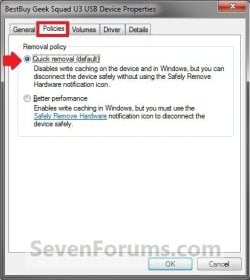
This option is usually the best choice for storage devices that you are likely to remove from the system frequently, such as USB flash drives, SD, MMC, Compact Flash, or similar memory cards, and other similar externally attached storage devices.

When you select the Quick Removal option, Windows 7 manages commands sent to the device using a method called write-through caching. In write-through caching, the device operates on write commands as if there were no cache. The cache may still provide a small performance benefit, but the emphasis is on treating the data as safely as possible by getting the commands to the storage device. The main benefit is that you can remove the storage device from the system quickly without risking data loss. For example, if a flash drive were to be accidentally pulled out of its port, the data being written to it is much less likely to be lost.

1. Open the Control Panel (icons view) in Windows 7 or Windows 8, and click on the Device Manager icon.

2. In Device Manger, double click on Disk drives to expand it, then double click on the listed storage device that you want to disable write caching for. (See screenshot below)
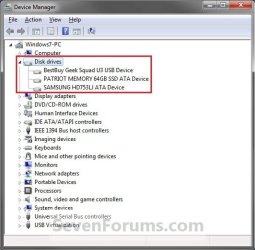
Drive1.jpg
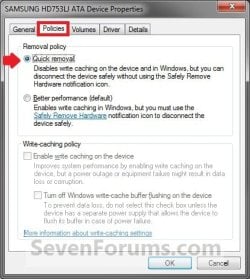
3. Click on the Polices tab. Under the upper Removal policy section, select (dot) Quick removal, or check the Turn off Windows write-cache buffer flushing on the device box, and click on OK. (See screenshot below)
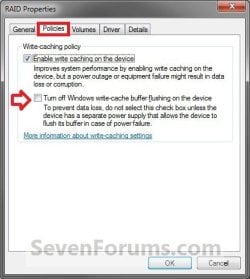
Drive4A.jpgDrive2.jpg
Drive3.jpg
4. Click on Yes to restart the computer to apply. (See screenshot below)
WARNING: This will restart the computer immediately. You should save and close anything else that you are working on first.
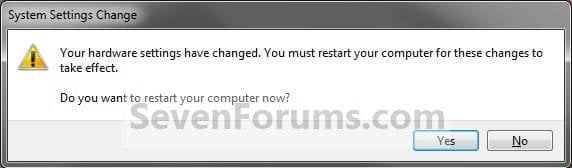
Drive4.jpg


OPTION TWO

Enable Write Caching for Better Performance


   Note
This option is usually the best choice for storage devices that must provide the highest possible performance and that you intend to not remove from the system frequently, such as internal hard disk drives. If you choose this option and the device is disconnected from the system before all of the data is written to it (such as if you remove a USB flash drive), you could lose data. When using this option for a storage device (ex: USB flash drive), you must use Safely Remove Hardware to disconnect the device safely to prevent possible data loss.

When you select the Better Performance option, Windows 7 uses a method known as write-back caching. In this method, the storage device itself is allowed to determine whether using the high-speed cache will save time completing the write commands. If it will, the device signals to the computer that the data has been stored successfully even though the data may not actually be present in the storage device yet (such as the hard disk or flash memory). This method markedly increases the throughput of storage operations, which are often a major bottleneck for system performance overall. However, if the power supplied to the device (ex: external hard drive) fails for any reason, any data still in the cache (that the computer system believes is safely stored) could be lost.

By default, Windows uses cache flushing. This means that the system will periodically instruct the storage device to write all data waiting in the cache to the storage device. When you select Turn off Windows write-cache buffer flushing on the device, you turn can turn off these periodic commands to transfer the data. Not all devices support all of these features.

1. Open the Control Panel (icons view) in Windows 7 or Windows 8, and click on the Device Manager icon.

2. In Device Manger, double click on Disk drives to expand it, then double click on the listed storage device that you want to enable write caching for. (See screenshot below)
Drive1.jpg
3. Click on the Polices tab. Under the upper Removal policy section, select (dot) Better performance. (See screenshots below)
NOTE: By default, Enable write caching on the device is also checked. If not, then check it as well.
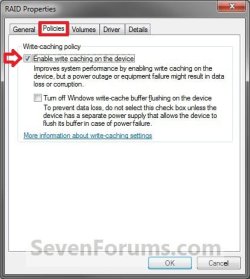
Drive3A.jpgDrive1A.jpg
4. To Turn Off Windows Write-cache Buffer Flushing on the Device
WARNING: To Prevent data loss. Do not check this option unless the storage device has a separate power supply that allows the device to flush it's buffer in case of a power failure.
A) Select (check) the Turn off Windows write-cache buffer flushing on the device box. (See screenshots above)
5. Click on OK. (See screenshot below step 3)

6. Click on Yes to restart the computer to apply. (See screenshot below)
WARNING: This will restart the computer immediately. You should save and close anything else that you are working on first.
Drive4.jpg
That's it,
Shawn


Last edited:
I'm sorry, my brain's soft today. I understand the points being made, and thanks for the RamDisk link... but are you recommending to disable write-caching on SSD? (It will not be removed!)

Techtonik's remarks could've been interpreted either way, also I'm curious if anyone has noticed their RAM being entirely consumed, as described...

Thanks

It would be recommended to leave write caching enabled for the SSD. :)
 

My Computer

Computer type
PC/Desktop
Computer Manufacturer/Model Number
Self built custom
OS
64-bit Windows 11 Pro for Workstations
CPU
Intel i7-8700K OC'd to 5 GHz
Motherboard
ASUS ROG Maximus XI Formula Z390
Memory
64 GB (4x16GB) G.SKILL TridentZ RGB DDR4 3600 MHz
Graphics Card(s)
ASUS ROG-STRIX-GTX1080TI-O11G-GAMING
Sound Card
Integrated
Monitor(s) Displays
2 x Samsung Odyssey G7 27"
Screen Resolution
2560x1440
Hard Drives
1TB Samsung 990 PRO M.2,
4TB Samsung 990 PRO PRO M.2,
TerraMaster F8 SSD Plus NAS
PSU
Seasonic Prime Titanium 850W
Case
Thermaltake Core P3
Cooling
Corsair Hydro H115i
Keyboard
Logitech wireless K800
Mouse
Logitech MX Master 4
Internet Speed
2 Gb/s Download and 100 Mb/s Upload
Antivirus
Malwarebyte Anti-Malware Premium
Browser
Google Chrome
Other Info
Logitech Z625 speaker system,
Logitech BRIO 4K Pro webcam,
HP Color LaserJet Pro MFP M477fdn,
APC SMART-UPS RT 1000 XL - SURT1000XLI,
Galaxy S23 Plus phone
Callender, thanks a lot for the insights, I've just read your thoughts on allocation and your 'application review' - close to the top of increasingly large list of 'things to do' now is design my recovery strategy!

'1' q, re "Browser Cache disabled": what's the browser cache, and do you mean completely disabled (some browser/registry setting, or disabled in RAMdisk), and if so, what impact does this have on performance/functionality? (thinking chrome's sync'ed user account experience, which already stutters in my sandboxie browser)

Cheers :geek:
 

My Computer

Computer type
Laptop
Computer Manufacturer/Model Number
Dell
OS
Windows 7 Ultimate 64bit
CPU
2.2
Memory
8Gb
Graphics Card(s)
NVIDIA
Screen Resolution
1280/762
Mouse
built in pad || iphone || MS wireless
Internet Speed
100MB
Antivirus
Avast
Browser
Chrome, Chrome portable
Scratch that. I read, it all makes perfect sense. So SSD for dll's and exe's I guess! And any residual multimedia (maybe that you'll "never" delete... if such data exists)

I have 3USB ports, I don't know what the breakdown is one version, ie USB2 or USB3... I have a memory card slot, I also have an esata port. Would a 4gig sd card compliment my 250gig SSD with 8gig RAM, or should I try and master USB?

thanks guys, learned more in the last 2 days than in the last 2 weeks :D
 

My Computer

Computer type
Laptop
Computer Manufacturer/Model Number
Dell
OS
Windows 7 Ultimate 64bit
CPU
2.2
Memory
8Gb
Graphics Card(s)
NVIDIA
Screen Resolution
1280/762
Mouse
built in pad || iphone || MS wireless
Internet Speed
100MB
Antivirus
Avast
Browser
Chrome, Chrome portable
Glad we could help. :)
 

My Computer

Computer type
PC/Desktop
Computer Manufacturer/Model Number
Self built custom
OS
64-bit Windows 11 Pro for Workstations
CPU
Intel i7-8700K OC'd to 5 GHz
Motherboard
ASUS ROG Maximus XI Formula Z390
Memory
64 GB (4x16GB) G.SKILL TridentZ RGB DDR4 3600 MHz
Graphics Card(s)
ASUS ROG-STRIX-GTX1080TI-O11G-GAMING
Sound Card
Integrated
Monitor(s) Displays
2 x Samsung Odyssey G7 27"
Screen Resolution
2560x1440
Hard Drives
1TB Samsung 990 PRO M.2,
4TB Samsung 990 PRO PRO M.2,
TerraMaster F8 SSD Plus NAS
PSU
Seasonic Prime Titanium 850W
Case
Thermaltake Core P3
Cooling
Corsair Hydro H115i
Keyboard
Logitech wireless K800
Mouse
Logitech MX Master 4
Internet Speed
2 Gb/s Download and 100 Mb/s Upload
Antivirus
Malwarebyte Anti-Malware Premium
Browser
Google Chrome
Other Info
Logitech Z625 speaker system,
Logitech BRIO 4K Pro webcam,
HP Color LaserJet Pro MFP M477fdn,
APC SMART-UPS RT 1000 XL - SURT1000XLI,
Galaxy S23 Plus phone
Write-cachcing on SSD

I'm sorry, my brain's soft today. I understand the points being made, and thanks for the RamDisk link... but are you recommending to disable write-caching on SSD? (It will not be removed!)

Techtonik's remarks could've been interpreted either way, also I'm curious if anyone has noticed their RAM being entirely consumed, as described...

Thanks

It would be recommended to leave write caching enabled for the SSD. :)

I leave write-caching enabled on the SSD. A RAMdisk is loaded onto the SSD. My response was in answer to the question from jonnyhotchkiss

"RamDisk is new to me - is it hard to configure like you mentioned?"

I realize that this isn't related to the excellent tutorial.

In response to jonnyhotchkiss's follow up question:

"Browser Cache disabled": what's the browser cache?

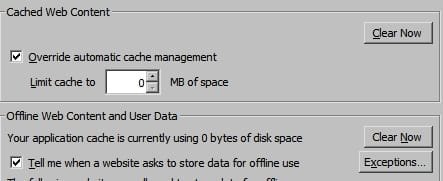
It's configured not to store the browser cache on the hard drive. See:

Browser.cache.disk.enable - MozillaZine Knowledge Base

and

Cache Options.jpg

I do see that this is in no way related to your excellent tutorial!
 

My Computer

Computer type
Laptop
Computer Manufacturer/Model Number
ASUS
OS
Microsoft Windows 7 Home Premium 64-bit 7601 Multiprocessor Free Service Pack 1
CPU
AMD C-60 APU with Radeon(tm) HD Graphics
Motherboard
ASUSTeK COMPUTER INC. X501U
Memory
4.00 GB
Graphics Card(s)
AMD Radeon HD 6290 Graphics
Sound Card
(1) AMD High Definition Audio Device (2) Realtek High Defi
Screen Resolution
1366 x 768 x 32 bits (4294967296 colors) @ 60 Hz
Hard Drives
Hitachi HTS545050A7E380 SATA Disk Device
Antivirus
Comodo CIS & FW, SecureAplus App Whitelisting, Threatfire
Browser
Cyberfox 64bit, Opera 64bit, Airfox
Other Info
Spy-The-Spy, HitmanPro.Alert, Norton Connect Safe, MJRegWatcher, BitDefender TrafficLight, Voodoo Shield, Zemana AntiMalware
4 year old comments suggesting that these tips and tricks pertain to older SSDs that aren't "TRIM" etc

blah blah December 2, 2011 at 10:50 pm #
You can ignore most of this with a modern SSD on Win 7. Here's the thing. A lot of folks waited for SSD's to standardize a bit, and the technology to become more reliable / less expensive. Once it did, more folks adopted it. However, geeks being geeks, they started looking online to squeeze more performance out of their SSD's. That's when they came across old articles talking about farming page files, temp files/folders, etc off onto other drives / ramdisks, etc. But most of this stuff is seriously outdated (yes, after only a year or two), b/c SSD's have matured fairly fast. Most SSD's are designed to last 5+ years, even with tons of writes (the writes being what wear them out the most). By pawning page files, temp files/folders, caches, etc off onto slower HDD's, your basically negating the speed advantage of the SSD. You now have a program (eg: web browser) loading from SSD quickly, but then bottlenecking speeds with page files and caches on HDD's. It's like getting a fast car so you can fly down the highway quickly, but you baby it by driving down residential streets so you don't wear it out. It's back-asswards. Likewise, Win 7 (SP1 by now) is good at detecting an SSD, and automatically avoiding defrags on it, setting it up with max possible DMA, disabling superfetch on it, etc, etc. You can double-check all those settings if you like, but you'll most likely find it's a-ok. If you really, really want to feel like a geek, setting up a ramdisk to toss temp files on can make you feel pretty techy. But even that can back-fire. Some folks are doing ramdisks with only 4gb of ram in their box. Win 64 is a big jump in ram consumption vs. Win 32. Really, unless you're using like 10+ gb of ram, making a ram disk is just removing ram from your memory pool which would be better used as *shock* memory! If making ramdisks for SSD's was a great idea, Microsoft would have coded in a utility to automatically do so if it detected an SSD. Bottomline, stop worrying about your SSD. Install it, make sure the firmware is up-to-date (the main reason people find them not working and RMA is b/c they don't update the darn firmware), and just enjoy it.

Does anyone have any data to support either argument (for + against)?
 

My Computer

Computer type
Laptop
Computer Manufacturer/Model Number
Dell
OS
Windows 7 Ultimate 64bit
CPU
2.2
Memory
8Gb
Graphics Card(s)
NVIDIA
Screen Resolution
1280/762
Mouse
built in pad || iphone || MS wireless
Internet Speed
100MB
Antivirus
Avast
Browser
Chrome, Chrome portable
I don't have any hard data off hand, but I can tell you for a fact based on real world experience that it's safe to leave write-caching enabled on today's SSDs. :)

It's also safe to run chkdsk on a SSD.

You don't want to defrag a SSD, but TRIM it instead.
 

My Computer

Computer type
PC/Desktop
Computer Manufacturer/Model Number
Self built custom
OS
64-bit Windows 11 Pro for Workstations
CPU
Intel i7-8700K OC'd to 5 GHz
Motherboard
ASUS ROG Maximus XI Formula Z390
Memory
64 GB (4x16GB) G.SKILL TridentZ RGB DDR4 3600 MHz
Graphics Card(s)
ASUS ROG-STRIX-GTX1080TI-O11G-GAMING
Sound Card
Integrated
Monitor(s) Displays
2 x Samsung Odyssey G7 27"
Screen Resolution
2560x1440
Hard Drives
1TB Samsung 990 PRO M.2,
4TB Samsung 990 PRO PRO M.2,
TerraMaster F8 SSD Plus NAS
PSU
Seasonic Prime Titanium 850W
Case
Thermaltake Core P3
Cooling
Corsair Hydro H115i
Keyboard
Logitech wireless K800
Mouse
Logitech MX Master 4
Internet Speed
2 Gb/s Download and 100 Mb/s Upload
Antivirus
Malwarebyte Anti-Malware Premium
Browser
Google Chrome
Other Info
Logitech Z625 speaker system,
Logitech BRIO 4K Pro webcam,
HP Color LaserJet Pro MFP M477fdn,
APC SMART-UPS RT 1000 XL - SURT1000XLI,
Galaxy S23 Plus phone
:geek: Great tips, thanks for sharing your experience.

RamDisk is new to me - is it hard to configure like you mentioned?

Just to clarify, are you saying turn off (uncheck) write caching completely?

I noticed that with write cache enabled there is a small increment in overall performance...

but​

Now if you disable write caching... The whole system is more fluid ...


About to test/backup native VHD (currently sitting on 200gig partition) before redeployment to new (replacement ocz) SSD ... proceeding with extreme caution


That's right, uncheck write caching completely. But ,.. don't do it. Leave it there if you don't have a power supply, you don't want to get errors on the new set up SSD .
Ramdisk is not complicated , you download the software , and add it through add new hardware. You can configure it on device manager . Don't make the image file and don't load it every bootup, don't save it either. If you really need it put it on a separate HDD , otherwise will wear your SSD , specially if it's a few Gigs in size. The Ramdisk software is limited trial, 3 monts I guess, after that you have to download the newest vesion for another 3 monts trial and so on ... , if you decide is good 4 you you can buy it ,... Have fun! ;)
 

My Computer

Computer Manufacturer/Model Number
home build
OS
Windows 7 Ultimate x64
CPU
AMD Phenom II X4 960T
Motherboard
M5A99X EVO ASUS
Memory
CORSAIR VENGEANCE 2X 4GB
Graphics Card(s)
SAPPHIRE HD 4870 1Gb DDR5
Sound Card
realtek onboard
Monitor(s) Displays
SAMSUNG LED SA 350
Screen Resolution
1080p
Hard Drives
M4-CT256 M4SSD2 SATA Disk Device

Seagate Desktop USB Device

WDC WD16 00JS-00MHB0 SATA Disk Device
PSU
Seasonic X-660
Case
no case :)
Cooling
ninja 3 scythe
Keyboard
Logitech G15
Mouse
logitech M510
Internet Speed
optic fiber
SSD TLC

Thanks for the clarification guys.

I'm currently booting (natively) from VHD(s). I'm thinking I'm going to continue to prep a windows install for "SSD optimisation", and then

connect and format ssd in external
copy VHD to new primary partition on SSD (not sure if I need to /sysprep, given the harddrive hardware has changed)
copy boot and bootmgr
install in laptop
pray
attempt boot.

if it works, I can TRIM

How's my logic?!
 

My Computer

Computer type
Laptop
Computer Manufacturer/Model Number
Dell
OS
Windows 7 Ultimate 64bit
CPU
2.2
Memory
8Gb
Graphics Card(s)
NVIDIA
Screen Resolution
1280/762
Mouse
built in pad || iphone || MS wireless
Internet Speed
100MB
Antivirus
Avast
Browser
Chrome, Chrome portable

My Computer

Computer type
Laptop
Computer Manufacturer/Model Number
Dell
OS
Windows 7 Ultimate 64bit
CPU
2.2
Memory
8Gb
Graphics Card(s)
NVIDIA
Screen Resolution
1280/762
Mouse
built in pad || iphone || MS wireless
Internet Speed
100MB
Antivirus
Avast
Browser
Chrome, Chrome portable
One more q, does RAIDing only apply if you have multiple SSD drives?if so, so ssd caching only apply to RAIDers?

How to: Set up Intel Smart Response Technology (SSD caching)

That wouldn't be the same as the write caching in the tutorial.

Yep, you would need multiple SSDs in a RAID setup for SSD caching mention in the link you posted.

This feature requires that the SATA controller be set to RAID mode via the system BIOS. Intel® Smart Response Technology is an Intel® Rapid Storage Technology (RST) caching feature that improves computer system performance. It allows a user to configure computer systems with an SSD used as cache memory between the hard disk drive and system memory.

This provides the advantage of having a hard disk drive (or a RAID volume) for maximum storage capacity while delivering an SSD-like overall system performance experience. Intel® Smart Response Technology caching is implemented as a single drive letter solution; no additional drive letter is required for the SSD device used as cache.

You can use a SSD to cache your secondary drives and RAID arrays. Just remember all data on the SSD you use will be wiped when you accelerate the other drives. And you can only have one volume accelerated at a time.
 
Last edited:

My Computer

Computer type
PC/Desktop
Computer Manufacturer/Model Number
Self built custom
OS
64-bit Windows 11 Pro for Workstations
CPU
Intel i7-8700K OC'd to 5 GHz
Motherboard
ASUS ROG Maximus XI Formula Z390
Memory
64 GB (4x16GB) G.SKILL TridentZ RGB DDR4 3600 MHz
Graphics Card(s)
ASUS ROG-STRIX-GTX1080TI-O11G-GAMING
Sound Card
Integrated
Monitor(s) Displays
2 x Samsung Odyssey G7 27"
Screen Resolution
2560x1440
Hard Drives
1TB Samsung 990 PRO M.2,
4TB Samsung 990 PRO PRO M.2,
TerraMaster F8 SSD Plus NAS
PSU
Seasonic Prime Titanium 850W
Case
Thermaltake Core P3
Cooling
Corsair Hydro H115i
Keyboard
Logitech wireless K800
Mouse
Logitech MX Master 4
Internet Speed
2 Gb/s Download and 100 Mb/s Upload
Antivirus
Malwarebyte Anti-Malware Premium
Browser
Google Chrome
Other Info
Logitech Z625 speaker system,
Logitech BRIO 4K Pro webcam,
HP Color LaserJet Pro MFP M477fdn,
APC SMART-UPS RT 1000 XL - SURT1000XLI,
Galaxy S23 Plus phone
Buffer flushing?

Brink,
What does buffer-flushing even do to an internal hard disk drive? It won't most likely work, unless you're using a Solid-State disk drive with battery-backed DRAM cache.
 

My Computer

Computer type
PC/Desktop
Computer Manufacturer/Model Number
Custom
OS
Microsoft Windows 7 Home Premium 64-bit Service Pack 1
CPU
AMD A10-6800K APU with Radeon(tm)™ HD Graphics 4100
Motherboard
ASRock FM2A85X Extreme4-M
Memory
(2) G.Skill F3-12800CL10-8GBXL
Graphics Card(s)
ASUS R7 250 Series (0x6610)
Sound Card
Realtek High Definition Audio
Monitor(s) Displays
Acer X213H LCD monitor, 21"
Screen Resolution
1920 x 1080 x 32 bits @ 60 Hz
Hard Drives
WD Black, 1.0TB, WDC WD1002FAEX-00Z3A0
PSU
Rosewill Quark-650
Case
Raidmax Comet SECC Steel ATX Mid Tower Computer Case
Cooling
1 x 80mm + 2 x 120mm + Stock cooler
Mouse
Gear Head Wireless Optical 5-button mouse
Internet Speed
FTTx 6000 / 1000
Antivirus
Avast! Free Antivirus 2015.10.0.2208
Browser
Google Chrome Version 40.0.2214.115
Other Info
*AMD Dual-Graphics
*Uses OpenDNS
*Uses Folding@Home
*HP 16x Super-Multi DVD Writer
*Superspeed 74-in-1 Card Reader
*Maximum overclock has not been determined.
Hey HC,

A flush buffers command, which is available for SCSI and IDE/ATAPI disk devices, instructs the disk to write all cached data to the disk immediately.

Many disk devices provide enhanced performance through the use of an onboard cache, which provides read-ahead caching for data that is being read from the disk, and write-behind caching (or delayed writes or "lazy" writes) for data that is being written to disk. In some cases, it is important for data to be written to the physical disk immediately, and not retained in the disk's onboard write cache to be written later during an otherwise idle moment. This prevents loss or corruption of this data if the disk or controller (wherever the write cache is implemented) suddenly loses power.

It is recommended to have write caching enabled for internal hard drives (SSDs & HHDs). :)
 

My Computer

Computer type
PC/Desktop
Computer Manufacturer/Model Number
Self built custom
OS
64-bit Windows 11 Pro for Workstations
CPU
Intel i7-8700K OC'd to 5 GHz
Motherboard
ASUS ROG Maximus XI Formula Z390
Memory
64 GB (4x16GB) G.SKILL TridentZ RGB DDR4 3600 MHz
Graphics Card(s)
ASUS ROG-STRIX-GTX1080TI-O11G-GAMING
Sound Card
Integrated
Monitor(s) Displays
2 x Samsung Odyssey G7 27"
Screen Resolution
2560x1440
Hard Drives
1TB Samsung 990 PRO M.2,
4TB Samsung 990 PRO PRO M.2,
TerraMaster F8 SSD Plus NAS
PSU
Seasonic Prime Titanium 850W
Case
Thermaltake Core P3
Cooling
Corsair Hydro H115i
Keyboard
Logitech wireless K800
Mouse
Logitech MX Master 4
Internet Speed
2 Gb/s Download and 100 Mb/s Upload
Antivirus
Malwarebyte Anti-Malware Premium
Browser
Google Chrome
Other Info
Logitech Z625 speaker system,
Logitech BRIO 4K Pro webcam,
HP Color LaserJet Pro MFP M477fdn,
APC SMART-UPS RT 1000 XL - SURT1000XLI,
Galaxy S23 Plus phone
I purchased a usb flash drive (Corsair Voyager 16 GB) and after enabling write-cache and clicking OK, the window or dialog box of properties freeze and there is no way regular way to close it, the only way is disconnecting the usb flash, but if i connect it again it the system don't detect it unless i restart the laptop after that i connect it and it works, but the changes to write-cache were not saved. What could cause the freeze? i have 3 more usb flash, one of the is Corsair too and none of them suffers from this freeze.
 

My Computer

Computer type
Laptop
Computer Manufacturer/Model Number
Acer Aspire 5810T8929
OS
Windows 10 Home 64b
CPU
Intel Core Solo 1.4Ghz 800Mhz FSB
Memory
Samsung 4GB DDR3
Graphics Card(s)
Intel GMA 4500MHD
Screen Resolution
1366x768
Hard Drives
Seagate Momentus XT (Hybrid HD) 750GB
Internet Speed
40 Mbs
Antivirus
Kaspersky Free Antivirus
Browser
Chrome 60.0.3112.113 (Official Build) (64-bit)
Hello LM,

It's usually recommended to have write caching disabled for USB flash drives since they are removable drives. This way you would be able to simply unplug and plug in the USB flash drive at will when it's finished copying files without having to worry about corrupting them or using Safely Remove Hardware. :)
 

My Computer

Computer type
PC/Desktop
Computer Manufacturer/Model Number
Self built custom
OS
64-bit Windows 11 Pro for Workstations
CPU
Intel i7-8700K OC'd to 5 GHz
Motherboard
ASUS ROG Maximus XI Formula Z390
Memory
64 GB (4x16GB) G.SKILL TridentZ RGB DDR4 3600 MHz
Graphics Card(s)
ASUS ROG-STRIX-GTX1080TI-O11G-GAMING
Sound Card
Integrated
Monitor(s) Displays
2 x Samsung Odyssey G7 27"
Screen Resolution
2560x1440
Hard Drives
1TB Samsung 990 PRO M.2,
4TB Samsung 990 PRO PRO M.2,
TerraMaster F8 SSD Plus NAS
PSU
Seasonic Prime Titanium 850W
Case
Thermaltake Core P3
Cooling
Corsair Hydro H115i
Keyboard
Logitech wireless K800
Mouse
Logitech MX Master 4
Internet Speed
2 Gb/s Download and 100 Mb/s Upload
Antivirus
Malwarebyte Anti-Malware Premium
Browser
Google Chrome
Other Info
Logitech Z625 speaker system,
Logitech BRIO 4K Pro webcam,
HP Color LaserJet Pro MFP M477fdn,
APC SMART-UPS RT 1000 XL - SURT1000XLI,
Galaxy S23 Plus phone
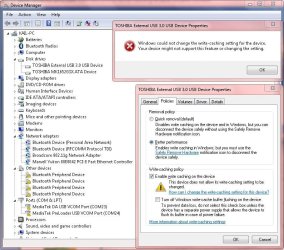
PLEASE HELP, I got this problem. :(
 

Attachments

  • wind7forums.JPG
    wind7forums.JPG
    145.5 KB · Views: 323

My Computer

Computer type
Laptop
Computer Manufacturer/Model Number
Hewlett-Packard / Compaq 6730s
OS
Windows 7 Ultimate x86 Last Update: 10/01/17
CPU
Intel(R) Pentium(R) Dual CPU T3400 @ 2.16GHz - 2.2GHz
Motherboard
491976-001 Intel Motherboard
Memory
2GB
Graphics Card(s)
Mobile Intel(R) 4 Series Express Chipset Family
Sound Card
HD audio - ADI1984
Monitor(s) Displays
15.4
Screen Resolution
1200 x 800
Hard Drives
TOSHIBA MK1652GSX ATA 140GB
Keyboard
NEWMEN
Mouse
A4Tech N-70FX
Antivirus
Avira AntiVir 2018 Pro
Browser
Chrome
Hello Shnxxx,

It appears that your Toshiba external USB 3.0 device doesn't support changing its write caching settings. :(
 

My Computer

Computer type
PC/Desktop
Computer Manufacturer/Model Number
Self built custom
OS
64-bit Windows 11 Pro for Workstations
CPU
Intel i7-8700K OC'd to 5 GHz
Motherboard
ASUS ROG Maximus XI Formula Z390
Memory
64 GB (4x16GB) G.SKILL TridentZ RGB DDR4 3600 MHz
Graphics Card(s)
ASUS ROG-STRIX-GTX1080TI-O11G-GAMING
Sound Card
Integrated
Monitor(s) Displays
2 x Samsung Odyssey G7 27"
Screen Resolution
2560x1440
Hard Drives
1TB Samsung 990 PRO M.2,
4TB Samsung 990 PRO PRO M.2,
TerraMaster F8 SSD Plus NAS
PSU
Seasonic Prime Titanium 850W
Case
Thermaltake Core P3
Cooling
Corsair Hydro H115i
Keyboard
Logitech wireless K800
Mouse
Logitech MX Master 4
Internet Speed
2 Gb/s Download and 100 Mb/s Upload
Antivirus
Malwarebyte Anti-Malware Premium
Browser
Google Chrome
Other Info
Logitech Z625 speaker system,
Logitech BRIO 4K Pro webcam,
HP Color LaserJet Pro MFP M477fdn,
APC SMART-UPS RT 1000 XL - SURT1000XLI,
Galaxy S23 Plus phone
It is important to understand that the caching is internal to the drive and not something managed by Windows. Windows can only request that this caching be enabled or disabled and it is up to the drive whether or not to honor this request. It is not required of a drive to do so. If the drive does not support a change there is nothing you can do.
 

My Computer

Computer type
PC/Desktop
Computer Manufacturer/Model Number
HP
OS
Windows 7 Pro 64 bit
CPU
Xeon W3520
Memory
8 GB
Graphics Card(s)
Nvidia Geforce 210
Hello Shawn mate in my pic is the only drive I have and it doesn't look like theta second pic in the tutorial it is the same as the one labeled RAID nothing wrong but am just curious as to why this is so.
 

Attachments

  • RAID.PNG
    RAID.PNG
    70.6 KB · Views: 132

My Computer

Computer type
PC/Desktop
Computer Manufacturer/Model Number
Own build (new) Desk1 / Asus ROG Win 7 / Desk2 1st build
OS
Desk1 7 Home Prem / Desk2 10 Pro / Main lap Asus ROG 10 Pro 2 laptop Toshiba 7 Pro Asus P2520 7 & 10
CPU
Desk1 i5 3750K / Laptop i7 GTX 860M / Desk2 i5 2500
Motherboard
Desk1 Asus P877-V / Desk2 Gigabyte H67 UD3H / Laptop ?
Memory
Desk1 8GB (1866) / Desk2 16GB (1333) / Laptop 8Gb DDR3
Graphics Card(s)
Desk 1& 2NVidia GTX 650 & Laptops on board Intel
Sound Card
Desk 1 & 2 -XONAR DG Realtek High Def audio Laptop
Monitor(s) Displays
Desk 1 Benq HD 2450 / Desk2 Philips 24" / Laptop 17.5"
Screen Resolution
1920x1080 D1 & D2 & Laptop 1
Hard Drives
Desk1 Samsung 120GB 830 SSD
Asus ROG 256GB 850 Pro SSD
Desk2 Samsung 840 256 SSD
Toshiba 120GB EVO
PSU
Desk 1 Corsair HX 1050/ Laptop ? / Desk 2 Corsair HX 650
Case
Desk 1 Cooler HAF XM ? Toshiba laptop / Desk2 Coolermaster
Cooling
Fans on all Desk1 -2 Desk2 - all Coolermasters 5 Laptop ?
Keyboard
Desk 1 MS Sidewinder X6 Desk 2 MS Sidewinder X 4
Mouse
Desk 1&2 - Gigabyte MS 900 gamer - laptop - Logitec wireless
Internet Speed
ADSL2+
Other Info
One other Desktop (tester) and spare Toshba laptop both with SSD's
Running Kaspersky 2016 ISS on all machines config'd identically
Logitec audio stereo systems on each machine (x3)
Canon MG5250MFC
Router/modem TP-Link running WPA2SK
Hey John, :)

It can vary a bit per drive for exactly what you see based on what type of drive it is. What you see is normal though.
 

My Computer

Computer type
PC/Desktop
Computer Manufacturer/Model Number
Self built custom
OS
64-bit Windows 11 Pro for Workstations
CPU
Intel i7-8700K OC'd to 5 GHz
Motherboard
ASUS ROG Maximus XI Formula Z390
Memory
64 GB (4x16GB) G.SKILL TridentZ RGB DDR4 3600 MHz
Graphics Card(s)
ASUS ROG-STRIX-GTX1080TI-O11G-GAMING
Sound Card
Integrated
Monitor(s) Displays
2 x Samsung Odyssey G7 27"
Screen Resolution
2560x1440
Hard Drives
1TB Samsung 990 PRO M.2,
4TB Samsung 990 PRO PRO M.2,
TerraMaster F8 SSD Plus NAS
PSU
Seasonic Prime Titanium 850W
Case
Thermaltake Core P3
Cooling
Corsair Hydro H115i
Keyboard
Logitech wireless K800
Mouse
Logitech MX Master 4
Internet Speed
2 Gb/s Download and 100 Mb/s Upload
Antivirus
Malwarebyte Anti-Malware Premium
Browser
Google Chrome
Other Info
Logitech Z625 speaker system,
Logitech BRIO 4K Pro webcam,
HP Color LaserJet Pro MFP M477fdn,
APC SMART-UPS RT 1000 XL - SURT1000XLI,
Galaxy S23 Plus phone
Back
Top