Write protection on USB External Hard Disk drive - with XML properties

Melissa

New member
Power User
Local time
2:41 AM
Messages
394
Dear Forum,

I have enquired with a few different sources and think this is the best forum.

I am after some information as to how to change the properties of a write protected USB External Hard Disk Drive.

I am some what confused as to the information that I have been provided and do not know how to do it in plain English and if it looks correct to the professionals on here.

This was my question:

What back up would you suggest?
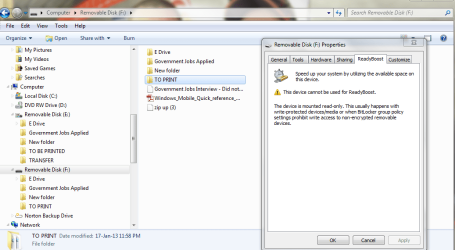
I also have an issue with a USB 2GB Removable Disk that is write protected how do I change that property?
I have tried connecting it to different computers and it still comes up with the same message that the external drive is write protected.
I do not know how to make a drive write protected.
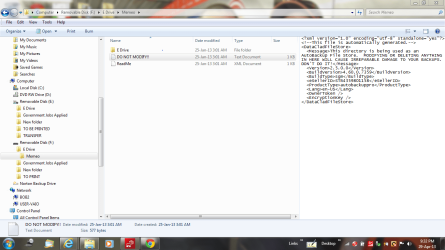
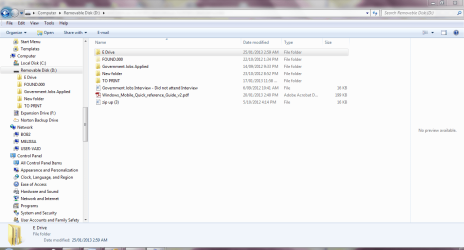
I have noticed that some of the items have .xml and it was used for a back up program for Memeo that came with another USB External hard drive.
https://skydrive.live.com/redir?resid=7A797BF1CB645296!285
I also wish to know how you could gain the zip.up file.
If you require any further information, please let me know.
I am only new to computers. I would like to use the disk again, preferably not loosing any data.
Melissa

This is what I have received:

a. Click start, type in regedit in the search bar and hit enter.

b. Navigate to the following registry location:

HKEY_LOCAL_MACHINE\System\CurrentControlSet\Contro l\StorageDevicePolicies

c. Click on StorageDevicePolicies and on the right-hand side there should be a DWORD value labelled WriteProtect. If there isn't one, create it. Either way, make sure it has a value of 0. Double-click it to change it.

d. Do the same with the following two locations (creating any non-existent keys/values along the way):

HKEY_LOCAL_MACHINE\SYSTEM\ControlSet001\Control
HKEY_LOCAL_MACHINE\SYSTEM\ControlSet002\Control

Important: This section, method, or task contains steps that tell you how to modify the registry. However, serious problems might occur if you modify the registry incorrectly. Therefore, make sure that you follow these steps carefully. For added protection, back up the registry before you modify it. Then, you can restore the registry if a problem occurs. For more information about how to back up and restore the registry, click the following article number to view the article in the Microsoft Knowledge Base:
322756 (How to back up and restore the registry in Windows XP )
How to back up and restore the registry in Windows.

Any assistance would be appreciated.

The skydrive link has the screen shots or if you require further clarification - please let me know?

:thumbsup:
 

My Computer My Computer

Computer type
Laptop
Computer Manufacturer/Model Number
Sony VAIO / E Series VPCEB46FG
OS
Windows 7 Home Premium 64bit
CPU
Windows 7 Service Pack 1 x86 NTFS
Motherboard
AMD E-350 Processor
Memory
4 GB
Hard Drives
500GB
Other Info
1.6GHz

My Computer My Computer

Computer type
PC/Desktop
OS
Microsoft Windows 7 Home Premium 64-bit 7601 Multiprocessor Free Service Pack 1
CPU
Intel(R) Core(TM) i7-3770 CPU @ 3.40GHz
Motherboard
ASUSTeK COMPUTER INC. P8H77-M
Memory
8.00 GB
Graphics Card(s)
Intel(R) HD Graphics 4000
Sound Card
On Board
Monitor(s) Displays
Dell 24"
Screen Resolution
1920 x 1080
Hard Drives
(1) INTEL SSDSC2CT180A3 ATA Device (2) ST500DM002-1BD142 ATA Device (3) WDC WD3200AAKS-75L9A0 ATA Device (4) Generic- Compact Flash USB Device (5) Generic- MS/MS-Pro USB Device (6) Generic- SD/MMC USB Device (7) Generic- SM/xD-Picture USB
PSU
500w Corsair
Case
Cooler Master
Cooling
3 Fans
Keyboard
Logitech MK300
Mouse
Logitech WOM
Internet Speed
75Mb
Antivirus
Norton 360
Browser
Firefox, Opera, IE
Hi Melissa,

As I understand your problem, you have a pen drive, which the OS says is write-protected and you want to disable it and write to it. Right?

You have also tried the same pen drive on other computers, which also say it is write protected.

It is crystal clear that it does not emanate from the registry entry being 0 or 1. So there is no point in trying to meddle with the registry.

The problem is with your pen drive. Connect another pen drive to your PC. If you are able to read and write into it, that is confirmed.
 

My Computer My Computer

OS
Windows 7 Home Premium 32 bit
Dear Forum,

I am trying the same disk on another computer and I have come to the conclusion that some way the disk gained a way of making it read only. As I am not the best at figuring out how it became that way and software operates, I thought I may post on here.

I also notice when I put it on another computer - I loose the FOUND.000 folder.

I gather then my only option is to keep it that way or look at loosing the data.

What are my options?
 

Attachments

  • read only - on another computer - user.PNG
    read only - on another computer - user.PNG
    47.4 KB · Views: 3
  • read only - on another computer - user1.PNG
    read only - on another computer - user1.PNG
    80.5 KB · Views: 2

My Computer My Computer

Computer type
Laptop
Computer Manufacturer/Model Number
Sony VAIO / E Series VPCEB46FG
OS
Windows 7 Home Premium 64bit
CPU
Windows 7 Service Pack 1 x86 NTFS
Motherboard
AMD E-350 Processor
Memory
4 GB
Hard Drives
500GB
Other Info
1.6GHz
Hi,

Please answer the following questions point by point so that we may better understand your problem. You seem to be confused and confusing others also. :)

1. How many external drives have you connected to your PC?

2. Please specify the make / model and capacity of each drive. (e.g.: Seagate GoFlex 500 GB)

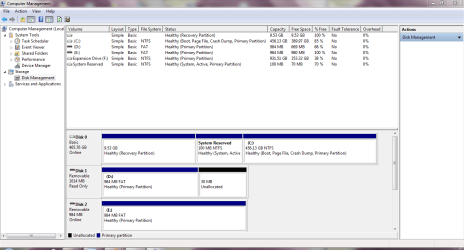
3. Please post the screenshot of the external drives in Disk Management. http://www.sevenforums.com/tutorials/274797-disk-management-post-screen-capture-image.html

4. What are you using Norton 360 for?

5. Have you purchased it or are you using a trial version? What exactly is your intention in using it?

6. If you have configured Norton 360 to back up any of your data which drive in the Disk Management is the destination? Please specify clearly what you are backing up or intend to backup.

7. What are you using Memeo for? If it came bundled with the external drive which one in the Disk Management is it? ( What all I know is, that crap comes bundled with Seagate external drives and the first thing I do or did is to wipe all those dirt, format the whole drive and use it just as an external drive. All that free software , IMO, is junk.)

8. Which drive in the Disk Management gives you the write protected message?

My observations:

I am afraid you are using one too many backup programs (junk included) without any clear idea of what to back up, how to backup and which program to use for such backups and that probably has created the mess you are in.

But first let us get the answers to the above questions. Once we understand your problem, there are many backup experts here (not me, of course :) ) who can advise you on the best strategy on backing up as well protecting your computer (in lieu of Norton 360).
 

My Computer My Computer

OS
Windows 7 Home Premium 32 bit
Hi,

Please answer the following questions point by point so that we may better understand your problem. You seem to be confused and confusing others also.

1. How many external drives have you connected to your PC?
Three

2. Please specify the make / model and capacity of each drive. (e.g.: Seagate GoFlex 500 GB)
Seagate 1TB
Generic FlashDisk 2GB
Generic Flashdisk 2GB

3. Please post the screenshot of the external drives in Disk Management. Disk Management - Post a Screen Capture Image

4. What are you using Norton 360 for?
Antivirus and other features that comes with the new version

5. Have you purchased it or are you using a trial version? What exactly is your intention in using it?
Trying to use it for protecting my computer for Viruses and Security - some of the Tune Up functions are great

6. If you have configured Norton 360 to back up any of your data which drive in the Disk Management is the destination? Please specify clearly what you are backing up or intend to backup.
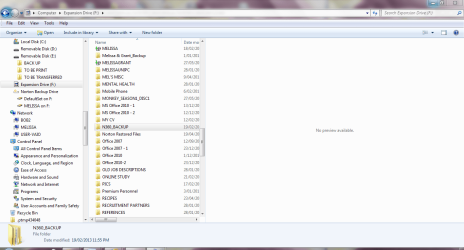
I have online back up on N360 and I also have it stored to the Seagate 1TB - F: Drive - have put a screen shot of where that is located on the drive

7. What are you using Memeo for? If it came bundled with the external drive which one in the Disk Management is it? ( What all I know is, that crap comes bundled with Seagate external drives and the first thing I do or did is to wipe all those dirt, format the whole drive and use it just as an external drive. All that free software , IMO, is junk.)

I used the free trial on Memeo anymore - the trial period for the premium back up has expired. It was originally on a Seagate 500GB External Hard Drive that is not operational at the moment. I had it psychically tested and it had bad sectors. I had the last resort and the back up of that drive is located now on the F: (1TB Seagate External Drive).
I was not aware of any other ways of backing up the data - and there was a lot of data on it. There is a whole section for the process that I went through on this forum under "Format of a disk issue". Many pictures of the drive dying - like myself.

8. Which drive in the Disk Management gives you the write protected message?

D:
My observations:

I am afraid you are using one too many backup programs (junk included) without any clear idea of what to back up, how to backup and which program to use for such backups and that probably has created the mess you are in.

I totally agree

But first let us get the answers to the above questions. Once we understand your problem, there are many backup experts here (not me, of course ) who can advise you on the best strategy on backing up as well protecting your computer (in lieu of Norton 360).
If you require any further information - please let me know - be kind - I am only a learner
 

Attachments

  • READ ONLY - DISK MANAGEMENT - 30-04-13A.PNG
    READ ONLY - DISK MANAGEMENT - 30-04-13A.PNG
    33.9 KB · Views: 4
  • READ ONLY - DISK MANAGEMENT - 30-04-13.PNG
    READ ONLY - DISK MANAGEMENT - 30-04-13.PNG
    37.4 KB · Views: 4
  • READ ONLY - DISK MANAGEMENT - 30-04-13 - F DRIVE.PNG
    READ ONLY - DISK MANAGEMENT - 30-04-13 - F DRIVE.PNG
    57.8 KB · Views: 4
  • READ ONLY SNIP 30-04-13A.PNG
    READ ONLY SNIP 30-04-13A.PNG
    52.9 KB · Views: 4

My Computer My Computer

Computer type
Laptop
Computer Manufacturer/Model Number
Sony VAIO / E Series VPCEB46FG
OS
Windows 7 Home Premium 64bit
CPU
Windows 7 Service Pack 1 x86 NTFS
Motherboard
AMD E-350 Processor
Memory
4 GB
Hard Drives
500GB
Other Info
1.6GHz
Thanks for all the information.

So I am now sure that a non-descript 2GB pen drive is the one that has turned into read only. Honestly, I wouldn't lose my sleep on it.( It is time for me to retire for the day.:)) I would just copy any data I may think I need, dispose it off and buy a branded pen drive with warranty.

If you still want to try rejuvenating it, download HP USB Disk Storage Format Tool Download HP USB Disk Storage Format Tool 2.2.3 Free - Windows-based Format Utility for HP Drive Key or DiskOnKey USB Device - Softpedia
Right click on it and run as administrator to format that pen drive.(backup your data before formatting). If it fails to format, end of the story.

Give the same treatment to your 1 TB Seagate ext. drive after backing up all data you may not want to lose. That should get rid of all memeo junk and other debries from your ext. HDD.

Just as a general comment,

1. Most of us here just use Microsoft Security Essentials for System Security that has proved to be more than sufficient.

2. Windows 7 does not require any tune-up. It is well tuned already.:)

3. Most here use the free MacriumReflect for backup.
 
Last edited:

My Computer My Computer

OS
Windows 7 Home Premium 32 bit
Back
Top