XP Dual Boot issue - 200mb System Partition

shotcaller88

New member
Local time
10:05 AM
Messages
8
My Lenovo y450 notebook came with Win7 Premium x64 installed. I set it up to Dual Boot with XP Pro. I used EasyBCD and everything went rather smoothly.
My issue is that XP recognized the 200mb System partition (created by the factory install of win7) as the C partition. This causes issues when attempting to install the XP drivers as they try to extract to the C partition. The driver installation error instructs me to free up more space on the C partition. Note: XP is installed on the D partition.
I have tried several things and after much research, I'm not quite sure what to do. I assigned a drive letter ('S') to the 200mb partition in win7. This didn't change anything in XP. I cannot reassign the drive letter in XP because it is a system drive. I know you can change drive letters of system drives via the registry, however I fear this may screw with the boot files.
Is there any known fix for this? I do not mind installing XP again, if necessary. I was thinking about using a partition utility to temporarily expand the 200mb partition to allow enough space to extract the XP drivers. However, I fear I may encounter other issues in the future with XP installed on the D partition.

Thank you very much for any helpful replies.
 

My Computer My Computer

OS
windows 7

My Computer My Computer

Computer type
PC/Desktop
Computer Manufacturer/Model Number
Pauly Special
OS
Win7 Ultimate X64
CPU
Intel i5 3570K
Motherboard
Gigabyte Z77X-DS3H
Memory
8GB DDR3 1600
Graphics Card(s)
Onboard
Sound Card
Onboard
Screen Resolution
1280x1024
Hard Drives
Samsung 840 Evo SSD (OS)
1TB Spinner (Data)
PSU
800W Arctic
Case
Cooler Master
Cooling
3x120mm Fans
Keyboard
MS Wireless
Mouse
MS Wireless
Internet Speed
20M
Can you please post back a screenshot of your full Disk Management drive map, using SNipping Tool in Start Menu, attaching file using paper clip in reply box.

Would you consider: expanding deleted C: Sys Reserved partition to reinstall XP there, then recover the MBR into Win7 using Startup Repair from booted Win7 DVD, add XP back to Dual Boot using EasyBCD 2.0?
 
Having a 200 mb partition in the RTM is a little strange. I wonder if Lenovo added something to the normal 100 mb partition?
 

My Computer My Computer

Computer Manufacturer/Model Number
Homebuilt
OS
Windows 7 x64
CPU
i7-2600K
Motherboard
Asus P8Z77-v Pro
Memory
8 G
Graphics Card(s)
GTX 480
Sound Card
Onboard
Monitor(s) Displays
LG W2753V
Screen Resolution
1920x1080
Hard Drives
Crucial M4 128 G SSD
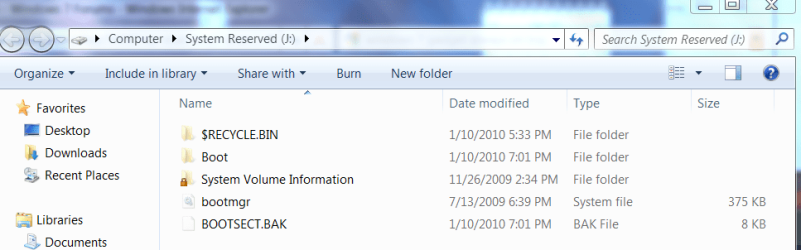
You can check if it is a standard 100mb System Reserved partition by unhiding Hidden Files and Protected OS files in Control Panel>Folder Options>View tab.

It should look like this:

Capture.PNG

A standard Sys Reserved partition like this can be deleted (or in your case, formatted to be used as a Primary OS partition) and recovered into Win7 partition using Win7 DVD Startup Repair.
 
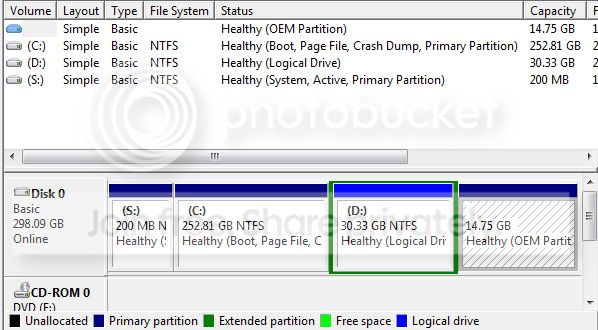
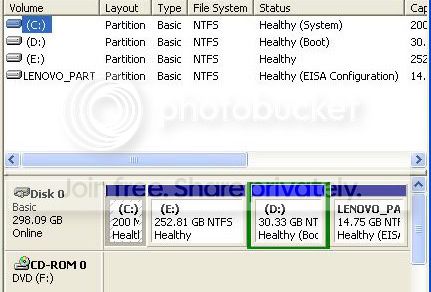
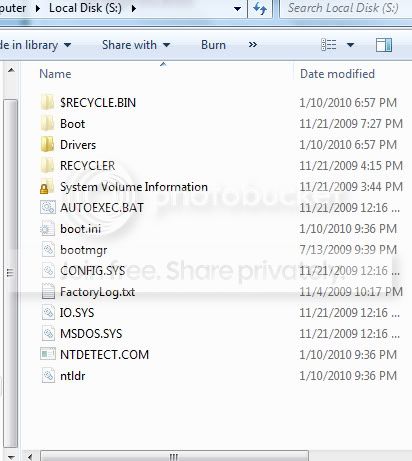
Thank you very much for the replies. Here are a few screen shots.

Disk Management Win7
diskmanagement7.jpg


Disk Management XP
diskmanagementXP.jpg


200mb drive - Win7
s-drive.jpg
 

My Computer My Computer

OS
windows 7
Would you consider: expanding deleted C: Sys Reserved partition to reinstall XP there, then recover the MBR into Win7 using Startup Repair from booted Win7 DVD, add XP back to Dual Boot using EasyBCD 2.0?

Yes! I would definitely consider that. Sounds like a wonderful idea. If you don't mind, can you take a look at the screen shots I posted and let me know if you think that would work fine?

Having a 200 mb partition in the RTM is a little strange. I wonder if Lenovo added something to the normal 100 mb partition?

The hard drive came from Lenovo with 4 partitions.
1) Win7 - 250gb
2) Drivers - 30gb (just a single folder with drivers)
3) 200mb (hidden)
4) Recovery - 16gb (hidden)

I burned the drivers to disc and used that partition to install XP.
 

My Computer My Computer

OS
windows 7
The 200mb holds the boot files for both Win7 and XP. I would delete it to recover MBR into Win7, then resize Win7 into it's space, make it smaller and create a new XP partition and possibly logical data partition to the right of Win7.

To do this, back up your files and a Win7 system image externally as resizing operations can fail. Make your Recovery Disks if possible from hidden Recovery partition.

Boot Partition Wizard CD, choose 1 for screen resolution, rightclick 200mb>Delete, OK.

Now right click Win7 partition>Modify>Set to Active, then rightclick Resize>drag left border over deleted 200mb space, then drag right border to make room for XP, poss. logical data partition, OK.

Right click unallocated space to create, format XP Primary partition, OK. Ditto Logical Data partition if you wish. Now apply all steps. If necessary, you may need to break these steps into two separate groups.

Boot into Win7 DVD Repair console, click through to Recovery Tools to run Startup Repair up to 3 separate times to rewrite MBR to Win7 partition.

Install XP, adding it to Dual Boot Menu by following the steps in Method Two here: http://www.sevenforums.com/tutorials/8057-dual-boot-installation-windows-7-xp.html
 
Last edited:
Wow, seems like a bit of a mission. I'm game though. Thank you so much for the detailed instructions. I greatly appreciate your time. I won't have time to try it out for a few days or more, but I will be sure to report back. Thanks again Greg!
 

My Computer My Computer

OS
windows 7
It seems complicated, but PW makes it easy with graphical interface, slider buttons, cueing up steps before you Apply them at end.

What wraps it up nicely is that Startup Repair in Win7 is automated with all the former bootrec and bootsect commands which had to be typed out. It may require running it up to 3 separate times with reboot as it has multiple issues to fix.
 
Greg, I went ahead and followed your steps. It wasn't as bad as I thought. Everything went extremely smoothly. Then I realized in XP the C drive is the win7 partition. XP is on the d partition. Did I do something wrong?
I went to install some Lenovo drivers and they were trying to overwrite files on the win7 partition.
 

My Computer My Computer

OS
windows 7
You didn't do anything wrong.

I notice your original 200mb had a folder called "Drivers" in there, amongst other things. They must something Lenovo put there. Could be the issue now.

What drivers are you installing and why?

What are they trying to overwrite, and where?
 

My Computers My Computers

System One System Two

  • Computer type
    PC/Desktop
    OS
    7 X64
    CPU
    i5 8400
    Motherboard
    gigabyte b365m ds3h
    Memory
    2x8gb 3200mhz
    Hard Drives
    various
    PSU
    pure power 11 400w cm
    Case
    Coolermaster
    Cooling
    cryorig m9i
  • Computer type
    PC/Desktop
    OS
    7x64
    CPU
    g5400
    Motherboard
    ga b365m ds3h
    Memory
    8gb ddr4 2400
    PSU
    xfx pro 450w
The drivers folder on the 200mb partition was created when I initially attempted to install the Lenovo drivers. The 200mb was not enough space to complete the installation though.

I followed Greg's instructions and the 200mb partition is now gone.
I need to install several drivers (on XP) wifi, ethernet, audio, video, bluetooth, card reader and more. Nothing is working. They are trying to overwrite the win7 drivers on the C (win7) partition.

**edit**

One thing that I really need to install in XP is the AHCI driver. Right now, I have to go into the Bios and switch it to IDE every time I boot in XP. Then I have to switch it back to AHCI before I boot in win7. If I forget...BSOD.
 

My Computer My Computer

OS
windows 7
Is there no option to install the Lenovo XP drivers on D ? Most installers will allow you to browse to an installation directory.

How are you installing them ? Are you booted into XP when you try to install them?
 

My Computers My Computers

System One System Two

  • Computer type
    PC/Desktop
    OS
    7 X64
    CPU
    i5 8400
    Motherboard
    gigabyte b365m ds3h
    Memory
    2x8gb 3200mhz
    Hard Drives
    various
    PSU
    pure power 11 400w cm
    Case
    Coolermaster
    Cooling
    cryorig m9i
  • Computer type
    PC/Desktop
    OS
    7x64
    CPU
    g5400
    Motherboard
    ga b365m ds3h
    Memory
    8gb ddr4 2400
    PSU
    xfx pro 450w
No, no options at all. I double click the exe and it begins extracting to C. Yes, I am in XP when attempting to install.
I can now let them install to C, but am hesitant to overwrite the win7 drivers. Especially because I am dual booting XP x86 and Win 7 x64.
 

My Computer My Computer

OS
windows 7
Install your XP drivers from the XP Device manager. Click on the Device, then Driver tab, then Browse to the location where you've unzipped the driver file until you pick up the driver.

Let us know if you need any help. Take your time. The drivers can be installed this way. Just unzip them to XP if you can, but if they unzip to Win7, you can still browse there from the XP Device Manager.
 
You were right, the drivers were just extracting to C:/drivers. I prompted to overwrite the existing files and the installation packs installed into the correct location (d:).
I just got everything working 100%. I had to install XP one more time. I used nlite to add the AHCI driver to the installation disc. That worked great.
I also had issues with Realtek HD Audio. I would install the drivers, but upon restarting, there was still no audio device detected. After installing SP3, I installed the Realtek drivers and they worked as they should have.
I then had one more unknown device in device manager. It ended up being an Intel HDMI audio driver. I googled, found the driver and it worked. I probably didn't really need this, but I don't like missing drivers!
Now everything is running nice & smooth. Thanks a ton. I couldn't have done it without your help!
 

My Computer My Computer

OS
windows 7
Back
Top