XP integration disabled

benef

New member
Local time
12:18 AM
Messages
6
Initiating Virtual XP, I get a blank screen. Clicking on Tools and the Enable Integration Features caused the hard drive to run and I get a dialog box that says Integration Features disabled. The only file in my Virtual Machine folder is Windows XP Mode.vcmx. I have checked the Show hidden folders and unchecked the Hide extensions. How may I get XP to run correctly or, alternatively, recover the files in the XP hard disk?
 

My Computer

OS
Virtual XP in Windows 7 Professional
Hi Benef, welcome to the Seven Forums.

Please check folder C:\Users\Your_Username\AppData\Local\Microsoft\Windows Virtual PC\Virtual Machines. If the file Windows XP Mode.vsv exists, delete it and try to launch XP Mode again.

Kari
 

My Computer

Computer type
Laptop
Computer Manufacturer/Model Number
HP ENVY 17-1150eg
OS
Windows 10 Pro x64 EN-GB
CPU
1.6 GHz Intel Core i7-720QM Processor
Memory
6 GB
Graphics Card(s)
ATI Mobility Radeon HD 5850 Graphics
Sound Card
Beats sound system with integrated subwoofer
Monitor(s) Displays
17" laptop display, 22" LED and 32" Full HD TV through HDMI
Screen Resolution
1600*900 (1), 1920*1080 (2&3)
Hard Drives
Internal: 2 x 500 GB SATA Hard Disk Drive 7200 rpm
External: 2TB for backups, 3TB USB3 network drive for media
Cooling
As Envy runs a bit warm, I have it on a Cooler Master pad
Keyboard
Logitech diNovo Media Desktop Laser (bluetooth)
Mouse
Logitech Performance Mouse MX
Internet Speed
50/10 Mbps VDSL
Antivirus
Windows Defender 4.3.9431.0
Browser
Maxthon 3.5.2., IE11
Kari -

Many thanks for your advice.

In spite of checking show hidden files and unchecking hide extensions only Windows XP Mode.vmcx appears in my Virtual Machines folder. Is there another action I can take to use XP? Alternatively, is there a way to access the files on the XP Hard Disk 1?

Benef
 

My Computer

OS
Virtual XP in Windows 7 Professional
Benef, sorry but it looks like you checked from a wrong place.

The Windows XP Mode.vmcx file only contains some virtual machine description and registration settings. Its default location is:
C:\Users\Your_Username\Virtual Machines. You are telling me your Virtual Machines folder only contains this .vmcx file so for me it looks you are only checking this folder, and not the folder I asked you to check:
C:\Users\Your_Username\AppData\Local\Microsoft\Windows Virtual PC\Virtual Machines.

If the latter folder contains nothing then you have lost your virtual hard drive.

   Information
By default, XP Mode virtual machine consists of five files when installed and run first time, plus two additional files if XP Mode is hibernated or the Undo Disk feature is enabled. The file names, extensions and default locations are:

  • Windows XP Mode.vmcx
    • Virtual Machine description and registration settings
    • default location C:\Users\Your_Username\Virtual Machines
  • Windows XP Mode.vhd
    • Virtual Machine virtual hard drive image
    • default location C:\Users\Your_Username\AppData\Local\Microsoft\Windows Virtual PC\Virtual Machines
  • Windows XP Mode.vmc
    • Virtual Machine settings file
    • default location C:\Users\Your_Username\AppData\Local\Microsoft\Windows Virtual PC\Virtual Machines
  • Windows XP Mode.vsv
    • Virtual Machine saved state file (hibernation data)
    • default location C:\Users\Your_Username\AppData\Local\Microsoft\Windows Virtual PC\Virtual Machines
    • This file exists only when XP Mode is hibernated or is running. It is deleted automatically every time XP Mode is shut down
  • Windows XP Mode.vmc.vpcbackup
    • Virtual Machine settings backup
    • default location C:\Users\Your_Username\AppData\Local\Microsoft\Windows Virtual PC\Virtual Machines
  • VirtualPCUndo_Windows XP Mode_X_Y_ZZZZZZZZZZZZZZ.vud
    • Virtual machine Undo-disk (X, Y & Z in the file name are replaced with digits)
    • default location C:\Users\Your_Username\AppData\Local\Microsoft\Windows Virtual PC\Virtual Machines
    • This file exists only if so called Undo Disk is enabled in XP Mode settings
  • Windows XP Mode base.vhd
    • XP Mode base disk
    • default location C:\Program Files\Windows XP Mode

Notice that AppData is a hidden folder so you need to enable showing hidden files and folders.

Kari
 

My Computer

Computer type
Laptop
Computer Manufacturer/Model Number
HP ENVY 17-1150eg
OS
Windows 10 Pro x64 EN-GB
CPU
1.6 GHz Intel Core i7-720QM Processor
Memory
6 GB
Graphics Card(s)
ATI Mobility Radeon HD 5850 Graphics
Sound Card
Beats sound system with integrated subwoofer
Monitor(s) Displays
17" laptop display, 22" LED and 32" Full HD TV through HDMI
Screen Resolution
1600*900 (1), 1920*1080 (2&3)
Hard Drives
Internal: 2 x 500 GB SATA Hard Disk Drive 7200 rpm
External: 2TB for backups, 3TB USB3 network drive for media
Cooling
As Envy runs a bit warm, I have it on a Cooler Master pad
Keyboard
Logitech diNovo Media Desktop Laser (bluetooth)
Mouse
Logitech Performance Mouse MX
Internet Speed
50/10 Mbps VDSL
Antivirus
Windows Defender 4.3.9431.0
Browser
Maxthon 3.5.2., IE11
Kari -

Again, thanks much.

OK, so I can't read. I accessed the Virtual Machine folder you told me to and deleted the file. I got to the screen asking for my user name and password which I had not intentionally set. Clicking on OK resulted in a dialog box that one or borh are incorrect. Can I work around this?

Benef
 

My Computer

OS
Virtual XP in Windows 7 Professional
The default username for XP Mode is XPMUser (notice: 4 first letters capital). The password I do not know; when you set up XP Mode it asked you to set a password. Try to remember what was the initial password you set up, then log in using username XPMUser and that password.

Kari
 

My Computer

Computer type
Laptop
Computer Manufacturer/Model Number
HP ENVY 17-1150eg
OS
Windows 10 Pro x64 EN-GB
CPU
1.6 GHz Intel Core i7-720QM Processor
Memory
6 GB
Graphics Card(s)
ATI Mobility Radeon HD 5850 Graphics
Sound Card
Beats sound system with integrated subwoofer
Monitor(s) Displays
17" laptop display, 22" LED and 32" Full HD TV through HDMI
Screen Resolution
1600*900 (1), 1920*1080 (2&3)
Hard Drives
Internal: 2 x 500 GB SATA Hard Disk Drive 7200 rpm
External: 2TB for backups, 3TB USB3 network drive for media
Cooling
As Envy runs a bit warm, I have it on a Cooler Master pad
Keyboard
Logitech diNovo Media Desktop Laser (bluetooth)
Mouse
Logitech Performance Mouse MX
Internet Speed
50/10 Mbps VDSL
Antivirus
Windows Defender 4.3.9431.0
Browser
Maxthon 3.5.2., IE11
Kari -

You do good work.

My recollection is that when I set up XP I did not use a password. I have been using XP for several months without entering either name or password. I would get this box for a few seconds during launch but it went away with no action on my point. Can I return to this mode? Is there a way to change/eliminate the password?

Benef
 

My Computer

OS
Virtual XP in Windows 7 Professional
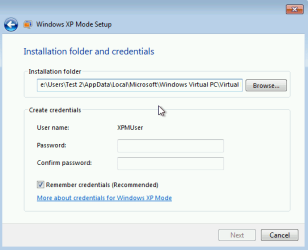
Sorry but XP Mode does not let you to set it up without password. This window comes up during setup and does not let you advance without password (notice the grayed out NEXT button when no initial password given):

XPMUser_initial_password.png

By default the Remember Credentials option is selected so most probably you have set a password and forgotten it because you never have had to type it.

Kari
 

My Computer

Computer type
Laptop
Computer Manufacturer/Model Number
HP ENVY 17-1150eg
OS
Windows 10 Pro x64 EN-GB
CPU
1.6 GHz Intel Core i7-720QM Processor
Memory
6 GB
Graphics Card(s)
ATI Mobility Radeon HD 5850 Graphics
Sound Card
Beats sound system with integrated subwoofer
Monitor(s) Displays
17" laptop display, 22" LED and 32" Full HD TV through HDMI
Screen Resolution
1600*900 (1), 1920*1080 (2&3)
Hard Drives
Internal: 2 x 500 GB SATA Hard Disk Drive 7200 rpm
External: 2TB for backups, 3TB USB3 network drive for media
Cooling
As Envy runs a bit warm, I have it on a Cooler Master pad
Keyboard
Logitech diNovo Media Desktop Laser (bluetooth)
Mouse
Logitech Performance Mouse MX
Internet Speed
50/10 Mbps VDSL
Antivirus
Windows Defender 4.3.9431.0
Browser
Maxthon 3.5.2., IE11
Kari -

I was skeptical and still don't remember setting up a password but I took a guess and, imagine that!, you were correct. I guessed right and am back in business with XP.

I greatly appreciate your help as all my client files were in jeopardy. Your expertise was an answer to prayer.

I am very greatful for your help and patience.

Benef
 

My Computer

OS
Virtual XP in Windows 7 Professional

My Computer

Computer type
Laptop
Computer Manufacturer/Model Number
HP ENVY 17-1150eg
OS
Windows 10 Pro x64 EN-GB
CPU
1.6 GHz Intel Core i7-720QM Processor
Memory
6 GB
Graphics Card(s)
ATI Mobility Radeon HD 5850 Graphics
Sound Card
Beats sound system with integrated subwoofer
Monitor(s) Displays
17" laptop display, 22" LED and 32" Full HD TV through HDMI
Screen Resolution
1600*900 (1), 1920*1080 (2&3)
Hard Drives
Internal: 2 x 500 GB SATA Hard Disk Drive 7200 rpm
External: 2TB for backups, 3TB USB3 network drive for media
Cooling
As Envy runs a bit warm, I have it on a Cooler Master pad
Keyboard
Logitech diNovo Media Desktop Laser (bluetooth)
Mouse
Logitech Performance Mouse MX
Internet Speed
50/10 Mbps VDSL
Antivirus
Windows Defender 4.3.9431.0
Browser
Maxthon 3.5.2., IE11
Kari -

I very much appreciate your help. I had it for a day and while in the Administrator account, I saw the password screen and the option to eliminate the password. The dialog box said that if I did so, anyone could get to the system which is what I had for several months.

You know the result - I can't access XP. Is there any way to work around this?

I'm sorry I'm such a dunce and will either ask before I do anything again or, more likely, refrain from doing it.

Benef
 

My Computer

OS
Virtual XP in Windows 7 Professional
Happens to everyone of us, Benef ;)

Microsoft Virtual PC virtual machines, including XP Mode, require a password when Integration Components are installed and enabled. There are no workarounds. Simply:
  • Integration enabled > to login the user account used must have a password
  • Integration disabled > login possible also to user accounts which do not have a password
If you have removed the password from an user account in XP Mode and can't log in to it, log in to another user account with admin rights, goto XP Mode Control Panel > Users and set a password to that account with no password.

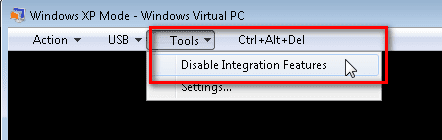
If you have removed the password from all user accounts with admin rights, boot XP Mode and when in login screen, disable Integration Features from Tools menu:
2012-08-16_100424.png

Now you can log in to accounts which have no password.

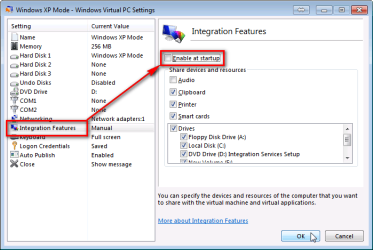
If you have problems to get in to the login screen or to disable Integration Features from Tools menu, close XP Mode and delete the hibernation file as told in my first reply, then disable Integration from XP Mode settings by deselecting Enable at startup as shown here:
2012-08-16_094245.png

Now start XP Mode, login with no password, goto Control Panel > Users and set password, enable Integration from Tools menu and everything will be fine again :).

Option Two in this tutorial shows how to set a password for the built-in Administrator account: http://www.sevenforums.com/tutorials/239062-windows-xp-mode-enable-built-administrator-account.html

Kari

 

My Computer

Computer type
Laptop
Computer Manufacturer/Model Number
HP ENVY 17-1150eg
OS
Windows 10 Pro x64 EN-GB
CPU
1.6 GHz Intel Core i7-720QM Processor
Memory
6 GB
Graphics Card(s)
ATI Mobility Radeon HD 5850 Graphics
Sound Card
Beats sound system with integrated subwoofer
Monitor(s) Displays
17" laptop display, 22" LED and 32" Full HD TV through HDMI
Screen Resolution
1600*900 (1), 1920*1080 (2&3)
Hard Drives
Internal: 2 x 500 GB SATA Hard Disk Drive 7200 rpm
External: 2TB for backups, 3TB USB3 network drive for media
Cooling
As Envy runs a bit warm, I have it on a Cooler Master pad
Keyboard
Logitech diNovo Media Desktop Laser (bluetooth)
Mouse
Logitech Performance Mouse MX
Internet Speed
50/10 Mbps VDSL
Antivirus
Windows Defender 4.3.9431.0
Browser
Maxthon 3.5.2., IE11
Back
Top