Solved XP mode autologin

eldinv

New member
Guru
Local time
3:23 PM
Messages
560
Location
New Hampshire
I guess its been a while since I've used XP.

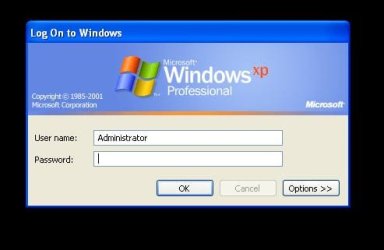
I am currently running XP mode, on my Windows 7 host but it doesn't login in all the way.

I don't have a password, so I just press Enter. I feel old now..

Please forgive me I feel stupid.
 

Attachments

  • Capture.JPG
    Capture.JPG
    22.7 KB · Views: 15

My Computers

System One System Two

  • Computer type
    PC/Desktop
    Computer Manufacturer/Model Number
    PowerSpec G164
    OS
    WIN10
    CPU
    AMD Ryzen 5 3600 6-Core Processor 3.59 GHz
    Memory
    16.0 GB
    Internet Speed
    VERY FAST>>>!!!
  • Antivirus
    ESET Security Premium
Hi there
Run from the RUN command : control userpasswords2

Then click on the user and uncheck the User must enter a user name and password to use this computer box.


You'll be prompted for a default user and the password

Next login computer will start automatically with that user bypassing the logon prompt screen.

Also works in W7 BTW.


Cheers

jimbo
 

My Computer

Computer type
PC/Desktop
Computer Manufacturer/Model Number
Custom built, several laptops HP/ASUS
OS
Linux CENTOS 7 / various Windows OS'es and servers
CPU
Intel i7 Intel i5
Memory
8GB, 16GB
Graphics Card(s)
On Motherboard
Sound Card
Realtek HD audio
Monitor(s) Displays
Apple Cinema display, Samsung LCD
Screen Resolution
1920 X 1080
Hard Drives
4 X 1TB SATA
Mouse
Toshiba wireless laser
Internet Speed
> 20MB up
If integration features are enabled, all user accounts must have a password in XP Mode. You can only use accounts with no password by disabling integration features.

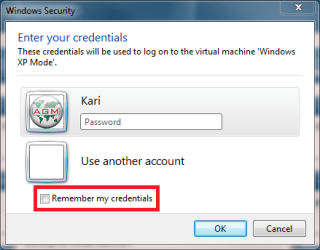
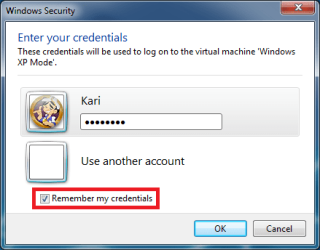
I can simply find no reason to use XP Mode without integration features. Create a password, enable integration and save credentials if you don't want to type password every time:

XPMode_credentials.png

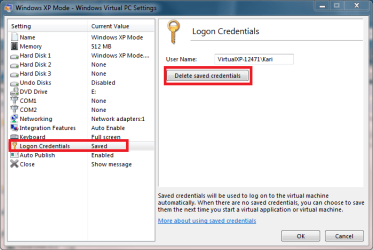
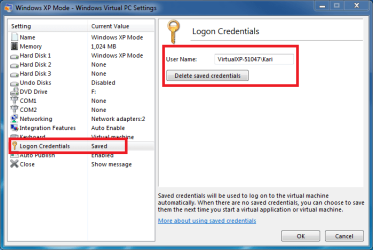
You can always delete saved credentials from XP Mode settings:

XPMode_delete_credentials.png

Kari
 

My Computer

Computer type
Laptop
Computer Manufacturer/Model Number
HP ENVY 17-1150eg
OS
Windows 10 Pro x64 EN-GB
CPU
1.6 GHz Intel Core i7-720QM Processor
Memory
6 GB
Graphics Card(s)
ATI Mobility Radeon HD 5850 Graphics
Sound Card
Beats sound system with integrated subwoofer
Monitor(s) Displays
17" laptop display, 22" LED and 32" Full HD TV through HDMI
Screen Resolution
1600*900 (1), 1920*1080 (2&3)
Hard Drives
Internal: 2 x 500 GB SATA Hard Disk Drive 7200 rpm
External: 2TB for backups, 3TB USB3 network drive for media
Cooling
As Envy runs a bit warm, I have it on a Cooler Master pad
Keyboard
Logitech diNovo Media Desktop Laser (bluetooth)
Mouse
Logitech Performance Mouse MX
Internet Speed
50/10 Mbps VDSL
Antivirus
Windows Defender 4.3.9431.0
Browser
Maxthon 3.5.2., IE11
I imported the VHD of XP mode into VMWare Player so I bypass Virtual PC. I find things run smoother hosting XP inside VMWare.

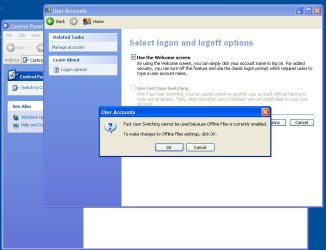
In the control panel and selected how users log in and off.

I then put a check into the box "Use the Welcome Screen" and that did the trick.
 

Attachments

  • Capture2.JPG
    Capture2.JPG
    60.5 KB · Views: 58

My Computers

System One System Two

  • Computer type
    PC/Desktop
    Computer Manufacturer/Model Number
    PowerSpec G164
    OS
    WIN10
    CPU
    AMD Ryzen 5 3600 6-Core Processor 3.59 GHz
    Memory
    16.0 GB
    Internet Speed
    VERY FAST>>>!!!
  • Antivirus
    ESET Security Premium
Password dialogue box question

Kari,
How do you find the create password dialogue box that you displayed? I'm having a problem saving my credentials.
Thanks.

Mark

If integration features are enabled, all user accounts must have a password in XP Mode. You can only use accounts with no password by disabling integration features.

I can simply find no reason to use XP Mode without integration features. Create a password, enable integration and save credentials if you don't want to type password every time:

View attachment 114164

You can always delete saved credentials from XP Mode settings:

View attachment 114165

Kari
 

My Computer

OS
Windows 7
OK Mark, here's what you should do.

  1. Install Virtual PC integration components if you haven't already installed them. Run XP Mode, go to Tools menu and select Install Integration Components
    .
    XPM_Integration1.png
    .
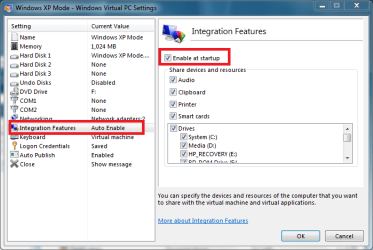
  2. Go then to XPM settings and check that integration is set to start automatically
    .
    XPM_Integration4.png
    .
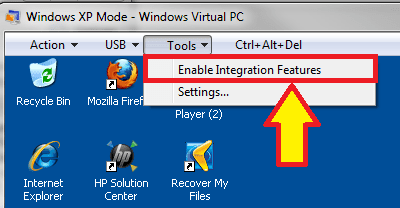
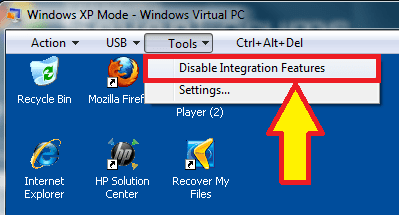
  3. Later you can always turn Integration Features on or off as you wish
    .
    XPM_Integration2.png XPM_Integration3.png
    .
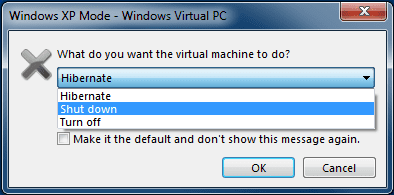
  4. By default, XP Mode is always automatically hibernated instead of shut down when you close it. We need to change that so XPM always asks you what to do, if you want to hibernate or shut down. For this, open XPM settings, choose Close from left pane and select Prompt for action. Click OK to accept changes
    .
    XPM_Closing.png
    .
  5. Now shut down XPM by selecting Shut down from close dialog
    .
    XPM_Closing_2.png
    .
  6. When XPM is off, open settings and delete saved credentials if any exists
    .
    XPM_Delete_credentials.png
    .
  7. Run XPM, choose the user, give password, and select Remember my credentials
    .
    XPM_Remember_credentials.png

That's it.

Kari
 
Last edited:

My Computer

Computer type
Laptop
Computer Manufacturer/Model Number
HP ENVY 17-1150eg
OS
Windows 10 Pro x64 EN-GB
CPU
1.6 GHz Intel Core i7-720QM Processor
Memory
6 GB
Graphics Card(s)
ATI Mobility Radeon HD 5850 Graphics
Sound Card
Beats sound system with integrated subwoofer
Monitor(s) Displays
17" laptop display, 22" LED and 32" Full HD TV through HDMI
Screen Resolution
1600*900 (1), 1920*1080 (2&3)
Hard Drives
Internal: 2 x 500 GB SATA Hard Disk Drive 7200 rpm
External: 2TB for backups, 3TB USB3 network drive for media
Cooling
As Envy runs a bit warm, I have it on a Cooler Master pad
Keyboard
Logitech diNovo Media Desktop Laser (bluetooth)
Mouse
Logitech Performance Mouse MX
Internet Speed
50/10 Mbps VDSL
Antivirus
Windows Defender 4.3.9431.0
Browser
Maxthon 3.5.2., IE11
Kari,
Thank you so much. Your step-by-step instructions are great.

Mark
 

My Computer

OS
Windows 7
You are welcome :)
 

My Computer

Computer type
Laptop
Computer Manufacturer/Model Number
HP ENVY 17-1150eg
OS
Windows 10 Pro x64 EN-GB
CPU
1.6 GHz Intel Core i7-720QM Processor
Memory
6 GB
Graphics Card(s)
ATI Mobility Radeon HD 5850 Graphics
Sound Card
Beats sound system with integrated subwoofer
Monitor(s) Displays
17" laptop display, 22" LED and 32" Full HD TV through HDMI
Screen Resolution
1600*900 (1), 1920*1080 (2&3)
Hard Drives
Internal: 2 x 500 GB SATA Hard Disk Drive 7200 rpm
External: 2TB for backups, 3TB USB3 network drive for media
Cooling
As Envy runs a bit warm, I have it on a Cooler Master pad
Keyboard
Logitech diNovo Media Desktop Laser (bluetooth)
Mouse
Logitech Performance Mouse MX
Internet Speed
50/10 Mbps VDSL
Antivirus
Windows Defender 4.3.9431.0
Browser
Maxthon 3.5.2., IE11
Maybe not that solved - for me,that is.

If integration features are enabled, all user accounts must have a password in XP Mode. You can only use accounts with no password by disabling integration features.

I can simply find no reason to use XP Mode without integration features. Create a password, enable integration and save credentials if you don't want to type password every time:

View attachment 114164

You can always delete saved credentials from XP Mode settings:

View attachment 114165

Kari

I find this very interesting and I done as Kari says, but after delete credetials there in NO way getting them back. I used your pretty good guide - but NO. I can see the "first" login parse a incorrect password to the XP-login. Even when I changed it and used remember! It won't remember (saved credential in never lit up anymore). This makes integration disabled, ever which way. And I DO need it! HELP!:eek:
 

My Computer

OS
W7Pro x64
Back
Top