XP won't boot into installation

Nikolay

Hello
Power User
Local time
9:44 PM
Messages
381
Location
Massachusetts
I'm trying to install XP on a partition. I made a new partition for XP. After the setup copies the files to the partition, my system restarts, to my Windows 7 partition instead of the XP installation setup.
 

My Computer

Computer Manufacturer/Model Number
Started out as an AST180
OS
Windows 7 Ultimate x64 | Windows XP Pro x86 | Windows Vista Ultimate x86
CPU
AMD Athlon 64 X2 Dual Core 5200 2.7 GHz
Motherboard
Acer EM61SM/EM61PM
Memory
3G RAM
Graphics Card(s)
ATI HD Radeon 4670
Screen Resolution
1280x1024
Hard Drives
Western Digital Caviar Black WD1001FALS 1TB 7200 RPM 32MB Cache, 160 GB Seagate
PSU
Corsair 450VX 450W
Keyboard
Microsoft Media Pro 3000
Mouse
Logitech MX310
Once you have completed the installation of Windows XP

Setup doesn't boot, Windows 7 boots up instead.
 

My Computer

Computer Manufacturer/Model Number
Started out as an AST180
OS
Windows 7 Ultimate x64 | Windows XP Pro x86 | Windows Vista Ultimate x86
CPU
AMD Athlon 64 X2 Dual Core 5200 2.7 GHz
Motherboard
Acer EM61SM/EM61PM
Memory
3G RAM
Graphics Card(s)
ATI HD Radeon 4670
Screen Resolution
1280x1024
Hard Drives
Western Digital Caviar Black WD1001FALS 1TB 7200 RPM 32MB Cache, 160 GB Seagate
PSU
Corsair 450VX 450W
Keyboard
Microsoft Media Pro 3000
Mouse
Logitech MX310
That was what my link addresses. The reason why setup won't boot is because of the hidden system partition.
 

My Computer

OS
Windows 7
Yes, I followed method 2.

The reason why setup won't boot is because of the hidden system partition.

How do I make it available?
 

My Computer

Computer Manufacturer/Model Number
Started out as an AST180
OS
Windows 7 Ultimate x64 | Windows XP Pro x86 | Windows Vista Ultimate x86
CPU
AMD Athlon 64 X2 Dual Core 5200 2.7 GHz
Motherboard
Acer EM61SM/EM61PM
Memory
3G RAM
Graphics Card(s)
ATI HD Radeon 4670
Screen Resolution
1280x1024
Hard Drives
Western Digital Caviar Black WD1001FALS 1TB 7200 RPM 32MB Cache, 160 GB Seagate
PSU
Corsair 450VX 450W
Keyboard
Microsoft Media Pro 3000
Mouse
Logitech MX310
If you have the 100 mb Win 7 Reserved System Partition, try giving it a drive letter, like S: in disk management.

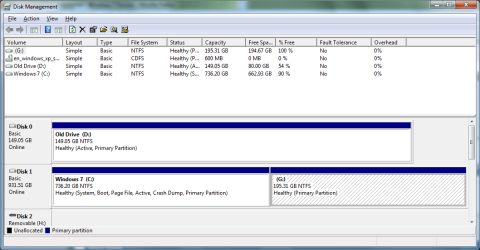
I have not tried installing XP after Win 7 so this is a little new to me. Maybe attach a snipping tool picture of your disk managment window.

It should be noted, installing XP will (or should) overwrite the Win 7 boot files and you may have to do a startup repair to regain the Win 7 boot.
 

My Computer

Computer Manufacturer/Model Number
Homebuilt
OS
Windows 7 x64
CPU
i7-2600K
Motherboard
Asus P8Z77-v Pro
Memory
8 G
Graphics Card(s)
GTX 480
Sound Card
Onboard
Monitor(s) Displays
LG W2753V
Screen Resolution
1920x1080
Hard Drives
Crucial M4 128 G SSD
I've dual booted 7 and XP with 7 preinstalled before
 

Attachments

  • dsk.png
    dsk.png
    26.2 KB · Views: 21

My Computer

Computer Manufacturer/Model Number
Started out as an AST180
OS
Windows 7 Ultimate x64 | Windows XP Pro x86 | Windows Vista Ultimate x86
CPU
AMD Athlon 64 X2 Dual Core 5200 2.7 GHz
Motherboard
Acer EM61SM/EM61PM
Memory
3G RAM
Graphics Card(s)
ATI HD Radeon 4670
Screen Resolution
1280x1024
Hard Drives
Western Digital Caviar Black WD1001FALS 1TB 7200 RPM 32MB Cache, 160 GB Seagate
PSU
Corsair 450VX 450W
Keyboard
Microsoft Media Pro 3000
Mouse
Logitech MX310
Well, you do not have the System Reserved partition, so it is not a problem.

You are probably using version 1.7x of EasyBCD. Do you show a ntldr, boot.ini and ntdetect file in the Win 7 root directory? These are hidden system files, so you need to set the folder options, view to see them.

You will probably need to edit boot.ini and set the rdisk(0) to rdisk(1) and you can do this using EasyBCE Tools.
 

My Computer

Computer Manufacturer/Model Number
Homebuilt
OS
Windows 7 x64
CPU
i7-2600K
Motherboard
Asus P8Z77-v Pro
Memory
8 G
Graphics Card(s)
GTX 480
Sound Card
Onboard
Monitor(s) Displays
LG W2753V
Screen Resolution
1920x1080
Hard Drives
Crucial M4 128 G SSD
There is no boot.ini in the root directory, just ntdetect and ntldr.

You will probably need to edit boot.ini and set the rdisk(0) to rdisk(1) and you can do this using EasyBCE Tools.
I can already boot on the second hard drive but it's booting into my windows 7 partition instead of the partition I chose to install XP on.

If I set boot priority to CD, the same happens. I choose the partition, quick format, it copies the files to the partition, restarts, and it repeats.
 

My Computer

Computer Manufacturer/Model Number
Started out as an AST180
OS
Windows 7 Ultimate x64 | Windows XP Pro x86 | Windows Vista Ultimate x86
CPU
AMD Athlon 64 X2 Dual Core 5200 2.7 GHz
Motherboard
Acer EM61SM/EM61PM
Memory
3G RAM
Graphics Card(s)
ATI HD Radeon 4670
Screen Resolution
1280x1024
Hard Drives
Western Digital Caviar Black WD1001FALS 1TB 7200 RPM 32MB Cache, 160 GB Seagate
PSU
Corsair 450VX 450W
Keyboard
Microsoft Media Pro 3000
Mouse
Logitech MX310
What is on D: and why is it marked active? If it is not an OS then you'd best unplug it until this is sorted out.

CD/DVD drive should be set first to boot in BIOS, followed by DISK1. Boot XP CD and long format the second partition, try install.
 
I deleted my old hard drive partition and tried putting XP on that instead of a partition on my second drive and it still didn't work. I tried doing a long format too. Setting CD/DVD to first priority just started the installation over by asking what partition you wanted to store the copied files at.
 

My Computer

Computer Manufacturer/Model Number
Started out as an AST180
OS
Windows 7 Ultimate x64 | Windows XP Pro x86 | Windows Vista Ultimate x86
CPU
AMD Athlon 64 X2 Dual Core 5200 2.7 GHz
Motherboard
Acer EM61SM/EM61PM
Memory
3G RAM
Graphics Card(s)
ATI HD Radeon 4670
Screen Resolution
1280x1024
Hard Drives
Western Digital Caviar Black WD1001FALS 1TB 7200 RPM 32MB Cache, 160 GB Seagate
PSU
Corsair 450VX 450W
Keyboard
Microsoft Media Pro 3000
Mouse
Logitech MX310
CD drive should be set to boot first, but when it restarts you don't Press Any Key to Boot from CD when prompted.

Is the correct HD set as first HD to boot. That is important.

Try unplugging the Win7 HD to install to the other HD.
 
It seems things have gotten a little confusing. The rdisk(1) does not mean Disk 1, but the second drive in priority. The fact a drive says Drive 0, means nothing more that it is connected to the lower SATA connector. The Win 7 drive was you primary drive. Had you put the 3 files on the Windows root directory and modified the boot.ini, it should have worked.

Getting EasyBCD 2.0 beta should be able to solve your problems since it copies the necessary files and modifies the boot.ini for you. You will need to join their forum to download.
 

My Computer

Computer Manufacturer/Model Number
Homebuilt
OS
Windows 7 x64
CPU
i7-2600K
Motherboard
Asus P8Z77-v Pro
Memory
8 G
Graphics Card(s)
GTX 480
Sound Card
Onboard
Monitor(s) Displays
LG W2753V
Screen Resolution
1920x1080
Hard Drives
Crucial M4 128 G SSD
CD drive should be set to boot first, but when it restarts you don't Press Any Key to Boot from CD when prompted.

Is the correct HD set as first HD to boot. That is important.

Try unplugging the Win7 HD to install to the other HD.

When I tried to install on my first HD, I forgot to set boot priority to that so that might just work.
 

My Computer

Computer Manufacturer/Model Number
Started out as an AST180
OS
Windows 7 Ultimate x64 | Windows XP Pro x86 | Windows Vista Ultimate x86
CPU
AMD Athlon 64 X2 Dual Core 5200 2.7 GHz
Motherboard
Acer EM61SM/EM61PM
Memory
3G RAM
Graphics Card(s)
ATI HD Radeon 4670
Screen Resolution
1280x1024
Hard Drives
Western Digital Caviar Black WD1001FALS 1TB 7200 RPM 32MB Cache, 160 GB Seagate
PSU
Corsair 450VX 450W
Keyboard
Microsoft Media Pro 3000
Mouse
Logitech MX310
Back
Top