XP wont install!

Darkelf

New member
Local time
12:05 PM
Messages
3
Hi All,

Great tutorial, thank you, it has enabled to get further than I have so far!

I have had a browse through this thread and cant find anything related to this problem so I am hoping someone can help please.

I have a Netbook which I have upgraded from XP Home to Win 7. & works great except I want to play Sacred/Diablo II on it and for the life of me I cant get Sacred to run under Win 7. So I am trying to setup a dual boot with XP Home on it.

I have partitioned my drive, and set the new partition to Primary (the Win 7 partition is Active) where I want to install Win XP.

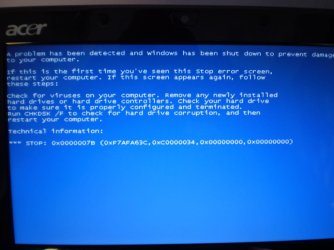
I boot from the CD and it starts setup and then terminates in a blue screen of death completewith code and with the message Windows Setup has shutdown to protect your system from damage. The system then has to be hard reset to restart it.

I have a genuine copy of XP Home Upgrade and a genuine copy of Win 7 upgrade and I have tried the various fixes on the Net for running Sacred/Diablo II (fully patched, run in 256 colours, admin & XP mode etc) so I am now going down the dual boot path but I cant even get this to work.

Can someone please help as all I really love my hack n slash games and the nlow spec Netbook seemed an ideal machine for them.

PS I have an Acer Aspire Netbook running a 1.6 Atom and 1gb RAM.
 
Last edited by a moderator:

My Computer

Computer Manufacturer/Model Number
Acer Aspire One Netbook
OS
Win 7
CPU
1.6ghz Atom
Motherboard
No idea
Memory
1gb
Graphics Card(s)
Intel Integrated
Sound Card
Intel Integrated
Monitor(s) Displays
N/A
Hard Drives
160gb
PSU
N/A
Case
N/A
Cooling
N/A
I cannot see what could cause this, though the partitioning will need to be reformatted using XP's tool because Win7's NTFS is different. That shouldn't bluescreen XP installer load (but it might).

Try running it from the Win7 desktop to see what happens.

See if you can snap a pic of that bluescreen so we can trace the errors.

Also, have you still got the windows.old folder from your XP>win7 upgrade, because you can roll it back to XP using that.

If so, then I'd make make an image of your Win7 using W7 backup imaging, Acronis or free Macrium, save it externally, then later reimage it to a second drive/partition after rolling back XP on the first partition. A simple W7 repair install will sort out the boot.
 
Last edited:

My Computer

Computer Manufacturer/Model Number
Dell XPS 15 L502x
OS
Windows 7 Ultimate x64 SP1
CPU
Core i7-2670QM
Memory
8GB DDR3 PC3-10600
Graphics Card(s)
Intel HD Graphics 3000 + GeForce GT 540M
Screen Resolution
1920x1080
Hard Drives
1TB 5400RPM Seagate
Hi Kegobeer, yes have tried the tutorial, I had originally posted in that topic but it was moved here.

Hey Greg, thanks for that advice. The new partition is formatted for Win 7 NTFS not XP. Not sure how I can format it for XP from inside Win 7 but will investigate.

I still have the .old file but I have 7 setup quite nicely so don't really want to start the whole thing again. Will only go down this path if it is absolutely necessary.

Thanks again guys.
 

My Computer

Computer Manufacturer/Model Number
Acer Aspire One Netbook
OS
Win 7
CPU
1.6ghz Atom
Motherboard
No idea
Memory
1gb
Graphics Card(s)
Intel Integrated
Sound Card
Intel Integrated
Monitor(s) Displays
N/A
Hard Drives
160gb
PSU
N/A
Case
N/A
Cooling
N/A
Try running the XP installer from the Win7 desktop to see if it recreates error.

Can you snap a pic of error as it posts?

Make sure all USB devices are unplugged.

Surely the BIOS is current with a netbook, right?
 
Which version of Win7 are you runnning?

If its Pro or Ultim8... look into XP Mode... if it's not DL and install Microsoft Virtual PC and then install XP on the VM.

You may also want to check into the Boot to VHD function in Win7
 

My Computer

Computer Manufacturer/Model Number
Homebrew PC - "Alpha_Dawg"
OS
Windows 7 Ultimate 64 bit Steve Ballmer Signature Edition
CPU
Intel Core 2 Quad - Q9550 - 2.83GHz stock - OC'd to 3.6GHz
Motherboard
Gigabyte EP45-UD3P
Memory
4GB DDR2 800MHz (PC6400) OCZ Reaper
Graphics Card(s)
Nvidia GE Force 8800 GTS
Sound Card
Asus Xonar DX
Monitor(s) Displays
Samsung SyncMaster 2333HD
Screen Resolution
1920 x 1080
Hard Drives
WD Caviar Black 750GB - 7200RPM - 32MB cache
WD Caviar Green 1.5TB - 5400RPM - 64MB cache
WD Caviar Green 2.0TB - 5400RPM - 64MB cache
PSU
PC Power & Cooling Silencer 750
Case
Gigabyte 3D Aurora
Cooling
Case is Air - 5ea. 120mm fans (mix of Arctic and Xigmatec)
Keyboard
MS Natural Wireless KB
Mouse
MS Wireless Mouse
Internet Speed
50 mbps down/5 mbps up
Other Info
AVerMedia - AVerTVHD G2 Dual Tuner Card
Another thing - I've read another XP/7 tutorial, which recommends NOT formatting from within Windows 7. I'm going to guess you formatted the partition while using the 7 disk management?
 

My Computer

Computer Manufacturer/Model Number
Dell XPS 15 L502x
OS
Windows 7 Ultimate x64 SP1
CPU
Core i7-2670QM
Memory
8GB DDR3 PC3-10600
Graphics Card(s)
Intel HD Graphics 3000 + GeForce GT 540M
Screen Resolution
1920x1080
Hard Drives
1TB 5400RPM Seagate
NTFS partition table is diff in XP.

Try to download and burn Partition Wizard or other legacy-friendly manager and reformat the partition using it, then try to boot XP installer again.
 
NTFS partition table is diff in XP.

Try to download and burn Partition Wizard or other legacy-friendly manager and reformat the partition using it, then try to boot XP installer again.

Or, boot back into 7, fire up the disk management utility, delete the XP partition, then reassign a drive letter but do not format it. That should also work.
 

My Computer

Computer Manufacturer/Model Number
Dell XPS 15 L502x
OS
Windows 7 Ultimate x64 SP1
CPU
Core i7-2670QM
Memory
8GB DDR3 PC3-10600
Graphics Card(s)
Intel HD Graphics 3000 + GeForce GT 540M
Screen Resolution
1920x1080
Hard Drives
1TB 5400RPM Seagate
I'm going to try this on my old Inspiron 1100. I'll let you know what works and what doesn't.

Ok - here's what I did. Remember, this is an old computer with an IDE drive. I really didn't feel like messing around with any of my computers running SATA drives. This is also done using an XP w/SP2 Dell install disc. Again, I didn't feel like digging out my original XP OEM disc I have, so I'm just going to guess the XP sans SP would work the same way.

1. Used the disk management tool to shrink the system partition. My partition was already labeled as C, so I didn't have to assign a drive letter to it.
2. I did not do anything to the unallocated space.
3. I rebooted, inserted my XP disc into the DVD drive, and selected the DVD drive as the boot device.
4. Started the XP install. I selected the unallocated space, did the quick NTFS install, and proceeded to install the OS.
5. When everything was done, I installed .NET 2.0 and EasyBCD, and followed the instructions in the dual boot tutorial on this forum.
6. Rebooted - and I have XP and 7 working perfectly.

I'm hoping that the reason this hasn't worked for you is that you partitioned and/or formatted the new partition while you were using the Windows 7 disk management utility. I recommend booting into 7, going back into the disk management utility, and deleting the partition you created for XP. When that's done, boot up with the XP disc and see what happens.
 
Last edited:

My Computer

Computer Manufacturer/Model Number
Dell XPS 15 L502x
OS
Windows 7 Ultimate x64 SP1
CPU
Core i7-2670QM
Memory
8GB DDR3 PC3-10600
Graphics Card(s)
Intel HD Graphics 3000 + GeForce GT 540M
Screen Resolution
1920x1080
Hard Drives
1TB 5400RPM Seagate
Ok guys, this what I tried:

I used partition Wizard Home to format the new partition, Windows 7 has already assigned the drive letter D: to the partition.
I selected the CD drive as boot device and XP starts to install BUT what I then get is this:

ALSeeEdit_P6190249.jpg

And then thats the end of it. I have tried installing from inside Win 7 as well as the above but still no joy, Win 7 will not allow me to install XP.
 

My Computer

Computer Manufacturer/Model Number
Acer Aspire One Netbook
OS
Win 7
CPU
1.6ghz Atom
Motherboard
No idea
Memory
1gb
Graphics Card(s)
Intel Integrated
Sound Card
Intel Integrated
Monitor(s) Displays
N/A
Hard Drives
160gb
PSU
N/A
Case
N/A
Cooling
N/A
Boot into Windows 7. Go to the disk management utility. Select the partition you created for XP. Delete that partition. Do not assign a drive letter; do not format the partition. Boot up with XP and install. If you have SATA drives, you will need to press F6 when the message appears, and you will need to supply SATA/RAID drivers in order to install XP.
 

My Computer

Computer Manufacturer/Model Number
Dell XPS 15 L502x
OS
Windows 7 Ultimate x64 SP1
CPU
Core i7-2670QM
Memory
8GB DDR3 PC3-10600
Graphics Card(s)
Intel HD Graphics 3000 + GeForce GT 540M
Screen Resolution
1920x1080
Hard Drives
1TB 5400RPM Seagate
Back
Top