Sadly, Martin, if there is an issue with the virtual machine intermittently losing the network connection, then you have an ongoing technical support problem. It ceases to be simple.
I believe that this is a consequence of the flaky way that Windows still handles networking. The workaround used by Microsoft in Windows Virtual PC is to use the remote desktop and terminal services - a highly insecure working situation since all the drives on the host are exposed to the Virtual Machine.
XP was easy to network - to earlier Windows versions and itself, but Vista and Windows Seven are difficult to network with XP in a peer-to-peer Windows Workgroup environment. Typical of Microsoft, an additional layer of complexity has been added, I believe, to deliberately exclude XP or make it difficult to integrate with the new systems.
I will be posting about the LLTD fix for XP in the network and sharing area.
For me the worst drawback of the Integrated features is the long loading and restarting times, and the repeated logins if switching virtual screen resolution or alt-tabbing to the host machine.
We do need the printers, the scanner, the camera, the backup-Disk (all USB).
We do need the whole screen and full color.
Last but not least we need a simple way to get access to the multimedia
files from the database (xpmode-side) and windows 7.
What could be easier as to store this files on the host-drive in a shared
folder?
You don't need Integration Features enabled to do all of those things - just the basic Integration Feature drivers.

As part of the installation of XPMode, the graphics drivers, networking and USB connectivity are installed into the guest XP system.
With Integration features turned off, the graphics mode is capable of being switched from a native 16-bit to 32-bit colour and the screen can be resized at any size up to full screen, without having to log back on, or wait for the graphics to restabilize for long.
After the initial startup, the Integration features can be turned off and set to manual, and with the next reboot of the XPMode virtual machine, the host shares will not be present, and will have to be explicitly made.
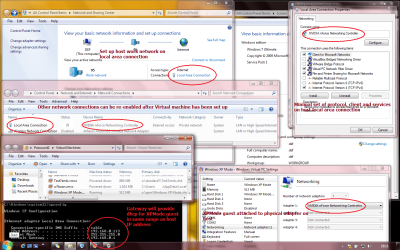
The prerequisite for networking is to bridge the physical network adapter, so that the gateway connects the XPMode machine on the same subnet as the host Windows 7:
After the preliminary network choices have been made, and the XPMode VM is running, a network share on the host Windows 7 machine can be connected from any XP Windows Explorer window using tools, map network drive..., then enter \\host ip address\sharename. e.g. \\192.168.0.113\win7boot in the illustrated image.
If the connection is made 'using a different username' and password and 'reconnect at logon' is checked, the share can be made persistent.
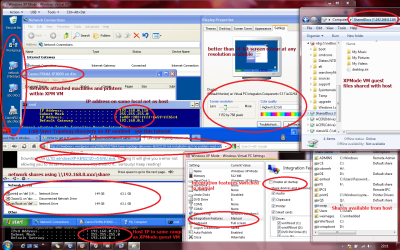
Connecting the printer as a networked shared device can be made tricky by the security that the Windows Virtual PC imposes on the guest - that's where having the Link-Layer responder set up on the XP machine comes in handy.
The http link for the LLTD fix can be seen in the last image.
Link Layer Topology Discovery (KB922120) not included in SP3 no problem!!! Read on… « x3webworx no sugar coating blog , download from Microsoft
Network Map in Windows Vista does not display computers that are running Windows XP.
However, any number of USB devices - storage, image acquisition, and printers etc, can readily be attached using the USB button in the control menu, especially in fullscreen mode.
It is easy to switch out of fullscreen back to Windows 7, by clicking on the fullscreen control area, and then Alt-Tab to any of the open windows 7 tabs, including the desktop, and Alt-Tab back to XPMode fullscreen.
Exiting the XPMode by most means invites the user to hibernate the virtual machine. If the host machine and the XPMode VMs can be given static IP Addresses by the gateway/router, there should be no connectivity problems, as long as the XPMode VM is started out of hibernation when the host machine network is up and running.
