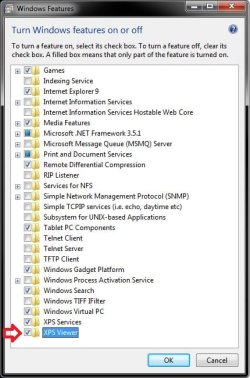
How to Open the XPS Viewer in Vista, Windows 7, and Windows 8
Information
The XPS viewer is an application used to view XPS documents. By default, XPS Viewer will open automatically when you open a XPS document. This will show you how to manually open the XPS Viewer.
Note
An XPS document is any file that is saved to the XML Paper Specification or .xps file format. Although you can create XPS documents (.xps files) by using any program that you can print from in Windows, you can view XPS documents only by using the XPS Viewer, which is included in Vista, Windows 7, and Windows 8.
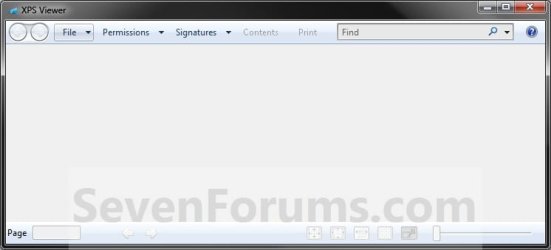
When you click an XPS document, it will open automatically in the XPS Viewer. The two toolbars that appear at the top and bottom of the XPS Viewer provide options for viewing and managing XPS documents, including:
When you click an XPS document, it will open automatically in the XPS Viewer. The two toolbars that appear at the top and bottom of the XPS Viewer provide options for viewing and managing XPS documents, including:
- Saving a copy of the XPS document to your computer.
- Finding a word or phrase in the read-only XPS document.
- Going to a specific page by typing a page number or by navigating forward and back through the document pages.
- Zooming in or out to make text and pictures easier to read.
- Viewing one or more pages at a time on your screen.
- Digitally signing the XPS document.
- Determining who can access the document and for how long by applying document permissions.
Here's How:
1. Press the Windows+R keys to open the Run dialog, type xpsrchvw.exe, and press Enter.
OR
2. Opening a XPS document will open into the XPS Viewer by default.
OR
3. In Vista or Windows 7, open the Start Menu, click on All Programs and on the XPS Viewer shortcut. (see screenshot below)

That's it,
Shawn
Last edited: