
How to Enable or Disable "Show Extracted Files when Complete" from ZIP in Windows
Information
By default, when using the built-in ZIP feature in Windows and you either right click on a Zip file and click on Extract All or open the zip file and click on the Extract all files command bar button to extract the files, you will have a separate Explorer window open afterwards showing the extracted files where you extracted them at.
This tutorial will show you how to either enable or disable this Windows Explorer window from opening and showing the extracted files after you have extracted all of them from the Zip file in only your user account in Vista, Windows 7, and Windows 8.
This tutorial will show you how to either enable or disable this Windows Explorer window from opening and showing the extracted files after you have extracted all of them from the Zip file in only your user account in Vista, Windows 7, and Windows 8.
OPTION ONE
Enable or Disable Show Extracted ZIP Files from ZIP File
2. To Show Extracted Files
NOTE: This is the default setting. A) Check the Show extracted files when complete box, click/tap on Extract, and go to step 4 below. (see screenshot below)
3. To Not Show Extracted Files A) Uncheck the Show extracted files when complete box, click/tap on Extract, and go to step 4 below. (see screenshot below)
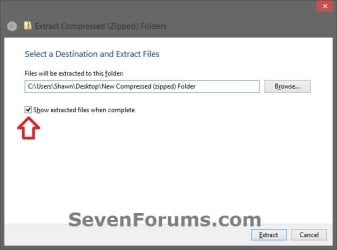
4. All ZIP files will now be set this way.
OPTION TWO
Enable or Disable Show Extracted ZIP Files using a REG File Download
NOTE: This is the default setting. A) Click/tap on the Download button below to download the file below, and go to step 3 below. Extract_and_Show_Files.reg
Download
2. To Not Show Extracted Files A) Click/tap on the Download button below to download the file below, and go to step 4 below. Extract_and_NOT_Show_Files.reg
Download
3. Save the .reg file to your Desktop.
4. Double click/tap on the downloaded .reg file to merge it.
5. Click/tap on the Run, Yes (UAC-Windows 7/8) or Continue (UAC-Vista), Yes, and OK when prompted to approve.
6. When finished, you can delete the downloaded .reg file if you would like to.
OPTION THREE
Enable or Disable Show Extracted ZIP Files Manually in Registry Editor
2. If prompted by UAC, click/tap on Yes (Windows 7/8) or Continue (Vista).
3. In regedit, navigate to the location below. (see screenshot below) HKEY_CURRENT_USER\Software\Microsoft\Windows\CurrentVersion\Explorer\ExtractionWizard
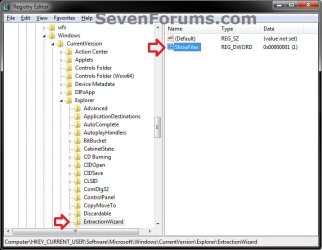
4. In the right pane of ExtractionWizard, double click/tap on ShowFiles to edit it, then do either step 5 or 6 below for what you would like to do. (see screenshot above)
5. To Show Extracted Files
NOTE: This is the default setting. A) Type in 1, click/tap on OK, and go to step 7 below. (see screenshot below)
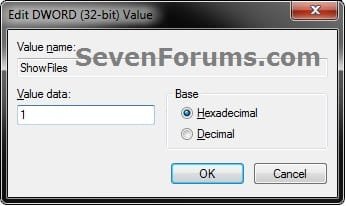
6. To Not Show Extracted Files A) Type in 0 (zero), click/tap on OK, and go to step 4 below. (see screenshot below step 5A)
7. Close regedit.
That's it,
Shawn
Attachments
Last edited:

