
How to Find the MAC Address of Your Computer in Windows
Information
This will show you how to find out what the Media Access Control address (MAC address), also known as physical address, is for your computer's network adapters or network interface cards (NICs) in XP, Vista, Windows 7, and Windows 8.
OPTION ONE
Find MAC Address in Network Connnection Details
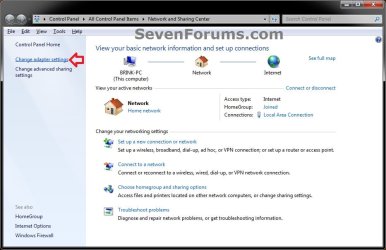
1. Open the Control Panel (icons view), and click on the Network and Sharing Center icon.
2. In the left pane, click on the Change adapter settings link. (see screenshot below)
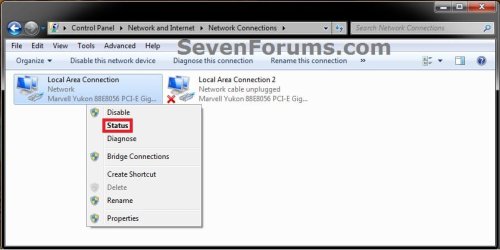
3. Right click on the network connection (network adapter or NIC) that you want to see the MAC address of, and click on Status. (see screenshot below)
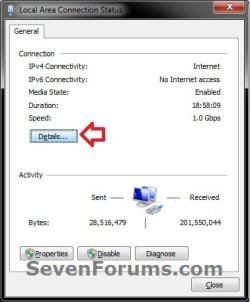
4. Click on the Details button. (see screenshot below)
5. To the right of Physical Address (Property), you will see your computer's MAC address (Value) for the selected network connection (network adapter or NIC). (see screenshot below)
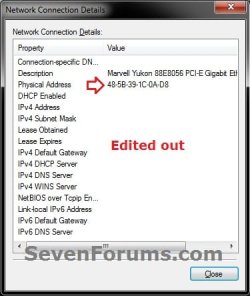
6. When done, click on Close (steps 4 and 5) twice and close the Network Connections window (step 3).
OPTION TWO
Find MAC Address Using "getmac" Command
1. Open a command prompt.
2. In the command prompt, type getmac and press enter. (see screenshot below step 3)
3. You will see your computer's MAC address (Physical Address) listed for each network connection (network adapter or NIC) for your computer. (see screenshot below)
NOTE: If you see Media disconnected as the "Transport Name", then this means that network adapter or NIC is either disabled or not connected.

4. When done, you can close the command prompt window.
OPTION THREE
Find MAC Address using "ipconfig /all" Command
1. Open a command prompt.
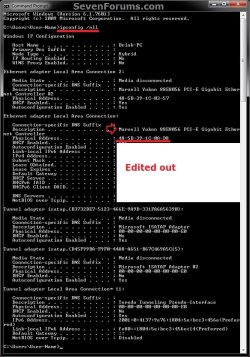
2. In the command prompt, type ipconfig /all and press enter. (see screenshot below step 3)
3. Scroll down to the listed network adapter or NIC that you want to see the MAC address of. You will see your computer's MAC address (Physical Address) listed on the right side just under the network adapter's or NIC's "Description". (see screenshot below)
4. When done, you can close the command prompt window.
OPTION FOUR
To Find MAC Address in PC settings in Windows 8.1
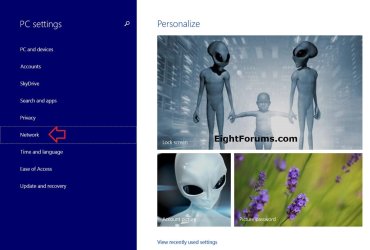
1. Open PC settings, and click/tap on Network on the left side. (see screenshot below)
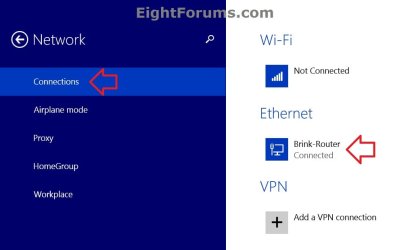
2. Click/tap on Connections on the left side, and click/tap on a connected network (ex: Brink-Router) on the right side. (see screenshot below)
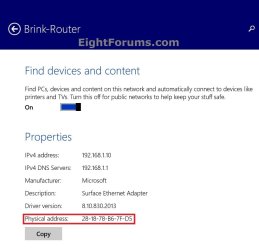
3. To the right of Physical address, you will see the MAC address of your computer's network adapter used for the selected network connection. (see screenshot below)
4. When finished, you can close PC settings if you like.
That's it,
Shawn
Related Tutorials
- How to Find the MAC Address of Your Windows Phone 8
- How to View and Change the Computer Name in Windows 7
- How to Change your PC Name in Windows 8 and 8.1
- How to View and Change the Workgroup Name in Vista, Windows 7, and Windows 8
- How to Find the IP Address of Your Computer in Windows
- How to Find Your Default Gateway IP Address in Windows 8 and 8.1
Last edited:

