
Setting Up Windows Search
There is a great deal of confusion among people as to whether or not Windows Search works or not, and an even greater number of people that just don't use it because they don't know how, or are not aware of its advanced facilities. The intention of this tutorial is to show you just how advanced Windows Search is, and how easy it is to fully utilize this great feature of Windows 7 to its full potential by performing basic searches, and how to make full use of the Advanced Query Language.
Opening Indexing Options
1) Click the Start Orb
2) Type "index" (without quotes) in the search box
3) Click "Indexing Options" in the search results
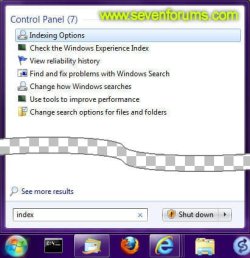
Finding and opening Indexing Options
4) The Indexing Options window shows you the status of the indexer, and provides command buttons that you can use to modify options

Indexing Options
Modifying Search Locations
The easiest way of adding a folder, and all associated subfolders, to the index is to add it to a Library. Sometimes, however, you want to add a drive or folder to the index, but don't want to include it in a library.
1) Open Indexing Options as shown in "Opening Indexing Options" above
2) Click the "Modify" button to open the "Indexed Locations" window
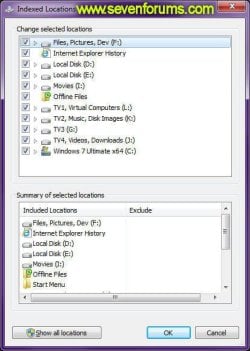
Indexed Locations showing which drives are indexed.
3) Click the boxes in the "Change selected locations" list to add (checked) or remove (unchecked) a drive from the index.
4) If you want to exclude a specific folder, you can expand the list by clicking the arrows at the left of a folder name to browse for a folder. Then simply remove the checkmark from the folder you want to exclude.
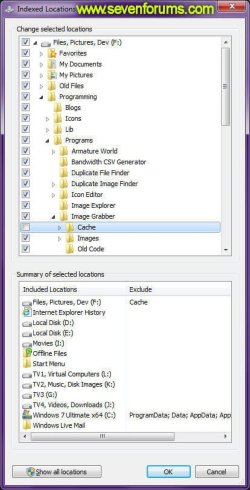
Indexed Locations showing a folder being excluded[/SIZE]
5) When you have made the required changes to the indexed locations, click the "OK" button.
Information
Even if you uncheck and re-check your system drive C: in an attempt to have it fully indexed, the following folders will always be excluded:
C:\programdata\
C:\Users\Default\AppData
C:\Users\[YOUR_USERNAME]\AppData
C:\Windows
C:\programdata\
C:\Users\Default\AppData
C:\Users\[YOUR_USERNAME]\AppData
C:\Windows
[flash]http://www.phx.co.za/sevenforums/windows_search_modify.swf[/flash]
Advanced Options
The default settings for Windows Search are sufficient for most users, but sometimes you need to access the advanced options to improve search results. Here are some advanced indexing settings you can change.
1) Open Indexing Options as shown in "Opening Indexing Options" above
2) Click the "Advanced" button to open the "Advanced Options" window.
Index Settings
File Settings
The two options that are available to you here allow encrypted files to be indexed, and how similar words are treated. If either of these two options are changed, the index will be rebuilt, which can take a long time and may cause incomplete search results until complete.
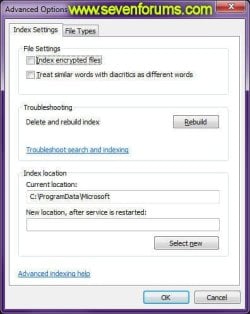
Advanced Options - Index Settings
Index encrypted files
If you add encrypted files to the index and you're not using full-volume encryption for the location of the index, encrypted data from your files—for example, text from an encrypted Microsoft Word document—will be added to the index. The index is obscured so that it's not easily readable if someone tries to open the index files, but it doesn't have strong data encryption. If someone were to gain access to your computer, they could extract your data from the index. Therefore, the location of the index should also be encrypted to help protect your indexed data.
Treat similar words with diacritic as different words
If you commonly use diacritics (small signs added to letters to change the pronunciation of words) in your file and folder names, you can configure the index to recognize words with diacritics differently. By default, Windows recognizes diacritics according to the language version you are using. If you change this setting, all diacritics will be recognized.
Troubleshooting
Not everything works as smoothly as we'd like, and sometimes things go wrong. If the Windows Search Index for whatever reason becomes corrupted, you may notice that search results don't update quickly enough, or displays files that have long since been deleted.
If this happens, you will need to rebuild the index by clicking the Rebuild button.
Rebuilding the index can take anything from a few minutes to several hours to complete, depending on settings and the number of files that need to be indexed. It is best to issue the Rebuild command at a time when you will not be using the computer, because any kind of user activity will cause the rebuild to take longer. Leaving the computer on overnight at least once is the best choice.
[flash]http://www.phx.co.za/sevenforums/windows_search_rebuild_index.swf[/flash]
Once the index is properly initialized, it update very quickly whenever you save a new file or make changes to existing ones.
Index Location
If you need to free up space on a hard disk, you can change the location of the index. If you change this location, the Windows Search service will automatically be restarted, and the change will not go into effect until the restart is complete.
1) Click "Select New"
2) Select a new location for the Index, which should be a location that exists on a non-removable drive formatted with the NTFS file system.
3) Click "OK"
File Types
The File Types tab of Advanced Options allows you to set which files are indexed, and how. Even though there are two options available to you when you select a file type in the list, you should avoid changing them unless you have reason to do so:
Index Properties Only
Only standard metadata for the selected file type will be indexed by the "File Properties Filter", and varies depending on the file. Generally the properties of a file as shown in the Details tab of a file's properties will be indexed.

File Properties Details
Index Properties and File Contents
The true power on Windows Search lies in its ability to not only search the metadata of a file, but it's contents as well. The default for most file types is to have only their properties indexed, and indeed not all file types (such as videos, programs, pictures or other binary files) are suited to having their contents searched. By selecting the "Index Properties and File Contents" option for a file type, you can have Windows Search use the "Plain Text Filter" to allow for the contents of a file to be indexed also.
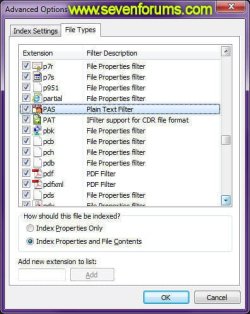
Advanced Options - File Types
For example, as shown in the above screenshot, I've set Windows Search to index the contents of PAS files, which is a source code file for programs that I am writing, and is essentially a plain text file. I can now search my Programming libraries for the name of a code unit by searching for a function name or string contained within it, even if I don't remember the name of the file:
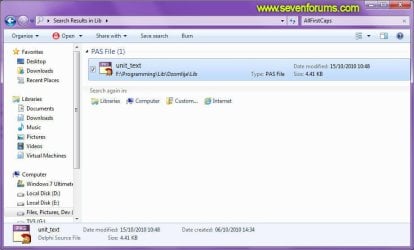
Searching for a phrase within a file indexed with the Plain Text Filter
It is possible to index the contents of some binary files, but also only if an appropriate IFilter has been installed. An IFilter is a plug-in that allows Windows Search to index different file formats so that they become searchable. Without an appropriate IFilter, contents of a file cannot be parsed and indexed by the search engine.
Most major software, such as Microsoft Office or Adobe Acrobat Reader, will install an appropriate IFilter for their associated file types, allowing them to be indexed.
[info2]If you are using a 64-bit version of Windows 7, you cannot use a 32-bit IFilter.[/info2]
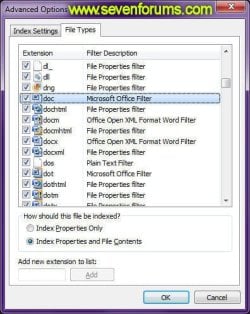
Some software installs a custom IFilter for their files
Note
By default, the following file types are indexed as text:
.a, .ans, .asc, .asm, .bas, .bat, .bcp, .c, .cc, .cls, .cmd, .cpp, .cs, .csa, .cxx, .dbs, .def, .dic, .dos, .dsp, .dsw, .ext, .faq, .fky, .h, .hpp, .hxx, .i, .ibq, .dl, .idq, .inc, .inf, .ini, .inl, .inx, .jav, .java, .js, .kci, .lgn, .log, .lst, .m3u, .mak, .map, .mdb, .mk, .odh, .odl, .pl, .prc, .rc, .rc2, .rct, .reg, .rgs, .rul, .s, .scc, .sol, .sql, .tab, .tdl, .tiff, .tlh, .tli, .trg, .txt, .udf;udt, .usr, .vbs, .viw, .vspscc, .vsscc, .vssscc, .wri, .wtx
.a, .ans, .asc, .asm, .bas, .bat, .bcp, .c, .cc, .cls, .cmd, .cpp, .cs, .csa, .cxx, .dbs, .def, .dic, .dos, .dsp, .dsw, .ext, .faq, .fky, .h, .hpp, .hxx, .i, .ibq, .dl, .idq, .inc, .inf, .ini, .inl, .inx, .jav, .java, .js, .kci, .lgn, .log, .lst, .m3u, .mak, .map, .mdb, .mk, .odh, .odl, .pl, .prc, .rc, .rc2, .rct, .reg, .rgs, .rul, .s, .scc, .sol, .sql, .tab, .tdl, .tiff, .tlh, .tli, .trg, .txt, .udf;udt, .usr, .vbs, .viw, .vspscc, .vsscc, .vssscc, .wri, .wtx
Note
By default, the following file types are excluded from the index:
.386, .aps, .bin, .bk1, .bk2, .bkf, .blf, .bsc, .btr, .cat, .cfg, .cgm, .chk, .ci, .crwl, .cur, .dat, .dbg, .dct, .dir, .dl_, .el, .evt, .ex_, .exp, .eyb, .fnt, .fon, .ghi, .gthr, .hqx, .icm, .idb, .idx, .ilk, .imc, .in_, .ini, .inv, .ipp, .jbf, .lib, .local, .log, .log1, .log2, .m14, .mac, .man, .manifest, .map, .MAPIMail, .mmf, .mui, .muimanifest, .mv, .ncb, .obj, .oc_, .ocx, .onecache, .onetoc, .onetoc2, .ost, .pch, .pdb, .pds, .pf, .pic, .pma, .pmc, .pml, .pmr, .pst, .res, .rmp, .rpc, .rsp, .sbr, .sc2, .sit, .sr_, .sy_, .sym, .tlb, .tlh, .tmf, .tmp, .ttc, .ttf, .ufm, .vbx, .vxd, .wll, .wlt, .xbm, .xix, .z96, .ZFSendToTarget
.386, .aps, .bin, .bk1, .bk2, .bkf, .blf, .bsc, .btr, .cat, .cfg, .cgm, .chk, .ci, .crwl, .cur, .dat, .dbg, .dct, .dir, .dl_, .el, .evt, .ex_, .exp, .eyb, .fnt, .fon, .ghi, .gthr, .hqx, .icm, .idb, .idx, .ilk, .imc, .in_, .ini, .inv, .ipp, .jbf, .lib, .local, .log, .log1, .log2, .m14, .mac, .man, .manifest, .map, .MAPIMail, .mmf, .mui, .muimanifest, .mv, .ncb, .obj, .oc_, .ocx, .onecache, .onetoc, .onetoc2, .ost, .pch, .pdb, .pds, .pf, .pic, .pma, .pmc, .pml, .pmr, .pst, .res, .rmp, .rpc, .rsp, .sbr, .sc2, .sit, .sr_, .sy_, .sym, .tlb, .tlh, .tmf, .tmp, .ttc, .ttf, .ufm, .vbx, .vxd, .wll, .wlt, .xbm, .xix, .z96, .ZFSendToTarget
[flash]http://www.phx.co.za/sevenforums/windows_search_filetypes.swf[/flash]
Using Windows Search
There are two ways of searching for files on your computer - the Start Menu and Windows Explorer:
Start Menu Search
In Windows 7, the Start Menu was adapted to include a search box that can be used to search for both programs or files, the most common use of which is to locate items in the Control Panel or the Start Menu itself. To use it, simply click the start orb and begin typing your query. For example, to quickly find all Control Panel options relating to Networking, do the following:
1) Click the Start Orb
2) Type "network" (without quotes)
3) Other results, such as file or folders stored on your hard drive, may also be displayed in the Start Menu Search. To view such results in Windows Explorer, click "See more results".
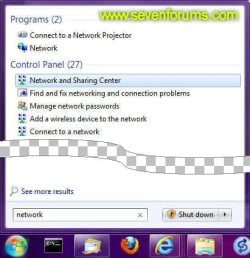
Using the Start Menu to search for Network related control panel items
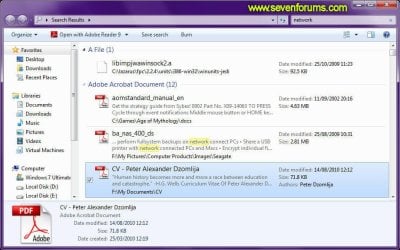
Opening Start Menu search results in Explorer
Windows Explorer
Global Search
Windows Search can be started by using the <WINDOWS_KEY>+<F> shortcut to open the Search window, wherein you can immediately begin typing your query, which will be executed across your entire index.
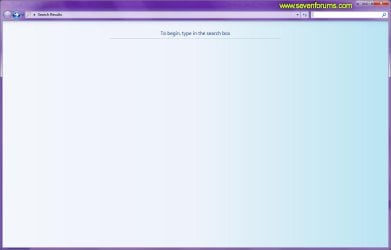
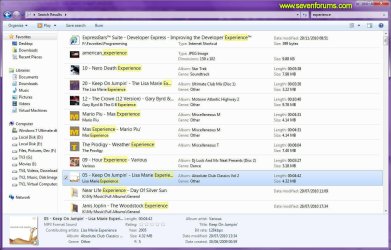
Windows Search started using the shortcut key
Constrained Search
Windows Search can be initiated from any Explorer window, by simply clicking on the search bar in the upper right corner of the window and starting to type.
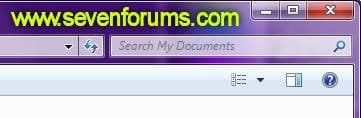
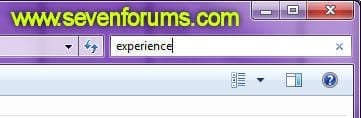
Windows Explorer search
[tip2]If you don't like to use the mouse, the Windows Explorer search box is also quickly accessible by pressing the <F3> key.[/tip2]
Using Windows Search from within Explorer in this fashion will restrict searches to the current folder or library, and all associated subfolders. For example, if I'm currently browsing "F:\Documents", and begin a search for "experience", I'll get the following results:
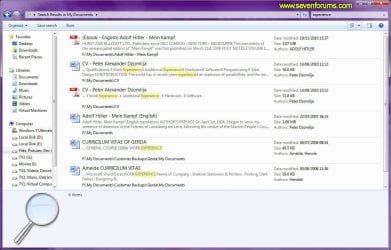
Windows Explorer Search restricted to "My Documents"
But the exact same query initiated from "F:\Pictures" will yield entirely different results:
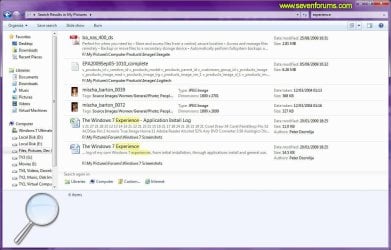
Windows Explorer Search restricted to "My Pictures"
Advanced Search Techniques
Now that you are familiar with the basic usage of Windows Search, it's time to learn some of the more advanced features that it offers.
Searching for Common File Types
Searches often return more results than are desired, and locating the exact file in the search results can be almost as hard as trying to remember which folder it's in:
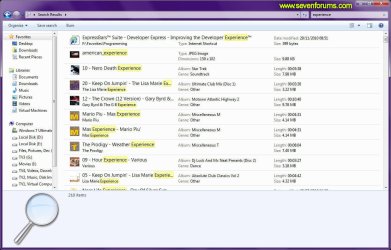
Search sometimes returns more results than are necessary
Windows Search is fortunately aware of the file types most commonly found on a computer, and provides a way for you to filter searches down to only those specific files. As shown in the above screenshot, a search for the word "experience" returned 218 results. But I'm only looking for text based documents, so the first few results are irrelevant.
In order to filter the results, I'll change my search query to experience kind:docs to only search for documents:
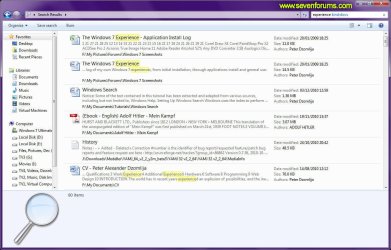
Filtering search results using Kind
Using kind:, I was able to reduce the search results from 218 to 80, a far more manageable number, and therefore easier to find the file I am looking for. It should be noted that the kind: filter is nonspecific, as the results it returns often cover more than one file type.
As seen in the example above, kind:docs locates several file types, including (but not limited to) the following file types:
- Microsoft Office Word Document
- Microsoft Office Excel Documents
- Adobe Acrobat Document
- Text Document
- etc...
Sometimes the results of a nonspecific search are undesirable, and you're only looking for a particular type of document. Changing the query to experience type:word will restrict the results to show only Microsoft Word Documents:

Finding only Word documents
And the search results are reduced again, this time returning only 8 files in the list.
The type: filter makes use of the type description for a file as displayed in Windows Explorer details view, and therefore does not require you to remember file type extensions. For example type
 ffice will find all files with the "office" in the type description: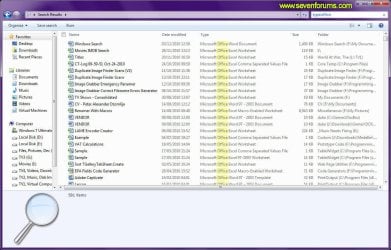
Finding all "office" documents
File Properties
Windows Search will include in its index only standard file metadata, and varies depending on the file. In most cases, the properties of a file as displayed in the Details tab will be indexed:
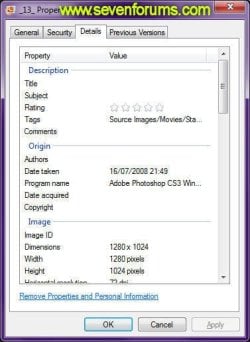
Only standard file metadata is indexed
The above properties screenshot for an image file shows several properties, including "Title", "Subject", "Rating", "Tags", "Comments", "Width" and "Height", all of which can be utilized to great effect in when executing searches.
For example, if your desktop resolution is set to 1600x1200, you will use width:1600 height:1200 to search for a desktop image that will exactly fit this display size without being distorted:
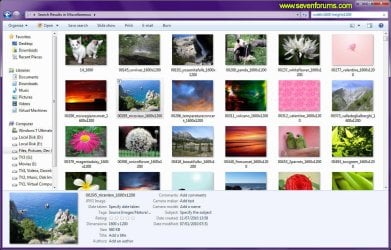
Finding pictures that exactly match 1600x1200
If you use either Windows Live Photo Gallery or another 3rd party program to organize your photos, and make use of the tagging facilities, then you can classify your photos according to the applicable event. For example, tag:london will find all pictures that contain the word "london" in their tag:
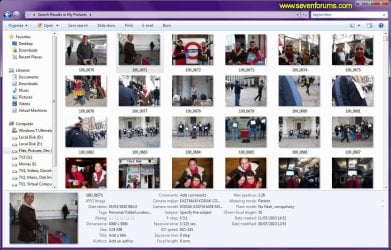
Finding all pictures tagged with the word "london"
Compound Searches
Windows Search does not limit you to using a single filter or query, and provides several methods of combining queries to build complex searches using NOT, OR and AND. These keywords are often referred to as Boolean Operators.
[note2]When using either of these operators as explained below, they must always be typed in uppercase. For example, type
ffice NOT type:word is supposed to return all files containing the word "office" but not "word" in the type description[/note2] NOT
The NOT operator is used to exclude particular results from the list. For example, type
ffice type:word will display only those files that contain both the words "office" and "word" in their type description: 
Finding all Office Word documents
If the NOT operator is included and the query changed to type
ffice NOT type:word, then all files containing "Office" in their type description will be displayed, except those containing "word": 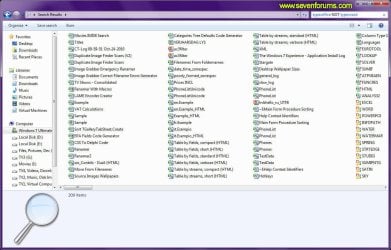
Finding all Office documents, except Word
OR
The OR operator is used to combine queries. For example, type:text OR type:adobe will find all file with either "text", "adobe", or both words in their type description:
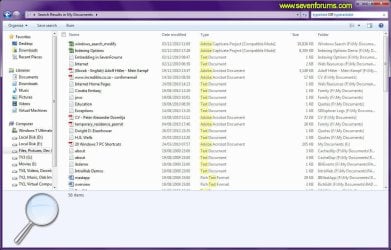
Finding either Text or Adobe files
AND
AND is the default operator for combining queries, and can in most cases be completely excluded. For example, type
ffice AND NOT type:word is the same as typeffice NOT type:word and will return identical results: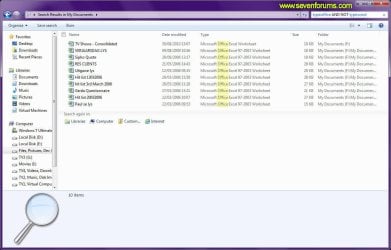
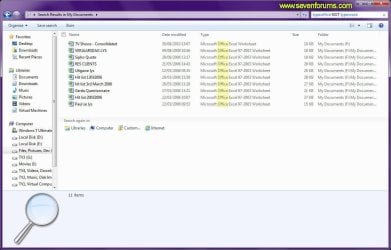
The use of the AND operator is optional
Boolean operators must be used in all uppercase
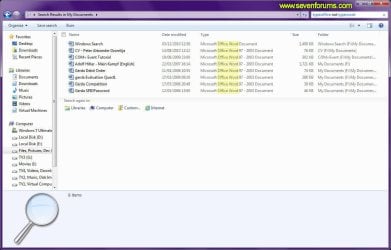
Radically different results are returned if Boolean Operators are not in uppercase.
Quotation marks
Quotation marks are used by Windows Search to combine two or more words together in order to have them treated as a single word. For example, if I want to search for pictures pertaining to a World War, I'll use tag:world war, which will return the following results:
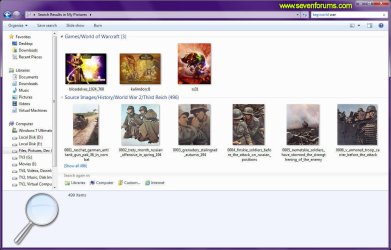
Searching for World War pictures
As you can see, the first few results have nothing to do with a World War, so to exclude them from the search I'd change the query to tag:"world war", which would yield the correct results that I am looking for:
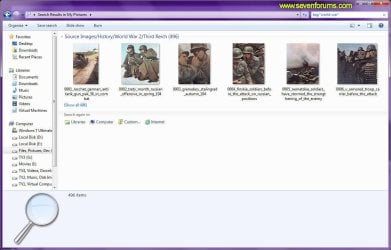
Searching for Word War pictures
Parenthesis
As with quotation marks, Parenthesis is used by Windows Search to combine search terms together, but unlike quotation marks, terms are not treated as a single word. For example, the query tag:history september is intended to find files pertaining to the September 11th, 2001 terrorist attacks. As can be seen from the results below, I also got results relating to World War 2:
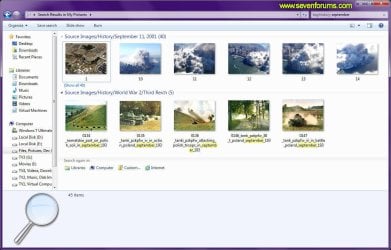
The above query did not work as intended, because Windows Search interpreted it as meaning to find all files with a "history" tag, and any other property containing the word "september". If I change the query to tag
 history september), then Windows Search will locate files with tags containing both words:
Parenthesis are also used to combine search queries to allow for more complex fine-tuning of the results. For example, tag:general NOT tag:indoors OR tag
utdoors will locate all file containing the tags "general" or "outdoors", but not "indoors": 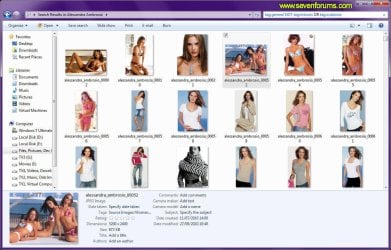
If I change the query to tag:general NOT (tag:indoors OR tag
utdoors), then I'll get the desired results of all files tagged with the word "general", but files tagged with either "indoors" or "outdoors" will be excluded from the list: 
Numbers
Windows Search, when executing simple searches, doesn't know the difference between numbers and letters, and treats numeric entries as both, as is evident in a simple query for 1920, which returns results from the filename, width and height properties, highlighted in yellow in the following screenshot:
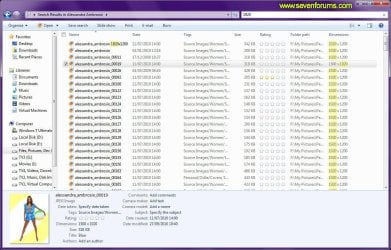
Searching for 1920
Files contain various numeric properties, and Windows Search keywords treats such properties as numbers. For example, if I change the above query to width:1920, then the results change to show only those files whose width exactly match 1920 pixels:
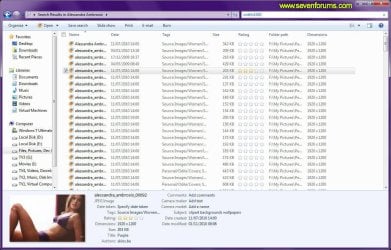
Finding pictures that are 1920 pixels wide.
Windows Search also makes it possible to find numbers using Boolean operators < (less than), > (greater than), <> (not equal to), <= (less than or equal to) and >= (larger than or equal to).
The query width:<1920 will find all files whose width is less than 1920:
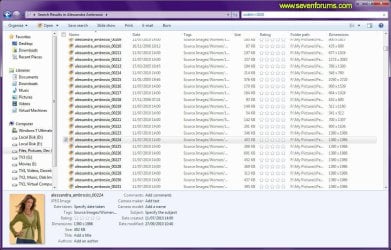
Finding files whose width is less than 1920 pixels
The query width:>=2600 will find all file whose width is either equal to, or exceeds, 2600 pixels:
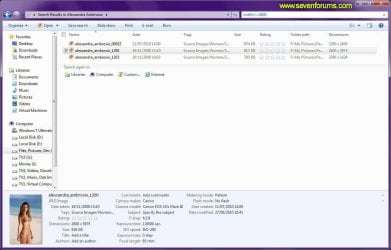
Finding images with a width larger than or equal to 2600 pixels
Dates
Dates are handled differently on each computer according to the regional settings you have applied. If, for example, you've set you short date format to "dd/mm/yyyy", then Windows Search will expect dates to be entered in the same fashion. For example, the query date:??10/29/?2010 fails because my date settings are different:
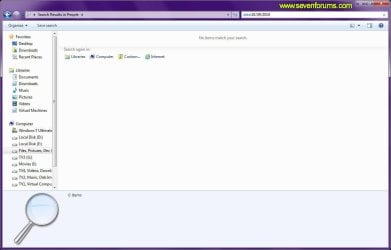
Date search fails, because format of date incorrectly typed
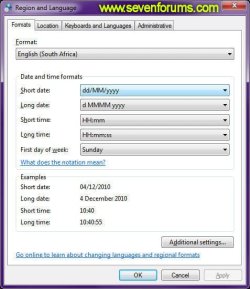
Windows Search requires that date entries matching your short date format are used.
Fortunately, Windows Search makes it very easy for you to enter dates correctly, because when it detects that you are attempting to enter a date, it provides a handy drop down box that you can use to select an appropriate date:
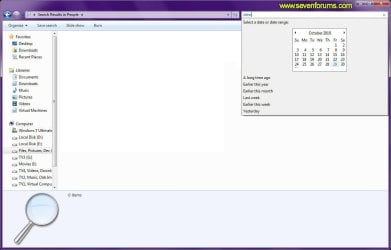
Windows Search detects when you are trying to enter a date
Selecting 29 October 2010 in the date drop down box creates the query date:?29/?10/?2010 and returns the following results:
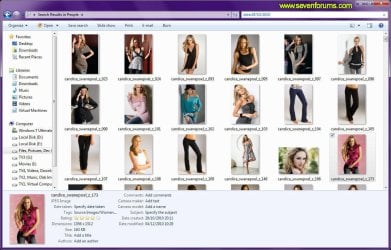
Search for file created on 29 October 2010
The date drop down also allows you to quickly and easily select a range of dates by dragging with the mouse:
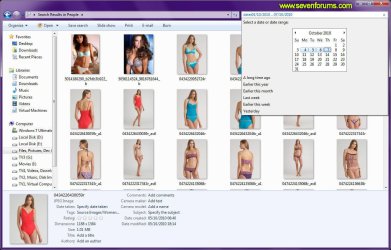
Searching for a range of dates
The date: operator is a global operator similar to kind:, because it will search for all possible date types, including Created, Modified and Taken. You can search for when a particular file was modified by using the datemodified: operator. For example, datemodified:4/?12/?2010 will locate all files that where modified on 4 December 2010:
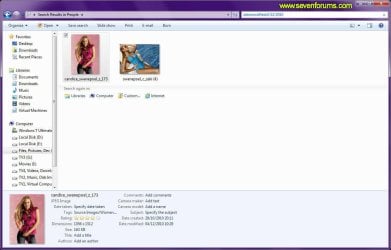
Finding files modified on 4 December 2010
Saving Search Queries
Some search queries you create will be simple in nature, and others will be more complex for specific results. For example, the query kind
 ics datecreated:20/11/2010 width:1920 tag:swimsuits will return the following results: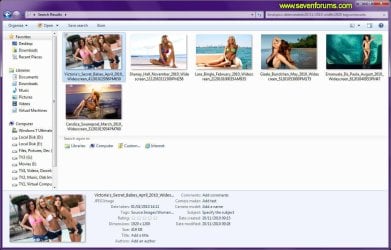
A complex search to find wallpapers created on 20 November 2010
Remembering the exact terms used for creating a complex search isn't easy, but Windows Search provides for you an easy way of saving it's search queries to be used again. Clicking the "Save search" button on the Explorer toolbar will open the Save As dialog where you can type a meaningful name for the search that is easier to remember:
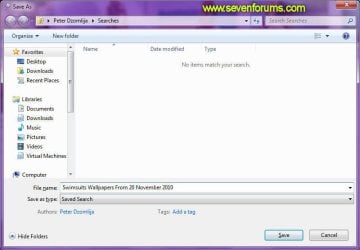
Saving a complex search
The search will be saved to the Favorites navigation pane of Windows Explorer, for easy one-click access:
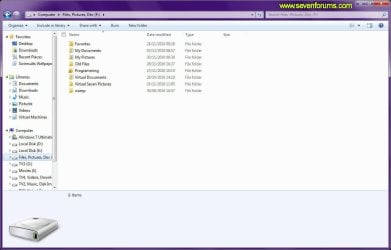
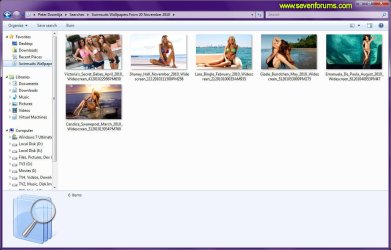
Reusing a previously saved complex search
Windows Search Reference
Now that you are familiar with the basics of Windows Search, you might be wondering how you can be even more efficient when it comes to finding files and e-mails on your PC. Advanced Query Syntax (AQS) can help you do just that. Using AQS, you can quickly define and narrow your searches for even more targeted results.
You can narrow your searches using a variety of keywords, or search parameters, which can restrict your query to specific locations, specific file types or properties within those types, or specific "file kinds".
The tables below give you an overview of additional syntax that can be used with Windows Search, including the properties that can be added to your search terms to narrow and refine your results.
Common file kinds
Users can also limit their searches to specific types of files, called file kinds.
All file types| everything | kind:everything
Communications| communications | kind:communications
Contacts| contacts | kind:contacts
E-mail| email | kind:email
Instant Messenger conversations| im | kind:im
Meetings| meetings | kind:meetings
Tasks| tasks | kind:tasks
Notes| notes | kind:notes
Documents| docs | kind:docs
Text documents| text | kind:text
Spreadsheets| spreadsheets | kind:spreadsheets
Presentations| presentations | kind
resentations
Music| music | kind:music
Pictures| pics | kind
ics
Videos| videos | kind:videos
Folders| folders | kind:folders
Favorites| favorites | kind:favorites
Programs| programs | kind
rogramsBoolean Properties
Search keywords and file properties can be combined to broaden or narrow a search with Boolean operators:
AND| social AND security | Finds items that contain social and security. NOT|social NOT security|Finds items that contain social, but not security.
–|social –security|Finds items that contain social, but not security.
OR|social OR security|Finds items that contain social or security.
>|size:>500|Finds items with a size greater than 500 bytes.
<|date:<11/05/04|Finds items with a date before 11/05/04.
..|date:11/05/04..11/10/04|Finds items with a date beginning on 11/05/04 and ending on 11/10/04.
<>|date:<>11/05/04|Finds items with a date other than 11/05/04.
>=|date:>=11/05/04|Finds items with a date on or after 11/05/04.
<=|date:<=11/05/04|Finds items with a date before or on 11/05/04.
Quotation marks|social security|Finds items that contain the exact phrase social security.
Parentheses|(social security)|Finds items that contain social and security in any order.
Dates
In addition to searching on specific dates and date ranges using the date, datecreated or datemodified operators described earlier, Windows Search allows relative date values:
Days
today, tomorrow, yesterday, earlierthisweek, monday, tuesday, wednesday, thursday, friday, saturday, sunday
Weeks
thisweek, lastweek
Months
nextmonth, lastmonth, pastmonth, earlierthismonth, january, february, mearch, april, may, june, july, august, september, october, november, december
Years
alongtimeago, earlierthisyear, lastyear, pastyear
Common File Properties
Many of these properties are common to all file kinds.
Title| title | title:"Quarterly Financial"
Subject| subject | subject:"Fashion Show 2009"
Status| status | status:complete
Date| date | date:last week
Date modified| datemodified or modified | modified:last week
Importance| importance or priority | importance:high
Size| size | size:> 50
Deleted| deleted or isdeleted | isdeleted:true
Is attachment| isattachment | isattachment:true
To| to or toname | to:bob
Cc| cc or ccname | cc:john
Company| company | company:Microsoft
Location| location | location:"Conference Room 102"
Category| category | category:Business
Keywords| keywords | keywords:"sales projections"
Album| album | album:"Fly by Night"
File name| filename or file | filename:MyResume
Genre| genre | genre:rock
Author| author or by | author:"Stephen King"
People| people or with | with
sonja or david)
Folder| folder, under or path | folder:downloads
File extension| ext or fileext | ext:.txt
Documents
These are properties common to documents, and is commonly used together with the kind:docs operator.
Comments| comments | comments:"needs final review"
Last saved by| lastsavedby | lastsavedby:john
Document manager| documentmanager | documentmanager:john
Revision number| revisionnumber | revisionnumber:1.0.3
Document format| documentformat | documentformat:MIMETYPE
Date last printed| datelastprinted | datelastprinted:lastweek
Presentation
These are properties common to presentations, and is commonly used together with the kind
resentations operator. Slide count| slidecount | slidecount:>20
Pictures
These are properties common to pictures, and is commonly used together with the kind
ics operator. Camera make| cameramake | cameramake:sample
Camera model| cameramodel | cameramodel:sample
Dimensions| dimensions | dimensions:8x10
Orientation| orientation | orientation:landscape
Date taken| datetaken | datetaken:yesterday
Width| width | width:1600
Height| height | height:1200
Music
These are properties common to music files, and is commonly used together with the kind:music operator.
Bit rate| bitrate, rate | bitrate:192
Artist| artist, by or from | artist:"Freddie Mercury"
Duration| duration | duration:3
Album| album | album:"A Kind Of Magic"
Genre| genre | genre:rock
Track| track | track:12
Year| year | year:1980
Videos
These are properties common to videos, and is commonly used together with the kind:videos operator.
Name| name, subject | name:"Family Vacation to the Beach 05"
Ext| ext, fileext | ext:.avi
Contacts
These are properties common to contacts, and is commonly used together with the kind:contacts operator.
Job title| jobtitle | jobtitle:CFO
IM address| imaddress | imaddress:[email protected]
Assistant's phone| assistantsphone | assistantsphone:555-3323
Assistant name| assistantname | assistantname
aul
Profession| profession | profession
lumber
Nickname| nickname | nickname:Tex
Spouse| spouse | spouse
 ebbie
ebbie
Business city| businesscity | businesscity:Seattle
Business postal code| businesspostalcode | businesspostalcode:98006
Business home page| businesshomepage | businesshomepage:Microsoft Corporation
Callback phone number| callbackphonenumber | callbackphonenumber:555-555-2121
Car phone| carphone | carphone:555-555-2121
Children| children | children:Timmy
First name| firstname | firstname:John
Last name| lastname | lastname
oe
Home fax| homefax | homefax:555-555-2121
Manager's name| managersname | managersname:John
Pager| pager | pager:555-555-2121
Business phone|businessphone|businessphone:555-555-2121
Home phone|homephone|homephone:555-555-2121
Mobile phone|mobilephone|mobilephone:555-555-2121
Office|office|office:sample
Anniversary|anniversary|anniversary:1/1/06
Birthday|birthday|birthday:1/1/06
Web page|webpage|webpage:Microsoft Corporation
Home phone|homephone|homephone:555-555-2121
Mobile phone|mobilephone|mobilephone:555-555-2121
Office|office|office:sample
Anniversary|anniversary|anniversary:1/1/06
Birthday|birthday|birthday:1/1/06
Web page|webpage|webpage:Microsoft Corporation
Communications
These are properties common to communications, and is commonly used together with the kind:communications operator.
From| from or organizer | from:john
Received| received or sent | sent:yesterday
Subject| subject or title | subject:"Quarterly Financial"
Has attachment| hasattachments, hasattachment | hasattachment:true
Attachments| attachments or attachment | attachment
resentation.ppt
Bcc| bcc, bccname or bccaddress | bcc:dave
Cc address| ccaddress or cc | ccaddress:[email protected]
Follow-up flag| followupflag | followupflag:2
Due date| duedate or due | due:last week
Read| read or isread | is:read
Is completed| iscompleted | is:completed
Incomplete| incomplete or isincomplete | is:incomplete
Has flag| hasflag or isflagged | has:flag
Duration| duration | duration:> 50
Calendar
These are properties common to calendars, and is commonly used together with the kind:calendar operator.
Recurring| recurring or isrecurring | is:recurring
Organizer| organizer, by or from | organizer:debbie
External Resources
This tutorial was created using information from the following websites:
- Vistaforums Tutorial - Advanced Searches
- Microsoft Technet - Windows Search 4.0 Administrator's Guide
- Microsoft Windows Search Advanced Query Syntax
- Windows Vista Team Blog - Advanced Search Techniques
- MSDN - Windows Search Overview
- MSDN - Advanced Query Syntax
Related Tutorials
- How to Edit or Reset Windows 7 Explorer Recent Search Box Suggestions
- How to Enable or Disable Windows 7 Explorer Recent Search Box Suggestions
- How to Have More Accurate Search Results in Windows 7 and Vista
- How to Turn Windows 7 Search On or Off
- Save a Search
- Search in Windows 7
- Search Index - Enable or Disable
- Search Options - Change or Restore
- Search Shortcut - Create
- Sevenforums - Windows 7 Search Federation Providers
- Windows Explorer Address and Search Bar - Change Size
- Windows Features - Turn On or Off
- How to Use Windows Search Filters and Operators to get better Search Results in Windows 7
Last edited by a moderator:


