Windows Live Mail Ribbon Toolbar - Hide or Show

How to Hide or Show the Ribbon in Windows Live Mail

   Information
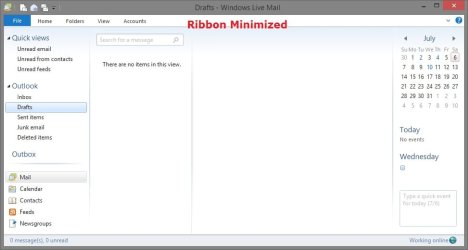
This tutorial will show you how to expand (show) or minimize (hide) the ribbon in Windows Live Mail.


EXAMPLE: Windows Live Mail Ribbon Expanded and Minimized
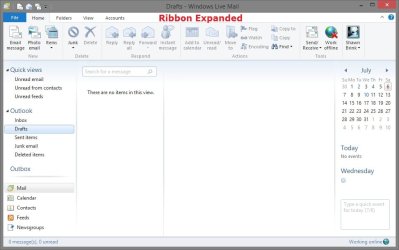
WLM_Ribbon_Expanded.jpg

WLM_Ribbon_Minimized.jpg
Here's How:

1. While in Windows Live Mail, do step 2, 3, or 4 below for the method you would like to use.

2. Press the CTRL + F1 to toggle to expand or minimize the ribbon.

OR

3. Right click anywhere on the top tab bar, and click on Minimize the Ribbon or Minimize the Ribbon.

Tab_Bar.jpg
OR

4. Click/tap on the arrow at the far right of the tab bar to toggle to expand or minimize the ribbon.
Arrow.jpg
That's it,
Shawn


Last edited:
That's not an option for me as when I right-click in the menu bar, all I get is "customize," NOT a choice about the now-totally-missing ribbon (the one with all of the icons, emoticons, etc.) It has simply vanished.
 

My Computer

Computer type
PC/Desktop
Computer Manufacturer/Model Number
Custom
OS
Windows 7 Home Premium 64-bit, service pack 1
CPU
Intel box core i5 4460
Motherboard
Asus B85MECSM 1150
Memory
Kingston Hyper X Fury BLK 1866 8GB 4x2
Monitor(s) Displays
Samsung 23" wide-screen
Screen Resolution
1920 X 1080
Hard Drives
WD Passport, 1 TB
Case
Win Z583 Mini Tower w/ USB3.0
Keyboard
Microsoft ergo wave
Mouse
Logitech wireless
Antivirus
Bitdefender; Malwarebytes Pro
Browser
IE11
Hello Nottaclue,

It's still there for me in the Windows Live Mail 2011 email client program. Are you sure that you are right clicking in the same area that I have the red dot at in my screenshots in the tutorial? Could you also post a screenshot showing what you are seeing to see if it may help ID what the problem may be? :)
 

My Computer

Computer type
PC/Desktop
Computer Manufacturer/Model Number
Self built custom
OS
64-bit Windows 11 Pro for Workstations
CPU
Intel i7-8700K OC'd to 5 GHz
Motherboard
ASUS ROG Maximus XI Formula Z390
Memory
64 GB (4x16GB) G.SKILL TridentZ RGB DDR4 3600 MHz
Graphics Card(s)
ASUS ROG-STRIX-GTX1080TI-O11G-GAMING
Sound Card
Integrated
Monitor(s) Displays
2 x Samsung Odyssey G7 27"
Screen Resolution
2560x1440
Hard Drives
1TB Samsung 990 PRO M.2,
4TB Samsung 990 PRO PRO M.2,
TerraMaster F8 SSD Plus NAS
PSU
Seasonic Prime Titanium 850W
Case
Thermaltake Core P3
Cooling
Corsair Hydro H115i
Keyboard
Logitech wireless K800
Mouse
Logitech MX Master 4
Internet Speed
2 Gb/s Download and 100 Mb/s Upload
Antivirus
Malwarebyte Anti-Malware Premium
Browser
Google Chrome
Other Info
Logitech Z625 speaker system,
Logitech BRIO 4K Pro webcam,
HP Color LaserJet Pro MFP M477fdn,
APC SMART-UPS RT 1000 XL - SURT1000XLI,
Galaxy S23 Plus phone
What you are showing in your tutorial doesn't even look familiar to me, Brink! I have no idea what you have. It looks nothing like my screen. You are dealing with someone who really, really has no clue... I will have to study the screenshot steps before I can attempt to show you what I am seeing. It looks pretty overwhelming to me right now.

What I've got at the top of my WLM is two very skinny bars with nothing but text -- no big, shiny icons. One starts with "File," and the other starts with "New."
 

My Computer

Computer type
PC/Desktop
Computer Manufacturer/Model Number
Custom
OS
Windows 7 Home Premium 64-bit, service pack 1
CPU
Intel box core i5 4460
Motherboard
Asus B85MECSM 1150
Memory
Kingston Hyper X Fury BLK 1866 8GB 4x2
Monitor(s) Displays
Samsung 23" wide-screen
Screen Resolution
1920 X 1080
Hard Drives
WD Passport, 1 TB
Case
Win Z583 Mini Tower w/ USB3.0
Keyboard
Microsoft ergo wave
Mouse
Logitech wireless
Antivirus
Bitdefender; Malwarebytes Pro
Browser
IE11
That's ok. We'll figure it out together when you are able to get the screenshots posted. If you have questions about doing so, please just let me know. In the mean time, click on File in your menu bar, and see if there is an About option under File. If so, click on About to see the version information of WLM and post back with it.
 

My Computer

Computer type
PC/Desktop
Computer Manufacturer/Model Number
Self built custom
OS
64-bit Windows 11 Pro for Workstations
CPU
Intel i7-8700K OC'd to 5 GHz
Motherboard
ASUS ROG Maximus XI Formula Z390
Memory
64 GB (4x16GB) G.SKILL TridentZ RGB DDR4 3600 MHz
Graphics Card(s)
ASUS ROG-STRIX-GTX1080TI-O11G-GAMING
Sound Card
Integrated
Monitor(s) Displays
2 x Samsung Odyssey G7 27"
Screen Resolution
2560x1440
Hard Drives
1TB Samsung 990 PRO M.2,
4TB Samsung 990 PRO PRO M.2,
TerraMaster F8 SSD Plus NAS
PSU
Seasonic Prime Titanium 850W
Case
Thermaltake Core P3
Cooling
Corsair Hydro H115i
Keyboard
Logitech wireless K800
Mouse
Logitech MX Master 4
Internet Speed
2 Gb/s Download and 100 Mb/s Upload
Antivirus
Malwarebyte Anti-Malware Premium
Browser
Google Chrome
Other Info
Logitech Z625 speaker system,
Logitech BRIO 4K Pro webcam,
HP Color LaserJet Pro MFP M477fdn,
APC SMART-UPS RT 1000 XL - SURT1000XLI,
Galaxy S23 Plus phone
quick solution that worked for me

hi guys as any of these did not apply for me trying to get back the ribbon and the blue button on the top left corner was not visible I used the following link to install the windows essentials on top of my existing windows live mail. it worked bringing back my ribbon without even restarting

Windows Essentials - Download Windows Live Essentials

I hope that helped
 

My Computer

Computer type
Laptop
Computer Manufacturer/Model Number
hp
OS
win 7 64
CPU
amd
Graphics Card(s)
amd radeon
Hard Drives
toshiba
Back
Top