
How to Fix Cannot Rename Library in Windows 7 and Windows 8
Information
If you cannot rename a library in your user account by right clicking on the library folder and clicking on Rename, then this will show you how to fix this so that you will be able to rename it afterwards in Windows 7 and Windows 8.
OPTION ONE
Fix Cannot Rename a Library using a BAT File
Download
2. Save the .bat file to your desktop.
3. Double click/tap on the bat file to run it, and click/tap on Run if prompted.
NOTE: You will notice that a command prompt window will quickly flash open and closed as the bat file runs.
4. See if you are able to rename the library now.
5. You can now delete the downloaded bat file if you like.
OPTION TWO
Fix Cannot Rename a Library using in Command Prompt
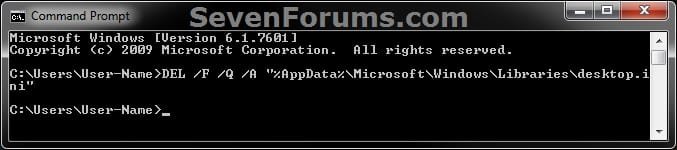
2. In the command prompt, copy and paste the command below, and press Enter. (see screenshot below) DEL /F /Q /A "%AppData%\Microsoft\Windows\Libraries\desktop.ini"
Note
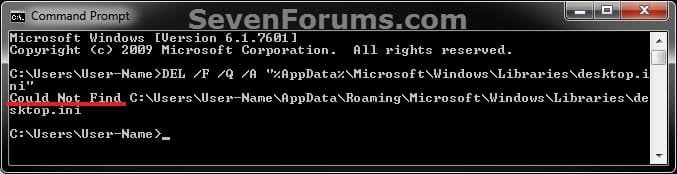
If you get a Could Not Find error as below, then this just means that the desktop.ini file has already been deleted and you can continue on to step 3 below.
3. Close the command prompt, and see if you are able to rename the library now.
OPTION THREE
Fix Cannot Rename a Library using in Windows Explorer
1. In Folder Options, do step 4 in OPTION ONE here: Hidden Files and Folders - Show or Hide
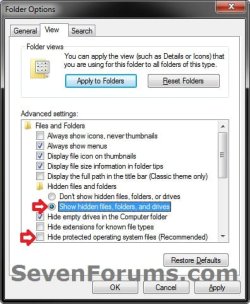 2. Press the Windows + R keys to open the Run dialog, copy and paste the path below into Run, and press Enter. %AppData%\Microsoft\Windows\Libraries3. In the Libraries folder, right click or press and hold on the desktop.ini file, and click/tap on Delete. (see screenshot below)
  4. In Folder Options, do step 5 in OPTION ONE here: Hidden Files and Folders - Show or Hide
 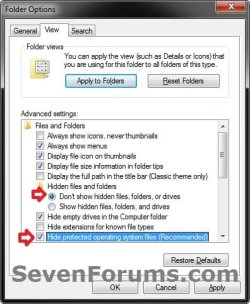 5. See if you are able to rename the library now.
That's it,
Shawn
Attachments
Last edited:


