
Making a new Outlook data file (PST) is even easier in Outlook 2010 than in Outlook 2003 (maybe 2007 as well?). You can store the new PST in any location: new folder on local drive, different local drive, removable drive, network drive, etc.
Here I will create a new Outlook 2010 data file, save in a new folder on my desktop, then copy an existing SENT and RECEIVED folders (from a different data file) to the new data file.
Regards,
GEWB
________________________________
Create New Desktop Folder
1. Right click on the desktop.
2. Select New then select Folder.
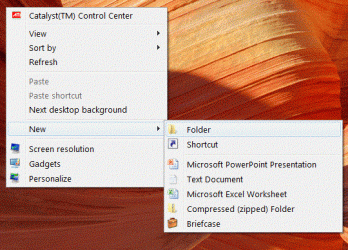
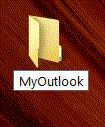
3. A new desktop folder is created - give it a label (name). Here I named it MyOutlook.
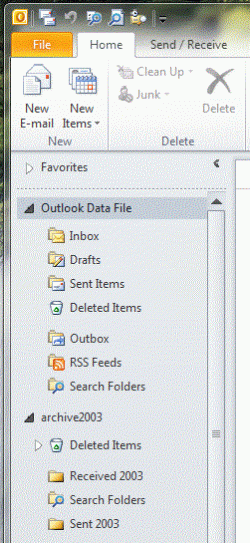
4. Launch (start) Outlook. Here I have the default Outlook Data File folders and I've opened a data file called "archive2003."
Create a New Outlook Data File (PST file)
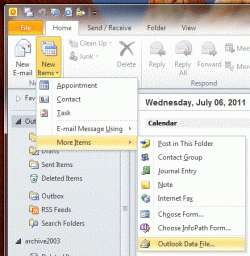
Select the Outlook Home tab if it isn't already selected.
1. Click the New Items drop list icon
2. Scroll down to More Items
3. Slide over then scroll down and select Outlook Data File...
4. The Create or Open Outlook Data File window opens to the default location with the default name highlighted.

5. Begin typing your desired new name. In this sample below I named the new data file My 2010 TEST PST.
6. In the left tree pane, navigate to your new desktop folder and click on it.
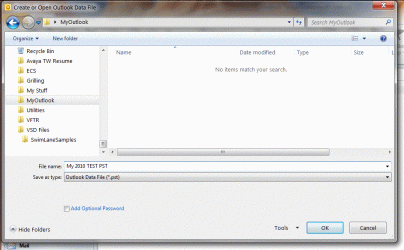
7. Click the OK button.
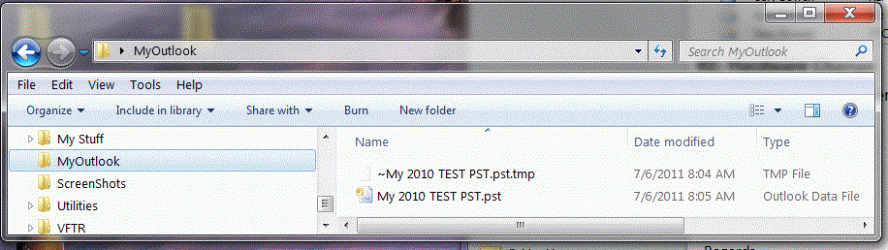
Outlook creates the new data file in the selected location and displays it in Outlook.

(Windows Explorer view of new PST file in newly created desktop folder.)
Copy (or Move) Folders Between Data Files (PST files)
To copy or move folders (all emails, attachments and statuses):
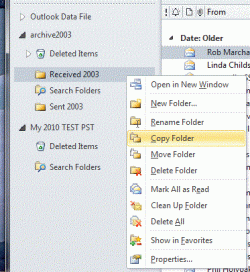
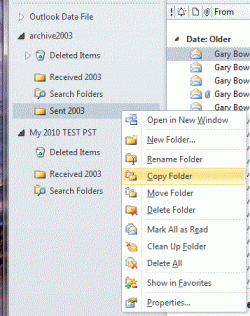
1. Right click on the desired existing folder to copy/move.
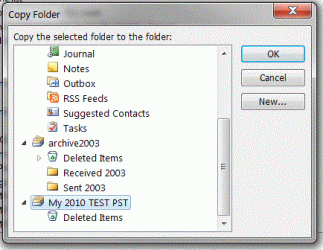
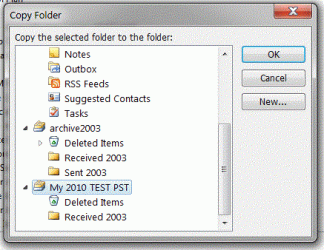
2. Select (click on) Copy Folder. The Copy Folder window opens.
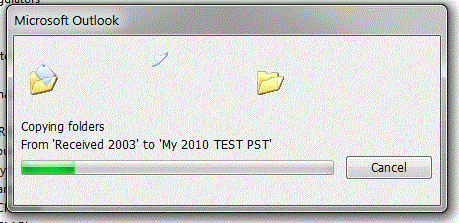
Here I've selected my "archive2003" data file "Received 2003" folder which has all of my old "Inbox" emails; I'll copy that folder to the new My 2010 Test PST data file.
3. Navigate to your new data file (PST) folder, select it (click on it) then click the OK button.
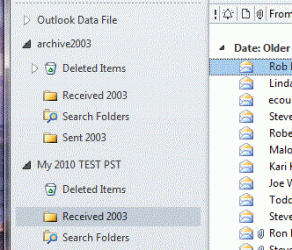
New copied folder in the My 2010 Test PST data file.
Note: it has the original (source) folder name!
4. Repeat the copy (or move) steps above for the Sent folder emails.
Rename Copied (or Moved) Folders
Rename the copied (or moved) folders as desired.
1. Select (click on) the new copied (or moved) folder.
2. Right click on the folder and select (click on) Rename Folder.
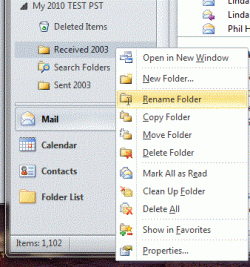
3. The folder name is selected and editable - type in the new name.
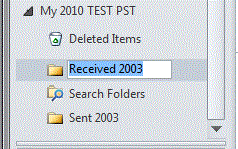
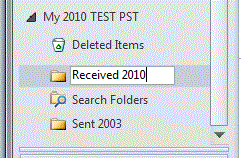
4. Press the Enter key (on keyboard) to complete the renaming.
5. Repeat the renaming steps for all other desired folders.
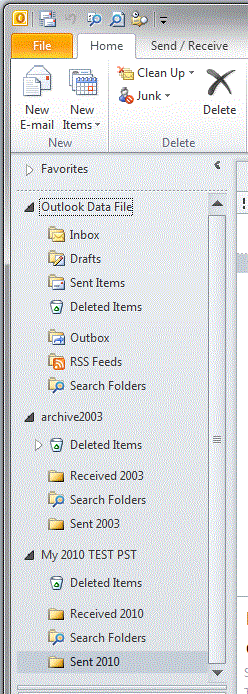
Done!
Here I will create a new Outlook 2010 data file, save in a new folder on my desktop, then copy an existing SENT and RECEIVED folders (from a different data file) to the new data file.
Regards,
GEWB
________________________________
Create New Desktop Folder
1. Right click on the desktop.
2. Select New then select Folder.
3. A new desktop folder is created - give it a label (name). Here I named it MyOutlook.
4. Launch (start) Outlook. Here I have the default Outlook Data File folders and I've opened a data file called "archive2003."
Create a New Outlook Data File (PST file)
Select the Outlook Home tab if it isn't already selected.
1. Click the New Items drop list icon
2. Scroll down to More Items
3. Slide over then scroll down and select Outlook Data File...
4. The Create or Open Outlook Data File window opens to the default location with the default name highlighted.
5. Begin typing your desired new name. In this sample below I named the new data file My 2010 TEST PST.
6. In the left tree pane, navigate to your new desktop folder and click on it.
7. Click the OK button.
Outlook creates the new data file in the selected location and displays it in Outlook.
(Windows Explorer view of new PST file in newly created desktop folder.)
Copy (or Move) Folders Between Data Files (PST files)
To copy or move folders (all emails, attachments and statuses):
1. Right click on the desired existing folder to copy/move.
2. Select (click on) Copy Folder. The Copy Folder window opens.
Here I've selected my "archive2003" data file "Received 2003" folder which has all of my old "Inbox" emails; I'll copy that folder to the new My 2010 Test PST data file.
3. Navigate to your new data file (PST) folder, select it (click on it) then click the OK button.
New copied folder in the My 2010 Test PST data file.
Note: it has the original (source) folder name!
4. Repeat the copy (or move) steps above for the Sent folder emails.
Rename Copied (or Moved) Folders
Rename the copied (or moved) folders as desired.
1. Select (click on) the new copied (or moved) folder.
2. Right click on the folder and select (click on) Rename Folder.
3. The folder name is selected and editable - type in the new name.
4. Press the Enter key (on keyboard) to complete the renaming.
5. Repeat the renaming steps for all other desired folders.
Done!
Last edited by a moderator:

 You might want to add some BB Code though. If you ask nicely though, Shawn might do it for you.

