
Shut Down Windows - Enable or Disable "Install Updates and Shut Down"
EXAMPLE: Enabled on Start Menu Power Button and "Shut Down Windows" Dialog
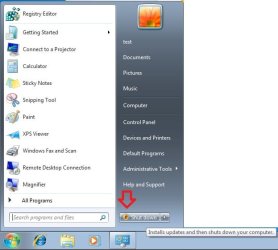
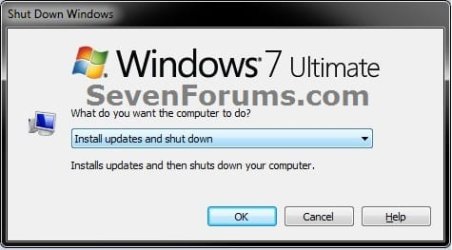
NOTE: This option will affect all users on the computer.
1. To Enable "Install Updates and Shut Down" Option
NOTE: This is the default setting.
A) Click on the Download button below to download the file below.
Enable_Install-Updates-and-Shut-Down_Option.reg
Download
B) Go to step 3.
2. To Disable "Install Updates and Shut Down" Option
A) Click on the Download button below to download the file below.
Disable_Install-Updates-and-Shut-Down_Option.reg
Download
3. Save the .reg file to the desktop.
4. Right click on the downloaded .reg file and click on Merge.
5. Click on Run, Yes, Yes, and OK when prompted.
6. Log off and log on, or restart the computer to apply.
7. When finished, you can delete the downloaded .reg file if you like.
1. Open the all users, specific users or groups, or all users except administrators Local Group Policy Editor for how you want this policy applied.
2. In the left pane, click on to expand User Configuration, Administrative Templates, Windows Components, and Windows Updates. (see screenshot below)

3. In the right pane of Windows Updates, right click on Do not display 'Install Updates and Shut Down' option in Shut Down Windows dialog box and click on Edit. (see screenshot above)
4. To Enable "Install Updates and Shut Down" Option
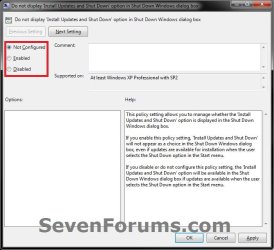
A) Select (dot) either Not Configured or Disabled. (see screenshot below step 6)
NOTE: Not Configured is the default setting.
B) Go to step 6.
5. To Disable "Install Updates and Shut Down" Option
A) Select (dot) Enabled. (see screenshot below step 6)
6. Click on OK. (see screenshot below)
7. Close the Local Group Policy Editor window.
That's it,
Shawn
How to Enable or Disable "Install Updates and Shut Down" Option in Windows 7
Information
This will show you how to enable or disable the Install Updates and Shut Down shield on the Start Menu "Shut Down" power button and option in the ALT+F4 Shut Down Windows dialog box for users in Windows 7 when important or critical Windows Updates are available for installation.
You must be logged in as an administrator to be able to do the steps in this tutorial.
You must be logged in as an administrator to be able to do the steps in this tutorial.
Note
If you disable 'Install Updates and Shut Down', it will not appear as a choice in the Shut Down Windows dialog box and Start Menu power button (alert shield on Shut Down button), even if important or critical Windows Updates are available for installation.
If you enable 'Install Updates and Shut Down', it will override and display as the default option in the Shut Down Windows dialog box and Start Menu power button (alert shield on Shut Down button) when important or critical Windows Updates are available.
If you enable 'Install Updates and Shut Down', it will override and display as the default option in the Shut Down Windows dialog box and Start Menu power button (alert shield on Shut Down button) when important or critical Windows Updates are available.
Warning
If you have the Windows Update settings set to Never check for updates, then the "Install Updates and Shut Down" option will not display no matter what this policy is set to.
EXAMPLE: Enabled on Start Menu Power Button and "Shut Down Windows" Dialog
OPTION ONE
Enable or Disable "Install Updates and Shut Down" using a REG File Download
NOTE: This option will affect all users on the computer.
1. To Enable "Install Updates and Shut Down" Option
NOTE: This is the default setting.
A) Click on the Download button below to download the file below.
Enable_Install-Updates-and-Shut-Down_Option.reg
Download
B) Go to step 3.
2. To Disable "Install Updates and Shut Down" Option
A) Click on the Download button below to download the file below.
Disable_Install-Updates-and-Shut-Down_Option.reg
Download
3. Save the .reg file to the desktop.
4. Right click on the downloaded .reg file and click on Merge.
5. Click on Run, Yes, Yes, and OK when prompted.
6. Log off and log on, or restart the computer to apply.
7. When finished, you can delete the downloaded .reg file if you like.
OPTION TWO
Enable or Disable "Install Updates and Shut Down" in Local Group Policy Editor
1. Open the all users, specific users or groups, or all users except administrators Local Group Policy Editor for how you want this policy applied.
2. In the left pane, click on to expand User Configuration, Administrative Templates, Windows Components, and Windows Updates. (see screenshot below)
3. In the right pane of Windows Updates, right click on Do not display 'Install Updates and Shut Down' option in Shut Down Windows dialog box and click on Edit. (see screenshot above)
4. To Enable "Install Updates and Shut Down" Option
A) Select (dot) either Not Configured or Disabled. (see screenshot below step 6)
NOTE: Not Configured is the default setting.
B) Go to step 6.
5. To Disable "Install Updates and Shut Down" Option
A) Select (dot) Enabled. (see screenshot below step 6)
6. Click on OK. (see screenshot below)
7. Close the Local Group Policy Editor window.
That's it,
Shawn
Related Tutorials
- How to Change "Install Updates and Shut Down" as Default Choice in Shut Down Windows Dialog
- How to Change the Default Action of the Alt+F4 "Shut Down Windows" Dialog
- How to Change the Default Windows 7 Start Menu Power Button Action
- How to Create a "Shut Down Windows" Shortcut in Windows 7
- How to Enable or Disable Windows Updates from Automatically Restarting the Computer
- How to Enable or Disable the Windows Update "Who can install updates" Setting
- How to Add or Remove the Shut Down, Restart, Sleep, and Hibernate Commands in Windows 7
Attachments
Last edited:


