
How to Turn On or Off Notify when Downloads Complete in Internet Explorer
Information
This tutorial will show you how to turn on or off to notify when downloads complete with the "View Downloads" pop-up at the bottom of IE9, IE10, and IE11.
EXAMPLE: Notify when Downloads Complete in IE9, IE10, and IE11

OPTION ONE
Turn On or Off IE "Notify when Downloads Complete" using REG File
1. Do step 2 or 3 below for what you would like to do.
2. To Turn On "Notify when Downloads Complete" in IE9, IE10, and IE11
NOTE: This is the default setting.
A) Click/tap on the download button below to download the file below, and go to step 4 below.
Turn_On_IE_Notify_Download_Complete.reg
Download
3. To Turn Off "Notify when Downloads Complete" in IE9, IE10, and IE11
A) Click/tap on the download button below to download the file below, and go to step 4 below.
Turn_Off_IE_Notify_Download_Complete.reg
Download
4. Save the .reg file to your desktop.
5. Double click/tap on the downloaded .reg file to merge it.
6. If prompted, click/tap on Run, Yes (UAC-Windows 7/8) or Continue (UAC-Vista), Yes, and OK to approve merging the .reg file.
7. You can now delete the downloaded .reg file if you like.
OPTION TWO
Turn On or Off IE "Notify when Downloads Complete" using Internet Options
1. Do step 2, 3, or 4 below for how you would like to open Internet Options.
2. Open the Control Panel (icons view) in Vista, Windows 7, or Windows 8, click/tap on the Internet Options icon, and go to step 5 below.
3. Open IE9, IE10, or IE11, click/tap on Tools (Menu bar) and Internet Options, then go to step 5 below.
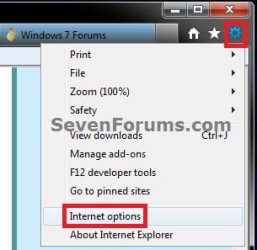
4. Open IE9, IE10, or IE11, click/tap on the gear icon in the upper right corner, click/tap on Internet Options, and go to step 5 below. (see screenshot below)
NOTE: In Windows 8, you would open the IE10 desktop version, and not the IE10 Metro (Windows UI) version.
5. Do step 6 or 7 below for what you would like to do.
6. To Turn On "Notify when Downloads Complete" in IE9, IE10, and IE11
NOTE: This is the default setting.
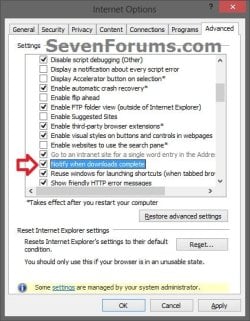
A) Click/tap on the Advanced tab, and check the Notify when downloads complete box under the Browsing section, and click/tap on OK. (see screenshot below)
7. To Turn Off "Notify when Downloads Complete" in IE9, IE10, and IE11
A) Click/tap on the Advanced tab, and uncheck the Notify when downloads complete box under the Browsing section, and click/tap on OK. (see screenshot below)
OPTION THREE
Turn On or Off IE "Notify when Downloads Complete" using Download Options
1. Open IE9, IE10, or IE11, and ......
NOTE: In Windows 8/8.1, you would open the desktop IE, and not the modern IE.
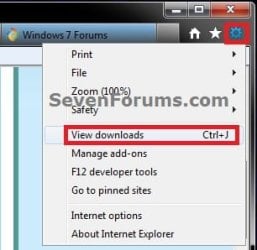
2. Click/tap on the gear icon in the upper right corner, then click/tap on View downloads. (see screenshot below)
NOTE: You could also press CTRL + J instead.
3. Click/tap on the Options link. (see screenshot below)

4. Do step 5 or 6 below for what you would like to do.
5. To Turn On "Notify when Downloads Complete" in IE9, IE10, and IE11
NOTE: This is the default setting.
A) Check the Notify me when my downloads are complete box, and click/tap on OK. (see screenshot below step 6)
6. To Turn Off "Notify when Downloads Complete" in IE9, IE10, and IE11
A) Uncheck the Notify me when my downloads are complete box, and click/tap on OK. (see screenshot below)

7. Click/tap on Close. (see screenshot below step 3)
That's it,
Shawn
Related Tutorials
- How to Turn the "Downloads Complete" Alert On or Off in Firefox
- How to Change the Default Download Location in IE9, IE10, and IE11
- How to Delete and Clear the Download History in IE9, IE10, and IE11
- How to View and Track Downloads in IE9, IE10, and IE11
- How to See Download Speed and Time in Download Manager of IE9 and IE10
Last edited:


