
How to Uninstall IE11 in Windows 7 to Restore Previous Version of Internet Explorer
Information
This tutorial will show you how to uninstall Internet Explorer 11 (IE11) to return to the previously installed version of Internet Explorer for all users in Windows 7.
You must be logged in as an administrator to be able to uninstall IE11.
You must be logged in as an administrator to be able to uninstall IE11.
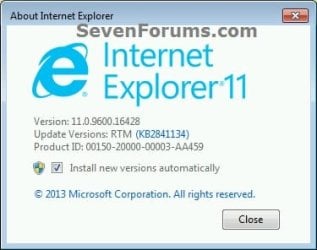
EXAMPLE: About Internet Explorer 11
NOTE: In Internet Explorer, click on Help (Menu bar) and About Internet Explorer to see this.
OPTION ONE
Uninstall IE11 in "Installed Updates" in Windows 7
1. Open the Control Panel (icons view), and click on the Programs and Features icon.
2. In Programs and Features, click on the View installed updates link on the left side. (see screenshot below)
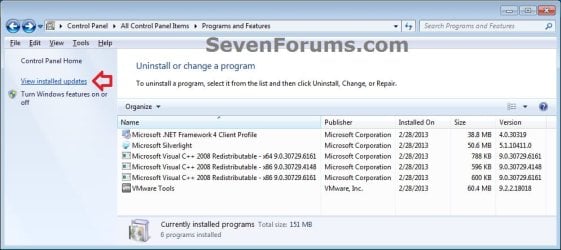
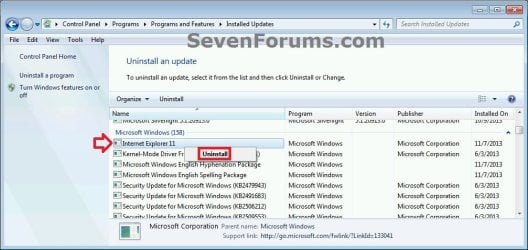
3. In Installed Updates, scroll down to find Internet Explorer 11, and do either action below. (see screenshots below)
- Double click on Internet Explorer 11, and go to step 4 below.
- Select Internet Explorer 11, click on Uninstall button on toolbar, and go to step 4 below.
- Right click on Internet Explorer 11, click on Uninstall, and go to step 4 below.

4. Click on Yes. (see screenshot below)
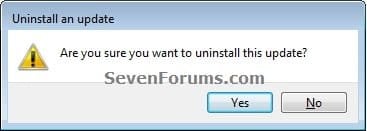
5. If prompted by UAC, click on Yes.
6. When IE11 has finished being uninstalled, click on Restart Now to apply. (see screenshots below)

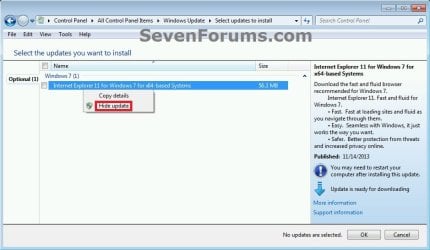
7. When the PC has restarted, you may wish to hide the Windows Update for Internet Explorer for Windows 7 for x86/x64-based Systems to prevent IE11 from being mistakenly reinstalled again. (see screenshot below)
OPTION TWO
Uninstall IE11 in an Elevated Command Prompt in Windows 7
1. Open an elevated command prompt.
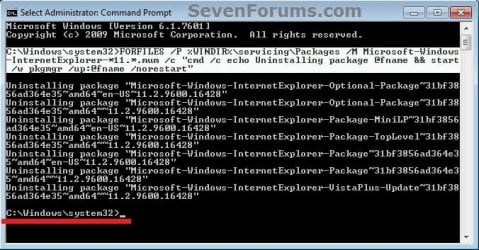
2. In the elevated command prompt, copy and paste the command below, and press Enter. (see screenshot below step 4)
Code:
FORFILES /P %WINDIR%\servicing\Packages /M Microsoft-Windows-InternetExplorer-*11.*.mum /c "cmd /c echo Uninstalling package @fname && start /w pkgmgr /up:@fname /norestart"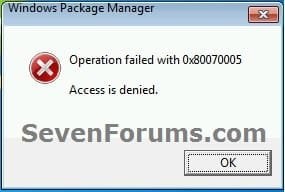
4. When you see the C:\Windows\system32> prompt, then it means IE11 has finished uninstalling. Restart the computer to apply. (see screenshot below)
NOTE: This may take a few minutes to finish. Be sure to do step 3 as needed.
5. When the PC has restarted, you may wish to hide the Windows Update for Internet Explorer for Windows 7 for x86/x64-based Systems to prevent IE11 from being mistakenly reinstalled again. (see screenshot below)
That's it,
Shawn
Last edited:


