Password Expiration - Enable or Disable

How to Enable or Disable Password Expiration for a User in Windows 7 and Windows 8


   Information
Password expiration allows you to set a maximum password age in days (42 by default) of a user account before it expires and they must change their password.

By default, password expiration is disabled. This will show you how to enable or disable password expiration for a user in Windows 7.

   Note
You can only do this while logged in as an administrator.

In Windows 8, this only applies to local accounts, and not Microsoft accounts.


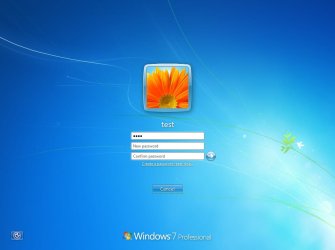
EXAMPLE: Password Expiration
NOTE: This is what a user will see at log on when the maximum password age is reached and they are required to change their password.
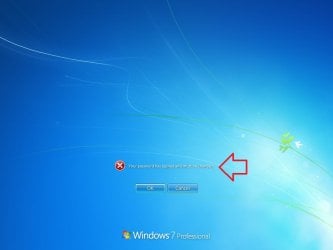
Expired1.jpg

Expired2.jpg

Expired3.jpg


OPTION ONE

Through Local Users and Groups Manager


1. Open the Local Users and Groups Manager.

2. In the left pane, click on Users, then double click on the name of the user account that you want to enable or disable password expiration for. (see screenshot below)
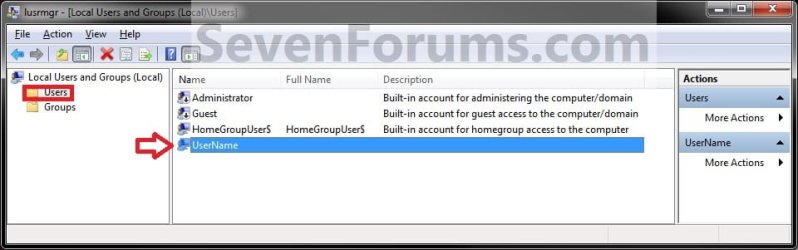
LUSRMGR-1.jpg
3. To Enable Password Expiration for this User Account
A) Uncheck the password never expires box, then click on OK. (see screenshot below)
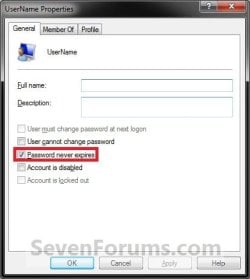
LUSRMGR-2.jpg
B) You will now need to change the maximum and minimum password age of this user account for what you would like.

C) Go to step 5.
4. To Disable Password Expiration for this User Account
A) Check the password never expires box, then click on OK. (see screenshot above)
NOTE: If password never expires is grayed out, then this means that this user account as reached it's set maximum password age. You will need to either change the maximum password age to more days so that it has not expired yet, or change the password for the user account in Windows 7 or Windows 8.
5. Repeat steps 2 to 3/4 for any other user account that you want to enable or disable password expiration for.

6. When done, close the Local Users and Groups Manager.


OPTION TWO

Through an Elevated Command Prompt


1. Open an elevated command prompt in Windows 7 or Windows 8.

2. Do step 3, 4, 5, or 6 below for what you would like to do.


3. To Disable Password Expiration for a User Account
A) In the elevated command prompt, type the command below, press Enter, and go to step 7 below. (see screenshot below)
NOTE: Substitute username in the command below with the actual user account name that you want to disable password expiration for.

Code:
wmic UserAccount where Name='[B][COLOR=red]username[/COLOR][/B]' set PasswordExpires=False
FOR EXAMPLE: I would type in this command exactly for a user account named Brink, and press enter.

Code:
wmic UserAccount where Name='Brink' set PasswordExpires=False
B) Go to step 4.
4. To Disable Password Expiration for All User Accounts on PC
A) In the elevated command prompt, type the command below, press Enter, and go to step 7 below. (see screenshot below)

Code:
wmic UserAccount set PasswordExpires=False
5. To Enable Password Expiration for a User Account
A) In the elevated command prompt, type the command below, press Enter, and go to step 7 below. (see screenshot below)
NOTE: Substitute username in the command below with the actual user account name that you want to enable password expiration for.

Code:
wmic UserAccount where Name='[B][COLOR=red]username[/COLOR][/B]' set PasswordExpires=True
FOR EXAMPLE: I would type in this command exactly for a user account named Brink, and press enter.

Code:
wmic UserAccount where Name='Brink' set PasswordExpires=True
B) You will now need to change the maximum and minimum password age of this user account for what you would like.
6. To Enable Password Expiration for All User Accounts on PC
A) In the elevated command prompt, type the command below, press Enter, and go to step 7 below. (see screenshot below)

Code:
wmic UserAccount set PasswordExpires=True

B) You can now change the maximum and minimum password age of each user account for what you would like.
7. Close the elevated command prompt.

That's it,
Shawn


Last edited:
Option two was exactly what I needed, thank you very much for the info! Added one line of code to my script (two if you count the remarks) and bingo bango.
 

My Computer

Computer type
PC/Desktop
OS
WES7 x64
You're most welcome FormerUSMC, and welcome to Seven Forums. :)
 

My Computer

Computer type
PC/Desktop
Computer Manufacturer/Model Number
Self built custom
OS
64-bit Windows 11 Pro for Workstations
CPU
Intel i7-8700K OC'd to 5 GHz
Motherboard
ASUS ROG Maximus XI Formula Z390
Memory
64 GB (4x16GB) G.SKILL TridentZ RGB DDR4 3600 MHz
Graphics Card(s)
ASUS ROG-STRIX-GTX1080TI-O11G-GAMING
Sound Card
Integrated
Monitor(s) Displays
2 x Samsung Odyssey G7 27"
Screen Resolution
2560x1440
Hard Drives
1TB Samsung 990 PRO M.2,
4TB Samsung 990 PRO PRO M.2,
TerraMaster F8 SSD Plus NAS
PSU
Seasonic Prime Titanium 850W
Case
Thermaltake Core P3
Cooling
Corsair Hydro H115i
Keyboard
Logitech wireless K800
Mouse
Logitech MX Master 4
Internet Speed
2 Gb/s Download and 100 Mb/s Upload
Antivirus
Malwarebyte Anti-Malware Premium
Browser
Google Chrome
Other Info
Logitech Z625 speaker system,
Logitech BRIO 4K Pro webcam,
HP Color LaserJet Pro MFP M477fdn,
APC SMART-UPS RT 1000 XL - SURT1000XLI,
Galaxy S23 Plus phone
Just thought I'd leave a reply on what I did to stop the "consider changing your password" notification "expires in so many days". I tried all the fixes online including these posted here, no go. I have 7 Home Premium on a newer laptop I bought used, have been using w8 on my main laptop for a good 6 months with no password and have yet to get a similar notification.

I just clicked on the wrench next to the x when the message popped up at startup, it brought me to a icon/notification setting window and I just scrolled down to password notification and changed setting to "never display/show". Done.

I'm admin in both my laptops and all the fixes online I tried including these here would just end with the command prompt or pc telling me not available or something similar to the effect that the fix didn't work. I see in the thread pics professional users are seeing this notification before the desktop loads up, for me on windows 7 home the message would pop up in a small box at the lower right corner right after 7 was mostly or fully loaded up after restart or power up.

Just thought I'd leave my fix that worked for me.
 

My Computer

Computer type
Laptop
Computer Manufacturer/Model Number
Alienware 17/Asus U46E-BAL 7/Lenovo G580
OS
Home 7 64 on Alienware and Asus. W8 on Lenovo.
CPU
4th gen Intel i7 4800MQ/i7 2640M/i5 3210M
Memory
16GB/8GB/4GB
Graphics Card(s)
GTX 780M
Monitor(s) Displays
17"/14"/15.5"
Screen Resolution
1920x1080/1366x768
Hard Drives
750GB/750GB/500GB

Four WD Elements 2TB Externals
Internet Speed
40MB Down/5MB Up
Antivirus
Microsoft Security Essentials/Windows Firewall/Malwarebytes
Browser
IE. Haven't used IE in years, is current superior browser
Other Info
2,000 Watt Yamaha/Klipsch sound system via HDMI
Hello psychotron,

Thank you for posting this for others. :)

It sounds like you used this below to hide the password notification in case someone else would like to turn it off and wasn't fast enough to click on the notification itself.
http://www.sevenforums.com/tutorial...ons-hide-show-system-icons-notifications.html
The only problem though is that was only a notification you turned off, and not actual password expiration. If password expiration wasn't disabled for your user account, then the password would still expire in those X many days.
 

My Computer

Computer type
PC/Desktop
Computer Manufacturer/Model Number
Self built custom
OS
64-bit Windows 11 Pro for Workstations
CPU
Intel i7-8700K OC'd to 5 GHz
Motherboard
ASUS ROG Maximus XI Formula Z390
Memory
64 GB (4x16GB) G.SKILL TridentZ RGB DDR4 3600 MHz
Graphics Card(s)
ASUS ROG-STRIX-GTX1080TI-O11G-GAMING
Sound Card
Integrated
Monitor(s) Displays
2 x Samsung Odyssey G7 27"
Screen Resolution
2560x1440
Hard Drives
1TB Samsung 990 PRO M.2,
4TB Samsung 990 PRO PRO M.2,
TerraMaster F8 SSD Plus NAS
PSU
Seasonic Prime Titanium 850W
Case
Thermaltake Core P3
Cooling
Corsair Hydro H115i
Keyboard
Logitech wireless K800
Mouse
Logitech MX Master 4
Internet Speed
2 Gb/s Download and 100 Mb/s Upload
Antivirus
Malwarebyte Anti-Malware Premium
Browser
Google Chrome
Other Info
Logitech Z625 speaker system,
Logitech BRIO 4K Pro webcam,
HP Color LaserJet Pro MFP M477fdn,
APC SMART-UPS RT 1000 XL - SURT1000XLI,
Galaxy S23 Plus phone
Thanks.

The thing is there was never a password created by me. Being this is a used laptop someone could of created a password but the only user accounts are mine as admin and a guest account that has not been activated. The original user account I deleted. And the only options in my admin account are to create a password not edit or change one so that tells me there is no active password.
So the fact that it was asking me to change password means there was a password and if I don't do anything I won't be able to log into windows 7?

Whatever that answer to the above is all the fixes I tried including yours failed, I would assume it is because I don't have admin rights but I do as far as I know. So the fact that none of the other fixes worked could that mean I don't actually have a admin account even though when I go to control panel-users accounts it says my user account is admin?

Also, I was trying to add photo of my user account page. Is there a way to just upload pic from my harddrive or are we forced to do the url thing?
 

My Computer

Computer type
Laptop
Computer Manufacturer/Model Number
Alienware 17/Asus U46E-BAL 7/Lenovo G580
OS
Home 7 64 on Alienware and Asus. W8 on Lenovo.
CPU
4th gen Intel i7 4800MQ/i7 2640M/i5 3210M
Memory
16GB/8GB/4GB
Graphics Card(s)
GTX 780M
Monitor(s) Displays
17"/14"/15.5"
Screen Resolution
1920x1080/1366x768
Hard Drives
750GB/750GB/500GB

Four WD Elements 2TB Externals
Internet Speed
40MB Down/5MB Up
Antivirus
Microsoft Security Essentials/Windows Firewall/Malwarebytes
Browser
IE. Haven't used IE in years, is current superior browser
Other Info
2,000 Watt Yamaha/Klipsch sound system via HDMI
While logged in to an administrator account, I would double check to make sure that password expiration was disabled for each user account using the method in the tutorial on the first page.
 

My Computer

Computer type
PC/Desktop
Computer Manufacturer/Model Number
Self built custom
OS
64-bit Windows 11 Pro for Workstations
CPU
Intel i7-8700K OC'd to 5 GHz
Motherboard
ASUS ROG Maximus XI Formula Z390
Memory
64 GB (4x16GB) G.SKILL TridentZ RGB DDR4 3600 MHz
Graphics Card(s)
ASUS ROG-STRIX-GTX1080TI-O11G-GAMING
Sound Card
Integrated
Monitor(s) Displays
2 x Samsung Odyssey G7 27"
Screen Resolution
2560x1440
Hard Drives
1TB Samsung 990 PRO M.2,
4TB Samsung 990 PRO PRO M.2,
TerraMaster F8 SSD Plus NAS
PSU
Seasonic Prime Titanium 850W
Case
Thermaltake Core P3
Cooling
Corsair Hydro H115i
Keyboard
Logitech wireless K800
Mouse
Logitech MX Master 4
Internet Speed
2 Gb/s Download and 100 Mb/s Upload
Antivirus
Malwarebyte Anti-Malware Premium
Browser
Google Chrome
Other Info
Logitech Z625 speaker system,
Logitech BRIO 4K Pro webcam,
HP Color LaserJet Pro MFP M477fdn,
APC SMART-UPS RT 1000 XL - SURT1000XLI,
Galaxy S23 Plus phone
I have windows 7 home so I can't perform any of the tutorials on the first page, assuming the top of your thread here is the first page and that windows 7 home does not allow me to edit or see Local Users and Groups.

When I go to user accounts the only account active is my admin account. So I'm not sure what you are asking me to do.
 

My Computer

Computer type
Laptop
Computer Manufacturer/Model Number
Alienware 17/Asus U46E-BAL 7/Lenovo G580
OS
Home 7 64 on Alienware and Asus. W8 on Lenovo.
CPU
4th gen Intel i7 4800MQ/i7 2640M/i5 3210M
Memory
16GB/8GB/4GB
Graphics Card(s)
GTX 780M
Monitor(s) Displays
17"/14"/15.5"
Screen Resolution
1920x1080/1366x768
Hard Drives
750GB/750GB/500GB

Four WD Elements 2TB Externals
Internet Speed
40MB Down/5MB Up
Antivirus
Microsoft Security Essentials/Windows Firewall/Malwarebytes
Browser
IE. Haven't used IE in years, is current superior browser
Other Info
2,000 Watt Yamaha/Klipsch sound system via HDMI
Sorry, I was referring to using step 2 in OPTION TWO to double check for the user account that you are getting this password notification for.
 

My Computer

Computer type
PC/Desktop
Computer Manufacturer/Model Number
Self built custom
OS
64-bit Windows 11 Pro for Workstations
CPU
Intel i7-8700K OC'd to 5 GHz
Motherboard
ASUS ROG Maximus XI Formula Z390
Memory
64 GB (4x16GB) G.SKILL TridentZ RGB DDR4 3600 MHz
Graphics Card(s)
ASUS ROG-STRIX-GTX1080TI-O11G-GAMING
Sound Card
Integrated
Monitor(s) Displays
2 x Samsung Odyssey G7 27"
Screen Resolution
2560x1440
Hard Drives
1TB Samsung 990 PRO M.2,
4TB Samsung 990 PRO PRO M.2,
TerraMaster F8 SSD Plus NAS
PSU
Seasonic Prime Titanium 850W
Case
Thermaltake Core P3
Cooling
Corsair Hydro H115i
Keyboard
Logitech wireless K800
Mouse
Logitech MX Master 4
Internet Speed
2 Gb/s Download and 100 Mb/s Upload
Antivirus
Malwarebyte Anti-Malware Premium
Browser
Google Chrome
Other Info
Logitech Z625 speaker system,
Logitech BRIO 4K Pro webcam,
HP Color LaserJet Pro MFP M477fdn,
APC SMART-UPS RT 1000 XL - SURT1000XLI,
Galaxy S23 Plus phone
Yep. Done that.

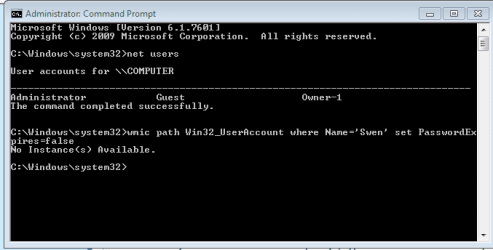
After I type and hit enter in command prompt as admin it says "no instance (s) available" and I close prompt. So whether that did anything IDK.
 

My Computer

Computer type
Laptop
Computer Manufacturer/Model Number
Alienware 17/Asus U46E-BAL 7/Lenovo G580
OS
Home 7 64 on Alienware and Asus. W8 on Lenovo.
CPU
4th gen Intel i7 4800MQ/i7 2640M/i5 3210M
Memory
16GB/8GB/4GB
Graphics Card(s)
GTX 780M
Monitor(s) Displays
17"/14"/15.5"
Screen Resolution
1920x1080/1366x768
Hard Drives
750GB/750GB/500GB

Four WD Elements 2TB Externals
Internet Speed
40MB Down/5MB Up
Antivirus
Microsoft Security Essentials/Windows Firewall/Malwarebytes
Browser
IE. Haven't used IE in years, is current superior browser
Other Info
2,000 Watt Yamaha/Klipsch sound system via HDMI
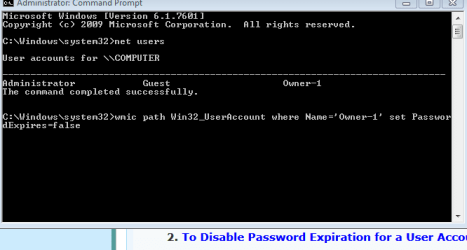
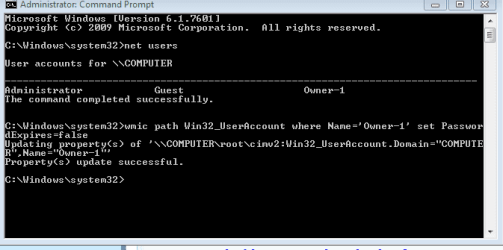
It sounds like you may have made a mistake entering the command. Possible with the user name. Please go ahead and type net users in the elevated command prompt, press Enter, then do step 2 in OPTION TWO, and post back with a screenshot showing everything in the command prompt to see if anything may stand out.
 

My Computer

Computer type
PC/Desktop
Computer Manufacturer/Model Number
Self built custom
OS
64-bit Windows 11 Pro for Workstations
CPU
Intel i7-8700K OC'd to 5 GHz
Motherboard
ASUS ROG Maximus XI Formula Z390
Memory
64 GB (4x16GB) G.SKILL TridentZ RGB DDR4 3600 MHz
Graphics Card(s)
ASUS ROG-STRIX-GTX1080TI-O11G-GAMING
Sound Card
Integrated
Monitor(s) Displays
2 x Samsung Odyssey G7 27"
Screen Resolution
2560x1440
Hard Drives
1TB Samsung 990 PRO M.2,
4TB Samsung 990 PRO PRO M.2,
TerraMaster F8 SSD Plus NAS
PSU
Seasonic Prime Titanium 850W
Case
Thermaltake Core P3
Cooling
Corsair Hydro H115i
Keyboard
Logitech wireless K800
Mouse
Logitech MX Master 4
Internet Speed
2 Gb/s Download and 100 Mb/s Upload
Antivirus
Malwarebyte Anti-Malware Premium
Browser
Google Chrome
Other Info
Logitech Z625 speaker system,
Logitech BRIO 4K Pro webcam,
HP Color LaserJet Pro MFP M477fdn,
APC SMART-UPS RT 1000 XL - SURT1000XLI,
Galaxy S23 Plus phone
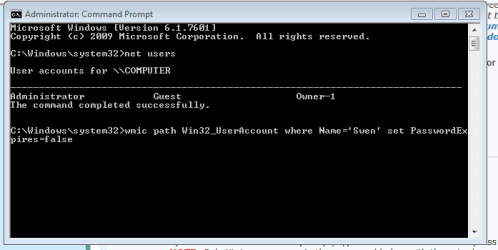
Thanks Brink. Problem was I was using 'Swen' as that's what I named my user account. After doing the new users prompt I saw Owner-1 and gave that a try and it worked.

Screenshots included.
 

Attachments

  • 2.PNG
    2.PNG
    5.9 KB · Views: 2,173
  • 3.PNG
    3.PNG
    5.5 KB · Views: 1,659
  • 4.PNG
    4.PNG
    6.3 KB · Views: 1,714
  • 5.PNG
    5.PNG
    6.3 KB · Views: 1,719

My Computer

Computer type
Laptop
Computer Manufacturer/Model Number
Alienware 17/Asus U46E-BAL 7/Lenovo G580
OS
Home 7 64 on Alienware and Asus. W8 on Lenovo.
CPU
4th gen Intel i7 4800MQ/i7 2640M/i5 3210M
Memory
16GB/8GB/4GB
Graphics Card(s)
GTX 780M
Monitor(s) Displays
17"/14"/15.5"
Screen Resolution
1920x1080/1366x768
Hard Drives
750GB/750GB/500GB

Four WD Elements 2TB Externals
Internet Speed
40MB Down/5MB Up
Antivirus
Microsoft Security Essentials/Windows Firewall/Malwarebytes
Browser
IE. Haven't used IE in years, is current superior browser
Other Info
2,000 Watt Yamaha/Klipsch sound system via HDMI
You're most welcome.

Yep, that was the issue with no "Swen". Did you by chance rename "Owner-1" to have a display name of "Swen" instead?
 

My Computer

Computer type
PC/Desktop
Computer Manufacturer/Model Number
Self built custom
OS
64-bit Windows 11 Pro for Workstations
CPU
Intel i7-8700K OC'd to 5 GHz
Motherboard
ASUS ROG Maximus XI Formula Z390
Memory
64 GB (4x16GB) G.SKILL TridentZ RGB DDR4 3600 MHz
Graphics Card(s)
ASUS ROG-STRIX-GTX1080TI-O11G-GAMING
Sound Card
Integrated
Monitor(s) Displays
2 x Samsung Odyssey G7 27"
Screen Resolution
2560x1440
Hard Drives
1TB Samsung 990 PRO M.2,
4TB Samsung 990 PRO PRO M.2,
TerraMaster F8 SSD Plus NAS
PSU
Seasonic Prime Titanium 850W
Case
Thermaltake Core P3
Cooling
Corsair Hydro H115i
Keyboard
Logitech wireless K800
Mouse
Logitech MX Master 4
Internet Speed
2 Gb/s Download and 100 Mb/s Upload
Antivirus
Malwarebyte Anti-Malware Premium
Browser
Google Chrome
Other Info
Logitech Z625 speaker system,
Logitech BRIO 4K Pro webcam,
HP Color LaserJet Pro MFP M477fdn,
APC SMART-UPS RT 1000 XL - SURT1000XLI,
Galaxy S23 Plus phone
Can this be done at the group level? I would like for the administrator accounts to remain, but would like the group "Users" to expire. I am deploying local password policies and this is the only thing I have left to configure and deploy.

I have tried something like wmic group where name='Users' set PasswordExpires=True, but doesn't work.
Please enlighten me great one.
Thanks
Dave
 

My Computer

Computer type
PC/Desktop
Computer Manufacturer/Model Number
Dell
OS
Windows 7 Pro
CPU
E8400
Memory
8GB
I have a script written by someone else that creates local user accounts, can something be added to make all new users have Set PasswordExpire=True. Sorry, I'm a little rusty in my coding these days.

Code:
$strComputer=$env:computername
#Input file required C:\utils\users.txt
ForEach ($user in (Import-CSV "C:\utils\CreateLocalAccounts\qtpusers.txt")){
  write-host $user.username
  write-host $user.password

#get-content "C:\utils\CreateLocalAccounts\qtpusers.txt" | ForEach-Object {
#Create the user account and assign a default password
$objOU = [adsi]"WinNT://."
$objUser = $objOU.Create("User", $user.username)
$objuser.setPassword($user.password)
$objuser.setinfo()
#Enable [User must change password at next logon]
#$objuser.PasswordExpired = 0
$objuser.PasswordLastSet = 0
$objuser.SetInfo()
#Add the User account to the local Administrators Group
$computer = [ADSI]("WinNT://" + $strComputer + ",computer") 
$group = $computer.psbase.children.find("Users")  
$group.Add("WinNT://" + $strComputer + "/" + $user.UserName)  

}
 

My Computer

Computer type
PC/Desktop
Computer Manufacturer/Model Number
Dell
OS
Windows 7 Pro
CPU
E8400
Memory
8GB
Can a powershell wild card be used in Name=, for all users?
wmic path win32_useraccount where name='.*?' set passwordexpires=true
 

My Computer

Computer type
PC/Desktop
Computer Manufacturer/Model Number
Dell
OS
Windows 7 Pro
CPU
E8400
Memory
8GB
I have a script written by someone else that creates local user accounts, can something be added to make all new users have Set PasswordExpire=True. Sorry, I'm a little rusty in my coding these days.
Try tacking
Code:
wmic path Win32_UserAccount where Name="$user.username" set PasswordExpires=true
under the line
Code:
$group.Add("WinNT://" + $strComputer + "/" + $user.UserName)


Can a powershell wild card be used in Name=, for all users?
wmic path win32_useraccount where name='.*?' set passwordexpires=true

You can use wildcards in WMIC but it works a little differently from PowerShell. To use wildcards in WMIC specify the "Like" operator instead of "=". Also, your wildcard symbols must abide to the WMI Query Language where percent symbols (%) represent any character and amount of characters, and an underscore (_) represents any single character.
Code:
wmic path Win32_UserAccount where "Name Like '%'" set PasswordExpires=true
But you don't even need wildcards for the task: wmic path Win32_UserAccount alone will list all users. So to set PasswordExpires=True for all user accounts, just run
Code:
wmic path Win32_UserAccount set PasswordExpires=True
 
Last edited:

My Computer

Computer type
PC/Desktop
OS
Windows 10, Windows 8.1 Pro, Windows 7 Professional, OS X El Capitan
Works like a charm, thank you.
Do you know off hand what is used for "User must change password at next logon"?
 

My Computer

Computer type
PC/Desktop
Computer Manufacturer/Model Number
Dell
OS
Windows 7 Pro
CPU
E8400
Memory
8GB
Works like a charm, thank you.
Do you know off hand what is used for "User must change password at next logon"?

It's to force the user to do just that when their password expires. :)
 

My Computer

Computer type
PC/Desktop
Computer Manufacturer/Model Number
Self built custom
OS
64-bit Windows 11 Pro for Workstations
CPU
Intel i7-8700K OC'd to 5 GHz
Motherboard
ASUS ROG Maximus XI Formula Z390
Memory
64 GB (4x16GB) G.SKILL TridentZ RGB DDR4 3600 MHz
Graphics Card(s)
ASUS ROG-STRIX-GTX1080TI-O11G-GAMING
Sound Card
Integrated
Monitor(s) Displays
2 x Samsung Odyssey G7 27"
Screen Resolution
2560x1440
Hard Drives
1TB Samsung 990 PRO M.2,
4TB Samsung 990 PRO PRO M.2,
TerraMaster F8 SSD Plus NAS
PSU
Seasonic Prime Titanium 850W
Case
Thermaltake Core P3
Cooling
Corsair Hydro H115i
Keyboard
Logitech wireless K800
Mouse
Logitech MX Master 4
Internet Speed
2 Gb/s Download and 100 Mb/s Upload
Antivirus
Malwarebyte Anti-Malware Premium
Browser
Google Chrome
Other Info
Logitech Z625 speaker system,
Logitech BRIO 4K Pro webcam,
HP Color LaserJet Pro MFP M477fdn,
APC SMART-UPS RT 1000 XL - SURT1000XLI,
Galaxy S23 Plus phone
Sorry, I should have specified more, I was wondering about the command to enable that feature.
It doesn't seem to be listed as an option in win32_userAccount Set, does the command reside somewhere else?
 
Last edited:

My Computer

Computer type
PC/Desktop
Computer Manufacturer/Model Number
Dell
OS
Windows 7 Pro
CPU
E8400
Memory
8GB
Back
Top