
How To Mute Windows Media Center Videos without Muting the Whole PC
Note
Windows Media Center must be open and running a video for this tutorial to work.
Windows Media Center is not available in the Windows 7 Starter and Windows 7 Home Basic editions.
The N and KN editions of Windows 7 have all the features that normally come with each individual Windows 7 edition, except for Windows Media Player 12 and related programs, such as Windows Media Center or Windows DVD Maker.
The N editions of Windows 7 allow you to choose your own media player and software required to manage and play CDs, DVDs, and other digital media files. If you choose to use Windows Media Player 12, downloading it, along with related software, is free. Download Media Feature Pack for Windows 7 N with Service Pack 1 and Windows 7 KN with Service Pack 1 (KB968211) from Official Microsoft Download Center
Windows Media Center is not available in the Windows 7 Starter and Windows 7 Home Basic editions.
The N and KN editions of Windows 7 have all the features that normally come with each individual Windows 7 edition, except for Windows Media Player 12 and related programs, such as Windows Media Center or Windows DVD Maker.
The N editions of Windows 7 allow you to choose your own media player and software required to manage and play CDs, DVDs, and other digital media files. If you choose to use Windows Media Player 12, downloading it, along with related software, is free. Download Media Feature Pack for Windows 7 N with Service Pack 1 and Windows 7 KN with Service Pack 1 (KB968211) from Official Microsoft Download Center
1. Go to the system tray and click on the
 icon.
icon.2. A menu looking something like
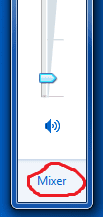 should appear, click the 'Mixer' button at the bottom as circled in the picture.
3. In the newly opened mixer window, look for the Windows Media Center icon. Drag the slider immediatley below the icon to the bottom or click the
 button.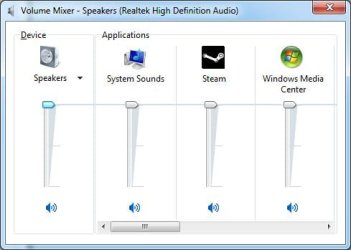
You're done.

Note
To reverse this process repeat this tutorial but move the slider to the top not the bottom or if you used the make sure it doesn't look like  .
.
make sure it doesn't look like .Oli
Last edited by a moderator:


