
Force DVI/HDMI resolutions and refresh rates

How to Force DVI or HDMI Resolutions and Refresh Rates in Windows 7

   Information
There have been innumerable posts on SevenForums about things like 59Hz refresh rates and 1080p 16:9 HDTVs that display only 1024x768 when connected with DVI or HDMI. After a ton of research and development I think I've got a working solution for virtually all of these issues.


Starting with Vista, Microsoft has required graphics vendors to read and respect monitor capability information from the display itself if they wanted to pass Windows Hardware Quality Labs (WHQL) certification. This display capability data is encapsulated in an EDID. Few HDTV manufacturers sought WHQL and it's unclear whether Microsoft tests display EDIDs from monitor manufacturers as a WHQL requirement. Please let me know if you have a WHQL display that seems to have a bad EDID.

As a result, many DVI/HDMI connected HDTVs and some monitors are locked into displaying only those resolutions and refresh rates that are specified in the EDID. No graphics adapter or driver is supposed to allow configurations not listed in the EDID at least as a default. Newer ATI drivers allow for a small number of HD resolutions to be forced but it's been hit or miss for the users I've surveyed and nVidia's offerings don't seem to be a 100% solution either.

The natural solution would appear to be changing the EDID information in the display. Rarely, this is possible with Powestrip if the display stores the EDID in a flash memory but more commonly the EDID is stored in an EPROM that can only be updated with specialized hardware. I've talked with several display vendors during the development of this tutorial and none of them consider a bad EDID grounds for warranty service. So if next to no displays support updating the EDID through software and the manufacturer won't fix the hardware, what are we left to do? Break out the toolkit and warm up the soldering iron?

While that's well within my capabilities it seems to put some end-users off a bit, although I really can't understand why -- I love the smell of solder in the morning! :geek: But there has to be a better way right? Again, Microsoft has a solution if you really dig for it and do your homework: How to Use an INF to Override the Monitor EDID While it's not intended for end users, what really fun stuff is? The challenge was to develop a method accessible to a greater audience -- to improve on the solution that Microsoft provides that's intended for hardware manufacturers and make it work for us.
   Warning

Prerequisites
  • Read and understand both linked documents above.
  • Post questions if anything is unclear before you proceed.
  • Don't blame me when you ruin your $3000 HDTV. Smoke can happen.
  • Read up on what your displays true capabilities are stick close to them.
  • This is more of a coffee tutorial than a beer tutorial...


Procedure
  1. Download View attachment Phoenix.zip and extract it to a working folder.
  2. Run it and click the registry toolbar button.
  3. Click the pencil toolbar button for edit mode.
  4. Change the EDID settings to reflect you display's true capabilities
  5. Pay special attention to the Standard Timings tab.
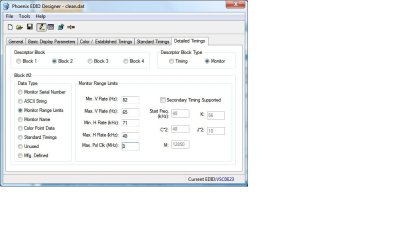
  6. Detailed Timing blocks 2-4 provide some very interested additional options.
  7. Save the EDID to a .DAT file in the working folder.
  8. Download moninfo.exe and install it.
  9. Open the saved .DAT with MonInfo and make sure it doesn't complain about it
  10. If it does post here for help
  11. If MonInfo reads in an displays the settings the way you configured them in Phoenix then...
  12. Select Create INF... from the file menu and save it to the working folder.
  13. Feel free to edit the strings in the INF to your liking.
  14. Open Start, type devmgmt.msc and press Enter.
  15. Select the monitor you want to change, right click and select Update Driver Software
  16. Use the tried and true "Have Disk" method to select the INF and install it.
  17. Reboot and enjoy your new resolution!


Last edited by a moderator:
Is there anybody who could help me with eyes killin' 60Hz refresh rate, before i'll go blind for f***s sake. I am willin' to pay for an effort. Can't find EDID for my Plasma Panasonic TH-42PX80. I have been playin' on XP 1920x1080 100Hz, so i know it can go better then 60Hz..

Regards people.
 

My Computer

OS
windows7
Luwie, you seem to know your way around. I've followed all the instructions and found various ways to set a custom resolution. Nothing works. The custom resolutions stick and can be used, 1366x768 on Hisense 32" HD ready LCD tv over VGA-Running Windows 7 Ultimate x64 and Nvidia geforce driver 191.07, but according to the tv thats not what it's displaying(also doesn't look right). I'm 100% sure that the set supports 1366x768. On the xbox 360 it displays full 1080p no problem and the same on ps3. Ps Tried in Vista, Xp and Ubunthu, no luck.
Suggestions anyone?
Thankyou in advance.

Did you edit your inf & update your windows driver to this inf?
 

My Computer

OS
Windows 7 32-bit
Luwie, you seem to know your way around. I've followed all the instructions and found various ways to set a custom resolution. Nothing works. The custom resolutions stick and can be used, 1366x768 on Hisense 32" HD ready LCD tv over VGA-Running Windows 7 Ultimate x64 and Nvidia geforce driver 191.07, but according to the tv thats not what it's displaying(also doesn't look right). I'm 100% sure that the set supports 1366x768. On the xbox 360 it displays full 1080p no problem and the same on ps3. Ps Tried in Vista, Xp and Ubunthu, no luck.
Suggestions anyone?
Thankyou in advance.

Try powerstrip if it doesn't work
 

My Computer

OS
Windows 7 32-bit
Hello all,

I just received a new ATI Radeon 5870 video card, and since installing it I've been unable to run my monitor at any 4:3 resolutions above 1600x1200, or refresh rate above 60 Hz.

Previously, I had been using an NVIDIA 9800 GTX video card, which allowed me to select my typical monitor setup (1600x1200 @ 85 Hz), but only through the NVIDIA control panel.

I never really worried too much about resolutions above 1600x1200 or higher refresh rates, but it might be nice to have access to them. Being limited to run everything at 60 Hz, though, is a deal-breaker.

Some searching on the web indicates that this issue was only addressed recently in the NVIDIA drivers, and may just not have been implemented yet in the ATI drivers. But I imagine that if I could get a properly updated INF file working so that Windows 7 allows the proper resolution/refresh combos by default, I could probably get it working with the ATI drivers too.


My monitor is an NEC Multisync FP2141 SB, from 2002. I've had it since 2003 or thereabouts; it is quite old, but still chugging along happily. Until now.

It supports the following resolutions, according to its manual (which can still be found at http://www.necdisplay.com/cms/documents/UserManuals/FP2141SB_manual_0803.pdf):

640 x 480 @ 50 to 160 Hz


800 x 600 @ 50 to 160 Hz
1024 x 768 @ 50 to 160 Hz
1280 x 1024 @ 50 to 127 Hz
1600 x 1200 @ 50 to 109 Hz -- 85 Hz recommended
1800 x 1350 @ 50 to 98 Hz
1800 x 1440 @ 50 to 92 Hz
1856 x 1392 @ 50 to 95 Hz
1920 x 1440 @ 50 to 92 Hz
2048 x 1536 @ 50 to 86 Hz
Because of the age of the monitor, there are no updated Windows 7 (or Vista) drivers. I do have a Windows NT/XP INF file, which I've included in the attached zip file.

This monitor is NOT plug-and-play. When I attach the monitor, it shows up as a "Generic non-PnP Device", and I can update the driver via the included INF via the "have disk" method. I do not need to touch any pins for it to show up as a non-PnP device. The monitor itself only supports a VGA cable connector, which I have running (via a DVI adapter) to one of the DVI output ports on my new video card.


I've attempted to fillow the tutorial instructions, but I'm stopped almost immediately because my monitor does not seem to support EDID at all, and no option to read one appears in Phoenix. Nothing shows up in softMCSS, either, as far as I can tell.

I've tried reading through the linked Microsoft "How to Use an INF to Override the Monitor EDID" document, and unless I'm mistaken it, at least in theory, should be possible to just add some EDID override blocks to the INF I already have in order to make the other supported resolutions and refresh rates available.

But since the tutorials all seem to assume an existing, "bad" EDID is available and I do not have access to one, I'm out of luck regarding how exactly to set these parameters in order to get things to work properly.


Any help would be tremendously appreciated.

You have to change the inf file according to the "How to Use an INF to Override the Monitor EDID" .
Then you can update the windows 7 standard driver to the one that you've changed via previous method (inf file).
If you've done that you restart and then you can readout your EDID with Phoenix.
Then follow the guide from here on.
 

My Computer

OS
Windows 7 32-bit
Is there anybody who could help me with eyes killin' 60Hz refresh rate, before i'll go blind for f***s sake. I am willin' to pay for an effort. Can't find EDID for my Plasma Panasonic TH-42PX80. I have been playin' on XP 1920x1080 100Hz, so i know it can go better then 60Hz..

Regards people.

Is that supported 100Hz refresh rate for plasma????
Edit your inf via method http://www.microsoft.com/whdc/device/display/edid_over.mspx
Then update windows driver to this modified inf file.
Restart, load your edid into phoenix & follow guide then.
 

My Computer

OS
Windows 7 32-bit
<snip>

I've attempted to follow the tutorial instructions, but I'm stopped almost immediately because my monitor does not seem to support EDID at all, and no option to read one appears in Phoenix. Nothing shows up in softMCSS, either, as far as I can tell.

I've tried reading through the linked Microsoft "How to Use an INF to Override the Monitor EDID" document, and unless I'm mistaken it, at least in theory, should be possible to just add some EDID override blocks to the INF I already have in order to make the other supported resolutions and refresh rates available.

But since the tutorials all seem to assume an existing, "bad" EDID is available and I do not have access to one, I'm out of luck regarding how exactly to set these parameters in order to get things to work properly.


Any help would be tremendously appreciated.

You have to change the inf file according to the "How to Use an INF to Override the Monitor EDID" .
Then you can update the windows 7 standard driver to the one that you've changed via previous method (inf file).
If you've done that you restart and then you can readout your EDID with Phoenix.
Then follow the guide from here on.
Luwie, thanks for the response.

I mentioned above that I had already read the "How to Use an INF to Override the Monitor EDID" word document previously, but I've got a major issue when it comes to actually implementing the changes described there:

The example provided in that document is completely generic, and I don't know what -- specific -- lines to add/remove from the existing INF file I have on-hand in order to get it to work properly. In particular, there are a couple blocks of hex numbers which, it seems, should be inserted. But I don't have any idea what to set for them.

I guess I was hoping that someone more facile with the process of fixing these INF files might be able to take a look at the one I already have (which doesn't seem to work properly in Windows 7), along with the how-to document, and would have more luck trying to figure out the specific lines needed to bring the INF file up to snuff.
 

My Computer

OS
Windows 7 32-bit
CPU
Intel QX6800 (Quad-core @ 2.93 GHz)
Motherboard
Intel D975XBX2
Memory
4 GB
Graphics Card(s)
XFX Radeon 5870 XXX Edition + EVGA 9600 GT for PhysX
Sound Card
SoundBlaster X-Fi XtremeGamer
Monitor(s) Displays
NEC MultiSync FB2141SB 22" CRT
Screen Resolution
1600x1200 @ 85 Hz standard
Hard Drives
2 x 1 TB Western Digital Caviar Black in RAID 0
2 x 320 GB Seagate Barracuda in RAID 0
750 GB LaCie External
PSU
Thermaltake 750W
Case
Thermaltake Armor
Cooling
ASUS Triton 78
Keyboard
Logitech G15
Mouse
Logitech MX Revolution
Internet Speed
Cable

My Computer

OS
windows7
An update:

<snip>

I've attempted to follow the tutorial instructions, but I'm stopped almost immediately because my monitor does not seem to support EDID at all, and no option to read one appears in Phoenix. Nothing shows up in softMCSS, either, as far as I can tell.

<snip>

But since the tutorials all seem to assume an existing, "bad" EDID is available and I do not have access to one, I'm out of luck regarding how exactly to set these parameters in order to get things to work properly.


Any help would be tremendously appreciated.
Just wanted to post an update regarding my own situation: with perseverence, I was able to find a successful workaround to my problem, making use of the tutorial.

I was able to construct an INF file to use as a monitor driver that includes proper EDID override information, allowing me to select most (though not all, because of the 123 Hz cap in the allowed refresh rate values in the EDID override fields) of the defined resolutions and refresh rates specified in the original documentation for my monitor.


For those who might be interested, here is what I found out:
  1. By doing more research, I confirmed that my monitor is still officially "Plug and Play" and should have been sending EDID information to my computer.
  2. As a result, I thought it might be a hardware issue (monitor or video card), or failing that a cabling issue.
  3. I checked my VGA cables and VGA-DVI adapter for any missing pins, and couldn't find any. I tried a different VGA-DVI adapter, and tried swapping which video card DVI port the cable was connected to, with no success.
  4. I found at least one place elsewhere on the web where someone mentioned they had "lost" their EDID information when using a very long cable. Since I need a VGA extension cable to reach from monitor to computer , I thought this might be my problem.
  5. So I moved my monitor temporarily and plugged it into the video card without using the extender. No luck.
  6. Finally, I noticed that my monitor has 2 different VGA input ports available, and swapped the (single, shorter) cable to the other port on the monitor.
  7. Ta-da! My monitor now showed up as a PnP device, with EDID information!
  8. Now, I could finally continue through the tutorial. I ran Phoenix, saved the EDID information as a .dat file, and loaded it back up in MonInfo.
  9. It turns out that the EDID information was slightly wrong (some refresh rates were lower than the hardware allows), so I figured I might as well correct those. I might not plan on using them, but just in case.
  10. I generated an EDID override INF.
  11. I moved the monitor back to where it should be, and reconnected it using the extender cable. Now it showed up as a Non-PnP device again; it looks like the attenuation in the cable is a major factor.
  12. Finally, I updated the "Generic" device driver for the monitor using the EDID override INF file.
  13. Everything seems to be functioning properly. I can select resolutions up to 2048x1536 @ 85 Hz, 1600x1200 @ 100 Hz, 1280x1024 @ 120 Hz, etc. Interestingly enough, these resolution/refresh rate combos are available for selection from the regular Windows 7 settings menus, and through the ATI Catalyst Control Center.
So...success! I'm very glad to discover that it was not a problem with my new video card. Instead, it was a combination of the length of VGA cable I was using and the VGA port on the back of my monitor the cable was connected to.

It seems to be a failing of the ATI drivers that I needed to go through all this trouble at all, since with the NVIDIA drivers I was using with my 9800 GTX, I was able to select higher refresh rates and resolutions just fine, regardless of my lack of proper EDID (or overridden EDID) information.

In my case, I was mostly interested in getting the default EDID settings functional again, rather than correcting any problems with the EDID itself, but I was very lucky that I was able to reconnect things in such a way that I could load my "real" EDID information into Phoenix and save it off, for use in generating a new INF file. There was absolutely no way I could have built up a proper INF file from scratch, without having some raw EDID information to base it on.


Thanks to everybody in this thread who have tried to explain and help those in similar situations, and in particular baarod for his tutorial.
 

My Computer

OS
Windows 7 32-bit
CPU
Intel QX6800 (Quad-core @ 2.93 GHz)
Motherboard
Intel D975XBX2
Memory
4 GB
Graphics Card(s)
XFX Radeon 5870 XXX Edition + EVGA 9600 GT for PhysX
Sound Card
SoundBlaster X-Fi XtremeGamer
Monitor(s) Displays
NEC MultiSync FB2141SB 22" CRT
Screen Resolution
1600x1200 @ 85 Hz standard
Hard Drives
2 x 1 TB Western Digital Caviar Black in RAID 0
2 x 320 GB Seagate Barracuda in RAID 0
750 GB LaCie External
PSU
Thermaltake 750W
Case
Thermaltake Armor
Cooling
ASUS Triton 78
Keyboard
Logitech G15
Mouse
Logitech MX Revolution
Internet Speed
Cable
hi to all whose reading this. hope i can get a lil help on solving this resolution and refresh rate im facing on my current setup

currently im running on a ati 5770 on my viewsonic vx2835wm. connecting it with a DVI>VGA cable frm card to monitor. after changing to windows 7. i can no longer display 1920x1200 @60hz. currently im stuck at 1600x1200 @60ghz

have tried >
- changing settings inside catalyst. (disabling edid and set max range to 1920x1200 @60hz)
- uncheck hide modes that monitor cant display

Note - monitor is currently shown as Generic Non-PNP Monitor in device manager

none of those works. saw the guide posted on the 1st page. but upon opening up the files after extraction and installation.

i got no idea on how to go about changing which figure to what is required for me to lemme display my monitor resolution @1920x1200 60hz.

Can i get some help please? attached is my dspinfo incase its needed.
 

Attachments

Last edited:

My Computer

OS
windows 7 64bit
CPU
i7 920 d0
Motherboard
asus M4A79 Deluxe bios 2603
Memory
2x2GB OCZ DDR2 PC2-8500 / 1066 MHz / Reaper HPC Edition
Graphics Card(s)
HIS ATI 5770 crossfire
Sound Card
Realtek 2.38 (onboard sound)
Monitor(s) Displays
viewsonic vx2835wm
Hard Drives
ocz vertex60gb 1.41
western digital 750gb and 1tb
PSU
Ikonik 850w
Case
Lian Li v2010
Cooling
Corsair h50
Keyboard
Logitech MX5500
Mouse
Logitech MX5500
Thanks guys, im hoping this can help me. I have done two infs now. The first one worked (after giving me an out of range, but I have two monitors so it got sorted out, until reboot then = no luck).

Bobdynlan: You say:

"Setup your native resolution and refresh rate:
On the Detailed Timings Tab, select the Descriptor Block featuring Timings, Stereo Display and Sync Scheme.
Use the PED Helper again, with the resolution you want to be selected by Windows as default (native). Input the generated values in the Timings Descriptor Block:"
On what block?

Also, you say "
The Pixel Clk is the one responsible for the refresh rate on your selected resolution, you will have to experiment on that as not all dividers are available (Mod-lines). Please dont exceed the monitor's range limits (Block 2)."

It seems block 2 on default is odd. 1.) It doesnt show a refreshrate my monitor is supposed to support (120 hz, I have the vx2268wm viewsonic).
Also the max v and h values are lower than the min ones.

Can you please clarify what blocks to use when reading default timings and putting new ones?
 

Attachments

  • standardtimings.jpg
    standardtimings.jpg
    45.5 KB · Views: 1,110

My Computer

OS
Tomatoe
when i open the phoenix program, there is no EDID data.
is this because I have a laptop screen?
 

My Computer

Computer type
PC/Desktop
Computer Manufacturer/Model Number
The Dominator?
OS
Windows Seven Ultimate
CPU
AMD Piledriver FX 8320 @ 3.5GHz
Motherboard
ASUS M5A97 EVO R2.0
Memory
Crucial Ballistix 8GB 1600 MHz DDR3
Graphics Card(s)
ASUS GeForce GTX 970 Strix Edition @ 1.114 GHz
Sound Card
Integrated
Monitor(s) Displays
LG 23EA63V 23" IPS 1080p Monitor
Screen Resolution
1920x1080
Hard Drives
Samsung SSD 840 EVO 120 GB
1x WD GreenPower 500GB 7200RPM
1 External HDD 1TB
PSU
Corsair CX500
Case
Zalman Z9 Plus
Cooling
CPU - Corsair Hydro H80i, Case - 3x Aerocool Shark Edition
Keyboard
Xenta Backlit Keyboard (Not very good!)
Mouse
Logitech G400
Internet Speed
Download: 7 mb/s Upload: 0.76 mb/s
Antivirus
Microsoft Security Essentials
Browser
Google Chrome
Other Info
Overclockers UK Desk Pad 89 x 45 cm
1200x730x600mm Desk
Using Virtual Audio Cable to split stereo sound into Audio Technica ATH-M50 headphones and Logitech X-530 speakers.
Hi guys please i`m desperate for help.
I have a Samsung Syncmaster 959NF 19'' CRT monitor connected to an Radeon 5770 through an vga-dvi addaptor card on Win7 it only allowed me to select a refresh rate of between 75 and 85hz when i want to use 1280x1024 at 100hz i know the monitor is quite capable of this as this is the resolution i had it on years ago on a geforce 6600gt without any tweaks.

Anyway before finding this guide :
How to: Set whatever res I want to my monitor? (Disable Edid) - Overclock.net - Overclocking.net
and proceded to remove the 2 pins showed in the photo as initially i could read EDID data so after removing the 2 pins windows couldn`t recognize the monitors EDID but the stupid windows only showed 60hz max refresh rate after that.

Anyway after fiddling some more i found out that incase your EDID data doesn`t show i just pluged in an old Matrox pci card i had lying around and with the monitor cable still conected to the 5770 i was at last able to pick up the monitors EDID i tried to change with teh phoenix software to 100 Hz but not sure if i did it right the other program say i did but loading the driver the windows still only has 60hz max resolution.

Can someone please look at the dat file and tell me how to modify it to work?or is it a problem that i pulled 2 pins from the adaptor and it would now work?
Please help my eyes are killing me :(
 

Attachments

My Computer

OS
Win7
Ok i finally think i fixed it myself i wrote the EDID file but since i broke off the 2 wrong pins on my original vga-dvi apater it didn`t seem to work i got a new adaptor used the modified moniotor inf i made before and enabled use EDID in ati drivers and it worked :) finally windows lets me select 100hz :) yey,if i disable edid in ati drivers the 100hz option disappears from windows :)

PS: I`m adding the modified inf file incase someone else needs it aparently the whole 100hz issue isn`t present in older ati drivers and hopefully will get fixed in the future so we don`t need epxloits.

Thank you very much for prividing this usefull information.Thank you
 

Attachments

My Computer

OS
Win7
Ok well what i did is use the phoenix program to get the edid from the monitor at first it didn`t work not sure why but i added to the computer a old pci card left the cord into my 5770 and all of sudden the edid was viewable totaly weird afterwards it worked out that other card but with a new adaptor taht didn`t had any pins missin lolz :).NOTE: My monitor has a vga connection connected through a vga-dvi apator so yes you don`t need a dvi conneter on the monitor

Anyway after getting the EDID i openeded it in the other program and just set the pxl clk to 180 in my case to get 100hz now saved the inf.then all you have to do is go to properties device manager go to monitor to go update driver go to have disk and show the location of the new inf and thats it it should say something like edid override in the device manager for the monitor.

Now all you have to do is enable edid in ati drivers and then go to monitor properties in windows and select 100hz and thats it,just disabling edid doesn`t allow you to use 100hz,you need the modified edid.Edid in catalyst 9.12 is somewhere in the monitor properties i think :) its a bit trichy to find i can look if you really want i`m on my laptop now :) which gives me an idea for those that can`t read the edid if you have a laptop connect your monitor to the laptop and see if can read it from there
 

My Computer

OS
Win7
Oh I thought I had missed an option in the atidrivers. (There is for edid colour)

Thanks for your answer. Guess due to the holidays most people arent active.
 

My Computer

OS
Tomatoe
Ok so to acces EDID in ati drivers go to desktops and displays you`ll see a pic of the monitor in the lower left corner right click on the triangle on the small monitor pic and chose configure and at monitor attributes you disable edid but that didn`t help me
 

My Computer

OS
Win7
What drivers are you using? As you can see from the attached img that 9.12 + hotfix dont have an option like that.
 

Attachments

  • ccc912.jpg
    ccc912.jpg
    42.3 KB · Views: 586

My Computer

OS
Tomatoe
I also have 9.12 not sure if i has the hotfix or not and yes it should be there in the attributes but are you using an TV?or a monitor?if it`s a tv maybe thats why its not showing
 

My Computer

OS
Win7
Back
Top