How to Add, Remove, and Arrange Language Preference for Webpages in IE8 and IE9
Information
This tutorial will show you how to add, remove, and arrange multiple languages in order of preference (priority) to display webpages and Address bar text correctly in IE8 and IE9.
If a website is available in multiple languages, the content will be displayed in the language that has the highest priority.
Resetting Internet Explorer will also reset any language preference changes you made below back to default as well.
If a website is available in multiple languages, the content will be displayed in the language that has the highest priority.
Resetting Internet Explorer will also reset any language preference changes you made below back to default as well.
Here's How:
1. Open IE8 or IE9, then click on Tools and Internet Options.
A) Go to step 3.
OR
2. Open the Control Panel (icons View), and click on Internet Options.
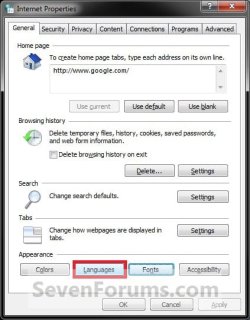
3. In the General tab under Appearance, click on the Languages button. (see screenshot below)
4. To Add a Language
A) Click on the Add button. (see screenshot below)
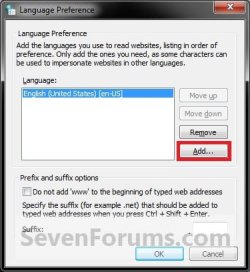
B) Select a language you want to add, and click on OK. (see screenshot below)

C) Repeat steps 4A and 4B until you have added all of the languages you want to use to read websites.
5. To Remove a Language
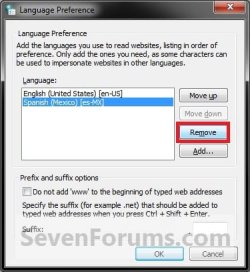
A) In the Language box, select a added language and click on Remove. (see screenshot below)
B) Repeat until you have removed all of the languages that you do not want to use anymore to read websites.
6. To Arrange Languages in Order of Preference -
NOTE: If you added more than one language, then you should arrange them in order of preference (priority). If a website is available in multiple languages, the content will be displayed in the language that has the highest priority at the top of the list.
A) In the Language box, select a added language and click on the Move up (higher priority) or Move down (lower priority) buttons to arrange the languages in order of priority. (see screenshots below)
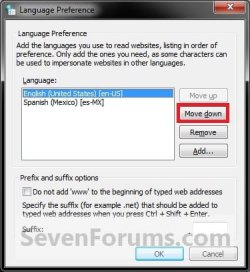
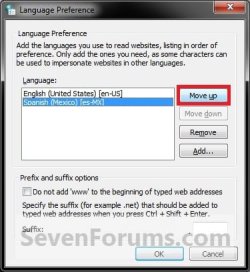
B) Repeat until you have all added languages arranged in the order of priority you want.
7. When finished, click on OK. (see screenshot below)
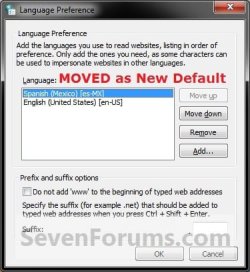
8. Click on OK. (see screenshot below step 3)
9. You may need to either refresh (F5) or close and reopen Internet Explorer to see the changes.
That's it,
Shawn
Last edited: