How to Add or Remove a Keyboard Input Language in Windows 7
Information
This will show you how to add or remove a keyboard input language to be able to change the keyboard layout for a specific language or format. The keyboard layout controls which characters appear on the screen when you press the keys on your keyboard. Some input languages have several keyboard layouts; others have only one. This can make it easier to enter text or edit documents in multiple languages.
Input languages are included with all editions of Windows 7, but you need to add them to your list of languages before you can use them. By default, your keyboard input language will be the same language selected during the installation of Windows 7.
Input languages are included with all editions of Windows 7, but you need to add them to your list of languages before you can use them. By default, your keyboard input language will be the same language selected during the installation of Windows 7.
Here's How:
1. Open the Control Panel (icons view), and click on the Region and Language icon.
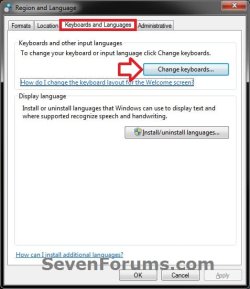
2. Click on the Keyboards and Languages tab, then click on the Change keyboards button. (see screenshot below)
3. To Add an Input Language and Keyboard Layout
NOTE: This will show you how to add a input language, and add keyboard layouts for the input language.
A) Under the General tab, click on the Add button in the Installed services section. (see screenshot below)
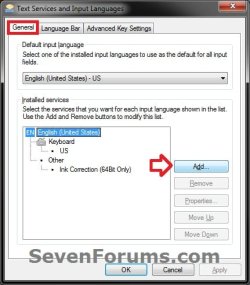
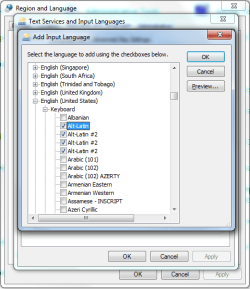
B) Select and expand (click on + sign) the input language (ex: Spanish (Mexico)) that you would like to add. Now expand the Keyboard option under the selected language, then check one or more keyboard layouts (ex: United States - International) that you would like to have available for this language. (see screenshot below)
Tip
- To see more keyboard layout options than what is currently listed check the Show More box. Uncheck the Show More box to return to the default list.
- To see a preview of the keyboard layout, select a keyboard layout under a language and click on the Preview button. Click on Close in the preview window to return to "Add Input Language".
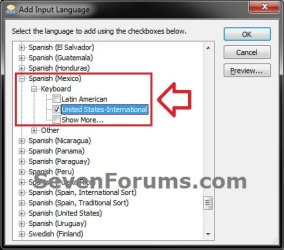
C) Repeat step 3B to add any other input languages and keyboard layouts for a language. When finished, click on OK. (see screenshot above)
D) Click on OK. (see screenshot below)

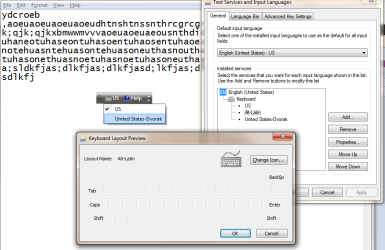
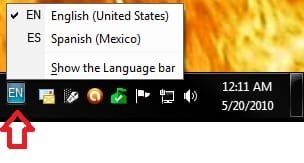
E) You will now notice a Language Bar icon added to the taskbar notifcation area that you can use to change the input language with. (see screenshot below)
F) Go to step 6.
4. To Remove an Input Language
A) You cannot remove a input language if it has been set as the default input language. If the input language you want to remove is set as default, then you will need to change the default input language to another input language first. (see screenshot below)
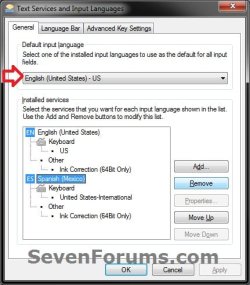
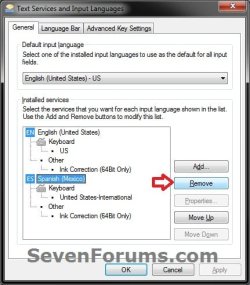
B) Under the General tab, select a input language (ex: Spanish (Mexico)) in the Installed services section, and click on the Remove button. (see screenshot below)
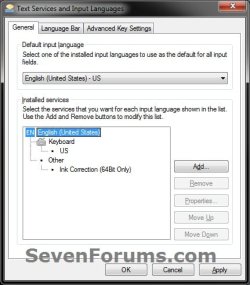
C) Click on OK. (see screenshot below)
D) Go to step 6.
5. To Remove a Keyboard Layout from an Input Language
A) You cannot remove a keyboard layout of a input language if it has been set as the default input language with that keyboard layout. If the keyboard layout you want to remove is set as default with the input language, then you will need to change the default input language to another input language or keyboard layout first. (see screenshot below)

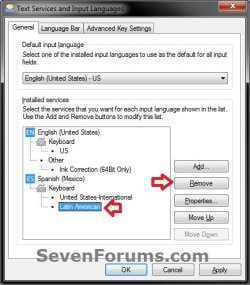
B) Under the General tab, select a Keyboard layout (ex: Latin American) of a input language (ex: Spanish (Mexico)) that you want to remove, and click on the Remove button. (see screenshot below)
C) Click on OK. (see screenshot below)
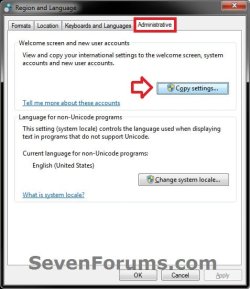
6. Click on the Administrative tab, and click on the Copy settings button (see screenshot below)
7. Check the Welcome screen and system accounts box. (see screenshot below)
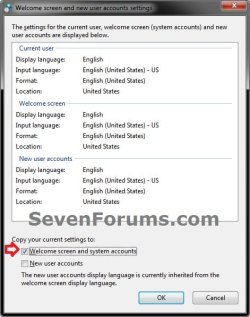
8. If you also want this applied to all new future created user accounts, then also check the New user accounts box. (see screenshot below step 7)
9. Click on OK. (see screenshot below step 7)
10. Click on OK. (see screenshot below step 6)
That's it,
Shawn
Related Tutorials
- How to Create a Region and Language Shortcut in Windows 7
- How to Change the Keyboard Layout in Windows 7
- How to See a Keyboard Layout Preview in Windows 7
- How to Hide or Show the Language Bar in Windows 7
- How to Change the Display Language in Vista and Windows 7 Ultimate and Enterprise
- How to Install and Uninstall Display Languages in Windows 7 Ultimate and Enterprise
- How to Copy Your Region and Language Settings to New Users and Welcome Screen
- How to Remove the Extra Language from your Language Bar
- How to Overwrite the Display Language of All Users with the System Display Language
Last edited: