How to Do a Windows Anytime Upgrade in Windows 7
Information
This method will allow you to upgrade your edition of Windows 7 and still keep your current programs, files, and settings intact.
Note
You can use Windows Anytime Upgrade to upgrade a 32-bit version to a 32-bit version or from a 64-bit version to a 64-bit version of Windows 7. However, Windows Anytime Upgrade can't upgrade a 32-bit version to a 64-bit version of Windows 7 or a 64-bit version to a 32-bit version of Windows 7.
From Windows 7
|
Anytime Upgrade to Windows 7
Starter|Home Premium, Professional, Ultimate
Home Basic|Home Premium, Professional, Ultimate
Home Premium|Professional, Ultimate
Professional|Ultimate
Windows Anytime Upgrade is only available for online purchase in Australia, Belgium, Canada, Germany, France, Italy, Japan, the Netherlands, Spain, Sweden, Switzerland, the United Kingdom, and the United States.
Update: Windows Anytime Upgrade is no longer available for online purchase
Starter|Home Premium, Professional, Ultimate
Home Basic|Home Premium, Professional, Ultimate
Home Premium|Professional, Ultimate
Professional|Ultimate
Windows Anytime Upgrade is only available for online purchase in Australia, Belgium, Canada, Germany, France, Italy, Japan, the Netherlands, Spain, Sweden, Switzerland, the United Kingdom, and the United States.
Update: Windows Anytime Upgrade is no longer available for online purchase
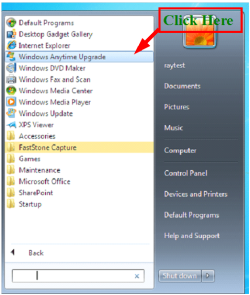
1) Click on Windows Anytime Upgrade
2) Click on Enter an upgrade key
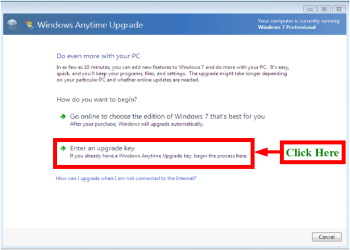
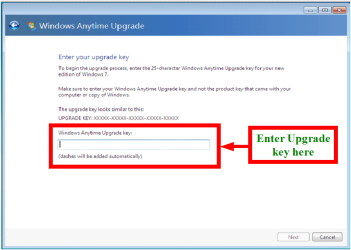
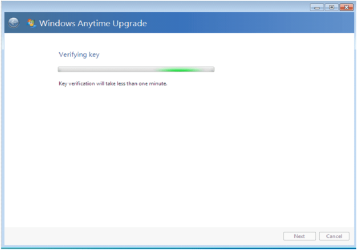
3) Enter Upgrade key
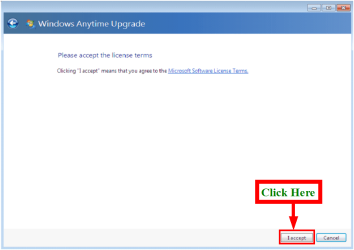
4) Click on I accept
5) Click on Close.
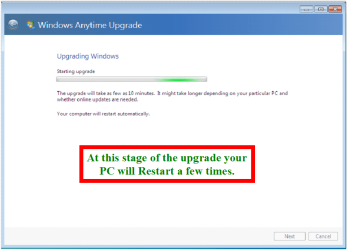
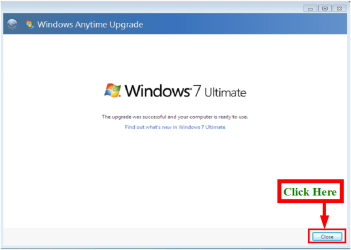
NOTE: When using Anytime Upgrade with SP1 installed, you may receive a message.
Upgrade was not successful.
First make sure, your Windows updates are up to date.
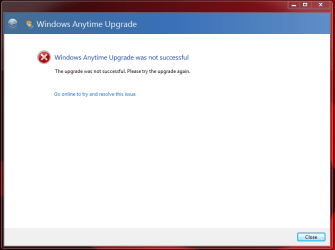
Close Window.
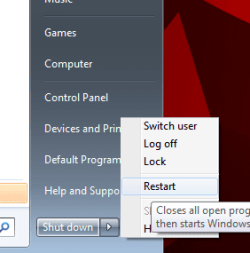
Manually RESTART your PC, & Upgrade will continue.
Last edited by a moderator: